
0 ITEMS

Amortization In Excel: A Step-by-Step Guide

Amortization in Excel helps you track loan payments and understand your debt over time effectively.
- Using Excel formulas like PMT, IPMT, and PPMT makes it easy to calculate payment schedules.
- An amortization schedule breaks down each payment into principal and interest, showing how your loan balance decreases.
- Customizing your schedule allows for extra payments and scenario analysis to save on interest.
- Visual charts in Excel can illustrate your repayment progress clearly.
- Accurate setup requires understanding key variables like loan amount, interest rate, and payment frequency.
Following these steps simplifies managing loans and improves your financial planning.
Getting Started with Excel
Before diving into the world of amortization, it’s essential to familiarize yourself with the basic functions and formulas in Excel. Whether you’re a beginner or an experienced Excel user, understanding the fundamentals will make the amortization process smoother. Excel offers a wide range of financial functions that can perform complex calculations. Start by opening a new Excel spreadsheet and setting up the necessary layout for your loan amortization schedule. Use different columns for variables such as Payment Number, Payment Amount, Principal Payment, Interest Payment, Remaining Balance, and Cumulative Interest. Once your spreadsheet is set up, you’re ready to begin the amortization process.
To calculate loan payments and generate an amortization schedule, you’ll need to input certain variables into your Excel spreadsheet. These variables include the loan amount, interest rate, loan term, and payment frequency. The loan amount is the total amount borrowed, while the interest rate represents the annual interest rate charged by the lender. The loan term refers to the number of years or months over which the loan will be repaid. Payment frequency determines how often you make payments, such as monthly, biweekly, or annually. Once you have these variables, you can proceed to the next step of setting up the formulas.
Setting Up Formulas for Amortization Calculations
Now that you have your variables in place, it’s time to set up the formulas in Excel to perform the amortization calculations. Excel offers several built-in functions that can simplify the process. For example, the PMT function can be used to calculate the loan payment amount based on the loan terms and interest rate. The IPMT function allows you to calculate the interest portion of each payment, while the PPMT function calculates the principal portion. The remaining balance can be calculated by subtracting the principal payment from the previous balance. By using these functions and formulas, you can automate the calculations for each payment period and generate the complete amortization table.
Once you have set up the formulas for the first payment, you can simply copy them down the entire column to calculate the remaining payments. Excel will automatically adjust the cell references in each formula to match the correct row. This allows you to generate an entire amortization schedule with just a few clicks. As you update the payment number, you’ll see the corresponding payment amounts, principal payments, interest payments, and remaining balances adjust accordingly. Having this detailed breakdown of each payment can help you understand how much of your monthly payment is going towards interest and how much is reducing the principal.
Benefits of Using Excel for Amortization
Utilizing Excel for amortization calculations offers several benefits for individuals and businesses. Firstly, it provides a clear visual representation of the loan repayment process. With the amortization schedule generated in Excel, you can easily track the progress of your loan and visualize how each payment reduces your outstanding balance. This visual representation can be particularly helpful for individuals who prefer a tangible way to monitor their loan repayment journey.
Secondly, Excel allows you to customize your amortization schedule to suit your specific needs and goals. For example, you can include additional columns to track optional payments, such as extra principal payments made throughout the loan term. By inputting these extra payments into your Excel sheet, you can see how they impact your overall repayment timeline and interest savings. This flexibility allows you to experiment with different scenarios and evaluate the most efficient strategies for paying off your loan.
Lastly, using Excel for amortization calculations provides a level of accuracy and efficiency that manual calculations may lack. With Excel’s built-in functions and formulas, you can minimize the risk of human error and save time in the calculation process. As a result, you can focus on making informed financial decisions based on accurate data and projections.
Considerations When Using Excel for Amortization
While Excel is a powerful tool for amortization calculations, it’s important to be mindful of a few considerations. Firstly, ensure that you have a good understanding of the inputs and formulas used in your Excel sheet. Making mistakes in these calculations can lead to inaccurate results and misinformed decisions. Take the time to double-check your inputs and formulas to avoid errors.
Secondly, be aware that Excel may have limitations when it comes to extremely complex amortization scenarios. If your loan involves unique terms or irregular payment structures, you may need to seek additional financial software or consult with a professional to ensure accurate calculations.
Conclusion
Mastering amortization calculations in Excel can provide valuable insights into your loan repayment journey, helping you make informed financial decisions. By familiarizing yourself with Excel’s functions and formulas, setting up the necessary variables, and generating an amortization schedule, you can gain a clearer understanding of your loan payments, interest costs, and overall financial obligations. Utilizing the power of Excel, you can streamline your financial planning and confidently navigate the world of loans and investments.
Remember, Excel is a versatile tool that can be adapted to suit your unique needs and goals. Explore different scenarios, adjust variables, and track your progress as you work towards becoming debt-free. With dedication and a robust amortization calculation methodology, Excel can be your partner in achieving financial success.
Key Takeaways: Amortization in Excel: A Step-by-Step Guide
- Amortization is the process of paying off a loan over time through regular installments.
- Excel can be a useful tool for calculating and tracking the amortization of a loan.
- To create an amortization schedule in Excel, use the PMT function to calculate the periodic payment.
- By inputting the loan amount, interest rate, and loan term, Excel can automatically calculate the principal and interest portions of each payment.
- With Excel’s built-in functions and formulas, it becomes easier to analyze the loan repayment schedule and make informed financial decisions.
Frequently Asked Questions
Amortization in Excel can be a complex process, but with the right guidance, it can be easily understood and implemented. In this step-by-step guide, we will answer common questions about amortization and how to use Excel effectively for this purpose. Whether you’re a student, a finance professional, or someone looking to manage their personal loans, this guide will provide the answers you need.
1. How can I calculate the monthly amortization in Excel?
To calculate the monthly amortization in Excel, you can use the PMT function. This function takes into account the loan amount, interest rate, and loan term to provide the monthly payment. Simply enter the loan details in the correct format, and Excel will give you the monthly amortization. You can also customize the function to suit specific scenarios, such as adding extra payments or adjusting for different compounding periods.
By using Excel’s PMT function, you can easily track and plan your loan payments, whether it’s for a mortgage, car loan, or personal loan. This helps you understand how much you need to pay each month and how it affects your overall debt repayment.
2. Can I create an amortization schedule in Excel?
Yes, you can create an amortization schedule in Excel with the help of formulas and functions. An amortization schedule provides a detailed breakdown of each loan payment, showing the interest and principal portions for each period. This allows you to see how your loan balance decreases over time and how much interest you’re paying at each stage of repayment.
To create an amortization schedule in Excel, you can use a combination of formulas such as IPMT (interest payment), PPMT (principal payment), and balance calculation. By inputting the necessary loan details, you can generate a comprehensive amortization schedule that helps you visualize your loan repayment journey.
3. How can I include additional principal payments in Excel amortization?
If you want to include additional principal payments in your Excel amortization schedule, you can adjust the PMT function accordingly. By adding the extra amount you want to pay towards the principal, you can calculate the revised monthly payment that includes the additional contribution.
This allows you to see the impact of extra principal payments on the overall loan term and interest savings. By paying extra towards the principal, you can shorten the loan duration and reduce the total interest paid over time. Excel provides a flexible platform to incorporate these additional payments and track their impact on your loan repayment strategy.
4. How do I use Excel to analyze the impact of different interest rates on amortization?
Excel is a powerful tool for analyzing the impact of different interest rates on amortization. By utilizing the PMT function and varying the interest rate parameter, you can compare the monthly payments, total interest paid, and loan duration for different interest rate scenarios.
This allows you to make informed decisions when selecting loans or negotiating interest rates. By understanding the relationship between interest rates and amortization, you can choose the most favorable terms that suit your financial goals and budget.
5. Can I create a visual representation of amortization in Excel?
Excel offers various charting tools that enable you to create visual representations of amortization. By using line graphs, column charts, or area charts, you can showcase the loan balance, principal and interest portions, and other relevant data points in a visually appealing manner.
Visualizing amortization data in Excel can help you better understand the progress of your loan repayment and identify trends or patterns. It makes it easier to communicate the information to others and provides a visual context for decision-making regarding your loan management.
In summary, the article discussed the importance of adhering to specific criteria when writing a wrap-up. The writer should adopt a third-person point of view and maintain a professional tone suitable for a 13-year-old reader. It is crucial to use a conversational tone with simple language and avoid jargon. Additionally, the wrap-up should consist of concise sentences, each presenting a single idea and not exceeding 15 words. The objective is for the reader to grasp the key points of the article in just two paragraphs.


The Solar Energy Financial Model Spreadsheet Template in Excel assists you in preparing a sophisticated financial forecast for a utility-scale solar p... read more

The Mobile App Financial Plan Template in Excel allows you to develop financial projections when launching a new business centered around an app insta... read more


The Private Equity Fund Cashflows Model helps LPs and GPs analyze fund cash flows, returns, and distributions across investor, manager, and portfolio ... read more

The Pharma Biotech Valuation Model Template calculates the risk-adjusted DCF Value of a Pharma or Biotech Startup Company with several products under ... read more

The SaaS Business financial model offers valuable assistance in preparing a budget and multi-year financial plan for a Software as a Service (SaaS) bu... read more


The Coffee Shop Financial Model helps entrepreneurs, founders, business owners, consultants, and analysts turn a cafe concept into a structured financ... read more

This Discounted Cash Flow (DCF) valuation calculator template projects a three-statement model that allows users to value a company based on the net p... read more

The Hotel Investment Financial Model provides a framework to forecast the expected cash flows for a hotel investment and calculates the relevant inves... read more

The Hotel Financial Model helps users build a structured financial forecast for a hotel business using the revenue drivers that matter most in hospita... read more

The Upstream Oil & Gas Project Financial Model Template in Excel empowers you to project and dissect your impending Oil and Gas drilling ventures. Pre... read more


Lifetime access to all future templates as well! Here is a set of spreadsheets that have some of the most valuable logic in the world. I have been thr... read more

A commercial real estate valuation model template assists in running a professional DCF Valuation for a commercial property such as an office building... read more

We are introducing our 4-Tier Waterfall Profit Distribution Model. The waterfall profit distribution model template aims to support a thorough analysi... read more

The Wind Farm Financial Model provides a powerful 40-year forecast, capturing critical data on energy production, revenues, operating costs, and debt ... read more


This is a financial model template for a new private school startup business. The Excel model allows forecasting the cash flows over the next 10 years... read more

Feeling overwhelmed by the daunting task of financial forecasting? This FREE Download 5-Year Three Statement Financial Model Excel Template offers you... read more


Dynamic 10-Year Financial Model, suitable for any type of business, supporting strategic planning, investment decisions, and business valuation.

This green hydrogen financial model template builds a multi-year financial plan to analyze the financial feasibility and profitability for the product... read more

Investors can assess the viability of setting up and investing in gasoline stations with a charging station by downloading a financial model for their... read more

The Grocery Store Financial Model helps entrepreneurs, founders, consultants, analysts, and retail business owners build a structured financial foreca... read more

The Manufacturing Financial Model provides a framework to accurately forecast the financial statements of a manufacturing company over the next 10 yea... read more

Key logic designed to forecast cash flow up to 10 years for a fitness center that has recurring monthly fees. Fully integrated 3-statement model, cap ... read more


The Model Incorporates data provided by different available sources to Model an Electrolysis financial model. It includes Electrolyzer cost, Dispenser... read more

The Outpatient Clinic Financial Model helps users turn a clinic business concept into a structured, editable financial forecast. Instead of relying on... read more


Air BnB Financial Model Template presents the business case of the purchase of up to 5 properties with the intent of utilizing them as short term rent... read more

The beverage manufacturing industry is a dynamic and rapidly growing sector that caters to a diverse market ranging from soft drinks and juices to alc... read more

Includes all the assumptions you need to project the gross revenues and profits of a LaaS platform (Lending as a Service). 3-statement model and cap t... read more

This is a simple capitalization (cap) table template which allows entrepreneurs to understand the dilution effect of capital raisings and a simple sto... read more

Highly-sophisticated and user-friendly financial model for Startup Companies providing a 5-Year advanced financial forecast.

The Gold Mine Investment Model is used to determine the financial feasibility of a proposed Gold Mine Investment. The Financial Model outputs IRR and ... read more

Airport Operator Financial Model presents the business case of an already operating airport (with planned refurbishments) and an investment in a new t... read more

The Bakery Financial Model helps entrepreneurs, bakery owners, consultants, analysts, and business plan writers turn a bakery concept into a structure... read more

The Cafe Financial Model is a ready-to-use financial model template designed to help entrepreneurs, cafe owners, founders, consultants, and analysts b... read more


Average rating:Submit Rating
Model for in depth understanding of high level profit and loss and revenue analysis. Big-4 like checklist of due diligence analyses. This Financial Du... read more

The Clothing Store Financial Model helps turn a retail apparel concept into a structured financial forecast that can be used for planning, funding, bu... read more

This detailed, yet easy to use three statement financial model will allow you to calculate your business' profit and loss, build a balance sheet and c... read more

A general real estate model to plan all assumptions for up to 7 'uses' for a given property. Includes development / acquisition, leverage if desired, ... read more

The rental property financial model calculates the homeowner's IRR and long it takes to repay a mortgage when the property is rented. The financia... read more

The IRR Project Finance Analysis forecasts the expected financials for a greenfield project and calculates the levered and unlevered Internal Rate of ... read more

Plan out the financial plan your hair or beauty salon. The beauty & hair salon business plan goes up to 10 years and has plenty of granularity.

The Online Clothing Store Financial Model helps founders, entrepreneurs, business owners, consultants, and analysts turn an apparel e-commerce idea in... read more


Authorities and Responsibilities Matrices are considered important to organizations due to their role in identifying and documenting decisions that ar... read more

The Biogas Financial Model forecasts the expected financials for a Biogas plant project and calculates the IRR and NPV values for the project.

The template allows the user to calculate the net present value (NPV), internal rate of return (IRR) and payback period from simple cash flow stream w... read more

The Dental Clinic Financial Model helps users turn a dental practice concept, launch plan, or expansion strategy into a structured five-year financial... read more

This poultry financial model template in Excel provides a framework to determine the financial feasibility of a new poultry project for producing bro... read more

The purpose of this financial model is to evaluate the financial feasibility of a waste to energy project such as e.g. a landfill gas plant. The model... read more

Start Up Solar Farm Excel Model presents the business case of an investment in the construction of a solar farm and the sale of the energy generated f... read more

This is a collection of ready-made Excel financial model templates for real estate businesses and its related sectors.

This is a simple fundraising financial model template in Excel. Enter your business plan, calculate the amount of funding required and allocate the eq... read more

Launching a manufacturing startup can be complex, and securing financing requires a solid financial plan. Our Manufacturing Startup Financial Feasibil... read more


The FMCG Financial Model provides a framework to accurately forecast the financial statements of a FMCG company over the next 8 years. The model uses ... read more

The purpose of this model is to provide a simple way to see the financial statements for many companies in i file

The Hotel Valuation Financial Model provides a simple way to forecast the expected cash flows for a hotel investment and calculates the relevant inves... read more

The Spa Financial Model helps entrepreneurs, spa owners, consultants, analysts, and business planners turn a wellness concept into a structured five-y... read more

!! Kindly use the latest Microsoft Excel Version before purchasing the model, otherwise, the dynamic dashboard will NOT work.!! Inventory Dashboard Mo... read more


This financial model can be used to evaluate the financial feasibility of a real estate development project and present it in investor grade quality t... read more
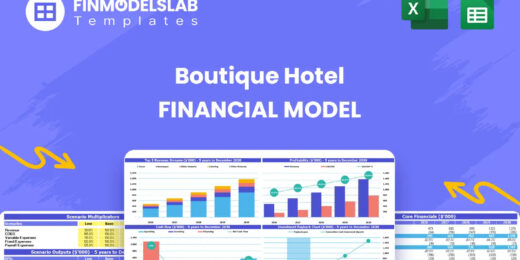
The Boutique Hotel Financial Model Financial Model Template helps entrepreneurs, hotel owners, consultants, analysts, and founders turn a boutique hos... read more


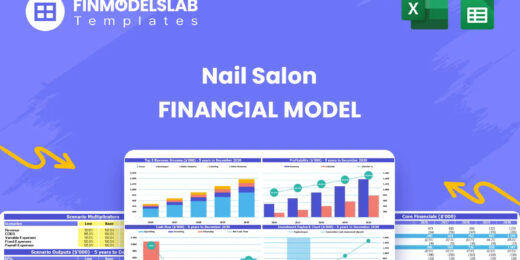
The Nail Salon Financial Model Financial Model Template helps entrepreneurs, salon owners, consultants, analysts, and business plan writers turn a nai... read more

This chicken egg farming model aims to plan the operations, financial feasibility, and profitability of a new poultry egg farming business. This Start... read more

This monthly budget-to-actual dashboard allows for at-a-glance performance analysis. In addition to analyzing YTD performance, it also provides a revi... read more

Set your KPI objectives and your month to month financial results and Financial Dashboard Excel Template will take care of creating the beautiful Grap... read more


This excel template is great for those wanting a professional-looking forecast 10 years of financial statements, those starting out as an entrepreneur... read more

The Residual Land Value Calculation model allows you to determine the value of a piece of land from a developer's point of view by analyzing how much ... read more

This coffee farm financial feasibility model template prepares a financial plan for your next coffee growing project! Figure out the expected incomes ... read more

Professional Financial Modeling - Tailor Made Services and assistance for your business needs.
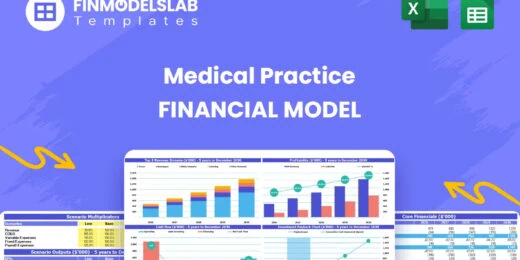
The Medical Practice Financial Model helps users turn a clinic concept, expansion plan, or healthcare service idea into a structured five-year financi... read more

Average rating:Submit Rating
This model is profit and loss statement for general trading including comparison for the current month, year to date and full year
Average rating:Submit Rating
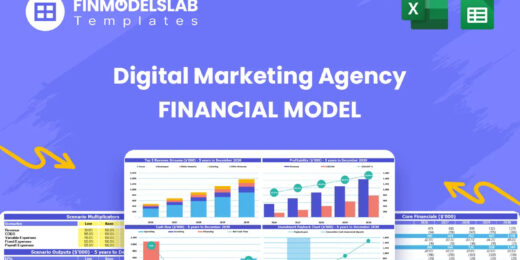
The Digital Marketing Agency Financial Model helps agency founders, business owners, consultants, and analysts build a structured financial forecast f... read more
Average rating:Submit Rating
The Solar Panel Manufacturing Financial Model helps users turn a solar factory concept into a structured, investor-ready financial forecast. It is des... read more
The Car Rental Financial Model helps entrepreneurs, founders, business owners, consultants, and analysts turn a rental car business idea into a struct... read more
The Travel Agency Financial Model helps entrepreneurs, founders, consultants, analysts, and business owners build a structured financial forecast for ... read more

This is a collection of financial model templates for projects or ventures in the Renewable Energy Industry and its related sectors. The total value ... read more
" The Restaurant Financial Model helps users turn a restaurant concept into a structured, editable financial forecast without building complex spreads... read more
The Pizza Restaurant Financial Model Template helps entrepreneurs, restaurant owners, consultants, analysts, and founders turn a pizza restaurant conc... read more

The Personal Budgeting App Financial Model Financial Model Template helps founders, entrepreneurs, consultants, analysts, and business planners turn a... read more

This is a collection of financial model templates that provides the financial projections and valuations for Real Estate businesses and its related se... read more

A 5-year financial model tailored to starting a golf course and projecting financial performance for its business plan. Includes financial statements.
The Resort Financial Model Financial Model Template helps resort developers, hospitality entrepreneurs, business owners, consultants, and analysts tur... read more
The Beauty Salon Financial Model helps entrepreneurs, salon owners, consultants, analysts, and founders turn a salon business idea into a structured f... read more

The Real Estate Portfolio Financial Model Template forecasts the financial performance when building a real estate portfolio. The model allows simulat... read more
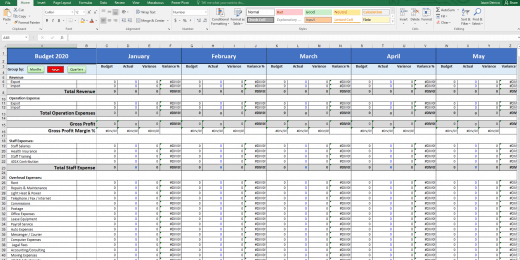

The Budget vs. Actual financial model is used to measure actual results against the budget projected for the financial period.
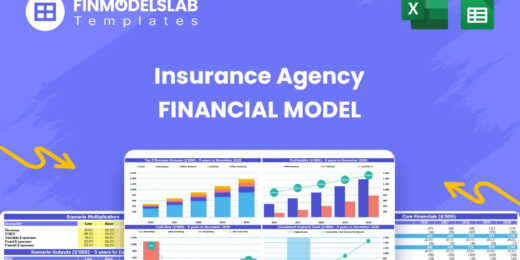
The Insurance Agency Financial Model helps entrepreneurs, agency owners, consultants, analysts, and business planners build a structured financial for... read more

Project Finance Model for a Solar (PV) Power Plant projecting revenue, operating costs, and cash flow based on installed capacity, solar irradiance, p... read more

The Mergers & Acquisition (M&A) Model provides a projection for a company looking to potentially merge or acquire another company. This model runs... read more

Average rating:Submit Rating
Optimize where an extra principal payment should go and see the total cash flow savings when you have multiple loans.


A professional template to budget payroll expenses

Average rating:
A self-made Modeling Test with a solution for Onshore Wind Turbines plant. The case study is in Chile assuming a 376 MW Capacity. The download include... read more

The model presents an example of a Monte Carlo Simulation using excel to estimate the Net Present Value of an investment.

Highly dynamic financial model that is specific to renting equipment out. High attention paid to the cash flows and timeliness of them so the user has... read more

Commercial Banking Financial Model presents the case of a commercial bank with regulatory thresholds based on Basel 3. The model generates the three f... read more

Average rating:Submit Rating
Financial model template for a high-level real estate brokerage firm that facilitates the buying and selling of real estate properties between buyers ... read more
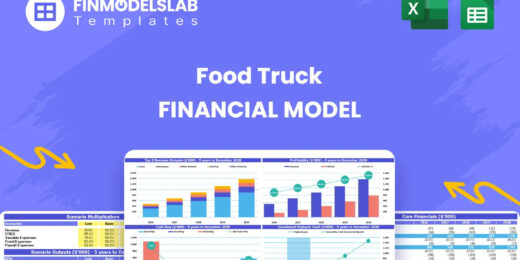
The Food Truck Financial Model helps entrepreneurs, founders, business owners, consultants, and analysts turn a mobile food business idea into a struc... read more

Distilleries, with their rich history of crafting spirits, have experienced a resurgence in popularity, driven by consumer interest in artisanal and l... read more

Leveraged Buy Out (LBO) Model presents the business case of the purchase of a company by using a high level of debt financing. The model generates the... read more

Offering you with Custom financial modeling services or assistance by an experienced financial modeling team called Big4WallStreet.

Advanced 10-year financial model for a Software as a Service (SaaS) business providing a solid financial foundation to evaluate scalability, optimize ... read more

The DCF Valuation Model for Restaurants provides a business plan in the form of an Excel Template to value a restaurant based on the Discounted Cash F... read more


Average rating:Submit Rating
Online Car Rental Platform Business Plan Model is a perfect tool for a feasibility study on launching an online car rental business.

Allow a potential miner to see visually and numerically (annual basis) what their possible financial position would look like when starting up an open... read more


User-friendly Excel model intended for the preparation of a Cost-Benefit Analysis to determine the financial viability for a proposed project or inves... read more

Our Net Present Value Calculator in Excel helps you quickly assess the profitability of your investments by simplifying complex financial calculations... read more
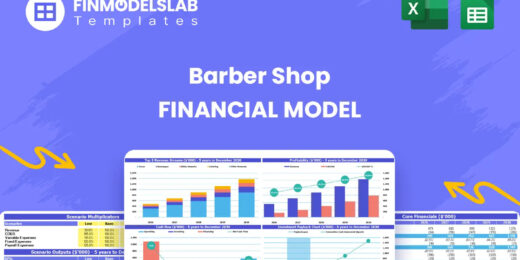
The Barber Shop Financial Model Financial Model Template helps entrepreneurs, business owners, consultants, and analysts turn a barber shop concept in... read more

Merger and Acquisition Model template consists of an excel model which assists the user to assess the financial viability of the resulting proforma me... read more

Airline Operator Financial Model presents the case of a company operating an airline business. The model generates the three financial statements, a s... read more

Setting up a biodiesel manufacturing plant requires a comprehensive and executed business strategy. To assess biodiesel production's financial sustain... read more

There are currently 52 unique financial models included in this bundle. Nearly all of that include a fully integrated three statement model and all of... read more

Best practice model for a complete Price Volume Mix (PVM) analysis on revenue and on gross profit by product.

The Clinical Laboratory Financial Model helps users turn a diagnostic lab concept into a structured five-year financial forecast. It gives entrepreneu... read more
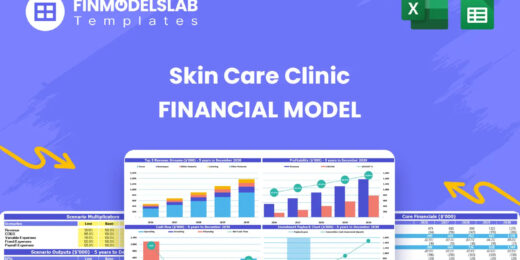
The Skin Care Clinic Financial Model helps entrepreneurs, clinic owners, consultants, analysts, and business planners turn a skin care or aesthetic cl... read more
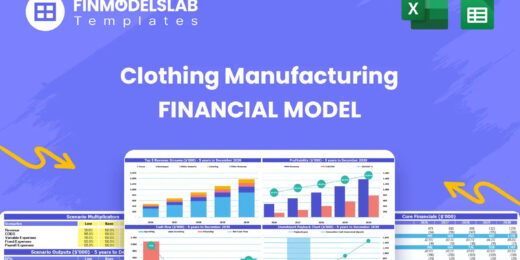
The Clothing Manufacturing Financial Model helps users turn a garment production concept into a structured, editable financial forecast. It is built f... read more
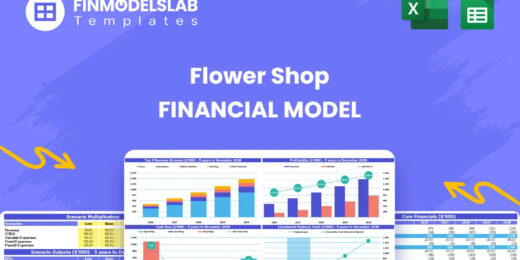
The Flower Shop Financial Model helps entrepreneurs, florists, business owners, consultants, and analysts turn a floral retail concept into a structur... read more
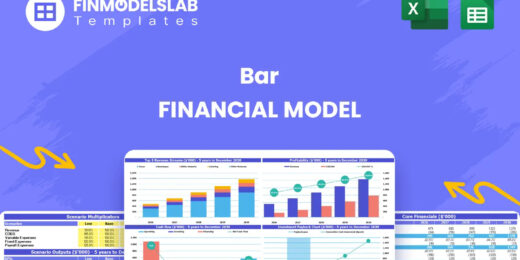
The Bar Financial Model Financial Model Template helps entrepreneurs, bar owners, consultants, analysts, and founders turn a bar, pub, lounge, or nigh... read more
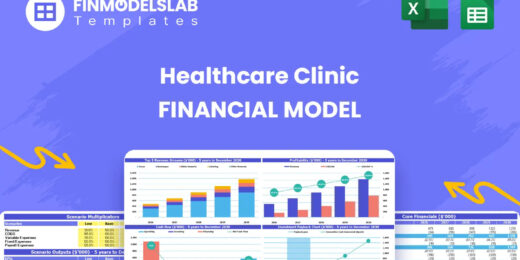
The Healthcare Clinic Financial Model helps founders, clinic owners, consultants, analysts, and business planners turn a healthcare clinic concept int... read more

Unlock the power of informed financial decision-making with our WACC Calculator! Dive into accurate discount rate estimations and empower your busines... read more

The Green Hydrogen from Wind Financial Model aims to comprehensively forecast a horizon of 40 years of the financial feasibility and profitability of ... read more

The Laundry Service Financial Model helps entrepreneurs, business owners, consultants, analysts, and founders build a structured financial plan for a ... read more

Shopping Mall Financial Model presents the case of an investment into a shopping mall and its operation. The model generates the three financial state... read more

Financial Model providing a 10-year financial plan for a startup or operating Subscription Business.
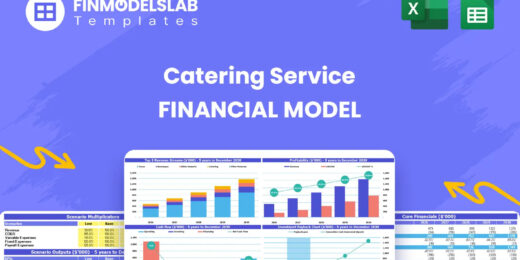
The Catering Service Financial Model helps users turn a catering business plan into a structured, editable financial forecast. Instead of relying on r... read more

With this comprehensive 5- or 10-year monthly tool, investors can assess the viability of setting up and investing in an EV charging station business ... read more

The Freight Brokerage Financial Model Financial Model Template helps entrepreneurs, founders, business owners, consultants, and analysts turn a freigh... read more

The Law Firm Financial Model Template helps users turn a legal practice concept into a structured five-year financial forecast. It is designed for att... read more

The Cattle Farming Financial Model helps users turn a cattle farm concept, expansion plan, or funding proposal into a structured financial forecast. I... read more

Average rating:Submit Rating
Build up to a 10 year financial forecast with assumptions directly related to the startup and operation of a franchisor. Formal statements and reports... read more

5-year financial model for a hair and beauty salon providing revenue forecasts, cost analysis, and insights to support growth and profitability.
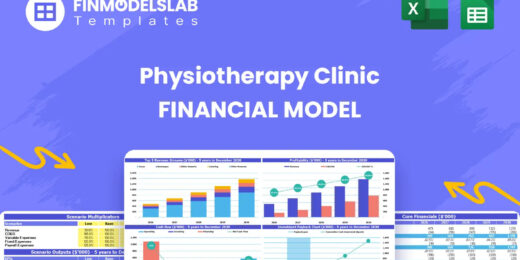
The Physiotherapy Clinic Financial Model helps founders, clinic owners, consultants, analysts, and business plan writers turn a physiotherapy clinic c... read more
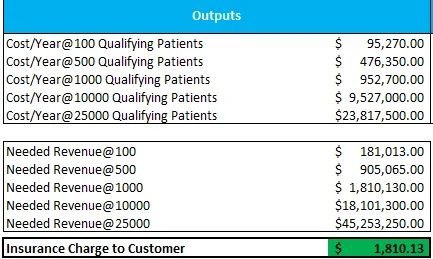
Ever wondered how much you need to charge in order to offer insurance on a given product or service? You will know how much after using this tool.
Average rating:Submit Rating
Financial Modeling Tutorial guides user via step by step approach on how to build financial models with DCF valuation


This Hotel / Holiday Resort Development Model will take you through a 20-year period of Three Statement Analysis and provide you with key valuation da... read more
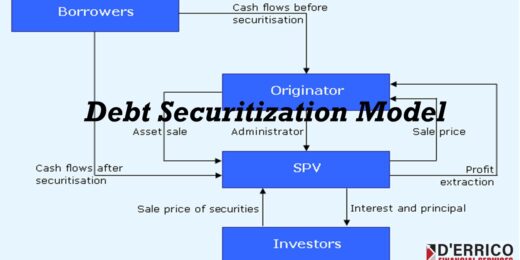
The Debt Securitization is the process of packaging debt into a Securitization Vehicle sold to a Fiduciary where it is converted into bonds sold to in... read more

This Free Project Management Template in Excel allows to prepare a project plan with a GANTT chart in MS Excel.
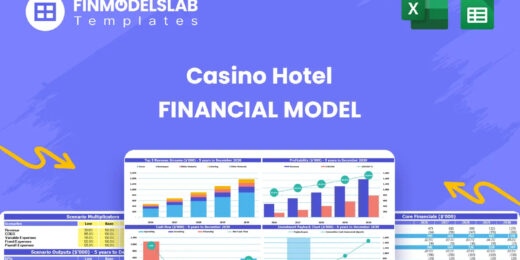
The Casino Hotel Financial Model helps users build a structured five-year forecast for an integrated hospitality and gaming business. Instead of relyi... read more

Steel Industry Financial Model presents the business case of the operation of a steel plant using the mini mill technology. The model generates the th... read more
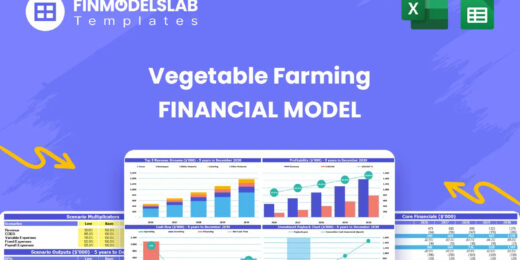
The Vegetable Farming Financial Model helps users turn a farming concept, expansion plan, or funding proposal into a structured financial forecast. In... read more
Simply open the files using MS Excel
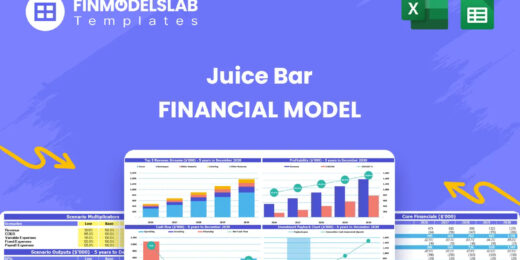
The Juice Bar Financial Model helps entrepreneurs, founders, consultants, analysts, and business owners turn a juice bar or beverage service concept i... read more
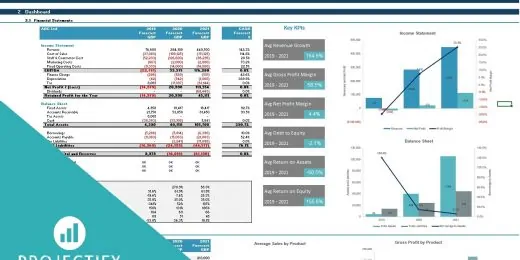
User-friendly Excel model intended for the preparation of a 3 statement (Income Statement, Balance Sheet and Cashflow Statement) financial projection ... read more

Average rating:Submit Rating
Electric Vehicle (EV) charging Station FM helps user asses financial viability of setting up and operating a charging station.

This financial model can be used to value any Initial Public Offering (IPO) using Option Value, DCF and Relative Valuation.

Average rating:Submit Rating
3 statement 5 year rolling financial projection Excel model for a startup /existing manufacturing business

Average rating:Submit Rating
Fully-Vetted Comprehensive Cloud Services Financial Model + Video Series + eBook
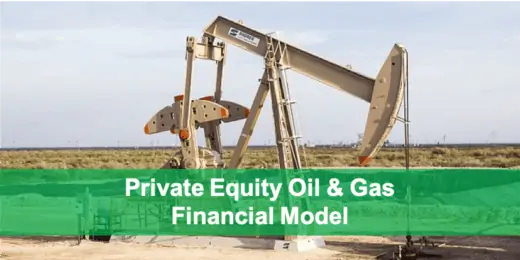
The Private Equity Oil and Gas Financial Model evaluates the financial feasibility and investor returns when investing in a portfolio of upstream oil ... read more

The Food Manufacturing Financial Model helps entrepreneurs, founders, consultants, analysts, and business owners turn a food production concept into a... read more

This financial model attempts to give the user a full scope of starting a 250 bed (adjustable) hospital. It will allow for all revenue and cost assump... read more
Average rating:Submit Rating
The SaaS Business Financial Model helps founders, entrepreneurs, consultants, analysts, and business owners build a structured financial plan for a so... read more

Financial model presenting a Crop Farm business scenario.
The Candy Store Financial Model helps entrepreneurs and planners turn a retail confectionery concept into a structured financial forecast. Instead of ... read more
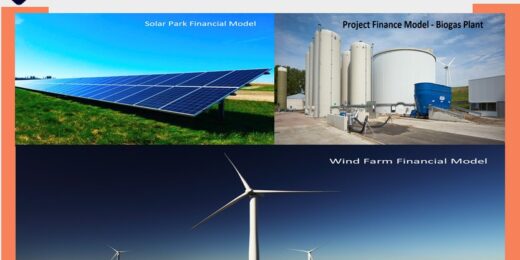
Take this opportunity and get a discount by getting the Renewable Energy Bundle where you get Solar, Wind and Bio Gas Plant Financial Model Templates!
You might also like:
- 10 Awesome Excel Formulas To Use For Your Next Financial Model In Excel
- 10 Tips to Develop a First Class Business Valuation Report
- 10 Main Elements of a Business Plan
- How to Use Excel for Financial Analysis?
- How to Build a Capitalization Table
- Credits Agreements: How does it work and Types of Facilities
- Understanding Debt Sizing & Project Finance Ratios
- How to Calculate Net Present Value (NPV)?
- Financial Modeling for Startups and Small Businesses
- How to Make Smart Decisions with 6 Key Financial Metrics?
- Amortization
- Business Plan Models – Using Business Models as Examples
- Budgeting
- Financial Statements – Definition, Uses, Contents and Templates
- Cash Flow Statement: Streamline Financial Success
- Financial Model Templates Easy to Use
- Investment
- Loans and Debt
- Debt Amortization Table
- Cash Flow Analysis in Excel

eFinancialModels Team
Content Manager
The eFinancialModels Team showcases the combined expertise of seasoned professionals in financial modeling, valuation, and business analysis. Our goal is to share practical knowledge, insights, and best practices drawn from real-world experience across industries such as renewable energy, real estate, SaaS, manufacturing, and finance.
Through our articles and templates, we aim to make complex financial modeling concepts accessible and actionable—helping entrepreneurs, investors, and finance professionals make smarter business decisions.


