
0 ITEMS

Efficient Grocery Shopping With an Excel Spreadsheet List

Using an Excel grocery list can make shopping more organized and cost-effective.
- Digital lists help track spending and stay within your budget.
- Categorizing items by aisle or type speeds up your shopping trip.
- Updating your list regularly prevents duplicates and reduces food waste.
- Leveraging Excel’s sorting and filtering features allows quick identification of deals and priorities.
- Creating reusable templates saves time and keeps your grocery routine efficient.
Next, we’ll look at how to set up and optimize your Excel grocery spreadsheet for everyday use.
The Evolution Of Grocery Shopping
The way we shop for groceries has changed dramatically over time. Not so long ago, a simple piece of paper and a pen were the go-to tools for remembering what to buy from the store. But with the digital age, grocery shopping has transformed into a more organized and efficient task. It’s fascinating to witness the journey from physical lists to utilizing powerful digital tools like Excel for our everyday shopping needs.
From Pen And Paper To Digital Lists
Remember those days when shopping lists were just a hurried scrawl on the back of an envelope? People would walk into stores clutching crumpled pieces of paper. Lost lists were a common woe. Now, our smartphones hold the key to smarter shopping. Today’s shoppers prefer managing everything digitally – no more fear of forgetting that paper at home!
The Rise Of Spreadsheet Savvy Shoppers
Grocery shopping has taken a leap into the future with spreadsheets. Shoppers now capitalize on Excel’s robust features to categorize items, track spending, and even share lists with family members. The efficiency of using an Excel spreadsheet for your grocery list means you can swiftly update it on-the-go, reuse it for future trips, or tailor it to your budget with just a few clicks.
Consider the typical spreadsheet advantages:
- Organization: Sort items by aisle or category.
- Customization: Highlight sale items or dietary needs.
- Cost Tracking: Monitor spending and stay on budget.
Here’s an example of how a simple grocery list might look in an Excel spreadsheet:
| Item | Category | Quantity | Price |
|---|---|---|---|
| Milk | Dairy | 1 gallon | $3.50 |
| Bread | Bakery | 2 loaves | $4.00 |
| Eggs | Dairy | 1 dozen | $2.99 |
As you can see, digital lists in spreadsheets not only increase efficiency but also make shopping a hassle-free experience. Happy shopping!
Key Benefits Of Using An Excel Spreadsheet
The key benefits of using an Excel spreadsheet for efficient grocery shopping are significant. Excel not only helps organize shopping lists but also ensures that you keep track of your spending and avoid overbuying. Familiarizing yourself with spreadsheet functions can transform your routine shopping trip into a streamlined, cost-effective outing.
Streamlining The Shopping Process
Excel spreadsheets simplify the shopping experience in several ways:
- Orderly Lists: Categorize items by type or store layout.
- Running totals: Automatic calculations keep your budget in check.
- Reusable templates: Save time by updating the same list each trip.
A well-organized Excel list can reduce the time you spend in the store. It ensures you hit every section once and avoid backtracking. Efficient shopping equals time saved.
Cutting Costs And Minimizing Waste
With Excel, you can keep your grocery spending in line:
| Budgeting | Waste Reduction |
|---|---|
| Track spending against your budget in real-time. | Buy only what you need, reducing excess. |
| Compare prices of goods to find the best deals. | Monitor expiration dates to use products judiciously. |
An Excel spreadsheet assists in identifying what you actually need versus what you might want on impulse. This not only cuts unnecessary costs but also helps minimize food waste by encouraging the purchase of appropriate quantities.
Creating Your Excel Grocery Spreadsheet
Mastering the art of efficient grocery shopping begins with organization. A meticulously crafted Excel grocery spreadsheet turns chaos into calm. Let’s dive into the process.
Designing The Layout
A well-structured layout is the foundation of your grocery spreadsheet. Start with a clean slate. Choose a simple, clear font.
- Columns for essentials: Item name, quantity, price, category, and a checkbox for purchase status.
- A separate row for each item: This makes your list clear.
- Freeze the top row: Keep headings visible while scrolling.
Create separate sections for different stores if needed. This keeps your shopping trips focused.
Inputting Items And Categories
The next step is to add your items and categories. Categories simplify shopping by grouping similar items. Examples include produce, dairy, and pantry staples.
| Item | Quantity | Category | Store |
|---|---|---|---|
| Apples | 5 | Produce | Supermarket |
| Milk | 1 Gallon | Dairy | Supermarket |
Remember to:
- Use clear, specific names for each item.
- Organize items by category for easier navigation.
- Add a ‘notes’ column for brand preferences or coupons.
With your Excel grocery spreadsheet crafted, you’re set to conquer the aisles with ease. Use it to track your needs, budget, and to ward off impulse buys.
Advanced Excel Features For Grocery Planning
When it comes to grocery shopping, efficiency is key. A well-organized Excel spreadsheet can transform the way you plan and shop. Excel’s advanced features, far beyond simple lists, offer dynamic functions. These functions turn your grocery list into a powerful tool.
Utilizing Filters And Sort Functions
Excel’s filters and sorting capabilities simplify your grocery list management. Imagine categorizing items swiftly. Think about finding the best deals.
- Filter by food type, such as dairy or produce.
- Arrange items by aisle to navigate stores easily.
- Sort by brand or price to quickly make decisions.
Start by labeling columns in your Excel sheet: More rows can be added here
| Item | Type | Brand | Aisle | Price |
|---|---|---|---|---|
| Almond Milk | Dairy Alternative | Brand A | 5 | $3.99 |
With categorized data, sort and filter according to your needs. Prioritize items within seconds. Focus on special offers or manage dietary requirements effortlessly.
Tracking Prices And Budgets
Finance control is crucial. Excel excels here. Track spending and stick to your budget.
- Input prices next to items on your list.
- Use the SUM function to calculate totals.
- Compare shop prices to see where to save money.
Create a budget overview with simple formulas:
=SUM(C2:C100)
=AVERAGE(C2:C100)
=MAX(C2:C100)
=MIN(C2:C100)
Identify trends in spending. Spot costly items. Adjust your shopping habits accordingly for financial well-being.
An Excel spreadsheet for grocery shopping turns a tedious chore into a strategic activity. Invest time into mastering these features, and see your efficiency skyrocket.
Maintaining And Updating Your Shopping List
Efficiently navigating the aisles of your local grocery store starts with a robust plan. Excel spreadsheets revolutionize the way people manage their groceries. Keep your shopping experience stress-free with a well-maintained Excel list. A sharp list ensures you buy exactly what you need. Discover the magic of updating and refining your grocery list.
Regular Updates And Inventory Checks
Stay on top of your pantry stock with regular inventory checks. Follow these simple steps:
- Review your inventory weekly:
- Mark off items you use.
- Add replacements for finished items.
Update your Excel list before each shopping trip. This practice keeps your pantry full and prevents buying duplicates.
| Item | In Stock | To Buy |
|---|---|---|
| Apples | No | Yes |
| Bread | Yes | No |
Evolving Your List With Shopping Habits
Your grocery list should grow with your habits. Track your purchases closely in the spreadsheet to spot patterns.
Consider these questions:
- What items do you buy the most?
- Which products are often left unused?
Adjust your list to focus on your real needs. Cut down on waste by skipping items that linger in your pantry. Boldly tailor your Excel list to match your daily life.
In conclusion, a dynamic Excel grocery list saves time, money, and energy. Let this smart tool guide your grocery shopping for maximum efficiency.
Real-life Examples And Success Stories
Everyone loves a story about triumph and success, especially when it comes to the weekly grocery run. With Excel spreadsheet lists, many have turned a stressful chore into a strategic victory. From families juggling meals and snacks to individuals stretching every penny, these real-life examples show the power of organized shopping. Let’s dive into how these success stories can inspire your next trip to the store.
Case Study: Family Of Four
The Smiths, a family with two kids, once found grocery shopping chaotic and costly. They switched to using an Excel spreadsheet and the changes were remarkable. The mum, Jane, shared how the list kept them on track:
- Planned meals for the week
- Avoided duplicate purchases
- Snagged deals and discounts
- Stuck to a healthier diet and budget
Their grocery bill dropped by 20%, and their food waste nearly disappeared. The Smiths’ experience shows that an Excel list can feed a family well while saving time and money.
Testimonials From The Budget-conscious Shopper
Single shoppers and students have also seen a huge impact. John, a college student, shared:
“Excel lists stopped my random snack runs. Now, I buy what I need and nothing goes to waste. I save about $50 a month!”
Lisa, who’s self-employed, found similar success:
“The Excel spreadsheet is my budgeting hero. I track prices and never overspend. Last month, I saved enough for a weekend getaway!”
These stories aren’t unique. They echo the benefits that come from incorporating a well-organized system into your shopping routine. A simple Excel list can lead to big savings and a fuller wallet.
Frequently Asked Questions
How Do I Create A Grocery List In Excel?
Open Excel and title the first column ‘Item’. Add ‘Quantity’ and ‘Category’ in the next columns. List your groceries under these headers, organizing by category for easier shopping. Save your document for future use.
How Do I Organize My Grocery Shopping List?
Organize your grocery shopping list by categories such as produce, dairy, meats, and pantry staples. Prioritize items based on store layout and personal needs. Use apps or a notepad for easy edits and visibility. Regular updates ensure an efficient and timely shopping experience.
How Do You Make An Efficient Shopping List?
To make an efficient shopping list, check your pantry and note missing items. Prioritize necessities over wants. Group items by store sections. Update the list frequently, and stick to it while shopping to avoid impulse purchases.
What Is A Master Grocery List?
A master grocery list is a comprehensive inventory of recurring items you typically purchase, simplifying your shopping routine.
Conclusion
Mastering the art of efficient grocery shopping is simpler with an Excel spreadsheet list. Embrace this smart approach to save time and reduce food waste. Your wallet and schedule will thank you as you navigate aisles with purpose. Try it on your next trip—the difference is truly game-changing.
https://www.youtube.com/watch?v=hF-Qm9cws7s


The Solar Energy Financial Model Spreadsheet Template in Excel assists you in preparing a sophisticated financial forecast for a utility-scale solar p... read more

The Mobile App Financial Plan Template in Excel allows you to develop financial projections when launching a new business centered around an app insta... read more


The Private Equity Fund Cashflows Model helps LPs and GPs analyze fund cash flows, returns, and distributions across investor, manager, and portfolio ... read more


The Coffee Shop Financial Model helps entrepreneurs, founders, business owners, consultants, and analysts turn a cafe concept into a structured financ... read more

This Discounted Cash Flow (DCF) valuation calculator template projects a three-statement model that allows users to value a company based on the net p... read more

The Hotel Financial Model helps users build a structured financial forecast for a hotel business using the revenue drivers that matter most in hospita... read more

The Upstream Oil & Gas Project Financial Model Template in Excel empowers you to project and dissect your impending Oil and Gas drilling ventures. Pre... read more

This Project Plan Template in Google Sheet allows you to quickly develop a project plan and plot a Gantt chart. Enjoy all the benefits of Google Docs ... read more

We are introducing our 4-Tier Waterfall Profit Distribution Model. The waterfall profit distribution model template aims to support a thorough analysi... read more


Dynamic 10-Year Financial Model, suitable for any type of business, supporting strategic planning, investment decisions, and business valuation.

This green hydrogen financial model template builds a multi-year financial plan to analyze the financial feasibility and profitability for the product... read more

Investors can assess the viability of setting up and investing in gasoline stations with a charging station by downloading a financial model for their... read more

The Grocery Store Financial Model helps entrepreneurs, founders, consultants, analysts, and retail business owners build a structured financial foreca... read more

The Outpatient Clinic Financial Model helps users turn a clinic business concept into a structured, editable financial forecast. Instead of relying on... read more

The beverage manufacturing industry is a dynamic and rapidly growing sector that caters to a diverse market ranging from soft drinks and juices to alc... read more

Highly-sophisticated and user-friendly financial model for Startup Companies providing a 5-Year advanced financial forecast.

The Bakery Financial Model helps entrepreneurs, bakery owners, consultants, analysts, and business plan writers turn a bakery concept into a structure... read more


Average rating:Submit Rating
Model for in depth understanding of high level profit and loss and revenue analysis. Big-4 like checklist of due diligence analyses. This Financial Du... read more

The Cafe Financial Model is a ready-to-use financial model template designed to help entrepreneurs, cafe owners, founders, consultants, and analysts b... read more

The Clothing Store Financial Model helps turn a retail apparel concept into a structured financial forecast that can be used for planning, funding, bu... read more

The Poultry Farming Financial Model helps users turn a poultry farm concept into a structured, lender-ready financial forecast. It is designed for pla... read more

The Online Clothing Store Financial Model helps founders, entrepreneurs, business owners, consultants, and analysts turn an apparel e-commerce idea in... read more

The Dental Clinic Financial Model helps users turn a dental practice concept, launch plan, or expansion strategy into a structured five-year financial... read more

This poultry financial model template in Excel provides a framework to determine the financial feasibility of a new poultry project for producing bro... read more


Start Up Solar Farm Excel Model presents the business case of an investment in the construction of a solar farm and the sale of the energy generated f... read more

Launching a manufacturing startup can be complex, and securing financing requires a solid financial plan. Our Manufacturing Startup Financial Feasibil... read more

The Spa Financial Model helps entrepreneurs, spa owners, consultants, analysts, and business planners turn a wellness concept into a structured five-y... read more

!! Kindly use the latest Microsoft Excel Version before purchasing the model, otherwise, the dynamic dashboard will NOT work.!! Inventory Dashboard Mo... read more
The Boutique Hotel Financial Model Financial Model Template helps entrepreneurs, hotel owners, consultants, analysts, and founders turn a boutique hos... read more
The Nail Salon Financial Model Financial Model Template helps entrepreneurs, salon owners, consultants, analysts, and business plan writers turn a nai... read more

This chicken egg farming model aims to plan the operations, financial feasibility, and profitability of a new poultry egg farming business. This Start... read more


This excel template is great for those wanting a professional-looking forecast 10 years of financial statements, those starting out as an entrepreneur... read more
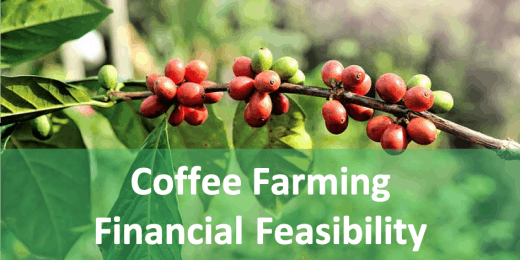
This coffee farm financial feasibility model template prepares a financial plan for your next coffee growing project! Figure out the expected incomes ... read more
The Fintech Startup Financial Model helps founders, analysts, consultants, and business planners turn a fintech lending concept into a structured five... read more
The Medical Practice Financial Model helps users turn a clinic concept, expansion plan, or healthcare service idea into a structured five-year financi... read more
Average rating:Submit Rating
The Digital Marketing Agency Financial Model helps agency founders, business owners, consultants, and analysts build a structured financial forecast f... read more
Average rating:Submit Rating
The Solar Panel Manufacturing Financial Model helps users turn a solar factory concept into a structured, investor-ready financial forecast. It is des... read more
The Travel Agency Financial Model helps entrepreneurs, founders, consultants, analysts, and business owners build a structured financial forecast for ... read more
" The Restaurant Financial Model helps users turn a restaurant concept into a structured, editable financial forecast without building complex spreads... read more
The Pizza Restaurant Financial Model Template helps entrepreneurs, restaurant owners, consultants, analysts, and founders turn a pizza restaurant conc... read more

The Personal Budgeting App Financial Model Financial Model Template helps founders, entrepreneurs, consultants, analysts, and business planners turn a... read more
The Resort Financial Model Financial Model Template helps resort developers, hospitality entrepreneurs, business owners, consultants, and analysts tur... read more

The Real Estate Portfolio Financial Model Template forecasts the financial performance when building a real estate portfolio. The model allows simulat... read more
The Beauty Salon Financial Model helps entrepreneurs, salon owners, consultants, analysts, and founders turn a salon business idea into a structured f... read more
The Fish Farming Financial Model template helps entrepreneurs, aquaculture founders, business owners, consultants, and analysts build a structured for... read more
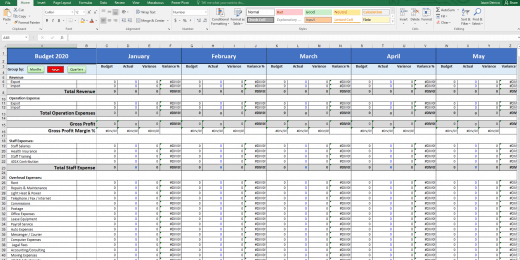

The Budget vs. Actual financial model is used to measure actual results against the budget projected for the financial period.

Project Finance Model for a Solar (PV) Power Plant projecting revenue, operating costs, and cash flow based on installed capacity, solar irradiance, p... read more
The Insurance Agency Financial Model helps entrepreneurs, agency owners, consultants, analysts, and business planners build a structured financial for... read more

The Mergers & Acquisition (M&A) Model provides a projection for a company looking to potentially merge or acquire another company. This model runs... read more


A professional template to budget payroll expenses


Average rating:Submit Rating
Financial model template for a high-level real estate brokerage firm that facilitates the buying and selling of real estate properties between buyers ... read more
The Food Truck Financial Model helps entrepreneurs, founders, business owners, consultants, and analysts turn a mobile food business idea into a struc... read more

Distilleries, with their rich history of crafting spirits, have experienced a resurgence in popularity, driven by consumer interest in artisanal and l... read more

Advanced 10-year financial model for a Software as a Service (SaaS) business providing a solid financial foundation to evaluate scalability, optimize ... read more

Our Net Present Value Calculator in Excel helps you quickly assess the profitability of your investments by simplifying complex financial calculations... read more


User-friendly Excel model intended for the preparation of a Cost-Benefit Analysis to determine the financial viability for a proposed project or inves... read more
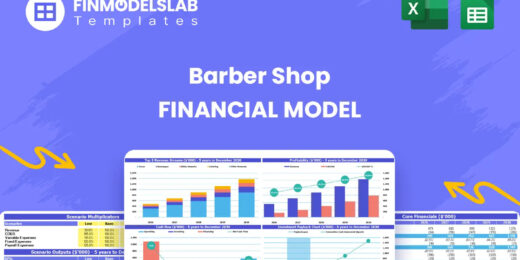
The Barber Shop Financial Model Financial Model Template helps entrepreneurs, business owners, consultants, and analysts turn a barber shop concept in... read more

Setting up a biodiesel manufacturing plant requires a comprehensive and executed business strategy. To assess biodiesel production's financial sustain... read more

Best practice model for a complete Price Volume Mix (PVM) analysis on revenue and on gross profit by product.

The Cannabis Business Financial Model is a ready-to-use financial model template designed to help entrepreneurs, founders, consultants, analysts, and ... read more

The Clinical Laboratory Financial Model helps users turn a diagnostic lab concept into a structured five-year financial forecast. It gives entrepreneu... read more
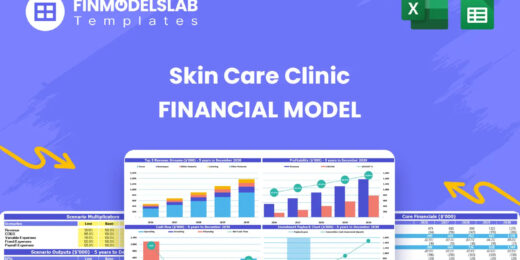
The Skin Care Clinic Financial Model helps entrepreneurs, clinic owners, consultants, analysts, and business planners turn a skin care or aesthetic cl... read more
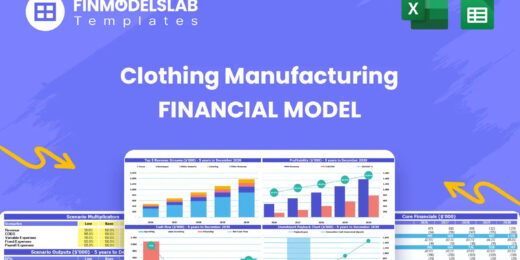
The Clothing Manufacturing Financial Model helps users turn a garment production concept into a structured, editable financial forecast. It is built f... read more
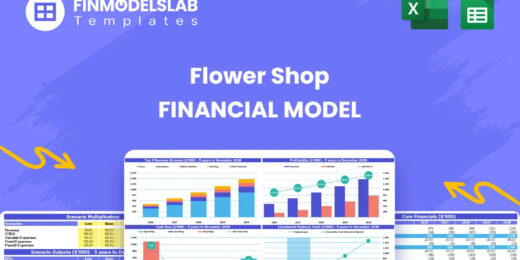
The Flower Shop Financial Model helps entrepreneurs, florists, business owners, consultants, and analysts turn a floral retail concept into a structur... read more
The Bar Financial Model Financial Model Template helps entrepreneurs, bar owners, consultants, analysts, and founders turn a bar, pub, lounge, or nigh... read more
The Healthcare Clinic Financial Model helps founders, clinic owners, consultants, analysts, and business planners turn a healthcare clinic concept int... read more

The Green Hydrogen from Wind Financial Model aims to comprehensively forecast a horizon of 40 years of the financial feasibility and profitability of ... read more

Shopping Mall Financial Model presents the case of an investment into a shopping mall and its operation. The model generates the three financial state... read more

With this comprehensive 5- or 10-year monthly tool, investors can assess the viability of setting up and investing in an EV charging station business ... read more

Financial Model providing a 10-year financial plan for a startup or operating Subscription Business.
The Catering Service Financial Model helps users turn a catering business plan into a structured, editable financial forecast. Instead of relying on r... read more

5-year financial model for a hair and beauty salon providing revenue forecasts, cost analysis, and insights to support growth and profitability.
The Physiotherapy Clinic Financial Model helps founders, clinic owners, consultants, analysts, and business plan writers turn a physiotherapy clinic c... read more

Average rating:Submit Rating
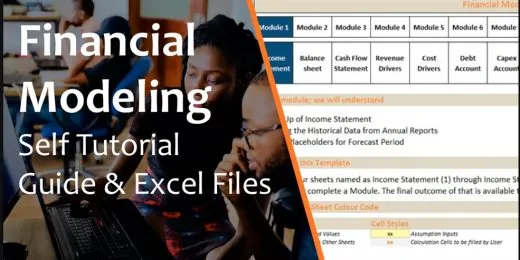
Financial Modeling Tutorial guides user via step by step approach on how to build financial models with DCF valuation


This Hotel / Holiday Resort Development Model will take you through a 20-year period of Three Statement Analysis and provide you with key valuation da... read more
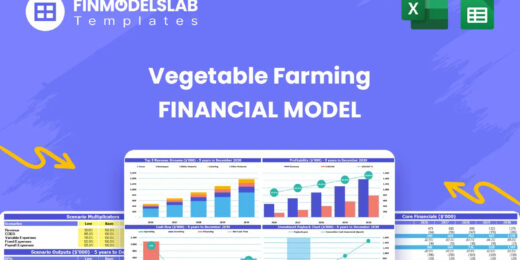
The Vegetable Farming Financial Model helps users turn a farming concept, expansion plan, or funding proposal into a structured financial forecast. In... read more
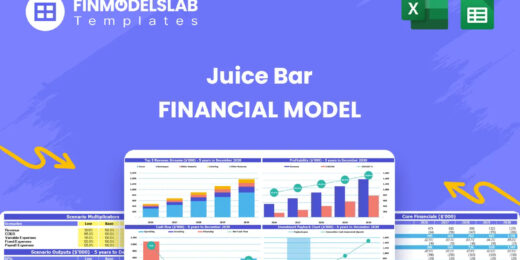
The Juice Bar Financial Model helps entrepreneurs, founders, consultants, analysts, and business owners turn a juice bar or beverage service concept i... read more
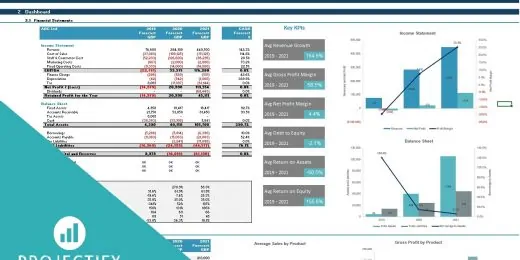
User-friendly Excel model intended for the preparation of a 3 statement (Income Statement, Balance Sheet and Cashflow Statement) financial projection ... read more

Average rating:Submit Rating
Electric Vehicle (EV) charging Station FM helps user asses financial viability of setting up and operating a charging station.

Average rating:Submit Rating
3 statement 5 year rolling financial projection Excel model for a startup /existing manufacturing business

The Food Manufacturing Financial Model helps entrepreneurs, founders, consultants, analysts, and business owners turn a food production concept into a... read more
Average rating:Submit Rating
The SaaS Business Financial Model helps founders, entrepreneurs, consultants, analysts, and business owners build a structured financial plan for a so... read more
Financial model presenting a Crop Farm business scenario.
The Candy Store Financial Model helps entrepreneurs and planners turn a retail confectionery concept into a structured financial forecast. Instead of ... read more
Take this opportunity and get a discount by getting the Renewable Energy Bundle where you get Solar, Wind and Bio Gas Plant Financial Model Templates!

This is a collection of financial model templates for businesses in the Agriculture Industry and its related sectors.
The Bed and Breakfast Financial Model is a ready-to-use financial model template built to help entrepreneurs, inn owners, consultants, analysts, and b... read more

Our Mini-Storage Financial Model Template is your all-in-one solution for building a profitable and scalable storage business. Featuring a Detailed 10... read more

Financial Model presenting a business scenario of a corporation engaged in granting loans from its own capital funds or from funds sourced by investor... read more
The Urgent Care Center Financial Model helps users turn a walk-in clinic concept into a structured financial forecast that can support planning, budge... read more

The purpose of this Bundle of Business Forecasting and Financial Models is to assist Business Owners and Consultants with a consistent approach to for... read more

This Car Rental Business Financial Model Template in Excel offers an ideal basis for developing a business plan for a car rental company. The template... read more
This comprehensive 40-year tool aid investors in evaluating potential risks and returns and assess the viability of setting up and investing in the pr... read more

The objective of the Geothermal Energy financial feasibility model template is to analyze a new Geothermal Energy project in quite some detail in orde... read more

The digital product marketplace model prepares a financial plan in Excel for online marketplace Startup businesses similar to concepts such as Themefo... read more

Average rating:Submit Rating
Financial model that performs a DCF & Relative valuation on Mining Company.

A collection of user-friendly Project Finance Models in the Renewable Energy Sector offered at a discounted price you can’t miss!
The Hemodialysis Center Financial Model helps users evaluate the financial feasibility of launching, funding, or expanding a dialysis clinic with a st... read more

The E-Commerce Business Financial Model Template helps founders, online store owners, consultants, analysts, and business planners turn an e-commerce ... read more

Average rating:Submit Rating
The toolkit is an essential resource for any organization, providing a comprehensive collection of tools and templates designed to streamline financia... read more
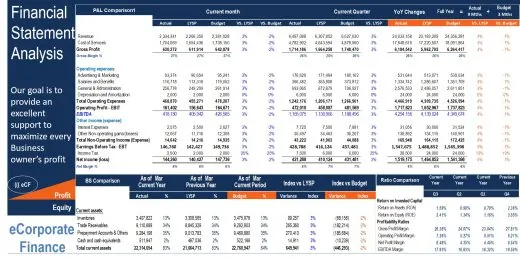
The main purpose of the model is to allows user to easily compare the financial performance result from one period to the next or between actual and b... read more
The Veterinary Clinic Financial Model Financial Model Template helps entrepreneurs, clinic owners, consultants, analysts, and business planners turn a... read more
The Pharmacy Financial Model template helps entrepreneurs, pharmacy owners, consultants, analysts, and business plan writers turn a retail pharmacy co... read more

The Liquor Store Financial Model helps entrepreneurs, store owners, consultants, analysts, and business plan writers turn a retail alcohol business co... read more

The goal of this model is to assist you with starting or buying a coffee farm. The financial spreadsheet templates assist in analysing and forecasting... read more

Highly versatile and user-friendly Excel model for the preparation of a rolling 3 statement (Income Statement, Balance Sheet and Cash flow Statement) ... read more
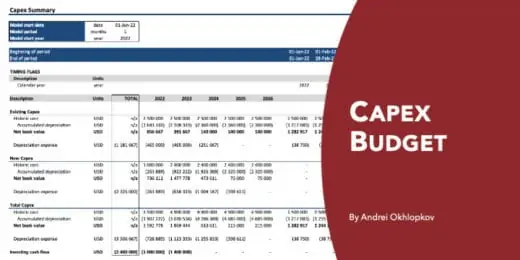
A professional template to budget investing cashflow, fixed asset book values and depreciation

The Daycare Center Financial Model helps entrepreneurs, childcare founders, consultants, analysts, and business owners turn a daycare concept into a s... read more


Average rating:
Fully-Vetted Comprehensive Youtube Content Creator Financial Model + Video Series + eBook
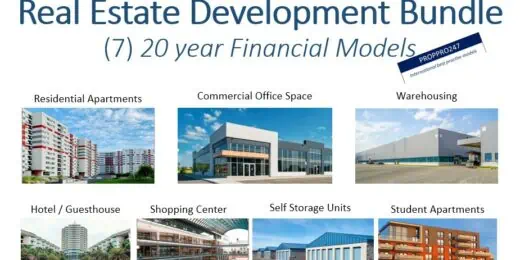
This Real Estate Development Bundle is a collection of real estate calculators or tools in MS Excel that will help with real estate development proje... read more

Budgeting & Forecasting Template suitable for either a Trade or Service company in any type of industry.


Real Estate Financial Model to evaluate a development project, with Equity Waterfall and Advanced Scenarios Modeling

Abacus is a bankable, easy-to-use, debt-sculpting financial model for use in renewable (solar, wind, etc.) energy as well as PPP transactions.
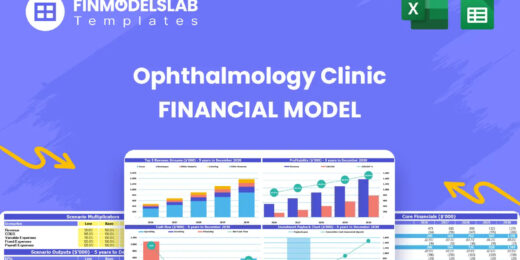
The Ophthalmology Clinic Financial Model is a ready-to-use financial model template designed to help founders, clinic owners, consultants, analysts, a... read more

The Nightclub Financial Model helps users turn a nightlife business concept into a structured financial forecast that can be used for planning, budget... read more
The Rice Farming Financial Model enables rice farmers and investor to evaluate an investment into a rice farming operation via Discounted Free Cash Fl... read more

A collection of templates suitable for various types of businesses/industries, covering major accounting, financial analysis, business valuation, and ... read more

The Gift Shop Financial Model helps users build a structured financial forecast for a retail gift store without starting from a blank spreadsheet. It ... read more

Average rating:Submit Rating
3 statement 5 or 8 year rolling financial projection Excel model for an investment holding company holding investments in up to 8 portfolio companies ... read more

The Purpose of the 4 Step Budget Analysis Spreadsheet Template is to offer a user-friendly solution to track your budget on a monthly basis. The budge... read more
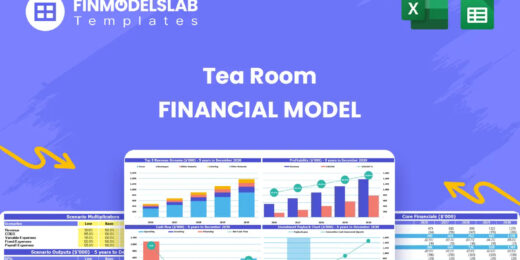
The Tea Room Financial Model helps entrepreneurs, operators, consultants, and business planners turn a tea room concept into a structured financial fo... read more

3-Statement 5 year rolling financial projection Excel model with valuation for existing/startup Asset Management business managing customer investment... read more

The Financial Business Plan Template for starting a Nail Salon was developed to obtain a comprehensive view on the economics and financial prospects o... read more

The Dairy Farm Valuation Model forecasts the expected financials for a dairy farm and calculates the resulting DCF value.
Average rating:Submit Rating
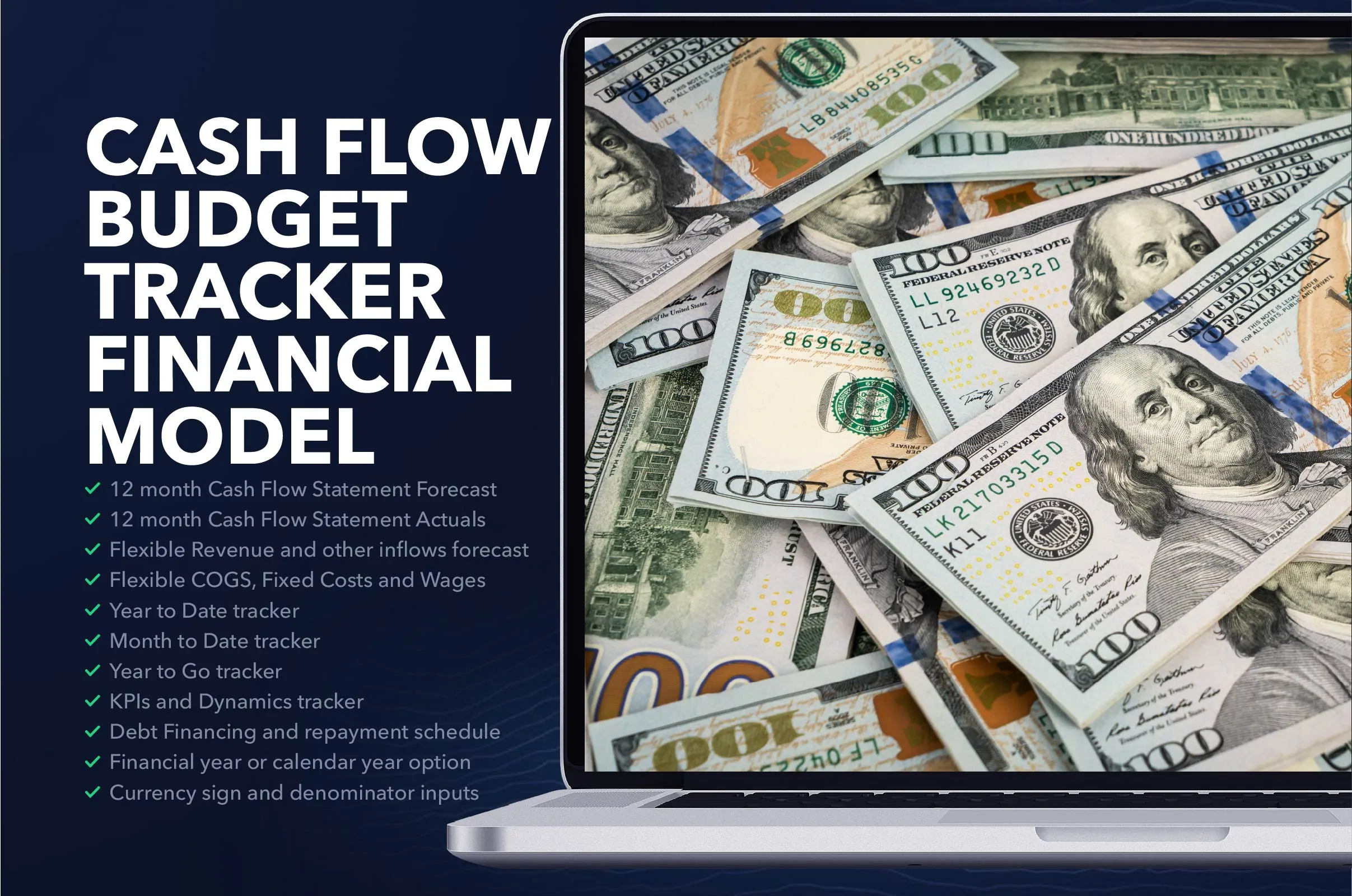
Cash Flow Projection Template Highlights One-year Cash Flow Projection template is a useful tool for cash flow forecasting and for effectively plannin... read more

The Preschool Financial Model helps entrepreneurs, childcare founders, preschool owners, consultants, and financial analysts turn an early childhood e... read more
Average rating:Submit Rating
3 statement 5 year rolling financial projection Excel model for a startup /existing business engaged in construction or engineering projects
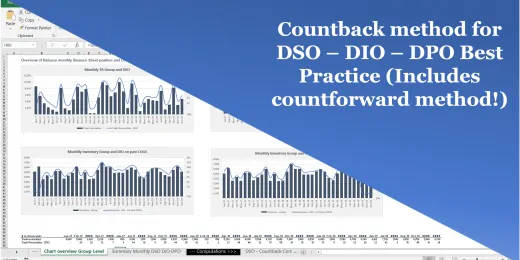
The right way to compute DSO DIO DPO - Using the countback method, fully automated!

Toll Road Build and Operate financial model is a project finance model for construction and operations of a toll concession

The forestry financial model is a comprehensive financial model in Excel which allows to calculate the financial viability (IRR, NPV, ROI multiple) f... read more

Average rating:Submit Rating
One Excel file for this bundle of Valuation and Financial forecasting models. Storage Parks, Hotels, Commercial Office Buildings, Retail Shopping Cent... read more

Average rating:
A detailed and user friend financial model that captures 5 years of Historical + 1 Year of Budget + 5 Years of the forecast period.

Average rating:Submit Rating
Financial model presenting a development scenario for a Hotel including construction, operation, and valuation phases.

Average rating:
User-friendly 3 statement 5 year rolling financial projection Excel model for existing/startup healthcare business

A Project-Level Financial Model to assess the financial feasibility of setting up and operating a Green Hydrogen Gas Production Plant with detailed NP... read more

The Daycare Center Financial Model helps entrepreneurs, childcare founders, consultants, analysts, and business owners turn a daycare concept into a s... read more


This financial report explained the trend in quantity sold, sales per day, number of pax, average spending per person, and customer turnover for the r... read more

Financial Model providing a dynamic up to 10-year financial forecast for a startup Manufacturing Company.

The Social Media Agency Financial Model helps users turn an agency concept, launch plan, or growth strategy into a structured five-year financial fore... read more

The SaaS Business Financial Model helps founders, entrepreneurs, consultants, analysts, and business owners build a structured financial plan for a so... read more

The Private Equity Acquisition Model provides a business valuation of a target company for investment. The Private Equity Acquisition Model allows for... read more

Average rating:Submit Rating
A fundamental and professional budget / business plan

Average rating:Submit Rating
Financial Model providing a dynamic up to 10-year financial forecast for a startup or existing Car Wash Business.
Financial model presenting a development scenario for a Multi-Tenant Industrial Building including construction, operation, and valuation phases.
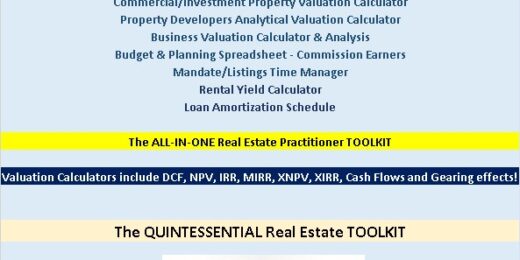
Professional Realtors need a professional Toolkit which allows them to operate at a higher level. The ALL-IN-ONE Quintessential Real Estate Toolkit in... read more

This banana tree plantation financial model serves as a financial planning tool for evaluating a banana farm's financial feasibility and fundraising p... read more
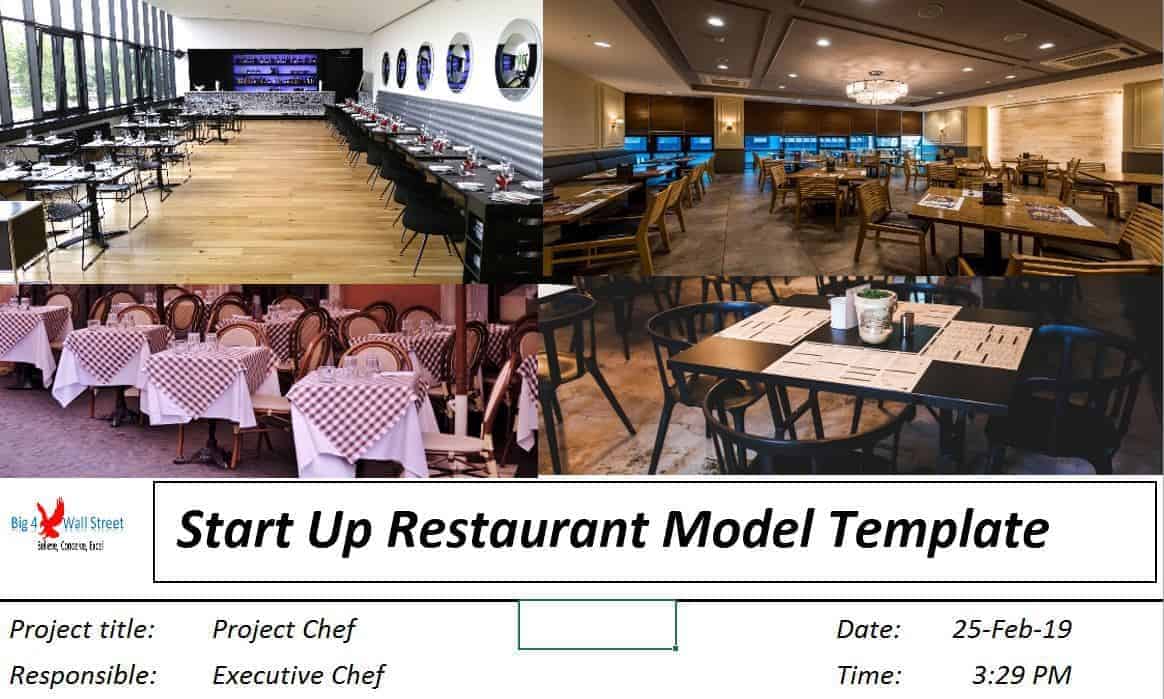
This detailed, yet easy to use three statement financial model will allow you to calculate your business' profit and loss, build a balance sheet and c... read more

The Fruit Farming Financial Model helps users turn a fruit farm concept, orchard expansion, or agricultural investment plan into a structured financia... read more
Average rating:
Highly versatile and user-friendly Excel model for the preparation of a rolling 3 statement (Income Statement, Balance Sheet and Cash flow Statement) ... read more
The Hair Salon Chain Financial Model helps entrepreneurs, salon owners, consultants, analysts, and business planners create a structured financial for... read more
You might also like:
- Boost Your Business’s Financial Management with this Excel Budget Template
- Building a Monthly Budget – Using Monthly Budget Templates
- Creating a Budget Plan – Using the Best Excel Budget Template
- Financial Planning for Small Business Owners – Taking an SBA Loan
- Financial Statements – Definition, Uses, Contents and Templates
- Financial Projections Templates – The Easy Way
- 10 Main Elements of a Business Plan
- How to Create a Garment Cost Sheet
- How to Use Excel for Financial Analysis?
- Cash Flow Analysis in Excel
- Supermarkets & Grocery Stores
- Scenario Analysis
- Personal Budgets
- Budgeting
- Food & Beverages)
- 5 Tips to Develop a First Class Business Valuation Report
- 10 Funding Sources for Businesses and Startups
- Financial Modeling for Startups and Small Businesses
- Restaurant Chain Valuation Model
- Monthly Budget Template (with Financial Statements)

eFinancialModels Team
Content Manager
The eFinancialModels Team showcases the combined expertise of seasoned professionals in financial modeling, valuation, and business analysis. Our goal is to share practical knowledge, insights, and best practices drawn from real-world experience across industries such as renewable energy, real estate, SaaS, manufacturing, and finance.
Through our articles and templates, we aim to make complex financial modeling concepts accessible and actionable—helping entrepreneurs, investors, and finance professionals make smarter business decisions.


