0 ITEMS

Entering Historical Data in Excel Without Breaking Formulas

Historical data enters a financial model safely when it lands on a separate staging sheet, passes validation checks, and reaches the formulas only through protected, reconciled links. This guide gives growth-stage small and medium-sized business owners and in-house controllers a four-method routine, a worked example with a reconciliation check, and an audit step.
Key Takeaways
- Never type or paste history over formula cells; land every export on a separate raw data sheet first.
- Convert text-stored numbers and dates before formulas read them, because column totals omit text cells.
- Data validation checks typed entries and sheet protection blocks overwrites; reconciliation checks cover pasted imports.
- Reconciling loaded totals to the source system total catches missing or doubled data before anyone relies on outputs.
- Trace precedents after each load to confirm every formula still points at the intended input cells.
The Short Answer: Keep Inputs and Formulas Apart
Historical data should never share cells with formulas. The safe pattern uses three layers: a raw layer that receives exports exactly as they arrive, a cleaning layer that converts data types and checks totals, and a calculation layer whose formulas read only from the cleaned layer. When history changes, only the raw layer changes, so no formula is ever overwritten.
A 2024 survey of more than 1,300 C-suite and senior finance and accounting professionals, run by BlackLine and reported in the Journal of Accountancy, found that 27% cited a reliance on clunky spreadsheets as a reason they do not completely trust their organization’s data. The survey was vendor-run and reports opinions about data trust, so it signals concern rather than measuring formula failures.
Manual entry errors worry audit teams in particular. A report from the accounting automation platform Trullion, based on a November 2024 survey of 41 U.S.-based auditors and reported in January 2025 by an accounting trade publication, found that 42% of respondents flagged manual data entry errors as a significant issue. The sample is small and vendor-run, so the figure is indicative only.
Method 1: Build a Safe Landing Zone
A landing zone is a sheet that accepts raw history and feeds nothing directly.
1.1 Create a Raw Data Sheet per Source
Give each source its own tab, named after the system and the export date. Paste the export exactly as received, leave it unedited, and record the control totals printed by the source report, usually produced by an enterprise resource planning (ERP) system, which is the software that runs accounting and operations.
1.2 Convert the History Into an Excel Table
Formatting the raw range as an Excel table, a layout found in many general Excel financial models, makes later additions safer. Microsoft documents that the names in a structured reference adjust whenever data is added to or removed from the table (structured references).
Method 2: Validate and Clean Before Formulas Read the Data
Every value should be tested for type and range before it reaches the calculation layer.
2.1 Fix Text-Stored Numbers and Dates
Microsoft warns that numbers stored as text can cause unexpected results, such as an uncalculated formula showing instead of a result (convert numbers stored as text). Excel may mark such cells with a warning indicator, but a total over a column that mixes numbers and text still omits the text cells. Convert them in the cleaning layer with a conversion formula, never by retyping the raw cell. Dates deserve the same care: confirm that every period is a true date value in one consistent format.
2.2 Apply Data Validation to Input Cells
Data validation restricts the type of data or the values that users enter into a cell (Microsoft Support). Validation rules govern typed entries, and pasted values can bypass them, so the checks in Method 4 remain the control for imported history. Useful rules for history include a decimal range for amounts, a date range for reporting periods, and a list for account codes. Excel offers three alert styles, and Microsoft describes Stop as preventing invalid entries, while Warning and Information flag them without blocking (alert styles).
Method 3: Protect the Formulas Themselves
3.1 Lock the Calculation Layer
Microsoft notes that protecting a worksheet locks all cells by default, so none of them are editable, and its guide shows how to lock or unlock specific areas (Microsoft Support). Protect the cleaning and calculation tabs. Keep the raw data tab unprotected during loads, because an Excel table cannot add rows on a protected sheet.
3.2 Paste Values Only Into Input Zones
When a block of history is copied from another workbook, Paste Special with the Values option pastes only the values of the copied data as displayed, not the formulas behind them (paste options).
Scope: Loading History Into a Purchased Model
In a purchased model, the safest entry point is the cells the author marked as inputs, usually shaded or gathered on one inputs sheet. Paste values only there, run the checks in Method 4, and leave protected formula sheets alone. If the history does not fit the layout, the template author or vendor support should change it, not an unprotected edit by the user. Restated figures that affect tax filings or audited accounts belong with the company’s accountant or auditor.
Method 4: Load in Stages and Reconcile
A staged load turns a risky one-step paste into a checked sequence:
- Save a dated backup copy of the workbook before any load.
- Paste one source at a time into its raw tab.
- Compare the loaded totals with the control totals from the source system, and spot-check a few months for amounts placed in the wrong period.
- Investigate every difference before loading the next source.
- Record the load date, the source and the reconciled totals in a change log.
Worked Example: Loading Twelve Months of History
In this illustrative example, a controller loads twelve months of budget and actuals history from an accounting export. The export holds the amounts below in USD, and the source report states control totals of 591,750 for revenue and 352,000 for direct costs.
| Month | Revenue | Direct costs |
|---|---|---|
| Jan | 41,200 | 24,700 |
| Feb | 43,850 | 26,100 |
| Mar | 45,100 | 26,900 |
| Apr | 44,300 | 26,500 |
| May | 47,900 (text) | 28,400 (text) |
| Jun | 49,250 | 29,300 |
| Jul | 48,600 | 28,900 |
| Aug | 51,300 | 30,500 |
| Sep | 52,750 (text) | 31,200 |
| Oct | 53,400 | 31,800 |
| Nov | 55,900 | 33,100 |
| Dec | 58,200 | 34,600 |
Three cells arrive stored as text, as marked in the table: two in the revenue column (May and September) and one in the direct costs column (May).
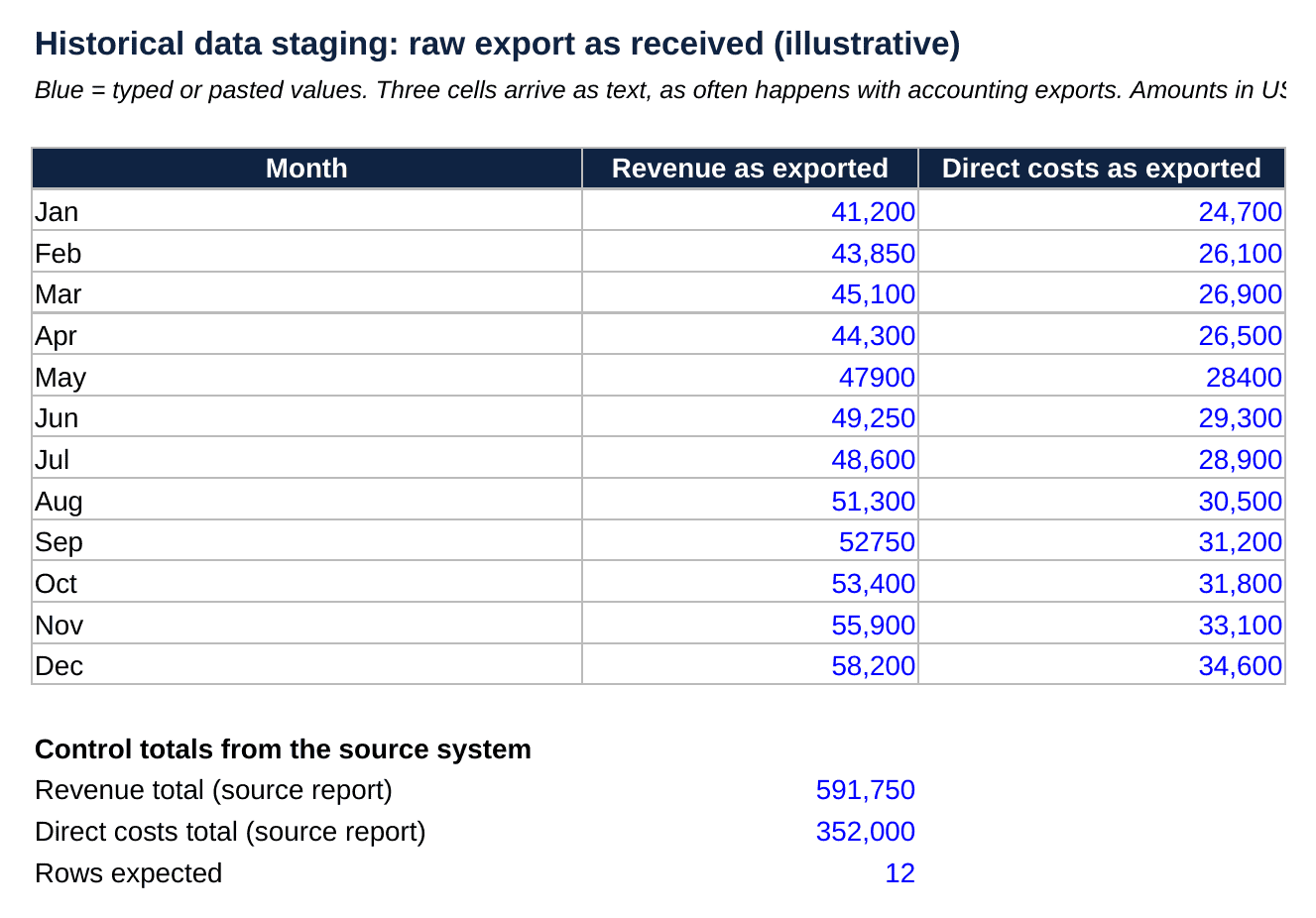
The cleaning layer converts each text cell, flags it, and compares the column sums with the source totals.
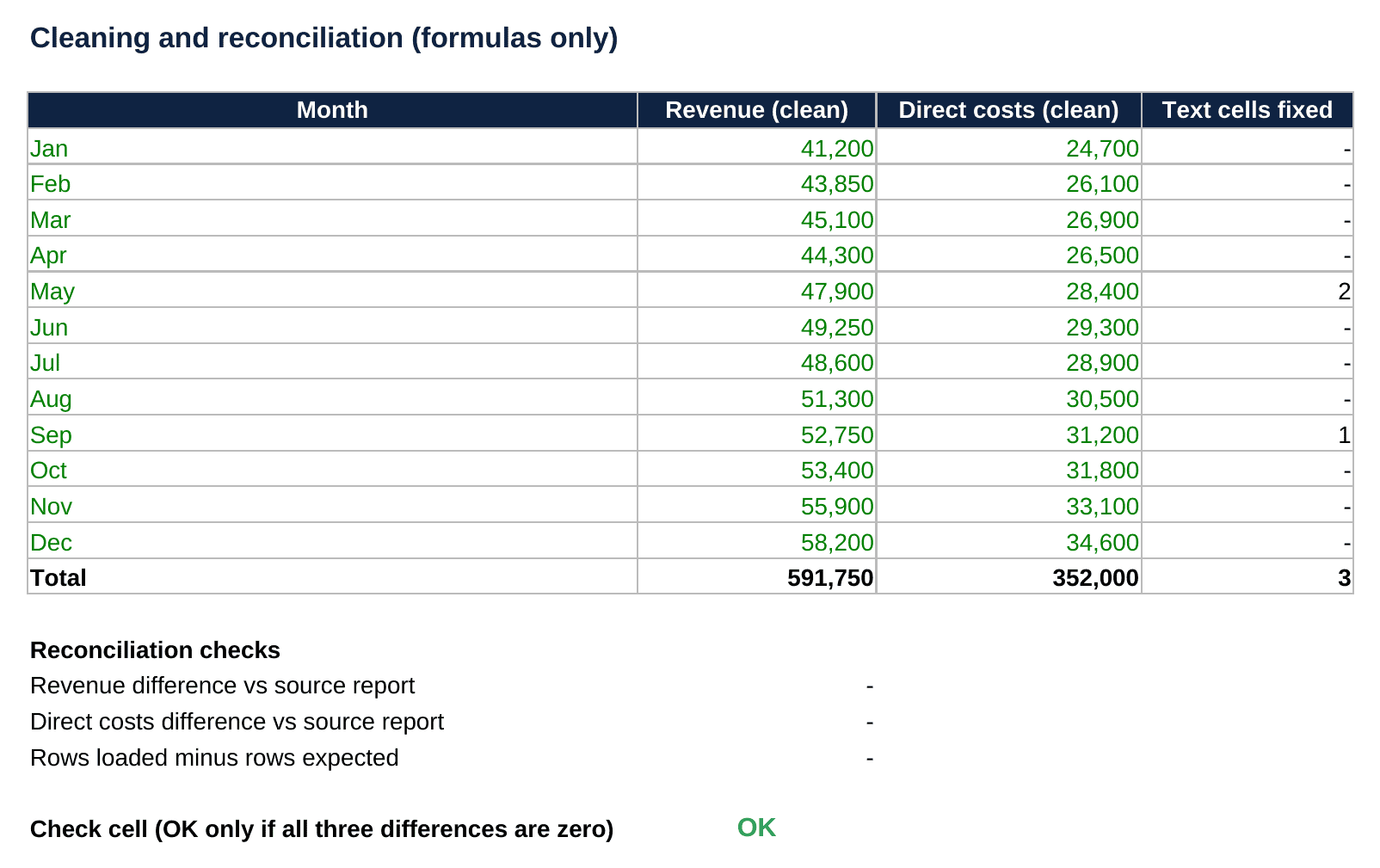
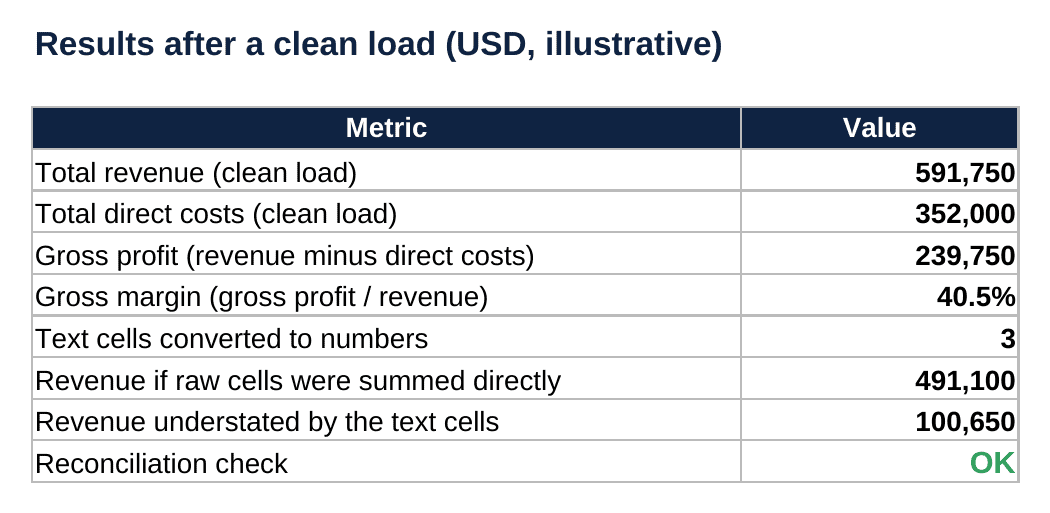
The twelve revenue amounts in the table add up to 591,750 and the twelve cost amounts add up to 352,000, so the clean load reproduces both control totals. Gross profit, which is revenue minus direct costs, equals 591,750 minus 352,000, or 239,750. The gross margin, which is gross profit divided by revenue, equals 239,750 divided by 591,750, which is 40.5% when rounded to one decimal place. Excel skips text cells in a direct sum over the revenue column, and its two text cells, 47,900 and 52,750, together equal 100,650. The direct sum therefore returns 591,750 minus 100,650, which is 491,100, so it understates revenue by 100,650.
Audit the Model After Every Load
A load is finished only after the formulas are traced. Select an output total and use Trace Precedents, and Microsoft notes that clicking it again identifies the next level of cells that provide data to the active cell (display relationships). In a self-built model the arrows should end at the cleaning layer, and in a purchased model at the marked input cells.
Conclusion
Historical data stays safe in a model when raw, cleaned and calculated cells are kept in separate, protected layers and every load is reconciled to the source. Teams that want a structured starting point can begin with the Monthly Budget Template (with Financial Statements), a budgeting template from eFinancialModels that generates financial statements. The staged load routine from Method 4 applies to it like any other model.
Frequently Asked Questions
Can history be pasted over formulas if the formulas are copied back afterwards?
That approach is fragile, because relative references shift when cells are copied into a different position, and a single missed row leaves a hardcoded number sitting where a formula belonged, which later reviewers must hunt for. A controller who needs to refresh history should replace only the raw sheet and let the unchanged formulas recalculate, which also leaves a clean audit trail for the next reviewer.
How should data from several systems with different date formats be combined?
Standardise dates in the cleaning layer, not in the exports. Add a helper column on each raw tab that rebuilds the date from its year, month and day parts, then point every formula at the helper column. Agree on one display format for the whole workbook, and test the result by sorting: a correct date column sorts chronologically, while text dates sort alphabetically and expose mistakes.
What should happen when the source system later restates historical figures?
Treat a restatement as a new load, not an edit. Save the current workbook under a dated name, paste the restated export into a fresh raw tab, and reconcile it to the new control totals. Then compare the old and new outputs line by line and note the reason in the change log. Keeping both versions lets the controller explain any movement in prior-period results to lenders, auditors or investors.
Is importing with Power Query safer than pasting values?
Power Query, Excel’s built-in tool for importing and reshaping data, makes imports repeatable, which suits recurring loads. Microsoft explains that data can be imported from a wide variety of sources, and that selecting Transform Data lets the user work with it in Power Query first (import data). The steps are saved and replay on refresh, so type conversions happen the same way every month. Pasting remains acceptable for one-off history, provided the reconciliation check still runs afterwards.
Who should own the protection password and the change log?
Ownership should sit with the finance lead, while preparers hold only the unlocked input ranges. Store the password in the company password manager, never in a cell comment or an email. The change log belongs on a visible tab of the workbook so that each load shows the date, the preparer, the source and the reconciled totals. This separation lets the owner approve loads without being the person who makes them.