0 ITEMS

How to Build a Budget: A Step-by-Step Excel Template Guide

To build a budget, list take-home income, subtract every expense, and give the remainder a purpose before the month begins. An Excel workbook with six steps and a few simple formulas can be set up in roughly an hour.
Key Takeaways
- A budget is a monthly plan that assigns every dollar of take-home pay to spending, saving or debt before the month starts.
- Six steps cover the whole job: income, expenses, goals, a method, an Excel template and a monthly review.
- The 50/30/20 rule, zero-based budgeting and the envelope system are three common methods; beginners can start with 50/30/20.
- In the illustrative worked example, a plain three-sheet workbook reaches a 22% savings share of take-home pay.
- Irregular costs and unrealistic goals are common budget traps, so a monthly review matters more than a perfect first draft.
Why Building a Budget Matters
A budget matters because it replaces surprises with planned decisions. Many adults still operate without one.
A YouGov survey of 1,340 American adults, fielded in February 2026, found that 53% have a budget for 2026, while 38% do not (YouGov, 2026).
Large fixed costs make planning harder. The Federal Reserve’s household well-being survey reports median monthly childcare payments of $1,083, over half of the median housing payment (Federal Reserve, 2026).
A written budget gives control over spending, a clear path to goals such as an emergency fund, and less stress, because each bill is expected rather than discovered.
Step-by-Step Guide to Building Your Budget in Excel
Follow the six steps in order. Each one produces a block of cells that feeds the next.
Step 1: Define Your Income Sources
Public benchmarks quote gross income, the amount earned before taxes. The Census Bureau reports a median household income of $87,460 for calendar year 2025, up 2.6% from 2024 (Census Bureau, 2026), a useful reference point for households without a better baseline. The budget itself runs on take-home pay, the amount that reaches the bank account after taxes and payroll deductions, so subtract those deductions from any gross figure first.
List every income stream on its own row: salary, freelance work, side income and benefits. For irregular streams, enter the lowest amount that arrives reliably.
Step 2: List Your Expenses
Split expenses into two groups. Fixed expenses stay the same each month, such as rent and insurance. Variable expenses change with behavior, such as groceries and dining out.
The Bureau of Labor Statistics Consumer Expenditure Survey puts average annual spending at $81,905 per consumer unit in 2025 (Bureau of Labor Statistics, 2026). A consumer unit is a household that shares expenses. Compare personal totals with that benchmark, but plan from actual bills and bank statements.
Step 3: Set Financial Goals
Short-term goals take under a year, such as a one-month emergency fund or a holiday fund. Long-term goals take years, such as retirement contributions or a home down payment. Give each goal a dollar amount and a date, then convert it into a monthly contribution.
Saving rarely happens by accident, so each goal should appear as its own budget line.
Step 4: Choose a Budgeting Method
Three methods suit beginners:
- 50/30/20 rule: 50% of take-home pay goes to needs, 30% to wants and 20% to savings and debt repayment.
- Zero-based budgeting: every dollar of income receives a job until income minus allocations equals zero.
- Envelope system: each category gets a fixed amount, and spending stops when the envelope is empty.
Businesses follow the same logic, and this guide keeps the focus on household budgets with a small-business note. The Small Business Administration (SBA) states that budgeting, saving, borrowing, investing and bookkeeping are all crucial to the financial success of any business (SBA, 2025).
Step 5: Build Your Excel Budget Template
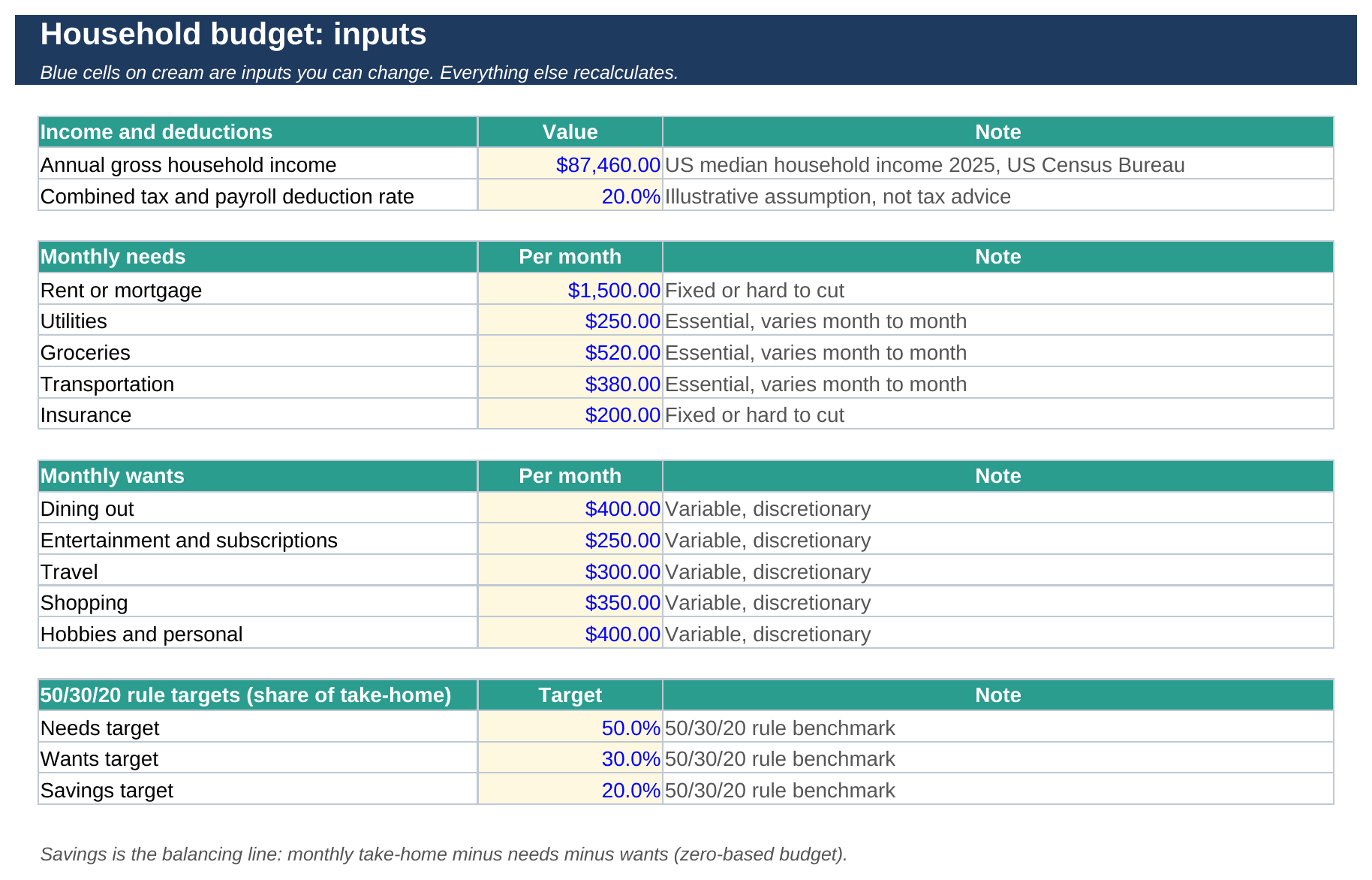
Use three sheets. The Inputs sheet holds income, the deduction rate and one row per expense. The Calculation sheet turns monthly amounts into annual amounts and divides each total by take-home pay. The Results sheet shows the shares and a check cell.
Three formulas do most of the work. The SUM formula, which adds every cell in a range, totals each group, a subtraction line finds the savings balance, and a division line turns each total into a percentage of take-home pay. Format percentages with the Percent style and currency with the Currency style so the sheet reads cleanly.
Step 6: Track and Adjust Your Budget
Review the budget once a month. Enter actual spending beside each planned amount, note the gaps, and move money between lines rather than abandoning the plan. Revisit the whole structure after a raise, a move, a new child or a job change.

Worked Numeric Example: Household Budget with Excel
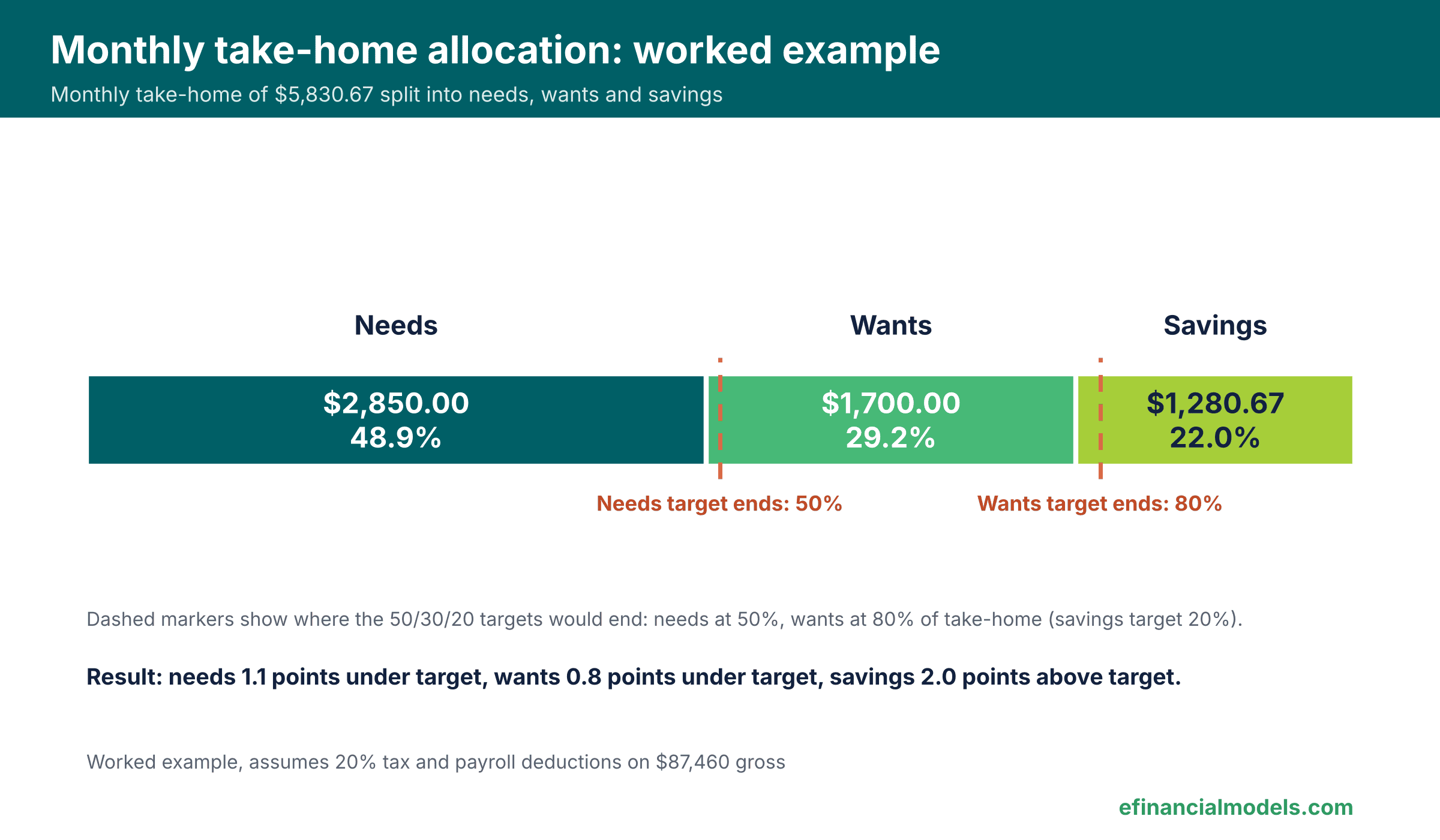
A household with a gross income equal to the 2025 median household income, $87,460, can run the full method in one workbook. The example assumes 20% of gross income goes to taxes and payroll deductions, which is an illustrative rate, and applies the zero-based method with a 50/30/20 comparison: savings is the balancing line, standing in for the goal lines from Step 3. After the deductions, $87,460 of gross income becomes $69,968 of take-home pay, which is the base for every share below.
| Line | Formula | Monthly | Annual | Share of take-home |
|---|---|---|---|---|
| Take-home pay (gross $87,460 less 20% deductions) | =Gross*(1-TaxRate) | $5,830.67 | $69,968 | 100.0% |
| Needs (illustrative: rent, utilities, groceries, transport, insurance) | =SUM(NeedsRange) | $2,850.00 | $34,200 | 48.9% |
| Wants (illustrative: dining, entertainment, travel, shopping, hobbies) | =SUM(WantsRange) | $1,700.00 | $20,400 | 29.2% |
| Savings (balancing line) | =TakeHome-Needs-Wants | $1,280.67 | $15,368 | 22.0% |
Shares are rounded to one decimal place. The unallocated remainder is $0.00, so the plan is fully zero-based.
The Inputs sheet captures every number a reader changes.
The Calculation sheet converts $69,968 of annual take-home pay into $5,830.67 a month and compares each group with the 50/30/20 targets.
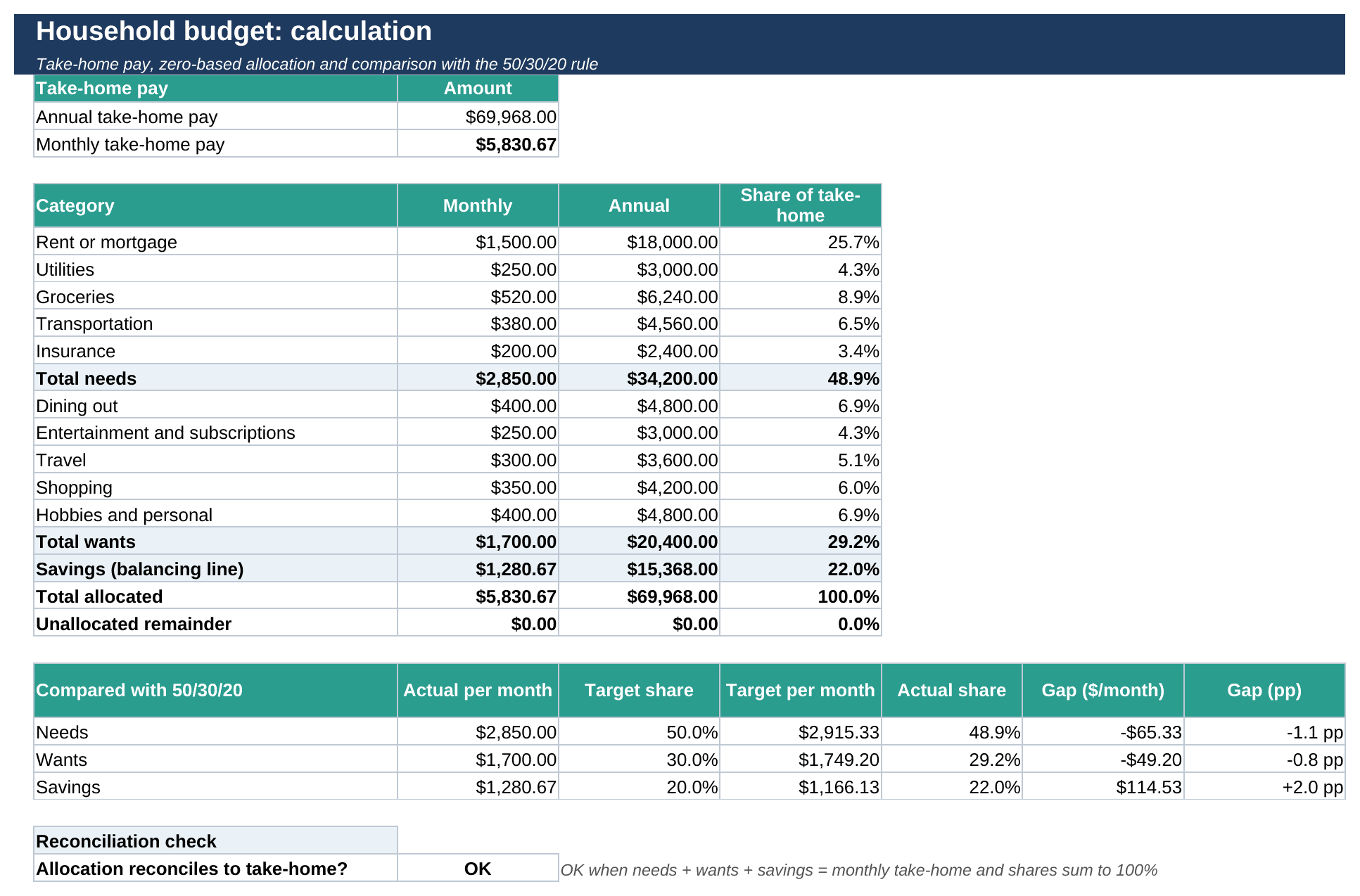
Against the targets, monthly needs sit about $65 below the 50% amount, wants sit about $49 below the 30% amount, and savings sit about $115 above the 20% amount.
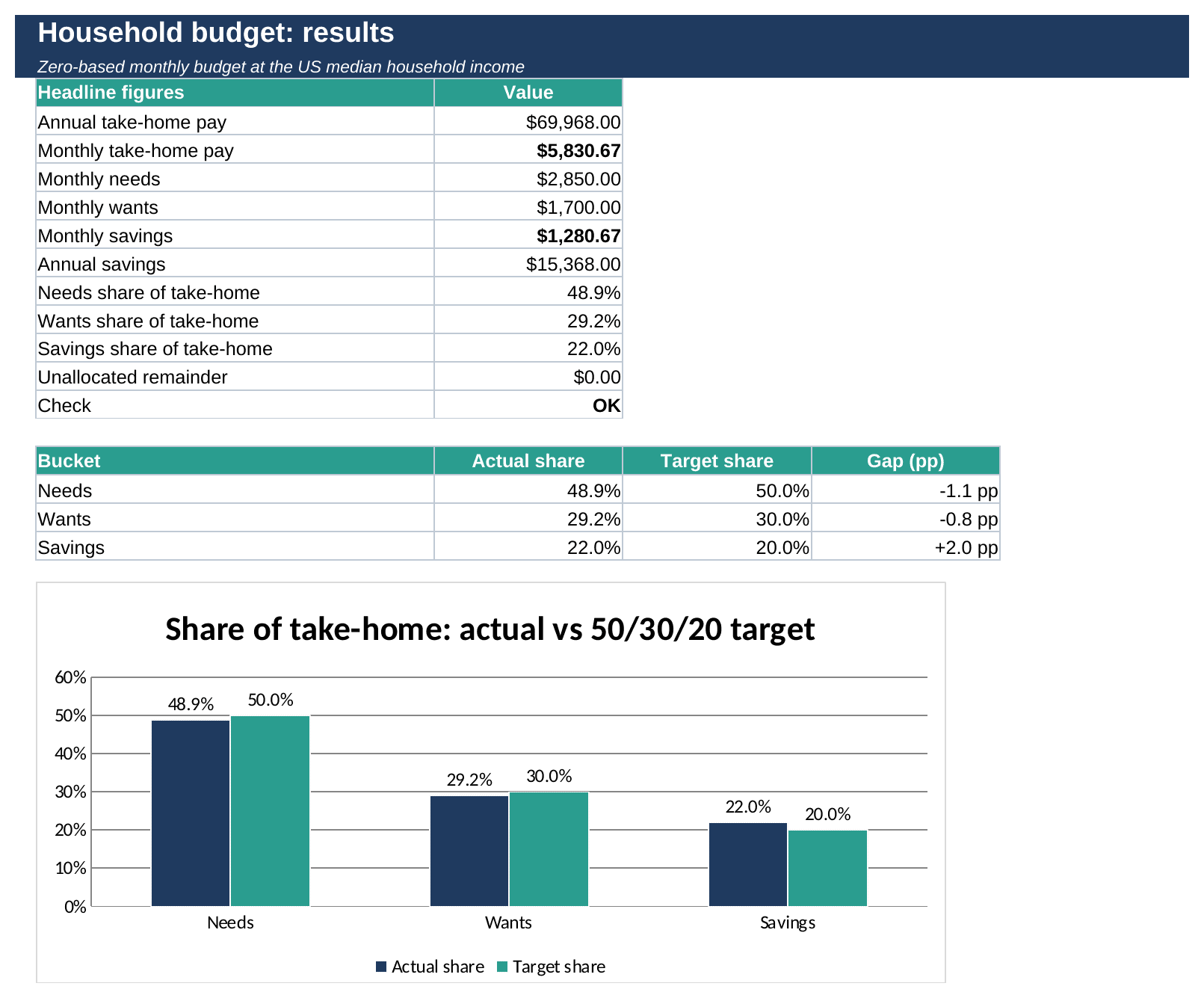
The check cell compares needs plus wants plus savings with monthly take-home pay and shows OK when the two match.
Comparison of Excel Budget Templates
The right template depends on what is being planned. Personal templates track household cash, business templates track revenue and costs, and project templates track spending against a fixed scope.
| Template type | Features | Customization | Best for |
|---|---|---|---|
| Personal | Income, categories, savings goals, monthly totals | Add or rename categories in minutes | Households and first-time budgeters |
| Business | Revenue, payroll, rent, taxes, monthly variance | Adjust lines by product or department | Small businesses and founders |
| Project | Cost lines, phases, committed versus actual spend | Change phases and cost codes | Teams with a fixed scope and deadline |
Once a budget grows into a multi-month outlook, eFinancialModels groups related files under its Forecasting tag.
Common Budgeting Mistakes (and How to Avoid Them)
- Not tracking small daily expenses. Coffee, snacks and app fees add up. Log them for one month, then group them into a single line.
- Forgetting irregular expenses. Car repairs, gifts and annual fees break monthly plans. Divide each yearly cost by twelve and save that amount monthly.
- Setting unrealistic goals. A savings target that ignores real bills collapses within weeks. Start with a smaller rate and raise it after two stable months.
- Not adjusting when income changes. A raise or a pay cut changes every share. Update the income cell and re-check the targets the same day.
- Neglecting to involve family members. A budget that only one person understands gets ignored. Hold a short monthly meeting and agree on each category together.
Tools and Templates: eFinancialModels Budget Solutions
A spreadsheet stays useful only if it is easy to update. Excel suits budgeting because formulas recalculate instantly and every assumption sits in a visible cell.
Founders can reuse the same six steps, with revenue as the income line and payroll, rent and tax set-asides as the expense lines. Readers who prefer to start from a finished layout can browse the Budgeting tag page, the Free tag page for no-cost options, and the Personal Budgets category page for household layouts.
Conclusion
A budget works when it is simple, specific and reviewed monthly. Six steps, three sheets and one check cell are enough to turn income into a plan.
Readers ready to start can open the Simple Budget Planner Template at eFinancialModels, a ready-made budget planner to adapt to their own income and goals.
Frequently Asked Questions
What’s the best Excel budget template for small business?
The best choice tracks monthly revenue, cost of goods sold, payroll, rent and tax set-asides, then shows variance between planned and actual results. Look for separate lines for fixed and variable costs, a cash balance row, and a summary tab that a bookkeeper can read quickly. Start with the simplest layout that covers those lines, because extra tabs slow monthly updates. Owners who invoice customers should also add a line for late payments, since delayed cash changes what can be spent that month.
How often should I update my budget?
Update actual spending weekly if possible and review the full plan monthly. A weekly five-minute entry prevents small overspending from compounding, while the monthly review is the moment to move money between categories. Revisit targets after any event that changes income or fixed costs, such as a new job, a lease renewal or a family change. Skipping the review for several months is the most common reason a budget stops matching real life.
Can I use Excel budget templates on Google Sheets?
Yes, in most cases. Google Sheets opens Excel files, and common functions such as SUM, averages and percentages work the same way. Check macros, custom number formats and data validation lists after importing, because those features can behave differently. If a macro was used, rebuild that step with a standard formula before relying on the sheet. A quick comparison of totals between the two programs confirms that nothing broke during the move.
What’s the difference between a budget and a forecast?
A budget states what spending and saving should happen, and it acts as a target. A forecast estimates what will probably happen based on current trends and new information. A budget sets the plan for a period, while a forecast is re-estimated whenever new information arrives. Comparing the two shows where reality is drifting from the plan. For a household, a forecast might project next quarter’s utility bills after a price change.
How do I handle variable income in my budget?
Base the plan on the lowest reliable monthly amount, not the average. Earnings above that floor go first to a buffer equal to one or two months of needs, then to goals. Alternatively, pay yourself a fixed monthly salary from a holding account that collects every payment, so that busy months fund quiet ones. Whichever approach is chosen, record the floor in the Inputs sheet so everyone can see the assumption.
Are free budget templates safe to download?
Most are safe when they come from a recognizable publisher, but caution still applies. Prefer files without macros, open them in Protected View, and scan the download before editing. Be wary of templates that ask for bank logins or personal identifiers, because a budget sheet never needs them. A file that only contains formulas and labels is low risk. Keeping a backup of the original download also makes it easy to start over after a mistake.
How can I customize a budget template for my specific needs?
Begin by deleting categories that never apply, then rename the rest in plain language. Add one row for each recurring cost unique to the household, such as tuition or pet care. Keep totals linked by formulas, not typed numbers, so that new rows flow into the results. Save a copy before making structural changes. Test the edited sheet with last month’s real numbers to confirm that every total still matches the bank statement.