
0 ITEMS

Investment Banking Excel Shortcuts: A Practical Overview

Mastering Excel shortcuts is essential for investment bankers who need to manipulate large financial datasets quickly and accurately.
- Keyboard shortcuts like Ctrl + Arrow keys and F2 can speed up navigation and cell editing.
- Data entry becomes faster with shortcuts such as Tab, Shift + Tab, and Ctrl + D for filling cells.
- Creating formulas is more efficient using Alt + =, Ctrl + C, and other quick access commands.
- Automating repetitive tasks with macros and add-ins can save hours and reduce errors.
- Optimizing Excel settings like Quick Access Toolbar improves overall workflow speed.
Staying proficient with Excel shortcuts is crucial for maintaining a competitive edge in investment banking.
The Excel Edge In Investment Banking
Investment banking thrives on speed and accuracy. In this high-stakes industry, Microsoft Excel is the stalwart tool that professionals can rely on. With Excel, investment bankers gain a competitive advantage through efficiency and precision. Excel’s vast array of shortcuts and functions streamlines tasks, from financial modeling to complex data analysis.
Why Excel Reigns Supreme
Excel boasts a unique blend of versatility and power that makes it indispensable in investment banking. Here are key reasons Excel remains at the top:
- Widespread familiarity – Most finance professionals already have a solid Excel foundation.
- Customizable templates – Excel allows bankers to create and reuse templates for consistent analysis.
- Advanced features – Pivot tables, formulas, and macros save countless hours on repetitive tasks.
Excel’s Role In Financial Analysis
In the realm of financial analysis, Excel is a powerhouse:
- Excel’s formulas perform real-time calculations for accurate financial forecasting.
- Data visualization tools like charts and graphs illustrate market trends clearly.
- With Excel’s scenario analysis, bankers can predict various financial outcomes efficiently.
Excel shortcuts empower users to navigate through extensive financial data quickly. By using keyboard shortcuts, investment bankers can speedily manipulate data and gain insights into financial statements and valuation models.
Core Excel Shortcuts For Bankers
Investment bankers rely heavily on Excel. To keep pace in this fast-moving field, mastering core shortcuts is crucial. Knowing these key combinations saves hours of work. Below, we uncover shortcuts that make navigating, data entry, and formula creation in Excel seamless for bankers.
Navigating Worksheets Like A Pro
Navigating within Excel worksheets quickly is essential for investment bankers. Here’s how:
- Ctrl + Arrow Key: Jump to the edge of data regions.
- Ctrl + [Page Up/Page Down]: Move between sheets.
- Alt + E, S, V: Open the Paste Special dialog.
- Home: Go to the beginning of a row.
- Ctrl + Home: Reach the top-left cell of a sheet.
Efficient Data Entry Tactics
Speed up data entry with these shortcuts:
| Shortcut | Action |
|---|---|
| Tab | Move to the next cell. |
| Shift + Tab | Move back a cell. |
| Ctrl + D | Fill down the selected cell’s content. |
| Ctrl + R | Fill right the selected cell’s content. |
| Ctrl + ; | Insert today’s date. |
Formula Mastery Shortcuts
Creating and managing formulas is a banker’s daily bread. Work smarter with:
- F2: Edit an active cell.
- Ctrl + C, Ctrl + V: Copy and paste.
- Alt + =>: Insert auto-sum function.
- Ctrl + Shift + Enter: Apply formula to array.
- Alt + I, R: Insert a new row.
- Alt + I, C: Insert a new column.
Advanced Excel Techniques For Investment Analysis
Excel is a powerful tool in investment banking. It helps we analyze big financial data fast. Knowing advanced Excel tricks is key for good investment analysis. Mastery over complex Excel techniques sets top analysts apart. It allows you to work smart, not hard.
Complex Financial Modeling
Complex financial modeling is about making good guesses of a company’s future. We use Excel to make these complex models. This help we decide if a company is good to invest in. Without these Excel skills, the job is tough.
- Build models faster: Use shortcuts like
Alt + I + Rto insert rows quickly. - Understand formulas: Know
VLOOKUPandINDEX-MATCHto mix data well. - Use array functions: These help to solve many problems with one formula.
- Get accurate results: Make models that can predict the future with less error.
Leveraging Excel For Valuation Work
Valuation work in Excel shows if a stock price is fair. We do this by checking the company’s value. Excel has tools that make valuation easier and better. Using Excel well makes your valuation work shine.
- Determine cash flows: Project future money a company will make.
- Calculate discount rates: Find the right rate to adjust those cash flows for risk.
- Analyze sensitivity: See how changing one thing affects the whole valuation.
With these Excel tricks, you can find the value of companies quickly and well. They help you give good advice to people who want to invest.
Optimizing Your Excel Setup
Optimizing Your Excel Setup is crucial in investment banking. Experts know that time is money. With the right Excel shortcuts, tasks can get done faster. Let’s tweak Excel for top performance!
Customizing The Quick Access Toolbar
The Quick Access Toolbar is your shortcut haven. It sits above the ribbon by default. Make it work for you!
- Right-click on frequently used functions.
- Select “Add to Quick Access Toolbar”.
- Drag commands to rearrange.
- Use Alt followed by the number key to activate icons.
Save time by having your tools a click away.
Setting Up Excel For Maximum Productivity
A well-organized Excel speeds up work. Here’s how to set it up.
- Open Excel Options via File tab.
- Go to Advanced settings.
- Enable ‘After pressing Enter, move selection’. Pick a direction.
- Customize the ribbon for your workflow.
- Activate ‘Auto-complete’ for quicker data entry.
- Turn on ‘Quick Analysis’ for speedy insights.
Your Excel is now a powerhouse.
Accelerating Workflow With Macros And Add-ins
In the high-stakes world of investment banking, time is money. Streamlining tasks with Excel shortcuts is not just a necessity; it’s an art. Among the top time-savers are Excel macros and add-ins. These powerful tools can automate repetitive tasks, cutting down on errors and freeing up time for critical analysis and decision-making. Let’s dive into how macros and add-ins can transform your investment banking workflow.
Creating Powerful Macros
Macros are sequences of commands that automate tasks in Excel. By recording a macro for a complex, repetitive task, you set up a one-click miracle that executes it perfectly every time. Here’s a practical approach to mastering macros:
- Record a Macro: Go to the View tab, choose Macros, and record your steps.
- Name Your Macro: Give it a clear, descriptive name for easy recall.
- Assign a Shortcut Key: Link your macro to a keyboard shortcut for quick access.
- Edit with VBA: Modify your macro code for more complex tasks with Visual Basic for Applications (VBA).
Essential Add-ins For Investment Bankers
Add-ins are additional programs that extend Excel’s capabilities. Many add-ins are tailor-made for the investment banking industry. They offer specialized functions that simplify tasks like financial modeling and data analysis. Below is a list of must-have add-ins for every investment banker.
| Add-In | Description | Benefit |
|---|---|---|
| Macrobond | Economic data analysis | Broad market data |
| FactSet | Financial data and analytics | Integrated financial data |
| Bloomberg Excel Add-In | Access to Bloomberg’s data | Real-time financial info |
| Capital IQ | Investment research | Deep market insights |
Integrating these add-ins into your Excel environment will not only save time but also enhance your analysis with powerful data and research tools.
Best Practices For Maintaining And Sharing Workbooks
Best Practices for Maintaining and Sharing Workbooks are crucial in investment banking, where data drives decisions. Excel shortcuts can boost efficiency. Yet, without proper workbook care, their value lessens. We’ll cover key methods to keep workbooks reliable and teamwork friendly.
Ensuring Data Integrity
Data integrity is the backbone of any financial model. A single error can lead to costly mistakes. Follow these strategies:
- Lock cells that contain formulas to prevent unintended changes. Use
Ctrl + 1to open the Format Cells dialog. - Apply Data Validation for inputs with
Alt + D + L. This ensures only correct data enters your model. - Use Conditional Formatting to highlight anomalies. Hit
Alt + H + Lto explore options.
Collaborative Techniques For Team Environments
Sharing workbooks requires controlled and clear methods. To enhance collaboration:
- Utilize the Track Changes feature. Access it through
Alt + R + G + T. - Share workbooks wisely with Excel’s sharing options. Click
Review > Share Workbookin the toolbar. - Create a change log sheet to record manual updates. This keeps everyone on the same page.
Start with these practices to maintain excellence in your investment banking Excel tasks.
Frequently Asked Questions
What Are Key Excel Shortcuts For Investment Banking?
Investment bankers often use shortcuts like “Ctrl+C” for copy, “Ctrl+V” for paste, “Ctrl+Z” for undo, “Alt+E+S+V” for paste special, “F2” to edit cells, and “Ctrl+Shift+L” to quickly apply filters.
How Do Excel Shortcuts Enhance Investment Banking Efficiency?
Using Excel shortcuts allows investment bankers to manipulate financial data more quickly, reducing time spent on tasks and increasing productivity. It streamlines complex modeling and analysis.
Can Excel Shortcuts Reduce Errors In Financial Models?
Yes, Excel shortcuts can reduce errors in financial models by minimizing manual data entry and improving consistency in cell manipulations, which are crucial in investment banking analysis.
What Are The Most Common Investment Banking Excel Functions?
Common investment banking Excel functions include the use of “IF”, “AND”, “OR”, “SUMIF”, “VLOOKUP”, “HLOOKUP”, and “INDEX-MATCH” for financial analysis and modeling.
Conclusion
To master investment banking efficiency, embracing Excel shortcuts is non-negotiable. Our guide aimed to arm you with practical keystrokes that fast-track data analysis and modeling tasks. Committing these shortcuts to memory will undoubtedly elevate your workflow and impress stakeholders. Keep practicing; your expertise is just a shortcut away.


The Solar Energy Financial Model Spreadsheet Template in Excel assists you in preparing a sophisticated financial forecast for a utility-scale solar p... read more

The Mobile App Financial Plan Template in Excel allows you to develop financial projections when launching a new business centered around an app insta... read more


The Private Equity Fund Cashflows Model helps LPs and GPs analyze fund cash flows, returns, and distributions across investor, manager, and portfolio ... read more


The Coffee Shop Financial Model helps entrepreneurs, founders, business owners, consultants, and analysts turn a cafe concept into a structured financ... read more

This Discounted Cash Flow (DCF) valuation calculator template projects a three-statement model that allows users to value a company based on the net p... read more

The Hotel Financial Model helps users build a structured financial forecast for a hotel business using the revenue drivers that matter most in hospita... read more

The Upstream Oil & Gas Project Financial Model Template in Excel empowers you to project and dissect your impending Oil and Gas drilling ventures. Pre... read more


Lifetime access to all future templates as well! Here is a set of spreadsheets that have some of the most valuable logic in the world. I have been thr... read more

This Project Plan Template in Google Sheet allows you to quickly develop a project plan and plot a Gantt chart. Enjoy all the benefits of Google Docs ... read more

We are introducing our 4-Tier Waterfall Profit Distribution Model. The waterfall profit distribution model template aims to support a thorough analysi... read more


Dynamic 10-Year Financial Model, suitable for any type of business, supporting strategic planning, investment decisions, and business valuation.

This green hydrogen financial model template builds a multi-year financial plan to analyze the financial feasibility and profitability for the product... read more

Investors can assess the viability of setting up and investing in gasoline stations with a charging station by downloading a financial model for their... read more

The Grocery Store Financial Model helps entrepreneurs, founders, consultants, analysts, and retail business owners build a structured financial foreca... read more

The Outpatient Clinic Financial Model helps users turn a clinic business concept into a structured, editable financial forecast. Instead of relying on... read more

The beverage manufacturing industry is a dynamic and rapidly growing sector that caters to a diverse market ranging from soft drinks and juices to alc... read more

Includes all the assumptions you need to project the gross revenues and profits of a LaaS platform (Lending as a Service). 3-statement model and cap t... read more

Highly-sophisticated and user-friendly financial model for Startup Companies providing a 5-Year advanced financial forecast.

The Bakery Financial Model helps entrepreneurs, bakery owners, consultants, analysts, and business plan writers turn a bakery concept into a structure... read more


Average rating:Submit Rating
Model for in depth understanding of high level profit and loss and revenue analysis. Big-4 like checklist of due diligence analyses. This Financial Du... read more

The Cafe Financial Model is a ready-to-use financial model template designed to help entrepreneurs, cafe owners, founders, consultants, and analysts b... read more

The Clothing Store Financial Model helps turn a retail apparel concept into a structured financial forecast that can be used for planning, funding, bu... read more

The Poultry Farming Financial Model helps users turn a poultry farm concept into a structured, lender-ready financial forecast. It is designed for pla... read more

A general real estate model to plan all assumptions for up to 7 'uses' for a given property. Includes development / acquisition, leverage if desired, ... read more

The Online Clothing Store Financial Model helps founders, entrepreneurs, business owners, consultants, and analysts turn an apparel e-commerce idea in... read more

The Dental Clinic Financial Model helps users turn a dental practice concept, launch plan, or expansion strategy into a structured five-year financial... read more

This poultry financial model template in Excel provides a framework to determine the financial feasibility of a new poultry project for producing bro... read more


Start Up Solar Farm Excel Model presents the business case of an investment in the construction of a solar farm and the sale of the energy generated f... read more

Launching a manufacturing startup can be complex, and securing financing requires a solid financial plan. Our Manufacturing Startup Financial Feasibil... read more

The Spa Financial Model helps entrepreneurs, spa owners, consultants, analysts, and business planners turn a wellness concept into a structured five-y... read more

!! Kindly use the latest Microsoft Excel Version before purchasing the model, otherwise, the dynamic dashboard will NOT work.!! Inventory Dashboard Mo... read more
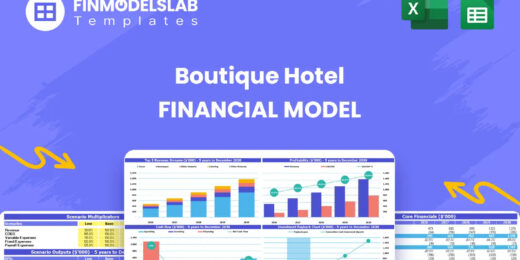
The Boutique Hotel Financial Model Financial Model Template helps entrepreneurs, hotel owners, consultants, analysts, and founders turn a boutique hos... read more
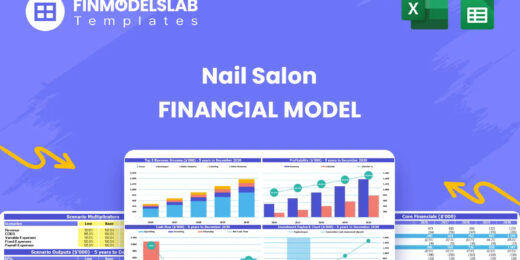
The Nail Salon Financial Model Financial Model Template helps entrepreneurs, salon owners, consultants, analysts, and business plan writers turn a nai... read more

This chicken egg farming model aims to plan the operations, financial feasibility, and profitability of a new poultry egg farming business. This Start... read more


This excel template is great for those wanting a professional-looking forecast 10 years of financial statements, those starting out as an entrepreneur... read more

This coffee farm financial feasibility model template prepares a financial plan for your next coffee growing project! Figure out the expected incomes ... read more
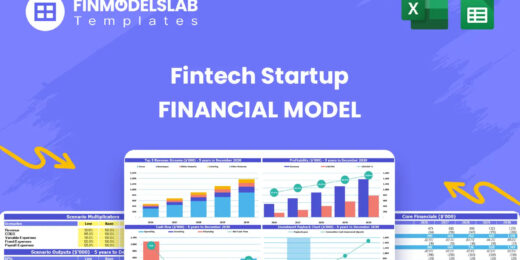
The Fintech Startup Financial Model helps founders, analysts, consultants, and business planners turn a fintech lending concept into a structured five... read more
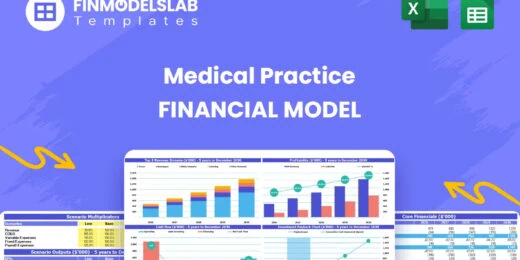
The Medical Practice Financial Model helps users turn a clinic concept, expansion plan, or healthcare service idea into a structured five-year financi... read more
Average rating:Submit Rating
The Digital Marketing Agency Financial Model helps agency founders, business owners, consultants, and analysts build a structured financial forecast f... read more
Average rating:Submit Rating
The Solar Panel Manufacturing Financial Model helps users turn a solar factory concept into a structured, investor-ready financial forecast. It is des... read more
The Travel Agency Financial Model helps entrepreneurs, founders, consultants, analysts, and business owners build a structured financial forecast for ... read more
" The Restaurant Financial Model helps users turn a restaurant concept into a structured, editable financial forecast without building complex spreads... read more
The Pizza Restaurant Financial Model Template helps entrepreneurs, restaurant owners, consultants, analysts, and founders turn a pizza restaurant conc... read more

The Personal Budgeting App Financial Model Financial Model Template helps founders, entrepreneurs, consultants, analysts, and business planners turn a... read more

This is a collection of financial model templates that provides the financial projections and valuations for Real Estate businesses and its related se... read more
The Resort Financial Model Financial Model Template helps resort developers, hospitality entrepreneurs, business owners, consultants, and analysts tur... read more
The Beauty Salon Financial Model helps entrepreneurs, salon owners, consultants, analysts, and founders turn a salon business idea into a structured f... read more

The Real Estate Portfolio Financial Model Template forecasts the financial performance when building a real estate portfolio. The model allows simulat... read more
The Fish Farming Financial Model template helps entrepreneurs, aquaculture founders, business owners, consultants, and analysts build a structured for... read more
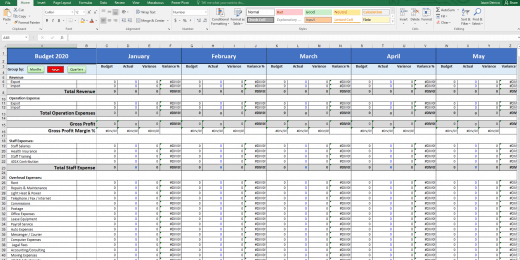

The Budget vs. Actual financial model is used to measure actual results against the budget projected for the financial period.
The Insurance Agency Financial Model helps entrepreneurs, agency owners, consultants, analysts, and business planners build a structured financial for... read more

Project Finance Model for a Solar (PV) Power Plant projecting revenue, operating costs, and cash flow based on installed capacity, solar irradiance, p... read more

The Mergers & Acquisition (M&A) Model provides a projection for a company looking to potentially merge or acquire another company. This model runs... read more


A professional template to budget payroll expenses

Highly dynamic financial model that is specific to renting equipment out. High attention paid to the cash flows and timeliness of them so the user has... read more


Average rating:Submit Rating
Financial model template for a high-level real estate brokerage firm that facilitates the buying and selling of real estate properties between buyers ... read more
The Food Truck Financial Model helps entrepreneurs, founders, business owners, consultants, and analysts turn a mobile food business idea into a struc... read more

Distilleries, with their rich history of crafting spirits, have experienced a resurgence in popularity, driven by consumer interest in artisanal and l... read more

Advanced 10-year financial model for a Software as a Service (SaaS) business providing a solid financial foundation to evaluate scalability, optimize ... read more

Allow a potential miner to see visually and numerically (annual basis) what their possible financial position would look like when starting up an open... read more


User-friendly Excel model intended for the preparation of a Cost-Benefit Analysis to determine the financial viability for a proposed project or inves... read more
This is a bundle of all the most useful and efficient google sheet templates I have built over the years. Includes everything from budgeting and crew ... read more

Our Net Present Value Calculator in Excel helps you quickly assess the profitability of your investments by simplifying complex financial calculations... read more
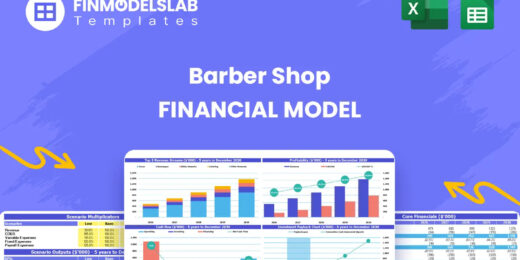
The Barber Shop Financial Model Financial Model Template helps entrepreneurs, business owners, consultants, and analysts turn a barber shop concept in... read more

Setting up a biodiesel manufacturing plant requires a comprehensive and executed business strategy. To assess biodiesel production's financial sustain... read more

Best practice model for a complete Price Volume Mix (PVM) analysis on revenue and on gross profit by product.

The Clinical Laboratory Financial Model helps users turn a diagnostic lab concept into a structured five-year financial forecast. It gives entrepreneu... read more

The Cannabis Business Financial Model is a ready-to-use financial model template designed to help entrepreneurs, founders, consultants, analysts, and ... read more
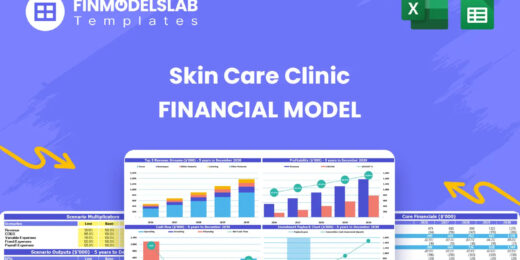
The Skin Care Clinic Financial Model helps entrepreneurs, clinic owners, consultants, analysts, and business planners turn a skin care or aesthetic cl... read more
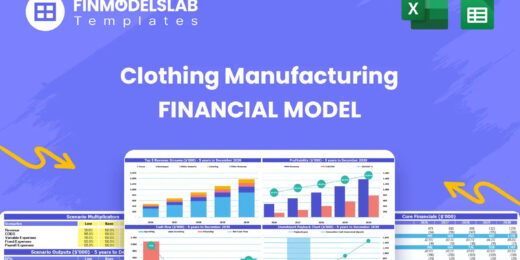
The Clothing Manufacturing Financial Model helps users turn a garment production concept into a structured, editable financial forecast. It is built f... read more
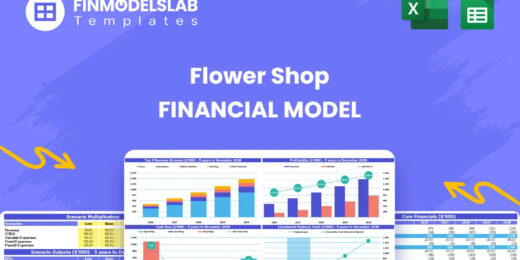
The Flower Shop Financial Model helps entrepreneurs, florists, business owners, consultants, and analysts turn a floral retail concept into a structur... read more
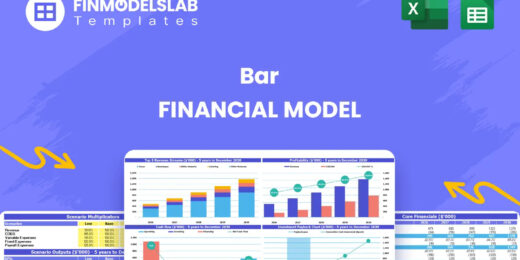
The Bar Financial Model Financial Model Template helps entrepreneurs, bar owners, consultants, analysts, and founders turn a bar, pub, lounge, or nigh... read more
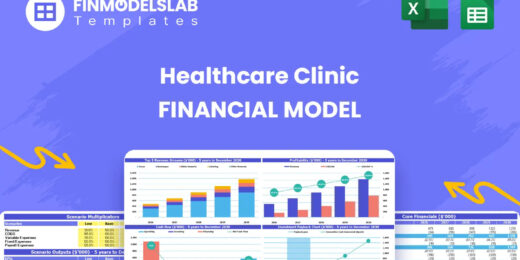
The Healthcare Clinic Financial Model helps founders, clinic owners, consultants, analysts, and business planners turn a healthcare clinic concept int... read more

The Green Hydrogen from Wind Financial Model aims to comprehensively forecast a horizon of 40 years of the financial feasibility and profitability of ... read more

Shopping Mall Financial Model presents the case of an investment into a shopping mall and its operation. The model generates the three financial state... read more

Financial Model providing a 10-year financial plan for a startup or operating Subscription Business.

With this comprehensive 5- or 10-year monthly tool, investors can assess the viability of setting up and investing in an EV charging station business ... read more
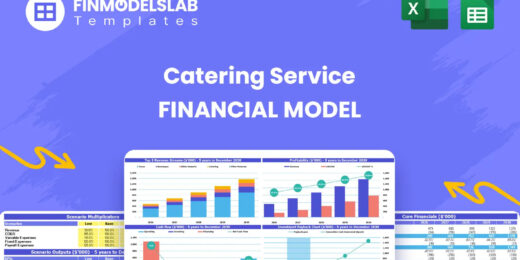
The Catering Service Financial Model helps users turn a catering business plan into a structured, editable financial forecast. Instead of relying on r... read more

Average rating:Submit Rating
Build up to a 10 year financial forecast with assumptions directly related to the startup and operation of a franchisor. Formal statements and reports... read more

5-year financial model for a hair and beauty salon providing revenue forecasts, cost analysis, and insights to support growth and profitability.
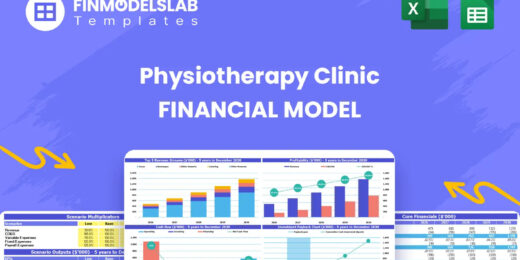
The Physiotherapy Clinic Financial Model helps founders, clinic owners, consultants, analysts, and business plan writers turn a physiotherapy clinic c... read more

Average rating:Submit Rating
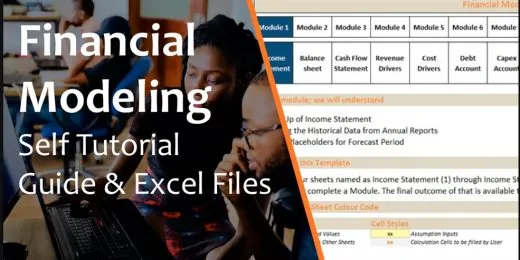
Financial Modeling Tutorial guides user via step by step approach on how to build financial models with DCF valuation


This Hotel / Holiday Resort Development Model will take you through a 20-year period of Three Statement Analysis and provide you with key valuation da... read more
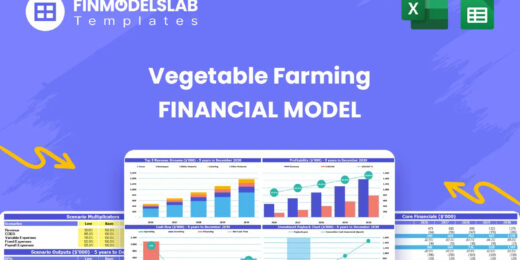
The Vegetable Farming Financial Model helps users turn a farming concept, expansion plan, or funding proposal into a structured financial forecast. In... read more
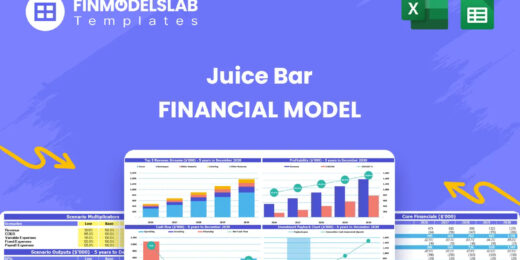
The Juice Bar Financial Model helps entrepreneurs, founders, consultants, analysts, and business owners turn a juice bar or beverage service concept i... read more
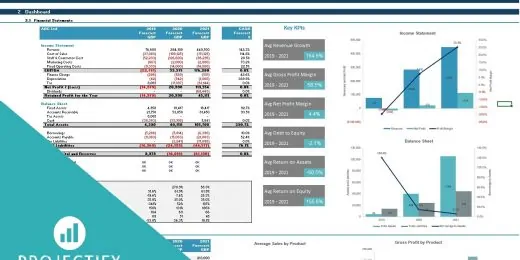
User-friendly Excel model intended for the preparation of a 3 statement (Income Statement, Balance Sheet and Cashflow Statement) financial projection ... read more

Average rating:Submit Rating
Electric Vehicle (EV) charging Station FM helps user asses financial viability of setting up and operating a charging station.

Average rating:Submit Rating
3 statement 5 year rolling financial projection Excel model for a startup /existing manufacturing business

The Food Manufacturing Financial Model helps entrepreneurs, founders, consultants, analysts, and business owners turn a food production concept into a... read more

This financial model attempts to give the user a full scope of starting a 250 bed (adjustable) hospital. It will allow for all revenue and cost assump... read more
Average rating:Submit Rating
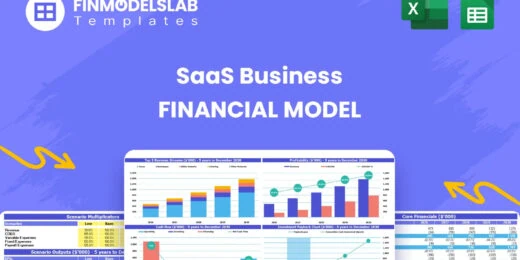
The SaaS Business Financial Model helps founders, entrepreneurs, consultants, analysts, and business owners build a structured financial plan for a so... read more
Financial model presenting a Crop Farm business scenario.
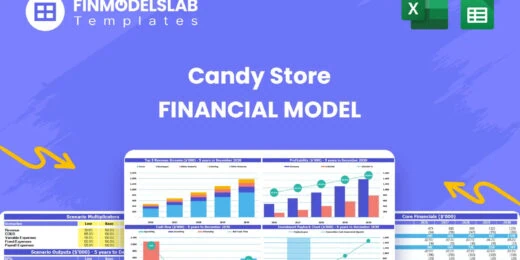
The Candy Store Financial Model helps entrepreneurs and planners turn a retail confectionery concept into a structured financial forecast. Instead of ... read more

Take this opportunity and get a discount by getting the Renewable Energy Bundle where you get Solar, Wind and Bio Gas Plant Financial Model Templates!

This is a collection of financial model templates for businesses in the Agriculture Industry and its related sectors.

A bottom-up financial model that is designed specifically for a jewelry store, but could easily be used for any retail business startup. Includes 3-st... read more
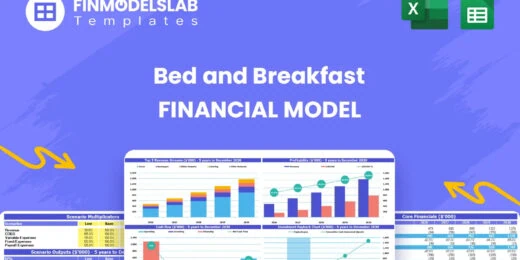
The Bed and Breakfast Financial Model is a ready-to-use financial model template built to help entrepreneurs, inn owners, consultants, analysts, and b... read more

Average rating:Submit Rating
Any accountant that needs to comply with IFRS will have to use the FIFO valuation method for calculating their cost of goods sold (COGS) in a given pe... read more

Our Mini-Storage Financial Model Template is your all-in-one solution for building a profitable and scalable storage business. Featuring a Detailed 10... read more

Financial Model presenting a business scenario of a corporation engaged in granting loans from its own capital funds or from funds sourced by investor... read more
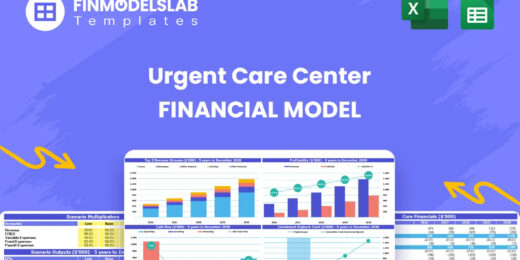
The Urgent Care Center Financial Model helps users turn a walk-in clinic concept into a structured financial forecast that can support planning, budge... read more

The purpose of this Bundle of Business Forecasting and Financial Models is to assist Business Owners and Consultants with a consistent approach to for... read more

This Car Rental Business Financial Model Template in Excel offers an ideal basis for developing a business plan for a car rental company. The template... read more

This comprehensive 40-year tool aid investors in evaluating potential risks and returns and assess the viability of setting up and investing in the pr... read more

The digital product marketplace model prepares a financial plan in Excel for online marketplace Startup businesses similar to concepts such as Themefo... read more

The objective of the Geothermal Energy financial feasibility model template is to analyze a new Geothermal Energy project in quite some detail in orde... read more

Average rating:Submit Rating
Financial model that performs a DCF & Relative valuation on Mining Company.

Average rating:Submit Rating
Here are all the spreadsheets I've built that involve cash flow distributions between GP/LP. Includes preferred equity, preferred returns, IRR hurdles... read more

A collection of user-friendly Project Finance Models in the Renewable Energy Sector offered at a discounted price you can’t miss!
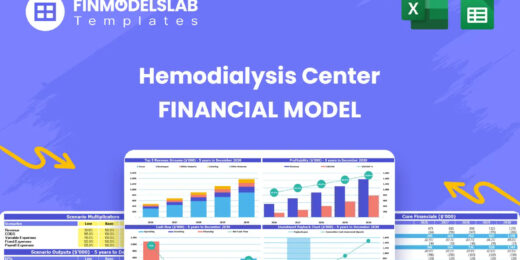
The Hemodialysis Center Financial Model helps users evaluate the financial feasibility of launching, funding, or expanding a dialysis clinic with a st... read more

The E-Commerce Business Financial Model Template helps founders, online store owners, consultants, analysts, and business planners turn an e-commerce ... read more

Average rating:Submit Rating
The toolkit is an essential resource for any organization, providing a comprehensive collection of tools and templates designed to streamline financia... read more
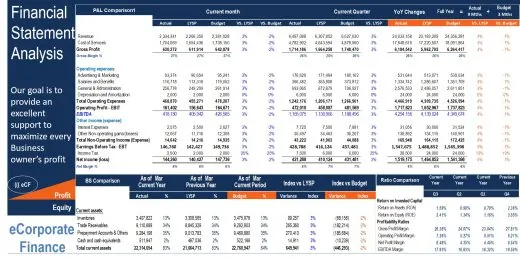
The main purpose of the model is to allows user to easily compare the financial performance result from one period to the next or between actual and b... read more
The Veterinary Clinic Financial Model Financial Model Template helps entrepreneurs, clinic owners, consultants, analysts, and business planners turn a... read more
The Pharmacy Financial Model template helps entrepreneurs, pharmacy owners, consultants, analysts, and business plan writers turn a retail pharmacy co... read more

The Liquor Store Financial Model helps entrepreneurs, store owners, consultants, analysts, and business plan writers turn a retail alcohol business co... read more

The goal of this model is to assist you with starting or buying a coffee farm. The financial spreadsheet templates assist in analysing and forecasting... read more

Highly versatile and user-friendly Excel model for the preparation of a rolling 3 statement (Income Statement, Balance Sheet and Cash flow Statement) ... read more
A professional template to budget investing cashflow, fixed asset book values and depreciation

The Daycare Center Financial Model helps entrepreneurs, childcare founders, consultants, analysts, and business owners turn a daycare concept into a s... read more

Average rating:Submit Rating
This is a set of financial models, tools, and templates designed for your average mom and pop shop.


Average rating:
Fully-Vetted Comprehensive Youtube Content Creator Financial Model + Video Series + eBook
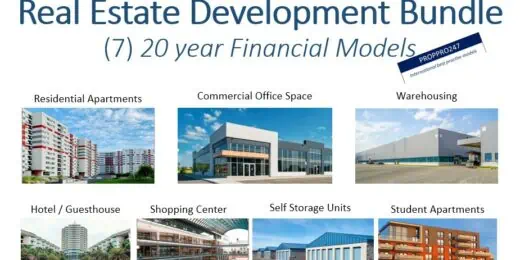
This Real Estate Development Bundle is a collection of real estate calculators or tools in MS Excel that will help with real estate development proje... read more

Budgeting & Forecasting Template suitable for either a Trade or Service company in any type of industry.


Real Estate Financial Model to evaluate a development project, with Equity Waterfall and Advanced Scenarios Modeling
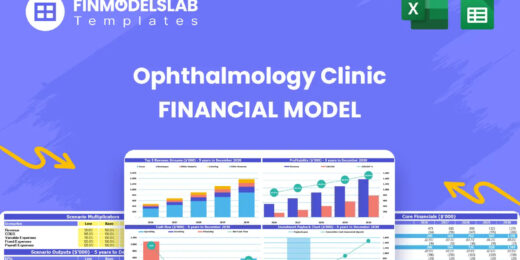
The Ophthalmology Clinic Financial Model is a ready-to-use financial model template designed to help founders, clinic owners, consultants, analysts, a... read more


Abacus is a bankable, easy-to-use, debt-sculpting financial model for use in renewable (solar, wind, etc.) energy as well as PPP transactions.

The Nightclub Financial Model helps users turn a nightlife business concept into a structured financial forecast that can be used for planning, budget... read more

The Rice Farming Financial Model enables rice farmers and investor to evaluate an investment into a rice farming operation via Discounted Free Cash Fl... read more

This is a true PaaS model with flexible build-out assumptions, capacity sanity checks, and direct sales comparison. 3-statement model included.

A collection of templates suitable for various types of businesses/industries, covering major accounting, financial analysis, business valuation, and ... read more

The Gift Shop Financial Model helps users build a structured financial forecast for a retail gift store without starting from a blank spreadsheet. It ... read more

Average rating:Submit Rating
3 statement 5 or 8 year rolling financial projection Excel model for an investment holding company holding investments in up to 8 portfolio companies ... read more

The Purpose of the 4 Step Budget Analysis Spreadsheet Template is to offer a user-friendly solution to track your budget on a monthly basis. The budge... read more
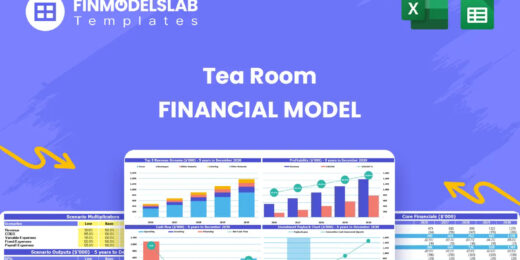
The Tea Room Financial Model helps entrepreneurs, operators, consultants, and business planners turn a tea room concept into a structured financial fo... read more

3-Statement 5 year rolling financial projection Excel model with valuation for existing/startup Asset Management business managing customer investment... read more

The Financial Business Plan Template for starting a Nail Salon was developed to obtain a comprehensive view on the economics and financial prospects o... read more

Build a strategy for adding recurring revenues services to your product. Includes financial statements and cap table.

The Dairy Farm Valuation Model forecasts the expected financials for a dairy farm and calculates the resulting DCF value.

Average rating:Submit Rating
Cash Flow Projection Template Highlights One-year Cash Flow Projection template is a useful tool for cash flow forecasting and for effectively plannin... read more

The Preschool Financial Model helps entrepreneurs, childcare founders, preschool owners, consultants, and financial analysts turn an early childhood e... read more

Average rating:Submit Rating
3 statement 5 year rolling financial projection Excel model for a startup /existing business engaged in construction or engineering projects
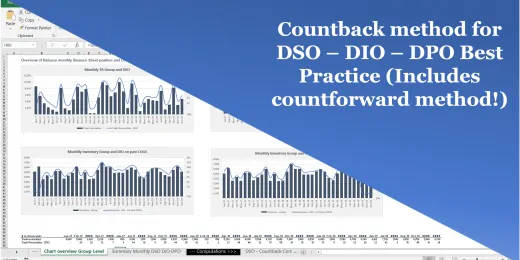
The right way to compute DSO DIO DPO - Using the countback method, fully automated!

Plan out all aspects of starting up to 40 mobile home communities or parks. End to end from assumptions to return data. 3 Statement model and dynamic ... read more

Toll Road Build and Operate financial model is a project finance model for construction and operations of a toll concession

The forestry financial model is a comprehensive financial model in Excel which allows to calculate the financial viability (IRR, NPV, ROI multiple) f... read more

Average rating:Submit Rating
One Excel file for this bundle of Valuation and Financial forecasting models. Storage Parks, Hotels, Commercial Office Buildings, Retail Shopping Cent... read more

Average rating:
A detailed and user friend financial model that captures 5 years of Historical + 1 Year of Budget + 5 Years of the forecast period.

Average rating:Submit Rating
Financial model presenting a development scenario for a Hotel including construction, operation, and valuation phases.

Average rating:
User-friendly 3 statement 5 year rolling financial projection Excel model for existing/startup healthcare business
You might also like:
- 10 Steps to Create a Drop Down List Using Data Validation in Excel
- 10 Tips to Develop a First Class Business Valuation Report
- 10 Main Elements of a Business Plan
- 14 Best Practices in Financial Modeling
- Financial Modeling for Startups and Small Businesses
- Creating a Budget Plan – Using the Best Excel Budget Template
- How to Use Excel for Financial Analysis?
- Understanding the Debt Service Coverage Ratio: An Essential Metric for Financial Analysis
- Business Valuation Service
- Financial Statements – Definition, Uses, Contents and Templates
- How to Write a Killer Mobile App Business Plan
- Financial Ratios Analysis and Its Importance
- Understanding Debt Sizing & Project Finance Ratios
- Top 5 Tips For a Good Financial Due Diligence
- Financial Model Templates Easy to Use
- Effective Financial Planning: 5 Practical Steps
- Financial Model for Mobile App | Mobile App Business Plan
- How to Prepare a Financial Feasibility Study?
- Achieve Financial Success By Knowing Your Business Plan Model
- Financial Forecasting Models by eFinancialModels

eFinancialModels Team
Content Manager
The eFinancialModels Team showcases the combined expertise of seasoned professionals in financial modeling, valuation, and business analysis. Our goal is to share practical knowledge, insights, and best practices drawn from real-world experience across industries such as renewable energy, real estate, SaaS, manufacturing, and finance.
Through our articles and templates, we aim to make complex financial modeling concepts accessible and actionable—helping entrepreneurs, investors, and finance professionals make smarter business decisions.


