
0 ITEMS

Crack the Code: Simplifying How to Calculate Annual Cash Flow in Excel

Calculating annual cash flow in Excel helps businesses understand their financial health and make better decisions.
- Total income minus expenses for the year equals net cash flow, a key indicator of financial performance.
- Setting up a clear, organized worksheet in Excel makes tracking monthly and annual cash flow straightforward.
- Adjusting cash flow figures for non-cash items like depreciation improves accuracy.
- Using formulas, charts, and trend analysis in Excel reveals cash flow patterns and future projections.
- Consistent data input and automation with macros streamline the calculation process and increase reliability.
Keep reading to see how these steps can help you manage your business’s cash flow effectively.
The Essence of Cash Flow in Business
Cash flow represents the amount of money moving in and out of a business. It reflects a company’s ability to pay bills, invest in new opportunities, and grow. Understanding cash flow is crucial for maintaining the financial health of any business, small or large.
Cash Flow: Lifeline of Companies
Companies thrive or fail based on their cash flow. It’s the lifeline that allows businesses to operate smoothly. Every aspect of a company, from paying employees to buying raw materials, depends on available funds. Here’s why cash flow is vital:
- Meeting Financial Obligations: Businesses must have cash to pay short-term debts.
- Flexibility: Positive cash flow gives a buffer to react to unexpected expenses.
- Growth Opportunities: With sufficient cash, companies can invest in new projects without delay.
Annual Cash Flow Significance
Annual cash flow assessment provides a snapshot of fiscal well-being. By calculating annual cash flow in Excel, businesses obtain a clear understanding of their financial position over the year. This measure helps in making informed decisions for future actions. Below are key reasons why annual cash flow is significant:
- Performance Review: It helps investors evaluate profitability.
- Loan Assessments: Lenders consider cash flow before granting loans.
- Budget Planning: Companies use past cash flow to predict future needs.
Tracking this data is essential, not only for internal purposes but also for maintaining transparency with stakeholders.
Excel as a Financial Analysis Tool
Excel stands out as a stellar tool for financial analysis, particularly for calculating cash flow. This versatile platform can simplify the complexities involved in financial tasks. Excel manages both simple calculations and complex financial models with ease.
Why Excel for Cash Flow Calculations
Excel offers a familiar workspace bustling with features tailored for finance professionals. With Excel, organizing annual cash flow is not just easy but also efficient. These spreadsheets turn numbers into insights, making them invaluable for anyone looking to understand a business’s financial health.
- Easy Data Entry
- Formulas for quick calculations
- PivotTables for data analysis
- Charts and graphs for visual representation
Key Features of Excel for Finance
Excel’s rich features make it a go-to for financial analysis. Here’s why seasoned professionals and budding analysts turn to Excel:
| Feature | Description |
|---|---|
| Cells and Formulas | Customizable formulas calculate cash flow and other financial metrics effortlessly. |
| Charts | Illustrate financial trends and cash flow patterns vividly. |
| Pivot Tables | Simplify large data sets to analyze and pinpoint cash flow trends. |
| What-if Analysis | Forecast future cash flows with varying parameters. |
Learning to leverage these features can unlock Excel’s full potential in financial analysis and cash flow calculation. The platform’s intuitive design ensures even complex cash flow calculations become manageable tasks.
Setting Up Your Cash Flow Worksheet
Understanding your annual cash flow starts with a solid foundation. Excel is a powerful tool that can make this process easier. Before jumping into the formulas, it’s crucial to prepare your worksheet correctly. This guide makes setting up a breeze for anyone, even if you’re not an Excel expert!
Initial Worksheet Layout
Create an organized layout to track your cash flow without stress. This step is key to a clear and useful spreadsheet.
- Create a new Excel file titled “Annual Cash Flow”.
- Label columns for each month, from January to December.
- Add specific rows for income, expenses, and net cash flow.
- Format the sheet with bold headings and clear borders for easy reading.
Essential Data Input for Cash Flow
Filling in the right data is what brings your cash flow worksheet to life. Here are the essentials: Repeat for each month
| Date | Description | Income | Expense |
|---|---|---|---|
| 1st Jan | Starting Balance | Enter amount | – |
| 1st Feb | Sales Income | Enter amount | – |
Remember to:
- Input all income streams under the ‘Income’ column.
- List regular and one-time expenses under the ‘Expense’ column.
- Keep the spreadsheet up-to-date for accurate tracking.
Calculating Annual Cash Flow Step-By-Step
Understanding your business’s financial health is vital. Calculating annual cash flow in Excel can seem daunting. This guide breaks it down into simple steps. By the end, you’ll have a clear picture of your annual cash flow. Let’s get started with these straightforward steps.
Incorporating Income and Expenses
Start with your income. In Excel, create a list of all income sources. Next, list your expenses. Expenses include costs like rent, salaries, and utilities.
- Gather your financial statements. These provide necessary numbers.
- Organize them in a table in Excel:
Additional months here
| Month | Income | Expenses |
|---|---|---|
| January | $20,000 | $15,000 |
Calculate monthly cash flow by subtracting expenses from income. Sum up these values for the annual cash flow.
Adjusting For Non-cash Items And Investments
Non-cash items, like depreciation, don’t affect cash directly. Yet, they are important for true financial performance.
- Add back non-cash expenses like depreciation to your monthly cash flow.
- Account for investments in assets or equipment as cash outflows.
Adjust the initial cash flow calculations to reflect these items. This will give a more accurate annual figure.
Summarizing To Determine Net Cash Flow
Now, you have a table with adjusted monthly cash flows. Sum up all the months to get your annual cash flow.
Use Excel’s SUM function: =SUM(B2:B13)
This cell now shows your net annual cash flow. It’s the amount of cash your business has generated over the year.
Analyzing Cash Flow Results in Excel
l makes it easy to dive into your business’ annual cash flow. It helps to understand where money comes from and goes. Let’s learn to analyze cash flow results in Excel. By doing so, you can make better decisions for your business’ future.
Visualizing Cash Flow with Graphs
A graph shows your cash flow clearly. Turn numbers into visuals with Excel. Use bar or line charts to see how cash flow changes. This can reveal when cash is high or low throughout the year. Check these steps for a quick graph:
- Highlight the cash flow data
- Choose ‘Insert’ from the Excel menu
- Select ‘Charts’ and pick a type
- Adjust styles and colors for clarity
With graphs, spotting cash trends becomes simple.
Utilizing Formulas for Trend Analysis
Excel has formulas that show where your cash flow is heading. Spot patterns with formulas like:
| Formula | Use |
|---|---|
| SUM() | Total cash over a period |
| AVERAGE() | Find average monthly cash flow |
| FORECAST() | Estimate future cash levels |
Enter these formulas in cells near your data. Excel calculates the rest and helps predict cash trends.
To use a formula, type ‘=’ in a cell, followed by the formula name, and select the data range. For example:
=SUM(B2:B12)
This adds up all cash flow values from January to December.
Excel Tips for Enhanced Cash Flow Analysis
Are you ready to boost your cash flow analysis using Excel? This guide offers key Excel techniques to enhance your financial tracking and prediction accuracy.
Automating Calculations with Macros
Excel macros simplify complex tasks, streamlining your cash flow calculations. Here is how to get started:
- Record a Macro: Use the ‘Record Macro’ function to save steps needed to calculate annual cash flow.
- Assign a Shortcut Key: Link your macro to a shortcut for quick access.
- Edit the Macro: If needed, click ‘Visual Basic for Applications (VBA)’ to fine-tune the code.
Sub CalculateCashFlow() ' Your VBA code here End Sub - Test Your Macro: Always run your macro on sample data to ensure accuracy before applying it to your actual cash flow analysis.
Best Practices for Accurate Forecasting
For precise forecasting, adhere to the following best practices:
- Clean Your Data: Ensure that your input data is free from errors.
- Consistent Formulas: Use uniform formulas across different periods for reliability.
- Historical Data Analysis: Use past data to predict future patterns effectively.
- Scenario Planning: Create different financial scenarios to prepare for various outcomes.
With these Excel strategies, your cash flow analysis is not just a task; it becomes a powerful financial compass.
Frequently Asked Questions on Crack the Code: Simplifying How to Calculate Annual Cash Flow in Excel
What is Annual Cash Flow in Excel?
Annual cash flow in Excel refers to the net amount of cash transferred into and out of a business over one year, as calculated within an Excel spreadsheet. The tool helps businesses track and analyze their financial health.
How Do You Calculate Cash Flow in Excel?
To calculate cash flow in Excel, you input income and expenses into separate cells, then use the SUM function to find monthly totals. Annual cash flow is the sum of these monthly figures across one year.
Can Excel Templates Automate Cash Flow Calculations?
Yes, Excel offers templates with pre-set formulas that automate the calculation of cash flow. These templates can be customized to fit the specific financial details and reporting requirements of your business.
What are the Key Components of Cash Flow?
The key components of cash flow are operating activities, investing activities, and financing activities. Each category impacts the overall cash flow of a business and is crucial for financial analysis.
Conclusion
Mastering annual cash flow calculations in Excel can unlock new insights for your financial planning. With the steps outlined in this guide, you’re equipped to handle these figures with confidence. Remember to keep your data organized and formulas accurate to ensure error-free analysis.
Start leveraging Excel’s power for your cash flow needs today and watch your financial acumen soar.


The Private Equity Fund Cashflows Model helps LPs and GPs analyze fund cash flows, returns, and distributions across investor, manager, and portfolio ... read more


The Pharma Biotech Valuation Model Template calculates the risk-adjusted DCF Value of a Pharma or Biotech Startup Company with several products under ... read more


The Hotel Financial Model helps users build a structured financial forecast for a hotel business using the revenue drivers that matter most in hospita... read more

This green hydrogen financial model template builds a multi-year financial plan to analyze the financial feasibility and profitability for the product... read more

Investors can assess the viability of setting up and investing in gasoline stations with a charging station by downloading a financial model for their... read more

The Grocery Store Financial Model helps entrepreneurs, founders, consultants, analysts, and retail business owners build a structured financial foreca... read more


The Model Incorporates data provided by different available sources to Model an Electrolysis financial model. It includes Electrolyzer cost, Dispenser... read more

The Outpatient Clinic Financial Model helps users turn a clinic business concept into a structured, editable financial forecast. Instead of relying on... read more


Air BnB Financial Model Template presents the business case of the purchase of up to 5 properties with the intent of utilizing them as short term rent... read more

The Bakery Financial Model helps entrepreneurs, bakery owners, consultants, analysts, and business plan writers turn a bakery concept into a structure... read more


Average rating:Submit Rating
Model for in depth understanding of high level profit and loss and revenue analysis. Big-4 like checklist of due diligence analyses. This Financial Du... read more

The Cafe Financial Model is a ready-to-use financial model template designed to help entrepreneurs, cafe owners, founders, consultants, and analysts b... read more

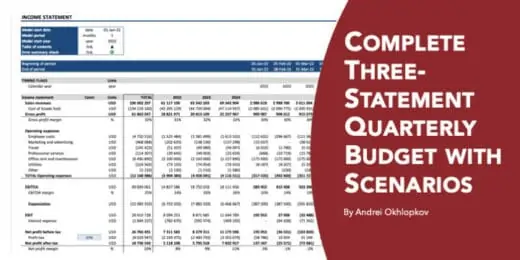
This detailed, yet easy to use three statement financial model will allow you to calculate your business' profit and loss, build a balance sheet and c... read more

The Online Clothing Store Financial Model helps founders, entrepreneurs, business owners, consultants, and analysts turn an apparel e-commerce idea in... read more

The Dental Clinic Financial Model helps users turn a dental practice concept, launch plan, or expansion strategy into a structured five-year financial... read more

Start Up Solar Farm Excel Model presents the business case of an investment in the construction of a solar farm and the sale of the energy generated f... read more


The FMCG Financial Model provides a framework to accurately forecast the financial statements of a FMCG company over the next 8 years. The model uses ... read more

The Spa Financial Model helps entrepreneurs, spa owners, consultants, analysts, and business planners turn a wellness concept into a structured five-y... read more


This financial model can be used to evaluate the financial feasibility of a real estate development project and present it in investor grade quality t... read more
The Nail Salon Financial Model Financial Model Template helps entrepreneurs, salon owners, consultants, analysts, and business plan writers turn a nai... read more

Development & Construction Model presents the case where a property with multiple residential units is constructed and subsequently rented for sev... read more


This excel template is great for those wanting a professional-looking forecast 10 years of financial statements, those starting out as an entrepreneur... read more
The Medical Practice Financial Model helps users turn a clinic concept, expansion plan, or healthcare service idea into a structured five-year financi... read more
Average rating:Submit Rating
The Solar Panel Manufacturing Financial Model helps users turn a solar factory concept into a structured, investor-ready financial forecast. It is des... read more
" The Restaurant Financial Model helps users turn a restaurant concept into a structured, editable financial forecast without building complex spreads... read more
The Pizza Restaurant Financial Model Template helps entrepreneurs, restaurant owners, consultants, analysts, and founders turn a pizza restaurant conc... read more

The Real Estate Portfolio Financial Model Template forecasts the financial performance when building a real estate portfolio. The model allows simulat... read more
The Beauty Salon Financial Model helps entrepreneurs, salon owners, consultants, analysts, and founders turn a salon business idea into a structured f... read more


Project Finance Model for a Solar (PV) Power Plant projecting revenue, operating costs, and cash flow based on installed capacity, solar irradiance, p... read more

Average rating:
A self-made Modeling Test with a solution for Onshore Wind Turbines plant. The case study is in Chile assuming a 376 MW Capacity. The download include... read more
The Food Truck Financial Model helps entrepreneurs, founders, business owners, consultants, and analysts turn a mobile food business idea into a struc... read more

Leveraged Buy Out (LBO) Model presents the business case of the purchase of a company by using a high level of debt financing. The model generates the... read more


Average rating:Submit Rating
Online Car Rental Platform Business Plan Model is a perfect tool for a feasibility study on launching an online car rental business.


User-friendly Excel model intended for the preparation of a Cost-Benefit Analysis to determine the financial viability for a proposed project or inves... read more

Merger and Acquisition Model template consists of an excel model which assists the user to assess the financial viability of the resulting proforma me... read more

Airline Operator Financial Model presents the case of a company operating an airline business. The model generates the three financial statements, a s... read more

Setting up a biodiesel manufacturing plant requires a comprehensive and executed business strategy. To assess biodiesel production's financial sustain... read more
The Clothing Manufacturing Financial Model helps users turn a garment production concept into a structured, editable financial forecast. It is built f... read more

With this comprehensive 5- or 10-year monthly tool, investors can assess the viability of setting up and investing in an EV charging station business ... read more

The Green Hydrogen from Wind Financial Model aims to comprehensively forecast a horizon of 40 years of the financial feasibility and profitability of ... read more
The Flower Shop Financial Model helps entrepreneurs, florists, business owners, consultants, and analysts turn a floral retail concept into a structur... read more
The Healthcare Clinic Financial Model helps founders, clinic owners, consultants, analysts, and business planners turn a healthcare clinic concept int... read more

Shopping Mall Financial Model presents the case of an investment into a shopping mall and its operation. The model generates the three financial state... read more

Average rating:
Highly versatile and user-friendly Excel model for the preparation a of 5-year rolling 3 statement (Income Statement, Balance Sheet and Cash flow Stat... read more
The Physiotherapy Clinic Financial Model helps founders, clinic owners, consultants, analysts, and business plan writers turn a physiotherapy clinic c... read more
Average rating:Submit Rating
Financial Modeling Tutorial guides user via step by step approach on how to build financial models with DCF valuation


This Hotel / Holiday Resort Development Model will take you through a 20-year period of Three Statement Analysis and provide you with key valuation da... read more
The Juice Bar Financial Model helps entrepreneurs, founders, consultants, analysts, and business owners turn a juice bar or beverage service concept i... read more

This financial model can be used to value any Initial Public Offering (IPO) using Option Value, DCF and Relative Valuation.

Average rating:Submit Rating
Electric Vehicle (EV) charging Station FM helps user asses financial viability of setting up and operating a charging station.
The Private Equity Oil and Gas Financial Model evaluates the financial feasibility and investor returns when investing in a portfolio of upstream oil ... read more

Average rating:Submit Rating
Fully-Vetted Comprehensive Cloud Services Financial Model + Video Series + eBook

The Food Manufacturing Financial Model helps entrepreneurs, founders, consultants, analysts, and business owners turn a food production concept into a... read more
Average rating:Submit Rating
The SaaS Business Financial Model helps founders, entrepreneurs, consultants, analysts, and business owners build a structured financial plan for a so... read more

Take this opportunity and get a discount by getting the Renewable Energy Bundle where you get Solar, Wind and Bio Gas Plant Financial Model Templates!
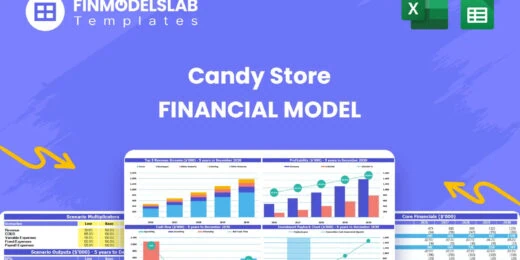
The Candy Store Financial Model helps entrepreneurs and planners turn a retail confectionery concept into a structured financial forecast. Instead of ... read more

Our Mini-Storage Financial Model Template is your all-in-one solution for building a profitable and scalable storage business. Featuring a Detailed 10... read more
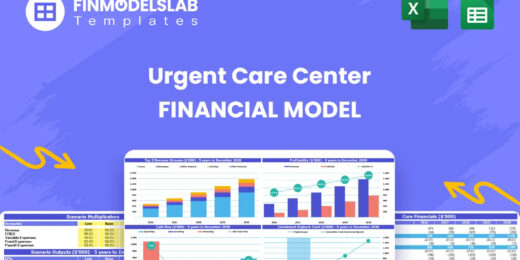
The Urgent Care Center Financial Model helps users turn a walk-in clinic concept into a structured financial forecast that can support planning, budge... read more

This Car Rental Business Financial Model Template in Excel offers an ideal basis for developing a business plan for a car rental company. The template... read more

This comprehensive 40-year tool aid investors in evaluating potential risks and returns and assess the viability of setting up and investing in the pr... read more

The objective of the Geothermal Energy financial feasibility model template is to analyze a new Geothermal Energy project in quite some detail in orde... read more

Average rating:Submit Rating
Financial model that performs a DCF & Relative valuation on Mining Company.

A collection of user-friendly Project Finance Models in the Renewable Energy Sector offered at a discounted price you can’t miss!

Average rating:
Fully-Vetted Comprehensive Video Streaming Financial Model + Video Streaming Guide eBook + Youtube Video Series

Average rating:Submit Rating
The toolkit is an essential resource for any organization, providing a comprehensive collection of tools and templates designed to streamline financia... read more
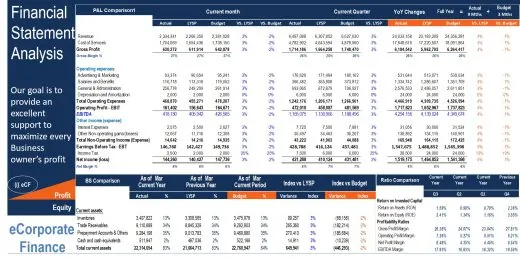
The main purpose of the model is to allows user to easily compare the financial performance result from one period to the next or between actual and b... read more
The Pharmacy Financial Model template helps entrepreneurs, pharmacy owners, consultants, analysts, and business plan writers turn a retail pharmacy co... read more
The Veterinary Clinic Financial Model Financial Model Template helps entrepreneurs, clinic owners, consultants, analysts, and business planners turn a... read more

Average rating:
Fully-Vetted Comprehensive Youtube Content Creator Financial Model + Video Series + eBook

The Daycare Center Financial Model helps entrepreneurs, childcare founders, consultants, analysts, and business owners turn a daycare concept into a s... read more

The Cash Management Dashboard lets you rapidly determine areas where your company is exceeding expectations and those that require immediate touch. An... read more

Shipping Vessel’s Financial Model presents the business case of the purchase of two vessels with the intent of chartering them to generate revenues.... read more
The Ophthalmology Clinic Financial Model is a ready-to-use financial model template designed to help founders, clinic owners, consultants, analysts, a... read more

The Nightclub Financial Model helps users turn a nightlife business concept into a structured financial forecast that can be used for planning, budget... read more

User-friendly financial model to project and analyse the financial outcomes (IRR, projected financials, key ratios, sources & uses of funds, sensi... read more

Financial Model for a Public-Private Partnership (PPP) project outlining the long-term costs, revenues, and risk-sharing between the public and privat... read more

Average rating:Submit Rating
3 statement 5 or 8 year rolling financial projection Excel model for an investment holding company holding investments in up to 8 portfolio companies ... read more

The Gift Shop Financial Model helps users build a structured financial forecast for a retail gift store without starting from a blank spreadsheet. It ... read more
The Tea Room Financial Model helps entrepreneurs, operators, consultants, and business planners turn a tea room concept into a structured financial fo... read more

This Financial Model Template in Excel provides an easy way to forecast the financial performance of RNG business. The model focus on organic waste in... read more

Average rating:Submit Rating
Cash Flow Projection Template Highlights One-year Cash Flow Projection template is a useful tool for cash flow forecasting and for effectively plannin... read more


Average rating:Submit Rating
An integrated, dynamic and ready-to-use Real Estate Acquisition-Rent-Sell Comprehensive Analysis Model which could be a pretty useful tool for the pur... read more

Average rating:Submit Rating
3 statement 5 year rolling financial projection Excel model for a startup /existing business engaged in construction or engineering projects

The Preschool Financial Model helps entrepreneurs, childcare founders, preschool owners, consultants, and financial analysts turn an early childhood e... read more
The right way to compute DSO DIO DPO - Using the countback method, fully automated!

Toll Road Build and Operate financial model is a project finance model for construction and operations of a toll concession


Explore the Debt Fund Excel Model, a comprehensive tool for evaluating new credit fund opportunities. This model provides a detailed roadmap for the f... read more

Average rating:Submit Rating
One Excel file for this bundle of Valuation and Financial forecasting models. Storage Parks, Hotels, Commercial Office Buildings, Retail Shopping Cent... read more

Average rating:
A detailed and user friend financial model that captures 5 years of Historical + 1 Year of Budget + 5 Years of the forecast period.

Average rating:
User-friendly 3 statement 5 year rolling financial projection Excel model for existing/startup healthcare business

A Project-Level Financial Model to assess the financial feasibility of setting up and operating a Green Hydrogen Gas Production Plant with detailed NP... read more

Financial Model providing a dynamic up to 10-year financial forecast for a startup Manufacturing Company.


The Private Equity Acquisition Model provides a business valuation of a target company for investment. The Private Equity Acquisition Model allows for... read more

The SaaS Business Financial Model helps founders, entrepreneurs, consultants, analysts, and business owners build a structured financial plan for a so... read more


Average rating:Submit Rating
A fundamental and professional budget / business plan
Financial model presenting a development scenario for a Multi-Tenant Industrial Building including construction, operation, and valuation phases.
Professional Realtors need a professional Toolkit which allows them to operate at a higher level. The ALL-IN-ONE Quintessential Real Estate Toolkit in... read more

This detailed, yet easy to use three statement financial model will allow you to calculate your business' profit and loss, build a balance sheet and c... read more
The Hair Salon Chain Financial Model helps entrepreneurs, salon owners, consultants, analysts, and business planners create a structured financial for... read more
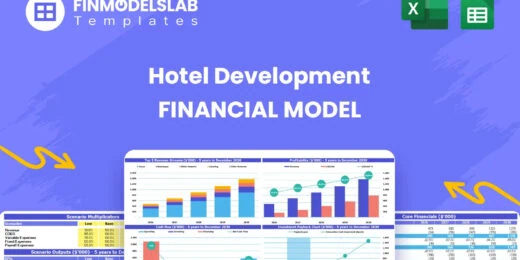
The Hotel Development Financial Model helps users evaluate a hotel construction or expansion project with a structured, investor-ready financial forec... read more
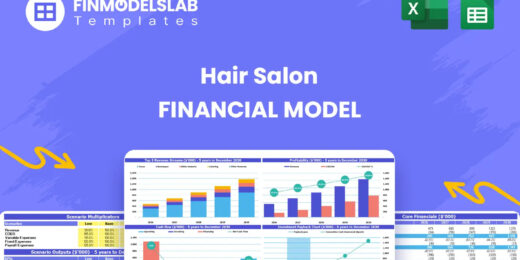
The Hair Salon Financial Model helps salon owners, founders, consultants, and business planners turn a salon concept into a structured financial forec... read more


Starting a restaurant without a financial plan is like driving a car blindfolded. You wouldn´t do it because you are a careful person! As a business ... read more
Average rating:Submit Rating
A fundamental and professional budget / business plan

Dive into the financial planning of your Crane Rental Company with our comprehensive 10-year monthly Financial Model Template in Excel, designed to se... read more

Average rating:Submit Rating
Commercial Real Estate - Lease or Sell Quarterly Excel Model with 3 Statements, Valuation, and Development & Operations Phase. The Project Finance Mod... read more

Fin-wiser’s Ethanol and Sugar Plant PPP project model helps users to assess the financial viability of setting up and operating an Ethanol and Sugar... read more

Excel model for a start up Greenhouse business for you to download and use.
Average rating:Submit Rating
Fully-Vetted Comprehensive Digital Media Financial Model + Video Series

The Food Delivery Service Financial Model helps founders, entrepreneurs, business owners, consultants, and analysts turn a delivery platform concept i... read more

Average rating:Submit Rating
Hydrogen Gas Sales & Tolling Business Plan and Valuation Model with 3 Statements
A suite of best practices to perform financial and commercial due diligence. Use it if you are considering a company for potential acquisition or anal... read more

Average rating:Submit Rating
The University and School Financial Model aim to plan the operations, financial feasibility, and profitability of starting up a University and School.... read more

20-year financial model for an upstream Oil & Gas project providing forecasts, valuation, and insights to assess long-term project economics.

The Bicycle Shop Financial Model helps entrepreneurs, business owners, consultants, analysts, and founders turn a bike retail concept into a structure... read more

Average rating:Submit Rating
Fully-Vetted Comprehensive eCommerce Financial Model + Video Series

Average rating:
User-friendly 3 Statement 5 year rolling financial projection Excel model for a startup or existing Hotel business generating revenue from room occupa... read more

Solar Park FM is a Project Finance Model for construction and operations of a Solar Park

Telecom Financial Model presents the case of an already operating business in the telecom sector (mobile communications, internet and entertainment se... read more

Waste Water Concession Model is a Project Finance Model for construction and operations of a waste water treatment plant.


This template is a detailed financial model that takes into account the specifics of the real-estate niche that is the hotel industry.

The Online Bank Financial Model Financial Model Template helps founders, fintech entrepreneurs, consultants, analysts, and business planners build a s... read more

Biogas Plant Model is a Project Finance Model for construction and operations of a biogas plant.

The Greenhouse Farming Financial Model helps users evaluate the economics of a controlled environment agriculture business before launch, expansion, o... read more

10-Year financial model for a hotel acquisition projecting revenue, operating expenses, and cash flow based on room occupancy rates, average daily rat... read more

The SaaS Business Financial Model helps founders, entrepreneurs, consultants, analysts, and business owners build a structured financial plan for a so... read more

Financial model for a typical project finance solar project.

The Hostel Financial Model helps entrepreneurs, founders, operators, consultants, and analysts turn a hostel concept into a structured financial forec... read more

Average rating:Submit Rating
The Karaoke Bar Financial Model helps entrepreneurs, business owners, consultants, founders, and analysts turn a karaoke venue concept into a structur... read more
Solar Farm Excel Model Template is an excellent tool to assess the financial feasibility of a proposal to Build and Operate a Solar PV Farm/Plant or a... read more

Average rating:Submit Rating
Financial Model providing a dynamic 10-year financial forecast for a Private Members Club.

The Babysitting Service Financial Model helps entrepreneurs, founders, business owners, consultants, and analysts turn a babysitting or childcare mark... read more

This Multi-Cuisine Café business Plan Model is a perfect tool for a financial feasibility study on launching a cafe.

The In-Home Daycare Financial Model helps users turn a home-based childcare concept into a structured financial forecast. It gives entrepreneurs, dayc... read more
The Apartment Development Financial Model Template helps real estate developers, entrepreneurs, business owners, consultants, analysts, and investment... read more

Capital Budgeting consists of a process that companies use for decision making on investment projects that usually have a long-term horizon (over a ye... read more

The Gas Station Financial Model Financial Model Template helps entrepreneurs, business owners, consultants, analysts, and founders turn a fuel retail ... read more

3 statement 5 year rolling financial projection Excel model for a startup or existing digital media business generating revenue through subscription p... read more

The Dropshipping Business Financial Model helps entrepreneurs, founders, consultants, analysts, and e-commerce business owners turn a dropshipping con... read more
This is a collection of selected financial model templates for projects or ventures in the Online Business Industry and its related sectors. These te... read more

Deciding whether to invest or not in producing yellow hydrogen from solar energy, one would require this well-prepared and comprehensive financial pla... read more

Average rating:Submit Rating
Detailed Financial model template or DCF valuation model for Airlines business model.

Average rating:Submit Rating
Fully-Vetted Comprehensive Lead Generation Financial Model + Video Series + eBook

The coronavirus has turned many small and big companies upside down. The decrease in sales, problems with suppliers, remote teams, all this should be ... read more

M&A financial model providing transaction analysis, valuation, deal financing, synergies, and accretion/dilution insights to support acquisition d... read more

The financial model presents the business case of an online marketplace. A marketplace is a user-friendly platform that allows buyers to search and pu... read more

Average rating:Submit Rating
Restaurant Aggregator and Food Deliver Business Plan Model is a perfect tool for a financial feasibility study on launching a platform for food delive... read more

3 statement 5 year rolling financial projection Excel model for a insurance broker business

Average rating:Submit Rating
The Micro-Distillery Financial Model helps founders, operators, consultants, analysts, and business plan writers turn a craft spirits concept into a s... read more

Average rating:Submit Rating
The Subscription Box Financial Model Template helps entrepreneurs, founders, analysts, consultants, and business owners turn a subscription box concep... read more

Financial Model presenting a Film Production Scenario including Production Budget, Distribution Analysis and Investors Returns
You might also like:
- 10 Awesome Excel Formulas To Use For Your Next Financial Model In Excel
- 10 Main Elements of a Business Plan
- Cash Flow Analysis in Excel
- 5 Steps to Create a Drop Down List Using Data Validation in Excel
- Budgeting
- 5 Practical Tips to Help Raise Funds For Startups
- Financial Modeling for Startups and Small Businesses
- Financial Model Templates Easy to Use
- Creating a Budget Plan – Using the Best Excel Budget Template
- Pros and Cons of Equity Financing
- Business Valuation
- How to Calculate Annual Recurring (ARR) Revenue for Sustainable Growth
- Financial Planning for Small Business Owners – Taking an SBA Loan
- How to Write a Business Plan Step-by-Step
- Financial Ratios Analysis and Its Importance
- Understanding the Debt Service Coverage Ratio: An Essential Metric for Financial Analysis
- Understanding What is Yield to Maturity and Why It Matters
- How to Build a Capitalization Table
- Capitalized Earnings
- Simple Budget Planner Template

eFinancialModels Team
Content Manager
The eFinancialModels Team showcases the combined expertise of seasoned professionals in financial modeling, valuation, and business analysis. Our goal is to share practical knowledge, insights, and best practices drawn from real-world experience across industries such as renewable energy, real estate, SaaS, manufacturing, and finance.
Through our articles and templates, we aim to make complex financial modeling concepts accessible and actionable—helping entrepreneurs, investors, and finance professionals make smarter business decisions.


