
0 ITEMS

Manage Your Money: Excel Personal Budget Basics

Managing your personal finances in Excel involves more than just listing numbers; it requires understanding key tools and techniques to stay on top of your money.
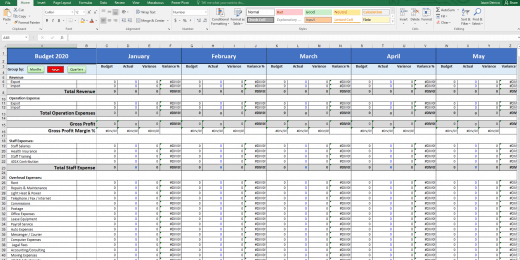
- Setting up a budget spreadsheet with sections for income, expenses, savings, and totals helps organize your financial picture.
- Using formulas like SUM, AVERAGE, and IF automates calculations and reduces errors.
- Categorizing expenses into fixed and variable costs improves tracking and budgeting accuracy.
- Pivot tables, charts, and conditional formatting make analyzing cash flow and spending patterns easier.
- Protecting your data with backups and passwords ensures your financial information remains secure.
Continued practice with these Excel skills makes personal budgeting more manageable and effective.
Cracking The Excel Code For Personal Budgets
Master your finances with ease using Microsoft Excel. This tool becomes a personal finance powerhouse when you learn its secrets. Embark on a journey to unlock the full potential of Excel for tracking your budget. No more guesswork, just pure financial control at your fingertips. Let’s crack the Excel code together.
Setting Up Your Financial Canvas
Before painting your financial picture, you need a blank canvas. Start Excel and choose a blank worksheet. To make things simple, label the top row with these essential categories: Income, Expenses, Savings, and Totals.
Your Income column will show money coming in. Expenses will list your spending. Aim to save a part of your income, shown in the Savings column. Lastly, Totals will keep score. Now, begin adding your specifics.
The Anatomy Of A Functional Budget Spreadsheet
A good budget spreadsheet has clear sections. These include your income, fixed and variable expenses, savings, and a summary. Use the below table as your guide.
| Section | Description |
|---|---|
| Income | Enter all sources of monthly income here. |
| Fixed Expenses | These do not change. Think rent or mortgage. |
| Variable Expenses | Expenses that vary. Like groceries or dining out. |
| Savings | Money set aside for future needs or goals. |
| Summary | Tracks income minus expenses. Shows your balance. |
Use formulas to calculate totals automatically. For instance, in the Summary section, subtract total expenses from income. Excel does this for you. Just type =SUM(income range) - SUM(expense range) and press enter.
Highlight important numbers in bold. This makes it easy to spot them. Remember to update your spreadsheet regularly to keep track of your finances.
Income Tracking With Excel
Discover the power of Excel for personal budget management and effortlessly track your income. Master your financial life with concise, easy-to-implement Excel strategies designed to organize your earnings and expenses.
Knowing where your money comes from shapes your financial planning. Excel simplifies the task, providing a way to organize and track all sources of income. Whether you draw a regular salary, work freelance gigs, or watch for the occasional windfall, Excel makes it easy to see the big picture at a glance. Let’s break down how to monitor your earnings with precision in this essential budgeting tool.
Logging Your Earnings Effectively
Start by setting up a spreadsheet. With columns for the date, the source, and the amount, your income records will become clear. Be consistent with entries after each payday. Excel’s formulas sum up totals, giving you instant insights into your monthly income trends. Follow these simple steps:
- Create a new Excel workbook dedicated to your finances.
- Label each column with headers like
Date,Source, andAmount. - Use the ‘SUM’ function to calculate total income.
Recurring Income Vs. One-time Windfalls
Two types of income can influence your budget: recurring income and one-time windfalls.
Recurring income flows in regularly, like a steady river. It includes wages, salaries, and dependable monthly gigs. Always anticipate these predictable amounts.
One-time windfalls, like a tax refund or a gift, swell your budget like a sudden downpour. They should be noted separately as they are not guaranteed.
| Type of Income | Description | Excel Tips |
|---|---|---|
| Recurring Income | Consistent earnings (e.g., weekly or monthly wages) | Use recurring rows for each source and date. |
| One-time Windfalls | Unexpected or occasional earnings | Categorize separately from regular income. |
Differentiating between these income types in Excel is crucial for accurate budget planning. Stick with these methods and watch your financial mastery grow.
Categorizing Expenses Wisely
Categorizing Expenses Wisely is all about knowing where your money goes. To start managing your money like a pro, you need to divide your costs smartly. This makes tracking your spending easier.
Fixed Versus Variable Costs In Your Spreadsheet
| Fixed Costs | Variable Costs |
|---|---|
| Rent | Groceries |
| Mortgage | Dining Out |
| Insurance | Entertainment |
| Loan Payments | Shopping |
Fixed costs stay the same every month, like rent or loan payments. Variable costs, like groceries and gas, can change. List them in your Excel sheet to see the patterns.
Organizing Expenses For Clearer Financial Pictures
- Create categories like ‘Home’, ‘Food’, ‘Transport’.
- Put each expense in the right group.
- Break down bigger categories if needed.
Doing this gives you a clearer view of your money. You can see which areas take up most of your budget. This helps in making smart money choices.
Excel Formulas For Financial Freedom
Mastering Excel is like finding a golden key to unlock your personal finance vault. It’s not just about tracking expenses. It’s about setting a path to financial freedom. Excel’s formulas transform numbers into insights, making money management less of a chore and more of a strategic game. Let’s explore essential formulas and functions that can turn a simple spreadsheet into a dynamic budgeting tool. Ready to command your cash flow with a few clicks? Let’s begin.
Must-know Formulas And Functions For Budgeting
Budgeting in Excel is about precision and foresight. Whether you’re planning for retirement or just trying to keep your grocery bills in check, knowing these formulas will keep you ahead.
| Function | Purpose | Formula Example |
|---|---|---|
| SUM() | Total up a range of cells | =SUM(B2:B10) |
| AVERAGE() | Calculate average value | =AVERAGE(B2:B10) |
| MAX() | Find the largest number | =MAX(B2:B10) |
| MIN() | Determine the smallest number | =MIN(B2:B10) |
| IF() | Make logical comparisons | =IF(B2>C2,”Over Budget”,”Under Budget”) |
Automating Calculations To Save Time And Reduce Errors
Automation in Excel takes the tedium out of budget tracking. It eliminates the need for manual calculations, reducing errors and saving precious time. Here are ways to automate your budget calculations:
- Use Cell References: Change one number, and the rest updates automatically.
- Apply Conditional Formatting: Visual cues for when you’re nearing budget limits.
- Create Pivot Tables: Summarize data for quick analysis and reports.
- Deploy Data Validation: Prevent incorrect data entry from the start.
- Set up Data Tables: Compare multiple financial scenarios side by side.
By harnessing these automations, you’ll craft a resilient budget that adapts to your financial journey. With each formula and function, you edge closer to your goals, securing your financial future with every calculated click.
Monitoring Cash Flow With Pivot Tables
Understanding how money flows in and out of your hands is key to mastering your budget. Excel’s pivot tables transform extensive data into actionable insights, allowing you to monitor your cash flow effectively. Let’s dive into how pivot tables can create a clear financial picture.
Pivot Tables For A Dynamic Budget Overview
Pivot tables in Excel offer a powerful way to see your whole budget at a glance. You can quickly adjust and summarize your financial data. This helps you track your expenses and income with ease. Here’s how they benefit your budget:
- Customize views: Focus on specific categories like groceries or utilities.
- Update automatically: Reflect new data as you add transactions.
- Identify trends: See where you spend the most each month.
To start, select your transactions, then choose Insert > PivotTable. Now you can drag and drop fields to organize your data efficiently.
Analyzing Spending Patterns With Excel Tools
Excel’s tools help you dive deeper into your spending. Slicers and timelines filter data, while charts and graphs provide visual snapshots. These tools make pattern analysis simple and engaging:
- Use slicers to filter data by dates or categories.
- Add a timeline to sort expenses over a period.
- Create a chart for visual spending breakdowns.
To analyze, add a slicer by clicking Analyze > Insert Slicer. Then, pick the fields you want to filter. For trends, Insert > Timeline is your go-to. And for charts, select your data and click on Insert > Chart.
Smart Budget Management With Excel Tricks
Excel is a powerful tool that can help you manage your money wisely. By using Excel, you can create a personal budget that keeps track of every penny you earn and spend. Let’s explore some Excel tricks that will make budget management a breeze.
Conditional Formatting For Financial Alerts
Conditional formatting in Excel is like a financial watchdog. It keeps an eye on your budget. When a cost goes too high, it alerts you by changing colors. This way, you never miss when money matters need your attention.
Here’s how to set up an alert:
- Select the cells with your expenses.
- Go to the ‘Home’ tab, then click ‘Conditional Formatting’.
- Choose ‘Highlight Cell Rules’ and then ‘Greater Than’.
- Set your spending limit and pick a color for the alert.
Now, whenever your spending crosses the limit, Excel will tell you with a color change.
Charting Your Financial Goals And Progress
Charts turn numbers into pictures. They show where you stand with your money goals. Excel lets you create charts that are easy to understand.
To chart your financial goals:
- Type your goals and the amounts in two columns.
- Select the data.
- Click ‘Insert’ and choose a chart type.
- Customize your chart with titles and colors.
A chart gives a clear picture of your goals versus your progress. You can see at a glance how close you are to your dreams.
With these Excel tricks, you get to play the role of a finance wizard. Transform your budget management by making the numbers work for you!
Safeguarding Your Financial Data In Excel
Keeping your financial data secure is a top priority. Excel can be a powerful tool for managing your budget, but it’s critical to ensure that your information stays safe. Let’s explore how to protect your budget spreadsheets.
Backups And Security For Your Budget Files
Regularly backing up your Excel budget files can save you from unexpected data loss. A hard drive failure or a simple mistake could erase your careful budgeting. Protect your financial future with these backup strategies:
- Use Cloud Storage: Services like OneDrive or Dropbox automatically sync your files, offering an off-site backup.
- External Drives: Save copies to USB drives or external hard drives periodically.
- Email Copies: Email yourself a copy of the budget spreadsheet as a periodic backup.
Security is also crucial. Protect your data with strong passwords. Consider encryption options, such as password-protecting your Excel files:
Sharing And Collaborating On Budget Spreadsheets Responsibly
Excel offers features for teamwork but use them wisely. Here’s how to share and collaborate without compromising your financial data:
- Permission Settings: Give access only to those who need it. Use ‘View Only’ or ‘Edit’ permissions appropriately.
- Audit Trail: Track changes in your spreadsheet. Know who did what and when.
- Separate Sheets: Share only what’s necessary. Create separate tabs for shared data, keeping sensitive info private.
Following these guidelines helps keep your financial data secure while still benefiting from Excel’s budget management capabilities.
Frequently Asked Questions
How Do I Maintain A Personal Budget In Excel?
Create a new Excel spreadsheet and label columns for income, expenses, and savings. Record all transactions monthly. Use formulas to calculate totals and to track your spending against your budget. Regularly review and adjust figures as needed to stay on track.
How Do I Organize Personal Finances In Excel?
Create a new Excel spreadsheet and label columns for income, expenses, savings, and debts. Input your financial data monthly and use formulas to track totals and trends. Regularly update and review for financial management.
What Is The 50 30 20 Budget Rule In Excel?
The 50 30 20 budget rule in Excel is a financial framework for allocating income: 50% for needs, 30% for wants, and 20% for savings or debt repayment.
Is Excel A Good Tool For Keeping Your Personal Budget?
Excel is a versatile tool for managing personal budgets, offering customizable templates and formulas to track expenses and income effectively. Its widespread use and familiarity make it a reliable option for budgeting needs.
Conclusion
Crafting a solid financial plan is within reach with Excel budgeting tools. Mastering personal budgets empowers you to direct your fiscal journey confidently. Embrace these Excel essentials, and watch your money work for you. Start now and transform your financial story—one spreadsheet at a time.
Secure your future by taking control today.















































































































You might also like:
- 10 Tips to Develop a First Class Business Valuation Report
- Building a Monthly Budget – Using Monthly Budget Templates
- Creating a Budget Plan – Using the Best Excel Budget Template
- Financial Planning for Small Business Owners – Taking an SBA Loan
- Financial Statements – Definition, Uses, Contents and Templates
- 10 Main Elements of a Business Plan
- Personal Budgets
- 5 Practical Tips to Help Raise Funds For Startups
- How to Evaluate a New Solar Park for Investment?
- Achieve Financial Success By Knowing Your Business Plan Model
- Creative Ways to Save for Your Goals as a Startup
- Understanding the Debt Service Coverage Ratio: An Essential Metric for Financial Analysis
- Exploring the Benefits of a Rental Property Excel Spreadsheet
- 5 Ways COVID-19 Impacts Financial Plans For Retirement & What To Do About It
- 10 Ideas to Increase Average Revenue Per User
- 5 Smart Ways To Manage Personal Finances In A Pandemic
- Budgeting
- Business Plans
- Monthly Google Sheets Budget (with Financial Statements)
- Creating a Business Plan for your Food Truck Business


