
0 ITEMS

Effortlessly Navigate Through Excel Count If Not Empty
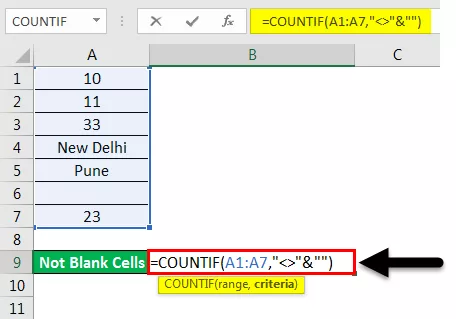
Counting non-empty cells in Excel with the COUNTA function is a quick way to analyze your data without manually checking each cell.
- COUNTA excludes blank cells, counting only cells with data, including errors and spaces.
- Different count functions like COUNT, COUNTA, and COUNTIF serve specific purposes—COUNT for numbers, COUNTA for all non-blank cells, and COUNTIF for conditional counts.
- COUNTIF with the “<>” operator effectively counts all cells that contain any data, making it useful for quick non-empty cell checks.
- Combining COUNTIF with multiple criteria can identify non-empty cells based on more complex rules.
- Troubleshooting common issues involves verifying ranges, syntax, and managing large datasets efficiently.
This overview provides practical tips for mastering data counting and analysis in Excel.
Exploring Excel’s Count Functions
Excel is a powerhouse for organizing data. Count functions are keys to understanding your data’s story. They tell you how many cells contain numbers, text, or even no data at all. Let’s dive into the various count functions Excel offers and see how they can simplify your data analysis tasks.
The Basics Of Count
Counting in Excel is like counting stars in the sky—straightforward and simple. The COUNT function is your go-to for numeric values. It looks at a range and counts only the cells with numbers. Text, errors, or empty cells? It ignores them.
- To count numbers in a range, use:
=COUNT(range) - If you need to count all cells, not just those with numbers, there’s more to explore.
Differentiating Count, Counta, And Countif
Excel offers different count functions for different needs. COUNT checks for numbers, COUNTA counts all non-empty cells, and COUNTIF counts cells that meet a condition.
| Function | Use | Example |
|---|---|---|
| COUNT | Numbers only | =COUNT(A1:A10) |
| COUNTA | All non-empty | =COUNTA(A1:A10) |
| COUNTIF | Specific condition | =COUNTIF(A1:A10, "apple") |
COUNT is perfect when you need to know how many cells have numbers. COUNTA shines when you want to include text and other data types. Use COUNTIF when you have a specific condition to meet, like counting all cells with the word “apple”.
Each function serves a unique purpose. Mastering them empowers you to navigate through your data with ease.
Identifying Non-empty Cells
Excel is a data powerhouse. Knowing how to pinpoint non-empty cells can make data analysis quick and simple. This section dives deep into the heart of Excel’s counting functions. It reveals how to identify cells brimming with data.
Criteria For Non-empty Cells
Understanding the criteria for non-empty cells is crucial for accurate data management. These cells contain either text, numbers, or formulas that result in a non-blank output. Even a space, invisible to the eye, qualifies as ‘non-empty’. It is important to recognize these cells:
- Text-filled cells: Alphabets, words, or sentences.
- Numerical data: Positive, negative numbers or zero.
- Formulas and functions: Cells that calculate and display results.
- Spaces: Often overlooked, a single space makes a cell ‘non-empty’.
Using Counta For Non-blanks
The COUNTA function is your go-to tool for sweeping through columns and rows to count non-blank cells. Dive into its simplicity:
- Select the range or column to be counted.
- Type in the formula =COUNTA(range).
- Press Enter and behold the count of populated cells.
| Example Range | Formula | Result |
|---|---|---|
| A2:A10 | =COUNTA(A2:A10) | Number of non-empty cells in A2:A10 |
Note: COUNTA does not distinguish between different types of content. It simply counts all cells that are not empty. This includes errors as well.
Diving Into Countif
Excel experts and newcomers alike will love the power of COUNTIF. It turns complex data into easy insights. This handy function counts cells that meet your specific criteria, perfect for when sheets fill with data. Let’s make Excel work smarter and faster by learning COUNTIF.
The Syntax Of Countif
Understanding how to write a COUNTIF formula is the first step. The syntax is simple:
=COUNTIF(range, criteria)
- Range: The group of cells to count.
- Criteria: The condition to count cells.
For example, to count all non-empty cells in column A:
=COUNTIF(A:A, "<>")
Crafting Criteria For Countif
With COUNTIF, users set the rules. Let’s create criteria for different scenarios:
| Criteria | Description | Example |
|---|---|---|
"<>" | Not empty | =COUNTIF(A:A, "<>") |
"apple" | Exact match | =COUNTIF(A:A, "apple") |
"apple" | Contains “apple” | =COUNTIF(A:A, "apple") |
The asterisk represents any number of characters. Use it to create flexible search criteria.
Count If Not Empty Technique
Mastering Excel requires clever tricks, one being the ‘Count If Not Empty Technique‘.
This mighty tool sorts the full cells in a flash.
Let’s unlock this Excel secret together!
Setting The Right Criteria
Excel wizards know the formula’s core is the criteria.
It’s the spell that makes counting non-empty cells a breeze.
Choose the range and then the right criteria to begin.
This formula looks like this:
=COUNTIF(range, "<>")
- Range: Select your target cells.
- Criteria: “<>” signifies ‘not empty’.
Counting With Operator
The ‘<>‘ operator is Excel’s ‘not equal to’ symbol.
Here, it finds cells with anything in them.
| Function | Description | Example |
|---|---|---|
| COUNTIF | Counts cells not empty | =COUNTIF(A1:A10, “<>”) |
Using <> in COUNTIF, we tally cells with content only.
Blank cells get ignored, giving a clear count of active cells.
- Use it to count filled cells in a column or row.
- Pair it with a range to specify the counting area.
Practical Examples
Welcome to the heart of our guide on mastering Excel’s ‘COUNTIF’ function for non-empty cells. Mastering this tool opens a world of efficient data analysis. Let’s dive in with practical examples that take you from simple to complex applications. Get ready to become an Excel wizard!
Simple Data Sets
Dig into Excel’s ‘COUNTIF’ with straightforward data examples. Imagine a list of names in a column. You need to know how many contain actual names. It’s simple:
=COUNTIF(A2:A10,"<>"&"")
This formula counts all cells with content between A2 and A10. The “<>” symbol means “not equal to,” and the double quotes “” stand for an empty cell. Here, bold elements show the key parts:
- A2:A10: The range where you’re counting non-empty cells.
- <>: The operator used for ‘not equal to.’
- “”: Represents an empty cell.
Complex Criteria Applications
Now, let’s tackle tougher scenarios where you need a sharp eye for detail!
Assume a grade book with multiple tests and participation marks. You want to count how many students have completed all course requirements:
=COUNTIFS(A2:A10,"<>"&"", B2:B10,"<>"&"", C2:C10,">0")
- A2:A10, B2:B10: Columns with test scores.
- C2:C10: Column with participation marks.
- >0: Means a student participated.
Complex criteria require a combination of ‘COUNTIFS’ and logical operators.
Here is a table for a visual breakdown:
| Column A | Column B | Column C | Formula | Counts |
|---|---|---|---|---|
| Test Score 1 | Test Score 2 | Participation | =COUNTIFS(A2:A10,"<>"&"", B2:B10,"<>"&"", C2:C10, ">0") | Non-empty & Participation >0 |
Stay focused on clear data ranges and accurate criteria. These tools help push your data analysis skills to new heights. Embrace the power of ‘COUNTIF’ and ‘COUNTIFS’ for data that’s never empty and always insightful.
Troubleshooting Common Issues
Working with Excel’s COUNTIF function for non-empty cells is usually smooth. Yet, sometimes issues arise. Finding and fixing these problems is key to maintaining efficiency. Let’s dive into some common troubleshooting steps.
Dealing With Errors
Errors can disrupt your workflow. They need prompt attention. Here are steps to tackle errors in COUNTIF functions:
- Review the range: Double-check cell references.
- Check criteria syntax: Verify quotations and wildcards.
- Inspect for hidden characters: Look for spaces or non-printable characters.
Using =ISBLANK(range) can help identify truly empty cells.
Understanding Limitations And Workarounds
Excel has its limitations. Recognizing these can save time and frustration. Some are:
| Limitation | Workaround |
|---|---|
| Array size | Break down large ranges into smaller sections. |
| Formula length | Use helper columns to simplify criteria. |
| Non-contiguous ranges | Combine COUNTIF functions for each range. |
For large datasets, consider using PivotTables or Excel’s Power Query.
Optimization Tips
Optimization Tips: When dealing with complex Excel sheets, finding non-empty cells using the COUNTIF function is a common task. However, ensuring that this function operates quickly and smoothly requires some optimization techniques. The following tips will guide you through enhancing performance and maintaining spreadsheet organization.
Improving Calculation Speed
Excel sheets can grow to be massive with thousands of cells. A slow calculation can affect productivity. Here’s how to speed up the COUNTIF function for non-empty cells:
- Use Excel Tables: Excel Tables optimize data range references automatically.
- Avoid Volatile Functions: Functions like
INDIRECT,OFFSET, andTODAYcould slow down yourCOUNTIF. - Limit Range References: Refer to specific ranges instead of entire rows or columns.
Maintaining Spreadsheet Cleanliness
A cluttered spreadsheet not only slows down calculations but also makes data analysis difficult. Keep your files clean with these strategies:
- Delete Unused Cells: Remove off-screen cells not contributing to your analysis.
- Avoid Blank Rows/Columns: They create confusion when counting non-empty cells.
- Regular Reviews: Check your sheets regularly to tidy up and organize data better.
Beyond Countif: Advanced Techniques
Excel’s COUNTIF function is a powerhouse for basic counting tasks. But what happens when your dataset complexity grows? You need tools that can keep up. Move beyond simple functions and embrace advanced techniques to navigate through non-empty cells in Excel.
Harnessing The Power Of Array Formulas
Array formulas take your data analysis to another level. With a single formula, you can perform multiple calculations on a range of data. They are the perfect match for complex criteria that can’t be met with basic functions.
Try this dynamic approach to count non-empty cells:
{=SUM(LEN(A2:A10)>0)}
Press CTRL+SHIFT+ENTER instead of just Enter after typing the formula. This turns it into an array formula. Excel wraps it with curly braces {}. You do not type these yourself.
Incorporating Countifs For Multiple Criteria
If you’re juggling several conditions, COUNTIFS is your go-to. COUNTIFS extends the capabilities of COUNTIF by allowing you to specify more than one criteria.
- Structure your COUNTIFS formula like this:
=COUNTIFS(range1, criteria1, [range2], [criteria2],...)
Here’s a quick example:
- Count cells in column A that are not empty, and in column B if the value is “Approved”.
=COUNTIFS(A:A, "<>", B:B, "Approved")
The “<>” is code for “not empty”. Pair that with your specific “Approved” criteria, and your data’s story becomes clearer.
Frequently Asked Questions
What Does “count If Not Empty” Mean In Excel?
The “Count If Not Empty” formula in Excel is used to tally only the non-blank cells within a specified range. It ignores empty cells, counting how many cells actually contain data. This is extremely helpful for analyzing datasets with varying amounts of information.
How Do You Use Countif For Non-empty Cells?
To use COUNTIF for non-empty cells, structure your formula like `=COUNTIF(range, “<>”)`. Replace `range` with your cell range. The “<>” operator signifies non-empty cells. Excel then counts all cells in the range that have data in them.
Can “count If Not Empty” Include Zero Values?
Yes, “Count If Not Empty” includes cells with zero values. Since zero is a numerical value, Excel does not consider such cells empty. Therefore, they are counted along with other non-blank cells in the specified range.
Is Countif Different From Counta For Non-empty Cells?
COUNTIF is more versatile than COUNTA because it allows for condition-based counting. While COUNTA automatically counts all non-empty cells, COUNTIF can be tailored to count cells based on specific criteria, including but not limited to being non-empty.
Conclusion
Mastering the ‘Count If Not Empty’ Excel function streamlines data analysis and workflow efficiency. Remember, practice is key to proficiency. Visit our blog for more Excel tips and elevate your spreadsheet game to new heights!
























































You might also like:
- How To Use COUNTIF Function In Excel
- Steps to Building Financial Models in Excel
- Financial Planning for Small Business Owners – Taking an SBA Loan
- 8 Key Financial Reporting Strategies for Successful Business Execution
- 10 Tips to Develop a First Class Business Valuation Report
- Financial Forecasting Models by eFinancialModels
- How to Prepare a Financial Plan for a Chicken Egg Farm?
- E-Commerce & Web Shops
- Agriculture
- Annual Recurring Revenue (ARR)
- Financial Planning
- Tips for Crafting the Perfect Financial Model
- How to Write a Business Plan Step-by-Step
- Creating a Business Plan for your Food Truck Business
- How to Use Excel for Financial Analysis?
- 3D Printing
- Financial Model – Valuation of Tax Loss Carryforwards
- Startup Financial Models
- 8 Steps To Start Your Own Catering Business
- Financial Services


