
0 ITEMS

The Ultimate Guide to What is SUMIF in Excel
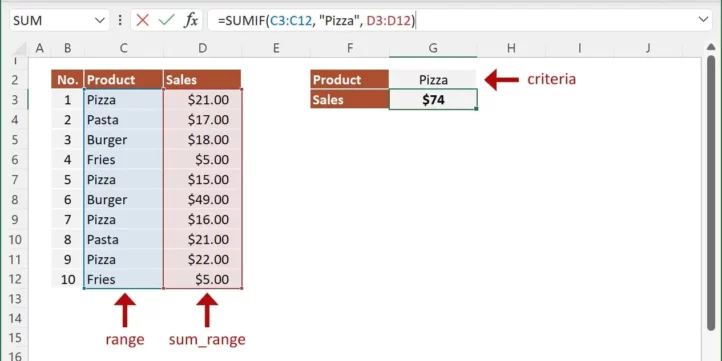
Excel’s SUMIF function provides a quick way to add numbers based on specific conditions.
- It evaluates a range of cells and sums only those that meet the chosen criteria, such as text, numbers, or dates.
- The function uses three arguments: range, criteria, and an optional sum range to customize calculations.
- SUMIF is useful for tracking expenses, analyzing sales data, and managing inventories efficiently.
- Mastering SUMIF can save time and improve accuracy in data analysis tasks.
Continue reading for practical tips and real-world examples to make the most of SUMIF in Excel
Introduction To SUMIF
Excel’s SUMIF function is a powerful tool that adds numbers selectively. It sums numbers based on a condition. This function brings efficiency to handling data. Use it to perform quick calculations without manual filtering.
Basics Of SUMIF Function
SUMIF is simple to master. It requires three arguments:
- Range: The group of cells you want to evaluate.
- Criteria: The condition that tells Excel which cells to sum.
- Sum_range: The cells containing numbers to add. If omitted, Excel sums the cells in the range.
The syntax is =SUMIF(range, criteria, [sum_range]).
Let’s see the SUMIF in action:
| Item | Cost | Category |
|---|---|---|
| Pencils | 10 | Stationery |
| Notebooks | 20 | Stationery |
| Bottles | 15 | Sports |
To sum only the cost of stationery items, use =SUMIF(C1:C3, "Stationery", B1:B3).
Real-world Applications For SUMIF
SUMIF shines in various tasks. Here are examples:
- Finance: Track expenses or income in certain categories.
- Sales: Calculate commissions based on sales targets achieved.
- Inventory: Sum items only above a certain stock level.
It aids in informed decision-making. It saves time. It ensures accuracy. Use SUMIF to transform your spreadsheet tasks.
Syntax Breakdown Of SUMIF
In Excel, the SUMIF function is a powerful tool used to add numbers based on a condition. Grasping the syntax of SUMIF is crucial for effective data management.
Understanding SUMIF Arguments
The SUMIF function follows a simple syntax: =SUMIF(range, criteria, [sum_range]). Let’s dissect it:
- range: The set of cells to evaluate with the criteria.
- criteria: The condition that determines which cells to add.
- sum_range: Optional. The actual cells to sum if they match the criteria.
If sum_range is omitted, Excel sums the cells in range that meet the criteria.
Common Errors And How To Avoid Them
Recognizing common pitfalls can ensure accurate calculations:
| Error | Cause | Fix |
|---|---|---|
| #VALUE! | Non-numeric criteria. | Check criteria for correct data types. |
| #NAME? | Misentered function name. | Verify the function spelling. |
| Wrong result | Incorrect range or criteria. | Confirm range selection and criteria syntax. |
To avoid errors, always ensure that the criteria is enclosed in quotes and the range and sum_range have matching sizes.
Simple Examples To Master SUMIF
Welcome to ‘Simple Examples to Master SUMIF’ in Excel. This section will turn you into a SUMIF wizard. Excel’s SUMIF function is a powerful tool for adding up numbers that meet a specific criterion. By the end of this guide, you’ll have a clear understanding of how to use SUMIF with various examples. Let’s begin by summing values using a single condition.
Summing Values Based On One Criterion
To use SUMIF, you need a range to sum, a criterion, and a sum range. For instance, you have a list of sales and you want to sum all sales above $500. Here’s how:
- Assume your data is in cells A2:B10.
- Column A lists salespeople, B lists sales.
- Use the formula:
=SUMIF(B2:B10, ">500").
The result shows the total sales above $500. It’s simple and efficient!
Using Text Criteria For Summation
Summing with text criteria is just as easy. Say you only want to sum sales made by ‘John.’
- Your data setup remains the same.
- This time, apply the formula:
=SUMIF(A2:A10, "John", B2:B10). - Notice how “John” is in quotes to specify it’s text.
The sum in your result will only include John’s sales. Perfect for specific queries!
Remember, the SUMIF function is case-insensitive and allows wildcard characters (, ?) for partial matching.
Advanced SUMIF Techniques
Excel enthusiasts, prepare to dive into the realm of advanced SUMIF functionalities! Mastery of these techniques allows for more nuanced data analysis. This section explores complex applications, empowering users to handle multiple criteria and intricate date and numeric range conditions with ease.
Multiple Criteria With SUMIFs
To analyze data with more than one condition, the SUMIFS function is the tool of choice. Here’s how to use it effectively:
- Identify all criteria: List the conditions that your sum must meet.
- Structure your formula: Start with
=SUMIFS(sum range, criteria range1, criteria1, criteria range2, criteria2, ...). - Enter your ranges and criteria: Use commas to separate each part of the formula.
For example, to sum sales in January for Product A, the formula would look like:
=SUMIFS(Sales_Column, Month_Column, "January", Product_Column, "Product A")
This will add all sales where both conditions meet.
Dealing With Dates And Numeric Ranges
Working with dates and numbers requires precision. Use these tips to get accurate results:
- Convert dates to Excel’s serial number format with the DATE function.
- Set up conditions using “>” for greater than, “<“ for less than, and “>=” and “<=” for ranges.
- Combine the SUMIFS function with logical operators to reference date and numeric ranges.
For sums between two dates, use:
=SUMIFS(Sum_Range, Date_Column, ">="&DATE(Year, Month, Day), Date_Column, "<="&DATE(Year, Month, Day))
This method grants flexibility for dynamic date-based calculations.
Integrating SUMIF With Other Functions
The SUMIF function in Excel adds up numbers based on a condition. It is powerful alone, but combining it with other functions takes its utility to the next level. This section of our guide dives into how to integrate SUMIF with commonly used Excel functions for more complex calculations.
Combining SUMIF with VLOOKUP
Combining Sumif With Vlookup
The VLOOKUP function searches for a value in a column. When paired with SUMIF, you can do wonders. This combination allows you to sum values based on a related category. For instance, imagine a sales report with products and amounts. You could use VLOOKUP to find a product’s price, then SUMIF to total sales for that product.
| Product | Price | Sales |
|---|---|---|
| Widget A | $10 | 150 Units |
| Widget B | $12 | 200 Units |
Use VLOOKUP to get the price for Widget A. Then use SUMIF to total sales amounts for Widget A.
Dynamic Ranges with OFFSET and SUMIF
Dynamic Ranges With Offset And SUMIF
OFFSET and SUMIF create dynamic ranges in Excel. This is helpful when your data area changes in size. OFFSET changes the range SUMIF looks at without you needing to update it manually.
- OFFSET picks a range starting from a reference cell.
- SUMIF then adds up the numbers from the dynamic range.
Combine these to sum monthly sales and the range will adjust as you add new data.
=SUMIF(OFFSET(A1,0,0,COUNT(A:A),1), "Criteria", OFFSET(B1,0,0,COUNT(B:B),1))
This code will sum values in column B that meet the “Criteria” and automatically include new entries.
Tips For Optimizing SUMIF Performance
Excel’s SUMIF function adds up numbers that meet certain criteria. But big spreadsheets can slow down. Let’s make SUMIF faster!
Improving Calculation Speed
Larger Excel files often mean slower SUMIFs. Here’s how to speed things up:
- Use multiple criteria cautiously. Each one can slow down SUMIF.
- Keep ranges short. Only include cells you need to sum.
- Sort your data. SUMIF works faster on organized data.
- Convert formulas to values. Once you have a final sum, copy and paste it as a value.
Avoiding Volatile Formulas
Volatile formulas recalculate every time Excel refreshes. This can slow your sheet down.
Settle on non-volatile alternatives when possible:
| Volatile | Non-Volatile Alternative |
|---|---|
| OFFSET | INDEX |
| INDIRECT | Named Ranges |
| RAND | Use once and then paste as value |
Replace volatile functions before using SUMIF. Your spreadsheets will thank you!
Troubleshooting Common SUMIF Issues
Excel’s SUMIF function is a powerful tool for summing data with specific criteria. But sometimes things don’t go as planned. Whether it’s non-numeric data muddling your results, or a pesky error that won’t go away, troubleshooting is key. In this section, we’ll tackle some common SUMIF issues to keep your data analysis smooth and error-free.
Handling Non-numeric Data
Using SUMIF requires numeric data for accurate results. What if your range includes non-numeric data?
- Check your range: Ensure the range doesn’t contain text or blank cells.
- Use error-checking functions: Functions like
ISNUMBER()can help identify non-numeric cells.
Adjust your formula to exclude any non-numeric data. This ensures that only the cells that contain numbers are included in your calculation.
Coping With Errors And Inconsistencies
Mistakes or irregularities in your data or formula can lead to errors. Let’s find a fix:
- Match criteria format: Ensure your criteria match the data format in your range.
- Double-check references: Look for incorrect cell references or ranges.
- Consistent data types: Confirm that your SUMIF range contains consistent data types.
Common error codes like #VALUE! or #NAME? often indicate problems. Spotting and correcting these errors keeps your SUMIF function working perfectly.
Sumif In Action: Real Case Studies
Excel’s SUMIF function is a powerful tool that simplifies calculations based on criteria. It adds up numbers in a range that meet a certain condition. Professionals from different fields use SUMIF for many tasks. Let’s explore how SUMIF works in real-world scenarios through some case studies.
Business Financial Analysis
Financial professionals often use SUMIF to analyze data.
- Tracks sales by product or region
- Monitors expenses against budgets
- Calculates bonuses based on performance targets
For example, a business might want to sum the sales for a particular product.
=SUMIF(range, criteria, sum_range)
The formula sums all sales for the chosen product from the given data.
Educational Data Management
Educators and administrators use SUMIF to manage student data.
- Calculates total grades for students in different subjects
- Summarizes attendance or participation points
- Evaluates scholarship eligibility based on set criteria
For instance, to calculate the total marks scored above a certain grade:
=SUMIF(range, ">B", sum_range)
This formula adds all marks that are above grade B, assisting educators in grading.
Frequently Asked Questions
What Is The Sumif Function On Excel?
The SUMIF function in Excel adds numbers in a range that meet specified criteria. It streamlines conditional sum tasks.
What Is The Sumif Function Most Useful For?
The SUMIF function is most useful for adding up numbers that match specific criteria within a range in Excel. It streamlines data analysis by performing conditional sums quickly.
What Is The Main Improvement Of Sumifs Over Sumif?
The primary improvement of SUMIFS over SUMIF is its ability to handle multiple criteria across different ranges for summation.
What Is The Sumif And Countif Formula In Excel?
The SUMIF formula adds cells that meet specific criteria: `=SUMIF(range, criteria, [sum_range])`. COUNTIF counts cells matching criteria: `=COUNTIF(range, criteria)`. Both functions streamline data analysis in Excel.
Conclusion
Mastering SUMIF in Excel empowers you to streamline data analysis efficiently. This function’s simplicity and versatility make it indispensable for managing spreadsheets. By harnessing SUMIF’s capabilities, you unlock quicker, error-free calculations, essential for any Excel user keen on accuracy and productivity.
Excel proficiently, excel smartly—with SUMIF.























































You might also like:
- 10 Awesome Excel Formulas To Use For Your Next Financial Model In Excel
- 10 Tips to Develop a First Class Business Valuation Report
- 10 Main Elements of a Business Plan
- How to Build a Capitalization Table
- How to Build a Capitalization Table
- Cash Flow Analysis in Excel
- Understanding the Levelized Cost of Energy Formula
- How to Start a Distillery Business: What You Need to Know?
- Financial Ratios Analysis and Its Importance
- Financial Modeling for Startups and Small Businesses
- Scenario Analysis
- Financial Modeling Using Excel
- 5 Steps to Create a Drop Down List Using Data Validation in Excel
- How to Prepare a Financial Feasibility Study?
- Why Should You Use Excel for Financial Modeling?
- Building a Monthly Budget – Using Monthly Budget Templates
- Understanding What is Yield to Maturity and Why It Matters
- Financial Planning Retirement Tips
- 5 Best Practices for Managing Days Receivables
- Business Valuation
- Simple Budget Planner Template


