
0 ITEMS

Creating a Decision Matrix in Excel: A Step-By-Step Guide
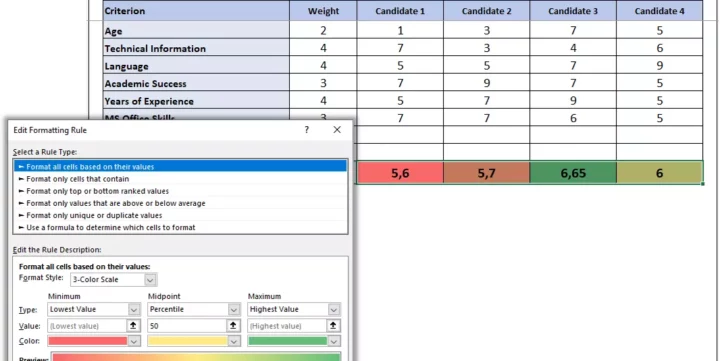
Creating a decision matrix in Excel helps compare multiple options systematically using defined criteria.
- It organizes choices into a clear table, making complex decisions easier to analyze.
- Weights assign importance to each criterion, ensuring that critical factors influence the outcome.
- Scores quantify how well options meet each criterion, facilitating objective comparison.
- Formulas in Excel automate calculations, saving time and reducing errors.
- Visual tools like conditional formatting and charts improve understanding of the results.
This guide walks through each step to build an effective decision matrix in Excel, supporting smarter decision-making.
Introduction To Decision Matrices
Imagine choosing the best option when faced with many. A decision matrix simplifies the process. This tool helps compare choices based on several criteria. It turns tough decisions into a clear table of pros and cons.
Purpose Of A Decision Matrix
The goal is straightforward: make complex decisions easier. With a matrix, you can:
- Organize thoughts
- Compare different options
- Evaluate based on criteria that matter
- Make a well-informed choice
Benefits Of Using Excel For Decision-making
Excel is a powerful tool for decision-making. Its benefits include:
| Feature | Benefit |
|---|---|
| Customizable Templates | Adapt to any decision-making scenario |
| Formulas | Automate calculations, saving time |
| Charts | Visualize outcomes for quick analysis |
| Filters | Highlight key data points |
With Excel, decision matrices become interactive. They turn complex data into a simple selection process. Anyone can use them to make informed decisions confidently.
Fundamentals Of A Decision Matrix
A Decision Matrix simplifies decision-making. It helps you choose between many options. You rate each option by different factors. Then, you pick the best one. It’s like a scoreboard that shows which choice wins!
Key Components
Every Decision Matrix has parts that help you decide:
- Options: These are your possible choices.
- Criteria: These represent what’s important for your decision. They could be cost, time, or quality.
- Weights: Some things are more important than others. Weights show this importance.
- Scores: You score each option by how well it fits each criterion.
- Total: Add up the scores. The option with the highest score might be the best choice.
| Option | Criteria 1 | Criteria 2 | … | Total Score |
|---|---|---|---|---|
| Option 1 | Score | Score | … | Sum |
| Option 2 | Score | Score | … | Sum |
How It Aids In Complex Decisions
Decision matrices turn tough choices into simple visuals. They let you compare options fairly. You see which option scores highest according to what matters most. This takes away the guesswork and makes sure you don’t forget any important details.
- First, you lay out all options and criteria.
- Next, you decide the weight for each criterion based on how important it is.
- Then, you give scores to each option for each criterion.
- Last, the options with the highest scores show up. It makes tough choices clear!
Setting Up Your Excel Workspace
A decision matrix is an incredible tool to compare choices against various factors. Excel is the perfect platform to create one. Before diving into the matrix creation, we need to set up our workspace in Excel. The setup phase is crucial as it lays the foundation for a smooth process ahead.
Creating A New Spreadsheet
Start by opening Excel and creating a new spreadsheet. You can do this by selecting ‘New’ from the File menu or clicking on the ‘Blank Workbook’ option on the start screen. A new spreadsheet will be your canvas for the decision matrix.
Understanding Excel Layout And Tools
The Excel interface may seem daunting at first, but it’s easy to navigate once you understand the basics. The ribbon at the top holds most of the tools you’ll need like sorting, filtering, and formula functions.
| Tool Group | Description |
|---|---|
| Home | Access to basic text formatting, cells styles, and number formats |
| Insert | Add tables, charts, and shapes to your spreadsheet |
| Formulas | Built-in functions for mathematical operations and data analysis |
| Data | Tools for sorting, filtering, and handling larger datasets |
To create a decision matrix, you’ll mainly focus on the ‘Home’ and ‘Data’ tabs. Familiarize yourself with cell formatting, borders, and alignment options under the ‘Home’ tab. Meanwhile, the ‘Data’ tab houses features such as sorting and filtering, essential for organizing your criteria and options.
Preparing your workspace in Excel is a straightforward process. With these steps, you will have a clean and organized spreadsheet ready for decision-making.
Identifying Your Criteria And Alternatives
When you’re facing a tough choice, a Decision Matrix can be a real lifesaver. It’s like a scorecard for your options, showing you the best pick. To make one in Excel, you need to know what matters for your decision, and what you can pick from. Let’s break it down together!
Listing Decision Factors
Which aspects really count in choosing the winner? That’s what we call Decision Factors. Think about what’s non-negotiable and what’s just nice-to-have. Quality, cost, time, or ease could all be key players.
- Quality: How good do you need it to be?
- Cost: What can you afford to spend?
- Time: Got a deadline? When is it?
- Ease: Can you make it happen without a headache?
Defining Alternatives For Comparison
Now, let’s line up your choices. These are the Alternatives. Maybe it’s different products, places, or plans. List them all out in Excel, clear and simple.
| Choice 1 | Choice 2 | Choice 3 |
|---|---|---|
| Option A | Option B | Option C |
Select alternatives that match your Decision Factors. If cost is crucial, all choices should be affordable. If time flies, they must all fit your schedule.
Designing The Matrix Framework
A Decision Matrix in Excel can streamline complex choices. By shaping a tailored Decision Matrix, one organizes options and criteria for clear evaluation. This part of our step-by-step guide lays out the foundation for crafting your matrix perfectly suited for any decision-making scenario.
Creating Rows And Columns
Begin by launching Excel. Next, design the matrix’s skeleton:
- Open a new spreadsheet.
- Add rows for each option you are considering.
- Insert columns for all the criteria relevant to your decision.
- Label the first row with the criteria names, leaving the first cell empty for options.
- In the first column, list all options down the row, aligning with the corresponding criteria across columns.
This framework serves as the blueprint for your Decision Matrix.
Setting Up Criteria Weights
Assigning weights to criteria is essential:
- Define the importance of each criterion in the top row, next to its label.
- Use a scale such as 1-10 where 10 signals maximum importance.
- Enter these weights in the cells directly above your options.
Your matrix now has a structure with weighted criteria, setting the stage for analysis.
Inputting Data And Weights
Inputting Data and Weights plays a crucial role in building a Decision Matrix in Excel. This matrix helps you make informed decisions by comparing options based on various criteria and weights. Both types of data, qualitative and quantitative, can be used in your matrix.
Entering Quantitative And Qualitative Data
To start, open a new Excel worksheet. Label one column for options and others for criteria. Enter your options that you’re deciding between in the first column. In the next columns, input data related to each criterion. You’ll have both numbers and text fields since quantitative data is number-based, like cost or time, and qualitative data describes qualities, like ease of use or design.
Assigning Scores To Each Criterion
Every criterion needs a score to show its importance. For quantitative data, you can enter values directly. For qualitative data, use a scoring system. For example, assign 1 to 5 — with 1 being the lowest and 5 being the highest. Once you have your scores, you’ll also need to weight each criterion to reflect its relative importance to your decision. To add weights:
- Identify the significance of each criterion to your overall goal.
- Assign a weight to each; a larger number indicates greater importance.
- Multiply each score by its weight to get a weighted score.
- Type the weighted scores into their respective cells.
| Criterion | Score | Weight | Weighted Score |
|---|---|---|---|
| Criterion 1 | 4 | 2 | =42 |
| Criterion 2 | 3 | 3 | =33 |
Repeat these steps until you have scores and weights for each option. This process is your foundation for a robust decision-making tool. Remember to review and revise your data for accuracy!
Applying Formulas For Analysis
Excel lets you make smart choices with a Decision Matrix. This powerful tool combines options and criteria. It helps you pick the best choice by scoring each one. Now, let’s plug in some formulas to see which option shines above the rest!
Calculating Weighted Scores
To give proper value to each criterion, we assign weights. Heavier weights mean more importance. Here’s how:
- Put weights next to each criterion.
- Give each option a score for these criteria.
- Multiply scores by their weights.
Check out this table for clarity:
| Option | Criteria 1 (Weight) | Criteria 2 (Weight) | Total Score |
|---|---|---|---|
| Option 1 | =ScoreWeight | =ScoreWeight | =SUM(C2:C3) |
| Option 2 | =ScoreWeight | =ScoreWeight | =SUM(C4:C5) |
This table uses SUM for adding weighted scores.
Summing Up Results For Ranking
Now, we want to see which option has the top score. Follow these steps:
- Below each option’s scores, write
=SUM(Above cells). - The highest sum shows your winning choice.
Keep all options and sums visible. This way, you can compare easily:
| Option | Total Weighted Score |
|---|---|
| Option 1 | =SUM(Score Cells) |
| Option 2 | =SUM(Score Cells) |
The table above simplifies ranking. It neatly organizes the numbers you need to see.
Now that you’ve applied the formulas, the decision matrix in Excel will guide your choice. The clear winner will pop out at you. Just compare the sums and pick the highest!
Enhancing Your Decision Matrix
Enhancing Your Decision Matrix is about taking your analysis to the next level. With Excel, various features can elevate your matrix from a simple table to a powerhouse decision-making tool. Let’s explore how to make your matrix more informative and user-friendly.
Conditional Formatting For Visual Clarity
Conditional formatting adds a splash of color to your data. This visual aid helps in quickly spotting the high and low points in your matrix. Here is a simple guide to apply this feature:
- Select the cells with the scores in your matrix.
- Go to the Home tab.
- Click on Conditional Formatting.
- Choose a color scale that suits your preference.
- Watch as Excel highlights the different scores in distinct colors.
A red-to-green scale is effective for showing a range from ‘poor’ to ‘excellent’.
Creating Charts For Better Interpretation
Charts turn numbers into stories. Adding a chart to your Decision Matrix can unveil patterns you might miss in a table. Follow these steps to insert a chart:
- Select the data relevant for charting.
- On the Insert tab, choose a chart type.
- Bar or column charts are ideal for comparison.
- Click on the chart type to insert it into your worksheet.
Excel immediately creates a chart, offering a new perspective on your decision-making data.
Analyzing The Results
‘Analyzing the Results’ of a Decision Matrix empowers you to make choices backed by data. Excel transforms complex decisions into clear paths forward. Let’s uncover how to interpret the matrix output for the best outcomes.
Interpreting The Decision Matrix Output
Once you’ve applied the criteria and weighted each factor, Excel presents a score for each option. Look for the option with the highest score. This is often the best choice. The matrix visualizes strengths and weaknesses clearly.
Consider these aspects:
- Score spreads: How close are the top scores?
- Weight impact: Which criteria influenced the outcome the most?
- Consistency checks: Do the scores match your initial thoughts?
A table summarizing the results could look like this:
More rows as needed
| Option | Criteria 1 | Criteria 2 | … | Total Score |
|---|---|---|---|---|
| Option A | 5 | 3 | … | 25 |
| Option B | 4 | 4 | … | 20 |
Making Informed Decisions Based On Data
The next step in your decision-making journey is to trust the matrix output. Prioritize options with the highest scores. Remember, data leads to smarter decisions.
- Review the top options.
- Analyze why they scored the highest.
- Consider any potential biases in your criteria or weights.
- Confirm the decision with stakeholders, if needed.
Use the Decision Matrix as a guide. Pair it with your knowledge and experience for the best result.
Troubleshooting Common Issues
Troubleshooting Common Issues can often transform a frustrating experience into a feeling of accomplishment, especially when working with a Decision Matrix in Excel. Let’s overcome common hurdles together, ensuring your decision-making tool is accurate and user-friendly.
Fixing Errors In Formulas
Excel formulas are the engine behind your Decision Matrix. They calculate and compare the data. When they go awry, the entire matrix can give you incorrect outcomes. To ensure precision:
- Check for typographical errors in your formula syntax.
- Verify all cell references are correct.
- Ensure you have not missed any parentheses.
- Use the
F9key to evaluate parts of the formula and find errors. - Apply the Error Checking tool in Excel to catch common mistakes.
Adjusting Criteria Weights And Measures
Weights and measures in a Decision Matrix are vital. They reflect the importance of each criterion. Adjusting them correctly can change the outcome. For effective tweaking:
- Double-check the sum of weights to ensure it equals 100% or 1.
- Reassess the significance of each criterion to your decision.
- Make small adjustments and observe the impact on the results.
Remember: Consistent units across criteria ensure a valid comparison.
Best Practices And Advanced Tips
Making the right choices in business or in life can be quite the challenge. A decision matrix in Excel simplifies this process. This section dives into best practices and advanced tips to optimize your decision-making matrix.
Ensuring Objectivity In Your Matrix
Decisions require fairness. Your matrix must reflect this key principle. Let’s highlight how to keep bias at bay:
- Clear Criteria: Define each criterion carefully. Ensure they’re relevant to your decision.
- Weight Appropriately: Assign weights based on the importance of each criterion.
- Consistent Scoring: Use a standard scale for scoring options. Stick to it.
- Peer Review: Invite others to review. Fresh eyes spot overlooked bias.
- Revise Periodically: Update criteria and weights as situations change.
Leveraging Excel Features For Dynamic Matrices
Excel has powerful features that can make your matrix flexible and interactive. Use these tools to your advantage:
| Feature | Benefit |
|---|---|
| Data Validation | Controls input to keep data consistent |
| Conditional Formatting | Highlights key information visually |
| Tables | Organizes data for better readability |
| Formulas | Automates calculations, saves time |
| PivotTables | Simplifies complex data analysis |
Remember, engaging with these Excel features not only enhances your matrix but also brings clarity to your decision-making process. Dive into each feature, unleash Excel’s potential, and craft a decision matrix that’s both robust and adaptable.
Frequently Asked Questions
What Is A Decision Matrix?
A Decision Matrix is a tool used to prioritize and make complex decisions by evaluating options against specific criteria. It simplifies decision-making by quantifying subjective information for objective analysis.
How To Make A Decision Matrix In Excel?
To create a Decision Matrix in Excel, list your choices and criteria. Then rate each option based on each criterion, and sum scores to find the best choice. Formatting and Excel functions can help streamline the process.
Can Excel Help With Complex Decisions?
Yes, Excel can assist with complex decisions. It organizes data in spreadsheets, helping you weigh options against various criteria systematically through a Decision Matrix, making choice comparisons clearer and more data-driven.
What Are The Benefits Of Using A Decision Matrix?
A Decision Matrix helps eliminate bias, provides a clear comparison of options, and supports data-driven decision-making. It’s a strategic tool that offers structure and objectivity in complex decision scenarios.
Conclusion
Crafting a Decision Matrix in Excel enhances decision-making clarity and efficiency. This guide has outlined each step, ensuring you can navigate the process with confidence. Start implementing this powerful tool, and you’ll soon master the art of informed choices, paving the way to better outcomes in your personal and professional endeavors.
Embrace the simplicity and effectiveness of a Decision Matrix to transform your decision-making process.
























































You might also like:
- 10 Main Elements of a Business Plan
- Building a Monthly Budget – Using Monthly Budget Templates
- How to Build a Capitalization Table
- Financial Modeling for Startups and Small Businesses
- Mastering the Art of IRR Calculation: A Comprehensive Guide for Investors
- Finding the Balance in Your Optimal Capital Structure
- Scenario Analysis
- Financial Planning for Small Business Owners – Taking an SBA Loan
- Cash Flow Analysis in Excel
- Automotive Supplier
- 10-year Financial Projections
- Analyzing Financial Ratios: A Guide for Businesses
- Creating a Business Plan for your Food Truck Business
- Understanding the Debt Service Coverage Ratio: An Essential Metric for Financial Analysis
- Renewable Energy
- Financial Planning
- Top 5 Principles of Corporate Finance
- Financial Statements – Definition, Uses, Contents and Templates
- Cash Flow Projections
- How Does Solar Radiation Affect the Returns of Your Solar Park?


