
0 ITEMS

How to Create a Price Comparison Template?

A price comparison template streamlines decision-making by organizing key product and service details side by side.
- It helps compare prices, features, and costs like shipping or taxes efficiently.
- Creating the template involves defining relevant criteria for products or services.
- Clear evaluation columns with formulas automate calculations and highlight best options.
- Testing and customizing the template ensures accuracy and usability for specific needs.
- Incorporating advanced financial modeling techniques can account for long-term value and scenario analysis.
Continuing will give you a comprehensive tool for smarter, faster purchasing decisions.
What is a Price Comparison Template?
A price comparison template is a highly effective tool for comparing the pricing of multiple products or services. It allows users to see prices from various vendors or sources, helping them quickly identify the best deal or the most cost-effective option. This price comparison tool saves time and simplifies decision-making by presenting a clear and organized comparison of all available options in a single view.
A price comparison template is a flexible and user-friendly Excel spreadsheet that allows users to evaluate products offered at different price points. It helps analyze various factors such as features, quality, discounts, and actual prices. Users can make more informed decisions by comparing multiple variables, ensuring they choose the product that best fits their needs and budget. The spreadsheet format makes it easy to customize for various types of products or industries.
In summary, a price comparison template is a powerful and versatile price comparison tool that simplifies the process of evaluating and comparing prices for various products or services. Organizing information in a clear, side-by-side format enables users to make informed decisions quickly and efficiently. This adaptable spreadsheet allows for the easy comparison of multiple factors, helping users find the best value for their money, regardless of the industry or product type.

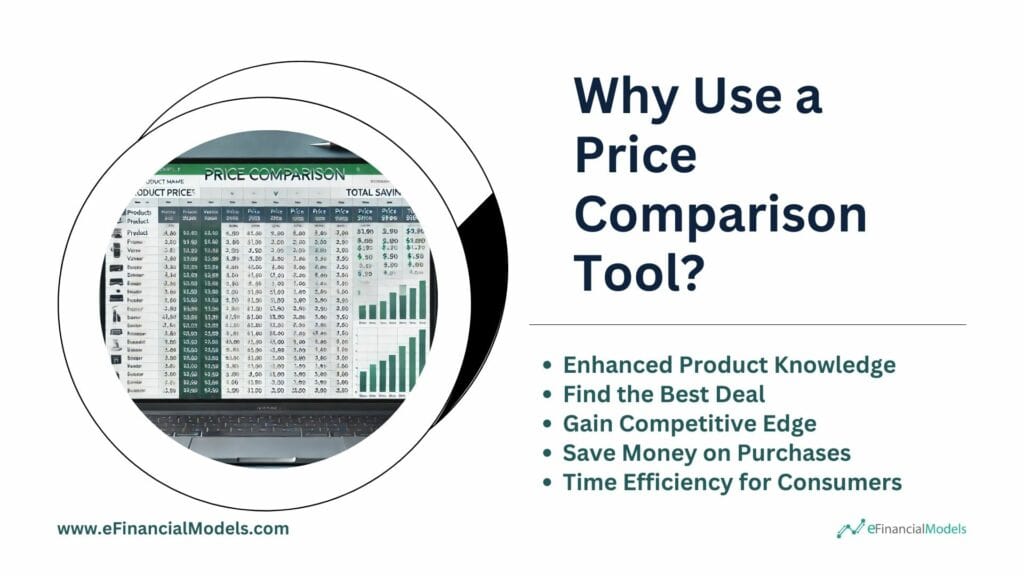
Why Use a Price Comparison Tool?
A price comparison tool is an essential resource for consumers and businesses alike. It offers a streamlined way to evaluate multiple products or services based on price, features, and quality. By aggregating data from various providers, these tools empower users to make informed purchasing decisions quickly, saving time and money. Whether shopping for everyday items, financial products, or more specialized services, a price comparison tool provides transparency, helping you find the best value for your needs.
- Enhanced Product Knowledge: Consumers often receive more than just price information when using a price comparison tool. They can also gain access to product reviews, ratings, and detailed descriptions, helping them better understand the features and value of the products they are considering. This increased knowledge leads to smarter buying choices and minimizes the risk of purchasing a product that doesn’t meet their needs.
- Find the Best Deal: The primary benefit of using a price comparison tool is the ability to find the best deal. These tools scan multiple vendors and provide a comprehensive overview of where to get the desired product at the lowest price. Consumers can easily compare different options, such as price, shipping fees, and seller reliability, ensuring they get the most for their money.
- Gain Competitive Edge: Using a price comparison tool can give businesses a significant competitive edge by enabling them to monitor market trends, competitor pricing, and customer preferences in real time. It allows companies to adjust their pricing strategies dynamically, ensuring they remain competitive while maximizing profit margins. It also helps identify opportunities for discounts or promotions that can attract price-sensitive customers. By having a comprehensive view of market pricing, businesses can make more informed decisions, improve their product offerings, and position themselves as more attractive options to consumers than competitors.
- Save Money on Purchases: Price comparison tools are designed to save consumers money by highlighting the most affordable options available. By seeing a comprehensive list of prices from various sellers, users can avoid overspending and capitalize on cost-saving opportunities such as discounts, coupons, or special deals they might have missed. This ensures that consumers make informed and budget-friendly purchases.
Time Efficiency for Consumers: Instead of visiting multiple websites or physical stores to compare prices, a price comparison tool aggregates this information in one place, making the shopping process significantly faster. Consumers can instantly compare prices and features without the hassle of navigating through multiple sources, saving valuable time and effort while making well-informed purchases.



























































How to Make a Price Comparison Template in Excel?
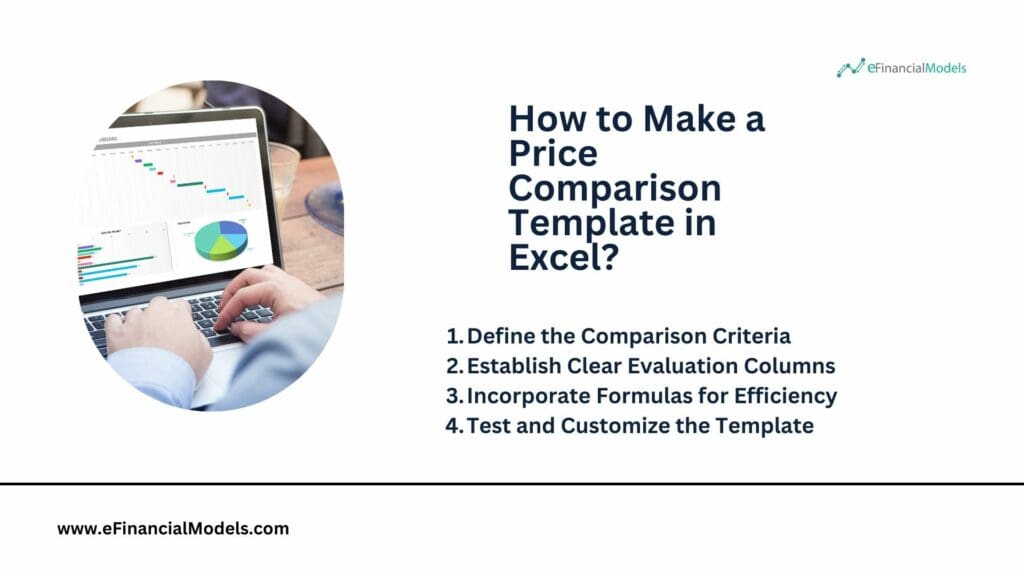
Creating a price comparison template in Excel is a straightforward process that allows businesses and individuals to analyze multiple pricing options side by side. You can create an organized and efficient template to compare products or services based on price, features, and other relevant factors using Excel’s built-in functions, such as formulas, tables, and conditional formatting. This template helps make informed purchasing decisions, improve budget management, and identify the best value option. You can build a flexible and customizable tool tailored to your specific needs with a few simple steps.
Step 1 – Define the Comparison Criteria
Before creating the template, you must define the criteria you’ll use for comparison. These criteria will depend on the type of products or services you’re evaluating.
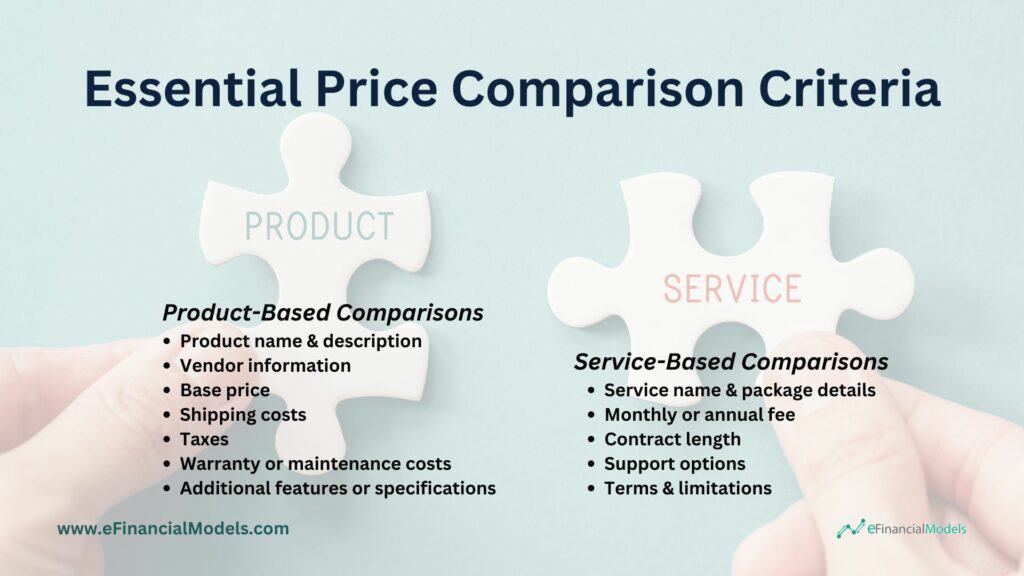
For a product-based comparison, essential fields might include:
- Product name and description
- Vendor information
- Base price
- Shipping costs
- Taxes
- Warranty or maintenance costs
- Additional features or specifications
For service-based comparisons, your criteria may include:
- Service name and package details
- Monthly or annual fee
- Contract length
- Support options
- Terms and limitations
Identifying these criteria helps ensure that the comparison is comprehensive and meaningful. It’s helpful to list these factors beforehand to guide the structure of the template.
Step 2 – Establish Clear Evaluation Columns
Once the criteria are established, create columns for each comparison factor in your price comparison template in Excel. Place the products or services in rows and use columns for price, features, and other factors. Ensure that each column is clearly labeled and that users can easily see the differences between options. Consistent formatting, such as color coding or conditional formatting, can help highlight the best deals or most favorable options.
To set up clear evaluation columns in a price comparison template in Excel:
- Use clear and descriptive headers. For example, instead of simply labeling a column “Price,” use “Price (USD)” or “Total Cost” to avoid confusion. This level of detail makes it easier to understand what each column represents at a glance.
- Separate columns for each key attribute. Instead of lumping multiple attributes into a single column, create individual columns for each key criterion (e.g., “Warranty Period,” “Delivery Time,” “Customer Rating”). This makes sorting, filtering, and analyzing data easier without overlooking important details.
- Keep price information consistent. Use Excel’s “Currency” or “Number” formatting for price columns to ensure uniformity, making the comparison clearer. You can also choose to round prices to two decimal places for clarity.
- Include a ‘Final Score’ or ‘Ranking’ column. Use a weighted formula for easy comparison and apply conditional formatting to highlight the best values. Group related columns for better organization, freeze the top row for easier navigation and add a “Notes” column for special considerations. These steps will make the template more organized and user-friendly.
- Freeze top rows for easy scrolling. As your comparison table grows, tracking which column is which may become harder. Freezing the top row (where your column headers are) ensures that the header remains visible even when scrolling through a large list of products, improving navigation and reducing errors.
Structuring the spreadsheet this way also makes it a breeze to add or remove products as needed, giving you full control over your comparison process.

Step 3 – Incorporate Formulas for Efficiency
To save time and reduce manual calculations, you can incorporate formulas into your price comparison template in Excel. Excel’s built-in formulas automatically calculate totals, averages, or rankings based on the data, making your template more efficient. Automating as much of the comparison process as possible minimizes errors and ensures that your results are accurate. It also speeds up the comparison process, particularly if you compare multiple options simultaneously.
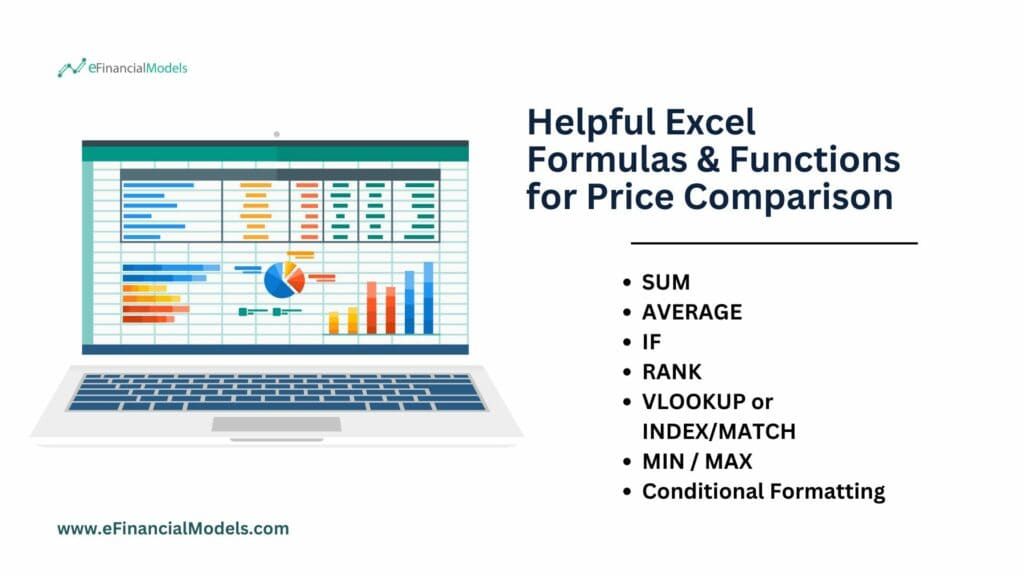
- The SUM function adds up values in a specified range of cells, making it useful for calculating the total cost of multiple products. It simplifies large data sets by automating addition, ensuring accuracy, and saving time on manual calculations.
- The AVERAGE function calculates the mean of selected numbers, helping find the average price or rating of products. It also lets you quickly see how each option compares to the overall market or group.
- The IF function applies logical conditions to data, allowing you to set rules such as flagging products as “affordable” if they fall below a certain price. It enhances decision-making by adding criteria-based insights into the comparison process.
- The RANK function assigns a ranking to values within a list based on their size, such as ranking products by price from lowest to highest. It helps you easily see which products are the most or least expensive.
- The VLOOKUP and INDEX/MATCH functions search for data in a table and return related information, like pulling product details from another sheet. These functions simplify cross-referencing data from multiple sources, making the template more dynamic.
- The MIN and MAX functions help you identify the smallest and largest values in a data set, such as finding the cheapest and most expensive products. It is ideal for highlighting the best and worst options at a glance.
- Conditional formatting automatically applies colors or styles to cells based on specific criteria, like shading the lowest prices in green. It provides a visual aid for quickly identifying key insights, such as the best value or top-rated product.
Step 4 – Test and Customize the Template
Before fully implementing your price comparison template in Excel, test it with a few products or services to ensure it works smoothly. Make adjustments based on its easy use and whether critical information is missing. Depending on the complexity of your purchases, you may need to add or remove certain criteria. Remember, a price comparison template in Excel should be flexible enough to accommodate a variety of products or services but structured enough to provide clear insights for making decisions.
To test and customize a price comparison template in Excel:
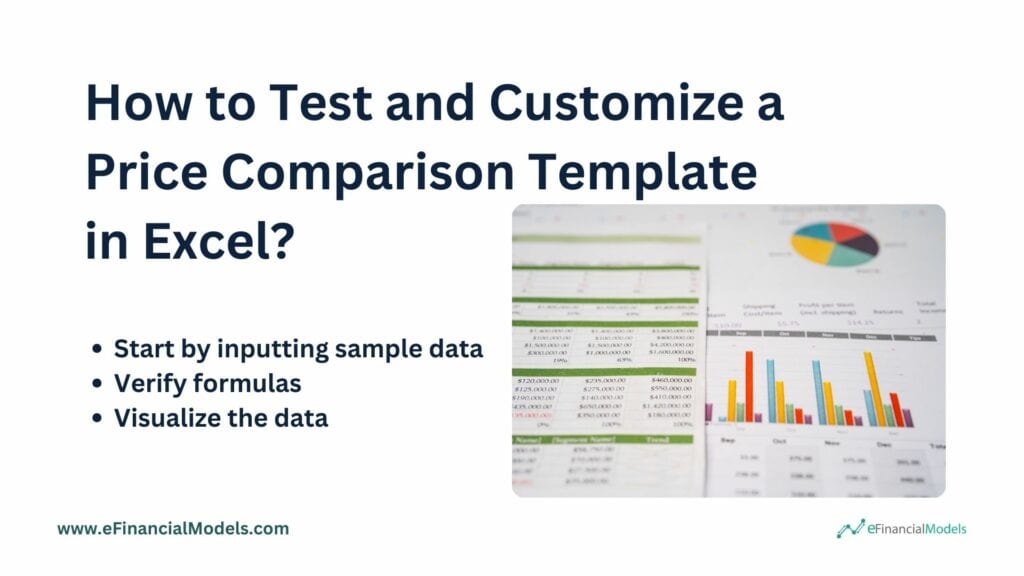
- Start by inputting sample data that reflects different vendors, product prices, and other relevant metrics (like discounts or shipping costs).
- Verify formulas to ensure they calculate totals, comparisons, and differences accurately.
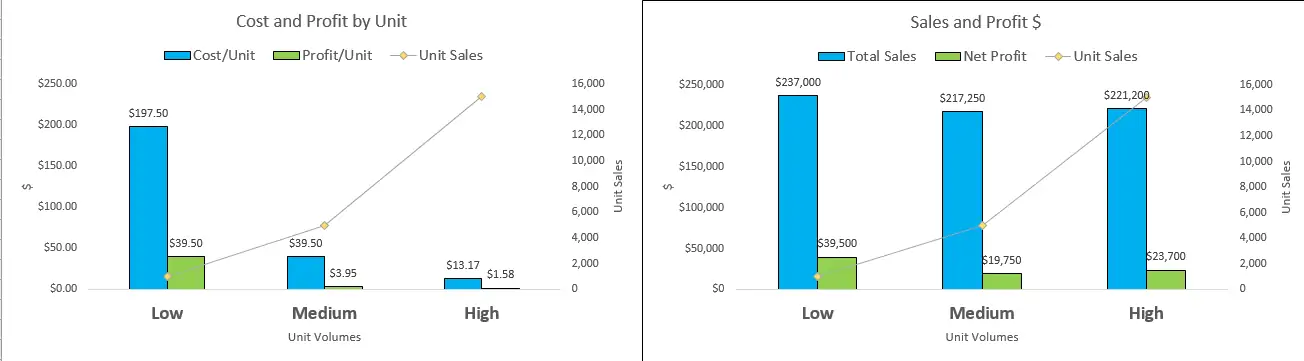
- Visualize the data for your specific use case. Use Excel’s built-in features, such as filters, pivot tables, and charts, to analyze data visually and optimize the template.
Elevate Your Price Comparison Template in Excel with Financial Modeling
Using a price comparison template helps streamline decision-making, saves time, and ensures you make informed, data-driven choices to find the best value across multiple options. Creating a price comparison template involves defining the criteria for product features, pricing, and vendor information. Establish clear evaluation columns to compare these criteria across different options systematically. Incorporate formulas to automate calculations and ensure efficiency, such as summing totals or highlighting the best value. Lastly, thoroughly test the template with sample data and customize it to meet specific requirements. Following these steps, you can create a highly functional and tailored price comparison tool that streamlines decision-making.
Elevate your price comparison template in Excel by integrating advanced financial modeling techniques. This allows you to account for complex variables like future price projections, cost breakdowns, and financial metrics such as ROI or net present value. It enhances your ability to make data-driven decisions more accurately by factoring in long-term financial implications beyond simple price comparisons. Add scenario analysis, sensitivity tests, and dynamic charts to visualize how factors impact overall costs. These features will transform your template into a powerful decision-making tool. Start optimizing your comparisons today!









































You might also like:
- 10 Tips to Develop a First Class Business Valuation Report
- 10 Main Elements of a Business Plan
- 14 Best Practices in Financial Modeling
- 5 Practical Tips to Help Raise Funds For Startups
- Financial Statements – Definition, Uses, Contents and Templates
- Cash Flow Analysis in Excel
- How to Build a Capitalization Table
- Price Sensitivity Analysis: Get More Revenue by Changing Your Prices
- How to Calculate Net Present Value?
- How to Create a Loan Amortization Schedule in Excel
- Startup Restaurant Business Plan: Flavors Redefined
- How to Create a Price Comparison Template?
- E-Commerce & Web Shops
- How to Evaluate a New Solar Park for Investment?
- Cash Flow Statement: Streamline Financial Success
- Developing a 5 Year Financial Projection Template
- Pricing Analysis
- Financial Model – Valuation of Tax Loss Carryforwards
- Renting Commercial Real Estate: Key Considerations
- Financial Ratios Analysis and Its Importance