
0 ITEMS

Pioneering Techniques for Google Sheets Pto Tracker
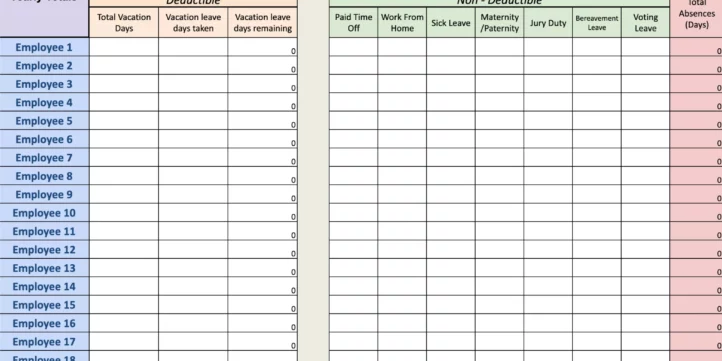
A Google Sheets PTO tracker offers a flexible way to manage employee leave efficiently and accurately.
- Formulas and conditional formatting can automate calculations and flag low PTO balances.
- Custom scripts enable automated leave requests, approvals, and email notifications.
- Integrating with calendars improves visibility of team availability and out-of-office statuses.
- Using pre-made templates and personalizing columns helps tailor the tracker to specific HR policies.
- Advanced techniques like Apps Script extend functionality and streamline approval workflows.
A well-designed PTO tracker in Google Sheets simplifies leave management and supports better workforce planning—keep reading to see how to set it up effectively.
Introduction To Google Sheets Pto Tracker
Managing time-off requests can be a complex task. Google Sheets PTO Tracker simplifies this process. It provides a versatile platform for tracking Paid Time Off (PTO). Its customizable nature adapts to various business needs, offering real-time updates and easy access.
The Role Of Pto Trackers In Modern Hr Management
In HR management, PTO trackers serve a crucial role. They ensure that employee absences are recorded accurately. This helps maintain a happy workforce and supports business operations.
- Maintains employee time-off records.
- Supports fair PTO policy enforcement.
- Reduces manual errors in attendance tracking.
- Streamlines HR workflow.
Transitioning From Traditional Methods To Google Sheets
Moving from paper-based systems to digital PTO tracking in Google Sheets offers immense benefits. This transition supports sustainability, boosts efficiency, and improves data accuracy.
| Traditional Methods | Google Sheets |
|---|---|
| Physical storage required | Cloud-based storage |
| Time-consuming updates | Quick and real-time edits |
| Prone to data loss or damage | Securely backed up data |
| Difficult to share | Easy sharing and collaboration |
Essential Features Of An Effective Pto Tracker
Managing Paid Time Off (PTO) can be a complex task. An effective PTO tracker simplifies this. It automates calculations and syncs with other tools. Below are must-have features for any PTO tracker in Google Sheets.
Automatic Accrual Calculations
An effective PTO tracker automatically calculates accruals. This saves time and reduces errors. Look for these traits:
- Customizable accrual rates
- Carry-over rules for unused time
- Varied rates based on tenure or role
Integration With Calendars
Syncing with calendars ensures clear communication. An ideal PTO tracker offers:
- Real-time updates in Google Calendar
- Visibility for team availability
- Automatic out-of-office cues
Setting Up Your Google Sheets Pto Tracker
Tracking Paid Time Off (PTO) is crucial for both managers and employees. Google Sheets offers a flexible, accessible platform to manage this important HR task. By setting up a Google Sheets PTO Tracker, businesses can streamline PTO management. This improves accuracy and efficiency. Let’s explore how to set one up with ease.
Choosing The Right Template
Finding the perfect template is the first step in crafting your PTO tracker. You can pick from a variety of pre-made Google Sheets templates. These are tailored for leave tracking. The right template will save you time and ensure you start on the right foot. Look for a template that aligns with your company’s PTO policy.
Customizing Columns For Diverse Hr Needs
Each company has unique needs when tracking time off. Your PTO tracker should reflect that. Customize your Google Sheets to include all relevant data. You may need columns for types of leave, employee names, and PTO balances.
| Employee Name | PTO Accrued | PTO Used | PTO Balance | Type of Leave |
|---|---|---|---|---|
| John Doe | 15 days | 5 days | 10 days | Sick Leave |
| Jane Smith | 18 days | 4 days | 14 days | Vacation |
To further enhance the tracker, consider adding conditional formatting. This visually flags important information like low PTO balances. With these pivotal steps, your PTO tracker will be a powerful tool for HR management.
Automation With Google Sheets Formulas
Automation with Google Sheets Formulas empowers users to track projects and time effortlessly. Google Sheets transforms into a dynamic PTO tracker, thanks to pioneering techniques. By harnessing the power of automation, users enjoy up-to-the-minute updates and visual insights with minimal manual input.
Using Functions For Real-time Updates
Streamline your PTO management with Google Sheets functions that offer instant data refreshes. Functions like IMPORTRANGE(), QUERY(), and ARRAYFORMULA() enable seamless data integration. These functions ensure users see the latest information without manual refreshes.
IMPORTRANGE(): Imports data from multiple spreadsheets.QUERY(): Filters and sorts data based on conditions.ARRAYFORMULA(): Applies formulas across an array.
Conditional Formatting For Easy Visualization
Easily distinguish between different statuses on your tracker with conditional formatting. Set rules to highlight cells based on specific criteria. For example, color-coding can indicate pending approvals or completed time off.
=IF(A2="Approved", "GREEN", IF(A2="Pending", "YELLOW", "RED"))
This enables a quick scan to identify which entries need attention. Incorporate conditions like:
| Status | Color Code |
|---|---|
| Approved | Green |
| Pending | Yellow |
| Declined | Red |
Enhancing Functionality With Google Apps Script
Google Sheets becomes a powerhouse when combined with Google Apps Script. This scripting platform lets you enhance your PTO tracker far beyond standard functions. Scripts can automate tasks, integrate with other Google services, and create features tailored to your specific needs.
Automated Email Notifications
Monitoring PTO requests in real-time is vital. With Google Apps Script, you can set up automated email alerts. These notifications ensure that managers respond to time-off requests swiftly. The process is streamlined and efficient.
Here’s an example of how you might set up an automated email alert with Apps Script:
function sendEmailNotification() {
  var sheet = SpreadsheetApp.getActiveSpreadsheet().getSheetByName('Requests');
  var range = sheet.getDataRange();
  var values = range.getValues();

  for (var i = 1; i < values.length; i++) {
    var emailAddress = values[i][2]; // Assuming email addresses are in the third column.
    var message = 'Hi ' + values[i][1] + ', your PTO request has been received.'; // Customize your message
    var subject = 'PTO Request Notification';
    MailApp.sendEmail(emailAddress, subject, message);
  }
}
Creating Custom Functions For Special Cases
At times, standard functions can’t tackle unique business scenarios. Enter Google Apps Script. This tool lets you craft custom functions for these rare cases. You can address the quirks of your PTO tracking system with ease.
Here is a simple demonstration of a custom function that calculates remaining PTO days:
function calculateRemainingPTODays(employeeId) {
  var ss = SpreadsheetApp.getActiveSpreadsheet();
  var sheet = ss.getSheetByName('PTOData');
  var data = sheet.getDataRange().getValues();

  var remainingDays = 0;

  for (var i = 0; i < data.length; i++) {
    if (data[i][0] == employeeId) { // Assuming the employee ID is in the first column.
      remainingDays = data[i][3]; // Assuming remaining PTO days are in the fourth column.
      break;
    }
  }
  return remainingDays;
}
This custom function can then be used directly in your spreadsheet like any other function:
=calculateRemainingPTODays(A2), assuming A2 holds the employee ID.
Data Security And Access Management
Managing a Google Sheets PTO tracker demands robust
data security and access management. Keeping sensitive data safe and determining who can view or edit information is crucial. Below, we explore pioneering techniques to ensure the highest level of security for your PTO tracker data.
Protecting Sensitive Information
Google Sheets offers multiple layers of protection for sensitive information. Use the following tips to safeguard data:
- Enable two-factor authentication for your Google account.
- Encrypt sensitive data using Google Sheets add-ons.
- Regularly update sharing settings to keep access current.
- Use audit logs to monitor changes made to the document.
| Action | Impact |
|---|---|
| Two-factor authentication | Adds an extra security layer |
| Data encryption | Protects content integrity |
| Sharing settings management | Controls document access |
| Audit logs usage | Tracks data modifications |
Setting Permissions For Teams
Assigning the correct permissions to team members is essential to balance data accessibility and confidentiality:
- Create multiple sheets within the same document for different user levels.
- Determine roles and permissions for each user.
- Restrict editing rights on crucial columns or sheets.
Implement the following steps on your Google Sheets to manage permissions:
- Right-click the sheet tab > ‘Protect sheet’
- Select ‘Set permissions’
- Choose who can edit
Streamlining Time-off Requests And Approvals
Managing employee time-off requests demands precision and efficiency. Google Sheets offers innovative solutions to streamline this process. A PT0 tracker in Google Sheets simplifies approvals and keeps track of all requests. Let’s dive into how digital forms and clever workflows can transform the way your business handles time-off requests.
Digital Submission Forms
Digital Submission Forms
Time-off requests go digital, making paper forms a thing of the past. Employees fill out requests from any device, and managers receive instant notifications. This setup ensures quick and organized submissions. Here’s how to set up a digital submission form in Google Sheets:
- Open Google Sheets and create a new form.
- Design the form fields to include date, time, and reason for the request.
- Set up form responses to automatically populate a dedicated Google Sheet.
With these forms, tracking becomes transparent and accessible. Employees see the status of their requests, and managers get a consolidated view of all submissions.
Designing a Workflow for Request Routing
Designing A Workflow For Request Routing
Workflow design is crucial for managing PTO requests efficiently. Google Sheets allows you to set up automatic routing for each submission. This means that requests will go to the right person without delay.
- Set up conditional logic in the Google Sheet to route requests to appropriate managers.
- Use notifications and reminders to keep everyone on track.
Automate approvals to reduce wait times. When a manager approves a request, the system updates the tracker and notifies the employee. This streamlined workflow ensures that managers handle requests quickly and fairly.
Embracing these pioneering techniques within Google Sheets allows companies to manage PTO requests with ease. The digital approach saves time and boosts productivity, leading to a happier workforce.
Advanced Techniques And Add-ons
Advanced Techniques and Add-Ons take Google Sheets PTO tracking to the next level. Discover how to enhance your tracking capabilities and streamline your HR processes.
Connecting With External Hr Systems
Incorporating Google Sheets into your broader HR ecosystem offers immense benefits.
First, determine which HR systems support API connectivity. This allows your PTO tracker to communicate with your HR software.
Use Google App Script or third-party connectors. They bridge the gap between Sheets and external databases.
Check out the steps below for a smooth integration:
- Identify the HR system’s API documentation.
- Set up authentication to ensure secure connections.
- Create scripts that trigger data exchanges.
- Test the connection and monitor for consistency.
- Plan regular updates to maintain synchronization.
Leveraging Add-ons For Extended Features
Google Sheets offers various add-ons to boost your PTO tracking capabilities.
The Google Workspace Marketplace hosts these add-ons. They provide features that Google Sheets doesn’t offer out of the box.
- Time Tracking: Log hours directly within Sheets.
- Approval Workflows: Managers can approve requests within the tracker.
- Email Notifications: Automate alerts for upcoming PTO.
Installing an add-on is simple:
- Go to the Google Workspace Marketplace.
- Search for the desired add-on.
- Click the ‘Install’ button to add it to Sheets.
- Follow on-screen instructions to complete setup.
Always review the privacy policy and data access terms before adding an add-on.
These advanced methods and tools empower you to manage leave more effectively.
Troubleshooting Common Issues
Troubleshooting Common Issues with a Google Sheets PTO Tracker can be quite simple. Your vacation tracker might hit some snags. Don’t worry! We’ll guide you in fixing the common hiccups encountered while managing your time-off data.
Fixing Formula Errors
Getting an error message in your PTO Tracker? Don’t panic. Firstly, check the formulas. A single incorrect character can cause trouble. Ensure you’re using the right syntax. For instance, the correct sum formula looks like this:
=SUM(A1:A10)
Mistakes here can break your tracker. Look out for these common mistakes:
- Wrong cell references: Make sure all cell references are correct.
- Misspelled functions: Functions like IFS and VLOOKUP need precise spelling.
- Matching parentheses: Every opening ( needs a closing ).
Handling Discrepancies And Data Sync Failures
Seeing mismatched data in your tracker? Your PTO data needs to be in sync. Let’s do a quick check to correct these issues:
- Review the data source. Ensure it’s up-to-date and accurate.
- Check the sync frequency. Some integrations may not update in real-time.
- Manually update data if necessary. Sometimes a fresh sync is all you need.
If you’re still facing data discrepancies, consider these points:
| Issue Type | What to Do |
|---|---|
| Data Overlap | Look for duplicate entries and remove them. |
| Outdated Information | Refresh connections or re-import data templates. |
Google Sheets Pto Tracker Case Studies
In the modern workplace, tracking Paid Time Off (PTO) efficiently matters a lot. Google Sheets PTO Tracker has emerged as a game-changer for many. Here, we dive into real-world examples. We explore how different-sized businesses benefit from these innovative solutions.
Success Stories From Small Businesses
Countless small businesses have reported tremendous strides in managing leave. Employee satisfaction scores shot up. Let’s look at some success stories.
- Tim’s Tech Start-up: Their manual PTO system was a mess. The tracker simplified everything. Now, scheduling is easy and clear.
- Bella’s Boutique: This small shop faced constant confusion over holiday leave. Google Sheets resolved clashes with a visual calendar.
- Oscar’s Organic Market: Attendance errors reduced. The tracker caught discrepancies before they became issues.
Adapting The Tracker For Large Organizations
Large organizations have unique challenges. They need robust systems to handle many employees. Let’s look at how some have succeeded with Google Sheets PTO Tracker.
| Company | Challenge | Solution |
|---|---|---|
| Global Finance Inc. | Lacked centralized PTO tracking. | Implemented a custom tracker. It linked all departments. |
| Nationwide Retail Chain | Managers couldn’t plan for peak periods. | Tracker provided clear PTO visuals. This helped with strategic staffing. |
| International School Network | Teachers’ leave impacted semester plans. | The tailored tracker synced with the academic calendar. Now, leave planning is proactive. |
Future Developments In Google Sheets Pto Tracking
The world of paid time off (PTO) tracking is spinning into the future with Google Sheets leading the charge. Businesses constantly seek new ways to streamline their processes, and Google Sheets PTO tracker is no exception. These pioneering techniques promise enhanced efficiency and evolved functionalities. Let’s explore what’s on the horizon for this versatile tool.
Emerging Trends In Hr Tech
Advancements in human resources technology are revolutionizing PTO management.
Here are some trends gaining momentum:
- AI Predictive Planning: AI tools forecast staffing needs, keeping PTO well-managed.
- Seamless Integration: PTO trackers integrate with other HR systems for a unified approach.
- Employee Self-Service: Employees access and manage PTO independently.
Anticipating New Google Sheets Features
Google Sheets is poised to roll out features set to transform PTO tracking:
| Feature | Benefit |
|---|---|
| Automated Alerts | Reminders before PTO limits reach. |
| Real-time Syncing | Instant updates across all devices. |
| Enhanced Customization | Personalize PTO trackers for unique needs. |
Teams eagerly await these updates to further simplify PTO tracking in Google Sheets.
Frequently Asked Questions
What Is A Google Sheets Pto Tracker?
A Google Sheets PTO Tracker is a spreadsheet template used to monitor and manage employee paid time off (PTO). It allows managers and HR personnel to track PTO balances, requests, and usages efficiently.
How To Create A Pto Tracker In Google Sheets?
To create a PTO Tracker in Google Sheets, start with setting up columns for employee names, PTO balances, requests, and approvals. Use functions like SUM and DATE to automate calculations and data validation for date entries.
Can Google Sheets Track Pto Accrual?
Yes, Google Sheets can track PTO accrual. By inputting accrual rates and employee start dates, formulas can be applied to automatically calculate accumulated time off based on company policies.
Are There Pre-made Google Sheets Pto Templates?
Yes, there are pre-made PTO templates available for Google Sheets. These can be found in Google’s template gallery or via third-party websites offering specialized PTO tracking solutions.
Conclusion
Embrace the future with innovative Google Sheets PTO trackers. These cutting-edge methods streamline time-off management like never before. They save time and bolster productivity, proving essential for modern workspaces. Infuse efficiency into your leave planning—adopt these pioneering techniques today. Unlock the potential of stress-free vacation tracking right now.








































You might also like:
- 10 Awesome Excel Formulas To Use For Your Next Financial Model In Excel
- 10-Step Financial Planning Checklist for Smart Executives
- Creating a Budget Plan – Using the Best Excel Budget Template
- Financial Modeling using Excel
- Leveraging a Cash Flow Projection Template
- Financial Model Templates Easy to Use
- How to Write a Business Plan Step-by-Step
- How to Grow an Event Organizer Business
- Cash Flow Statement: Streamline Financial Success
- Business Valuation Methods
- Business Plan Models – Using Business Models as Examples
- Understanding the Debt Service Coverage Ratio: An Essential Metric for Financial Analysis
- Financial Projections Templates – The Easy Way
- Financial Ratios Analysis and Its Importance
- How to Set up a Car Rental Business: A Roadmap to Success
- 10 Ideas to Increase Average Revenue Per User
- Calculating Revenue Growth Rate: A Key Metric for Business Success
- Simple Budget Planner Template
- E-commerce Valuation Model


