
0 ITEMS

Your Comprehensive Guide to Merge Cells Excel Formula
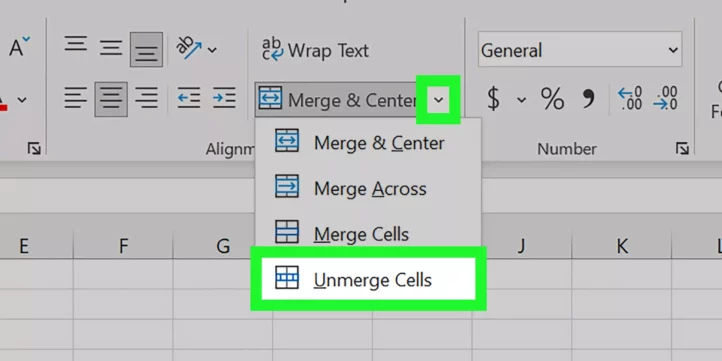
Merging cells in Excel is a common way to improve spreadsheet clarity and organization.
- You can merge cells visually with the “Merge & Center” option or by using formulas like “&” and “CONCATENATE” to combine cell contents.
- Using “Merge & Center” helps create headers and group data visually, but it can affect sorting and formulas.
- Advanced options include “Merge Across,” unmerging cells, and leveraging table references for dynamic merging.
- Power users often turn to macro-enabled merging and third-party tools to automate and extend merging capabilities.
- Proper data preparation and troubleshooting are essential to prevent errors and data loss during merging.
Keep reading to see detailed techniques and best practices for effective cell merging in Excel.
Introduction To Excel Merge Capabilities
Excel’s merge feature is a powerful tool that simplifies data presentation.
It allows you to combine multiple cells into one, creating a cleaner and more organized spreadsheet.
Whether you’re preparing a report, organizing data, or setting a title across several columns,
understanding how to merge cells is essential for any Excel user.
Why Merge Cells In Excel?
Merging cells can enhance both the function and look of your spreadsheets. By merging, you can:
- Align a header over multiple columns
- Group related data together visually
- Avoid repetition of similar data
- Create visually appealing and clear layouts
Types Of Merging In Excel
Excel offers several methods to merge cells:
- Merge & Center: Combines cells and centers the content.
- Merge Across: Merges cells in each row without changing rows.
- Merge Cells: Merges cells without centering the content.
- Unmerge Cells: Reverts merged cells to their original state.
Each method suits different needs and can be applied depending on the desired result in your Excel workbook.
Preparing Data For Merging
Merging cells in Excel can streamline your data presentation and analyses. Before performing a merge, it’s crucial to prime your data. Preparing data ensures your Excel workbook remains functional and error-free post-merge. Let’s walk through the vital steps of prepping your data for merging.
Data Consistency Checks
Ensuring data uniformity is the first step. You want your merged data to look clean and be functional.
- Check for discrepancies in formatting – dates, currencies, etc.
- Eye out for spelling mistakes that could cause inconsistencies.
- Validate that columns intended to merge have the same type of data.
- Use Excel’s Conditional Formatting to highlight differences.
Back Up Original Data
Before any major changes, backing up is crucial. It preserves your original dataset. Mistakes during merging can be reversed with a backup.
- Save a copy of your workbook with a different file name.
- Store this backup in a secure, easily accessible location.
By following these steps, you’ll safeguard your data integrity during the merge process.
Basic Merging Techniques
In Excel, merging cells can clean up your sheets and organize your data. Let’s learn how to merge cells using simple techniques.
Using ‘merge & Center’ Feature
Excel’s ‘Merge & Center’ is the go-to method for merging cells. It’s fast and easy:
- Select the cells you want to merge.
- Click the ‘Home’ tab on the ribbon.
- In the alignment group, find and click ‘Merge & Center’.
- Your selected cells combine into one, with the text centered.
To undo, just click ‘Merge & Center’ again.
Alternative Merging Options
Excel offers other ways to merge cells, offering more control:
- Merge Across: Combines cells in each row of the selected range.
- Merge Cells: Creates a single cell, but does not center the text.
- Unmerge Cells: Reverts merged cells to their original state.
To access these, click the small arrow beside ‘Merge & Center’ on the ‘Home’ tab.
Remember, merged cells can affect sorting and formulas. Use them wisely.
Advanced Formulas For Cell Merging
Mastering advanced formulas for cell merging in Excel can transform your data management skills. From reports to data analysis, the ability to combine cell contents effectively is crucial. Let’s dive into some sophisticated techniques that Excel offers for merging cells beyond the basics.
The Concatenate Function
CONCATENATE is a classic function in Excel. It merges text from different cells into one. This is crucial when dealing with names, addresses, or any data that needs to be combined. Look at how it works:
| Cell A1 | Cell B1 | Formula | Result |
|---|---|---|---|
| Hello | World | =CONCATENATE(A1, " ", B1) | Hello World |
- Use commas to separate the cells you want to merge.
- Add spaces or other characters between quotation marks for better formatting.
Utilizing The Textjoin Function
Excel’s TEXTJOIN function takes merging to the next level. It introduces delimiters—characters or spaces between the merged texts. This function is especially powerful for lists. See an example below:
| Cell A1 | Cell B1 | Cell C1 | Formula | Result |
|---|---|---|---|---|
| Apple | Banana | Cherry | =TEXTJOIN(", ", TRUE, A1:C1) | Apple, Banana, Cherry |
- Select a delimiter that will appear between each text value.
- Choose whether to ignore empty cells within the range.
- Specify the range of cells you are merging.
The TEXTJOIN function is versatile for various tasks. You can customize delimiters to suit your needs. This function is ideal for creating readable lists or combining data with precision.
Remember, these functions are just the beginning. Excel offers a wide array of tools for handling data. With practice, these advanced formulas will become second nature. They will enhance your spreadsheets’ functionality and appearance significantly.
Dynamic Merging With Excel Tables
Welcome to ‘Dynamic Merging with Excel Tables’, your comprehensive guide to enhancing your Excel sheets. Merging cells within tables can seem tricky, but with the right formula and approach, you can streamline your data for better readability and functionality.
Leveraging Table References
Excel tables are not only about organizing data. They’re powerful tools that can boost your data management. Using table references, you can create dynamic merged cells.
Here’s how:
- Name your table for easy reference.
- Use structured references to identify the cells to merge.
- Apply a formula that adapts as your table grows or shrinks.
Table Formatting Options
Excel tables come with formatting choices that make dynamic merging a breeze. These options ensure that your tables remain readable and visually appealing.
Explore these options:
| Function | Use |
|---|---|
| Banded Rows | Highlight alternate rows for clarity. |
| Header Row | Define columns with a special style. |
| Total Row | Add summary functions quickly. |
Macro-enabled Merging Methods
Are you ready to streamline your Excel workflow with some clever coding? Macro-Enabled Merging Methods takes your spreadsheet skills to the next level. Say goodbye to tedious manual merges and embrace the efficiency of custom macros. Unlock the power of automating your cell merges with easy-to-follow steps.
Creating A Basic Merge Macro
Jump into macro magic with a simple merging script. Even with zero coding experience, you’ll master this in no time!
Follow these simple steps:
- Open Excel and press
Alt + F11to access the Visual Basic for Applications (VBA) editor. - Go to Insert > Module to create a new macro.
- Copy and paste the following code:
Sub MergeCells()
    Selection.Merge
End Sub
Run this macro by pressing F5 or Run > Run Sub/UserForm.
Customizing Macros For Complex Merges
Need more than a simple cell merge? Customize your macros to handle tricky merges. Transform your data with tailored scripts.
Consider these tips:
- Identify the range: Set specific cells for merging.
- Use loops: Merge multiple ranges with
For...Nextloops. - Add logic: Incorporate
If...Thenstatements for conditional merging.
Here’s a snippet for a customized merge:
Sub CustomMerge()
    Dim ws As Worksheet
    Set ws = ThisWorkbook.Sheets("Sheet1")
    ws.Range("B2:D2").Merge
    ws.Range("B3:D3").Merge
End Sub
This macro merges specific cell blocks on “Sheet1”. Tweak the code for your own sheets and ranges!
Troubleshooting Common Merge Issues
Merging cells in Excel can make your worksheets look polished and easy to read, but sometimes things can go wrong. Let’s troubleshoot common issues you might face when merging cells using Excel formulas.
Handling Merged Cell Errors
Merged cell errors can frustrate even seasoned Excel users. These errors pop up unexpectedly and can affect calculations. Don’t worry; you can handle them with ease.
- Check for hidden merged cells: Sometimes cells are merged without notice. Use ‘Find & Select’ to locate merged cells.
- Simplify formulas: Complex formulas and merged cells don’t mix well. Keep formulas straightforward for better results.
- Use Center Across Selection: This feature gives a merged look without actually merging cells. It can help maintain functionality.
- Error checking: Excel’s error-checking tool can help. Use it to find and fix problems with merged cells.
Data Loss Prevention During Merging
Preventing data loss when merging is key. Be careful to not overwrite important information.
| Step | Action |
|---|---|
| 1 | Backup your worksheet. It’s a safety net before merging. |
| 2 | Copy data. Before merging, copy the data in adjacent cells elsewhere. |
| 3 | Review the contents. Check cells for multiple data entries that could merge. |
| 4 | Merge cautiously. Avoid using ‘Merge & Center’ if there’s a possibility of losing data. |
Always double-check what your merged cells will entail. Losing data is never fun and can be avoided with meticulous attention.
Best Practices For Merged Data Management
Managing merged data in Excel is a common task for many users. It often involves combining cells to create a more organized and readable layout. But maintaining the accuracy and integrity of your data is essential. Let’s explore how to handle merged data effectively.
Maintaining Data Integrity
Keeping your data accurate when cells are merged is crucial. Avoid losing important information by following these tips.
- Always backup your data before merging cells.
- Use the
feature for headers only, not data entries. - Ensure that the first cell in the range contains the data you want to retain.
Strategies For Data Unmerging
Sometimes, you need to reverse merged cells to single ones. Here is how to ‘unmerge’ without data loss.
- Click the merged cell and select ‘Unmerge Cells’ from the Excel ribbon.
- Copy the data from the first cell to the formerly merged cells.
- Use Excel formulas such as
=IF()to automate data filling.
Beyond The Basics: Tools And Add-ins
Excel offers more than what meets the eye with its basic merge functionality. Excel power users often turn to tools and add-ins to streamline their workflows. These can dramatically expand your merging capabilities. Let’s explore some of the top third-party tools and add-ins available.
Third-party Excel Tools
Third-party tools elevate your Excel game. They offer advanced features that make merging cells a breeze. Here are some popular options:
- Kutools for Excel: Brings advanced features like multi-cell merging with a single click.
- Ablebits: Offers a suite of Excel tools including a powerful Merge Cells wizard.
- ASAP Utilities: Enhances Excel with useful merge shortcuts and extra functionality.
Add-ins For Enhanced Merging
Add-ins can integrate seamlessly with Excel. They provide enhanced merging functions. Below are some add-ins that stand out:
| Add-in Name | Features |
|---|---|
| Merge Cells Wizard | Merge without losing data; merge by row or column. |
| Excel Merger | Combines multiple Excel files into a single spreadsheet. |
| Cell Cleaner | Helps with cleaning up merged cells and formatting. |
Case Studies: Effective Merging In Action
Let’s dive into real-world examples where merging cells in Excel proves invaluable.
Seeing these techniques in action can inspire your own Excel projects.
Business Reporting And Data Analysis
Businesses thrive on clear reports. They show growth, trends, and forecasts. Merging cells in Excel sheets can turn complex data into readable information. Let’s explore how two companies used cell merging to streamline their reporting processes.
- A retail giant – Their monthly sales report featured merged cells for clarity. It outlined product categories across the top. Each merged cell spanned multiple columns to show sub-categories. This made the report easy for managers to read. They could see sales figures for each category at a glance.
- A tech startup – They merged cells for a clean look in their investor reports. Data for quarterly revenue was presented in merged cells. It offered a snapshot of earnings before diving into details.
| Company Type | Report Type | Use of Merged Cells |
|---|---|---|
| Retail | Monthly Sales | Categories with sub-categories |
| Tech | Quarterly Earnings | Summaries for quick insights |
Academic Research Data Organization
Researchers face data overload regularly. Organized data leads to better findings. Imagine a team examining environmental impacts. They collect data from numerous sources. By merging cells, they create a master sheet. This sheet defines variable names and spans across many columns. It groups related data points, making analysis smoother.
- The variable names are in merged cells on the top row.
- Each variable’s data spans several columns, also merged.
- Researchers can easily compare variables side-by-side.
Students often deal with smaller data sets. A university project may involve survey results. Students use merged cells to title groups of questions. This helps in organizing responses efficiently. The findings are more accessible and look professional in presentations.
Conclusion: Maximizing Efficiency With Merged Cells
Merging cells in Excel can streamline data presentation and make complex spreadsheets more navigable. A well-planned merge strategy reduces clutter, aligns content for better readability, and emphasizes important data. Utilizing merged cells effectively can lead to a more efficient and error-free workflow.
Summarizing Key Takeaways
- Merging cells can simplify headers and group related data.
- Use keyboard shortcuts for quick cell merging actions.
- Employ merge functions within formulas for dynamic spreadsheets.
- Remember to avoid merging cells when sorting or filtering data.
Continuous Learning And Upgradation
Keep your Excel skills polished with regular practice and updates. Explore new functions that interact with merged cells. Engage with the Excel community for tips and tutorials. Embrace a mindset of continuous learning to harness the full potential of merged cells and beyond.
Catch the latest Excel updates, experiment with novel capabilities, and collect feedback to refine your techniques. Your ability to merge cells with precision serves as a stepping stone to mastering Excel’s vast array of functionalities.
Frequently Asked Questions
How To Merge Cells In Excel With A Formula?
Combining cells in Excel doesn’t utilize a direct formula, but you can use the ampersand (&) symbol or the `CONCATENATE` function. For instance, to merge A1 and B1, use `=A1 & B1` or `=CONCATENATE(A1, B1)` to create a single string.
Can You Merge Cells Without Losing Data?
Yes, you can merge cells in Excel without losing data by using “&” or the `CONCATENATE` function. It combines the cell contents into a single cell. Remember, only the upper-left cell data remains if you use the “Merge & Center” feature.
What Shortcuts Combine Cells In Excel?
Excel doesn’t offer a default keyboard shortcut specifically for merging cells. You can use Alt > H > M > C for “Merge & Center,” but it’s advisable to use formulas like `=A1 & ” ” & B1` to prevent data loss.
Is There A Way To Merge Cells In Excel Vertically?
To merge cells vertically, select the desired cells, and click “Merge & Center” or “Merge Across” under the Home tab. Remember, using this feature will keep only the top cell’s data by default.
Conclusion
Mastering cell merging in Excel can elevate your spreadsheet efficiency and presentation. With this guide, you’ve gained key insights into using Excel’s merge functionalities effectively. Put these tips to use, and watch your data management skills soar. For continuing Excel mastery, keep exploring and practicing – your spreadsheets will thank you!























































You might also like:
- 10 Awesome Excel Formulas To Use For Your Next Financial Model In Excel
- 10 Main Elements of a Business Plan
- Financial Modeling for Startups and Small Businesses
- Financial Planning for Small Business Owners – Taking an SBA Loan
- A Step-By-Step Guide to the Transpose Formula in Excel
- Understanding Insurance Policies: A Beginner’s Guide
- Financial Modeling using Excel
- How to Write a Business Plan Step-by-Step
- Finding a Valuation Model for Your Business
- Navigating the Car Rental Business Landscape
- Real Estate Financial Modeling in Excel
- Commercial Real Estate Valuation Methods: Helping Investors in Taking Informed Decisions
- Top 10 Mistakes in DCF Valuation Models
- 10 Tips to Develop a First Class Business Valuation Report
- A Deep Dive Into Understanding 10K Reports
- Scenario Analysis
- Financial Ratios Analysis and Its Importance
- Budgeting
- Simple Budget Planner Template
- 10-Step Financial Planning Checklist for Smart Executives


