
0 ITEMS

Verifying AI-Generated Formulas in Financial Models
Verifying AI-generated formulas in financial models is a five-step process: syntax validation, logic review against business rules, boundary testing, cross-verification with a manual calculation, and audit trail documentation. For a simple, low-materiality formula that takes under 2 minutes; for a complex formula feeding a material output it takes 8 to 12 minutes. The published guidance for Excel’s AI Agent Mode is explicit that the AI “is going to make mistakes” and that users should always verify the formulas it writes, which makes verification a control requirement rather than a matter of personal caution. The sections below cover the five steps, the error patterns AI tools repeat most often, worked NPV and debt waterfall examples, and the point at which rebuilding a formula manually beats verifying one.
Key Takeaways
- The step-by-step walkthrough How to Use AI Agent Mode in Microsoft Excel warns that the AI “is going to make mistakes” and tells users to always verify the formulas it writes before any critical business decision.
- GPT for Work’s AI agents for Excel benchmark found that GPT for Excel delivered the best results in 10 of 11 tests and finished the entire benchmark suite in under 7 minutes.
- The 5 non-negotiable verification steps are: syntax validation, logic review, boundary testing, cross-verification with manual calculations, and audit trail documentation.
- AI tools most commonly fail on relative vs. absolute cell references, flawed logical nesting, and incorrect function selection for financial calculations.
- Formula Bot reports more than 1,000,000 users, making standardized verification protocols a profession-wide need, not a niche concern.
- When formula complexity is high and output materiality is significant, rebuild manually rather than verify AI output — the decision framework in this article tells you exactly when that threshold is crossed.
Why Excel AI Users Are Told to “Always Verify”
Excel’s AI features arrive with an explicit caveat: the tools produce errors. The step-by-step walkthrough How to Use AI Agent Mode in Microsoft Excel warns that the AI “is going to make mistakes” and instructs users to always verify the formulas it writes before using them for critical business decisions. The companion guide Excel’s NEW AI Function: A Beginner’s Guide to =COPILOT reinforces the same point, telling users to give the results a quick sanity check, especially for the important numbers.
This is not a disclaimer buried in a terms-of-service document. It is front-and-center instructional guidance. For finance professionals, that acknowledgment carries a specific implication: AI-generated formulas are a first draft, not a finished product. Treating them as anything else introduces uncontrolled risk into financial models that may drive investment decisions, board presentations, or external audits.
The professional standard is clear. Verification is not optional review for cautious beginners. It is the control that separates responsible AI adoption from reckless automation.
The Speed-Accuracy Paradox: When 20-Second Output Demands Careful Review
AI formula tools are genuinely fast. GPT for Work’s AI agents for Excel benchmark found that GPT for Excel completes most individual spreadsheet tasks in under 20 seconds, and that it was the only tool tested to finish the 100-row, 1,000-row, 10,000-row and 500-row web search bulk tests. That speed is a real productivity gain for FP&A teams under deadline pressure.
The paradox is that speed creates verification pressure rather than eliminating it. When a formula takes 20 seconds to generate, the temptation is to accept it and move on. But a formula embedded in a 10,000-row debt schedule that uses a relative reference where an absolute reference is required will propagate the same error across every row. The time saved in generation is dwarfed by the time lost in finding and correcting a systematic error after the model has been shared.
The right mental model: treat AI generation as accelerating the drafting phase, not the quality control phase. The verification steps below are designed to be fast enough to fit into a real workflow without negating the productivity gain.
Five Critical Verification Steps for AI-Generated Financial Formulas
These five steps apply to every AI-generated formula before it enters a financial model used for decisions or reporting.
Step 1: Syntax Validation
Confirm the formula parses without errors. Open the formula in Excel’s formula bar and check that all parentheses are balanced, all function names are spelled correctly, and all referenced ranges exist in the workbook. Excel’s built-in error checking (Formulas tab, Error Checking) flags syntax issues automatically. A formula that returns #NAME?, #REF!, or #VALUE! has failed syntax validation and must be corrected before proceeding. Excel’s documented ceiling is 64 nested levels of functions, so deeply nested AI-generated formulas should be checked carefully to ensure they do not exceed this structural limit.
Step 2: Logic Review Against Business Rules
Read the formula and ask whether it matches the business rule it is supposed to implement. For example, an NPV formula (which calculates the present value of future cash flows discounted at a given rate, minus the initial investment) should discount cash flows starting from period 1, not period 0. If the AI placed the initial investment inside the NPV function rather than subtracting it separately, the logic is wrong even though the syntax is valid. Document the business rule in a comment cell next to the formula so reviewers can check logic independently.
Step 3: Boundary Testing with Edge Cases
Test the formula with inputs that stress its logic: zero values, negative numbers, blank cells, dates at month-end boundaries, and division-by-zero scenarios. Financial models regularly encounter these conditions. A revenue recognition formula that works correctly for positive revenue but returns an error when revenue is zero will fail silently in a month with no sales. Run at least four boundary tests per formula block: zero input, negative input, maximum expected input, and a blank cell.
Step 4: Cross-Verification with Manual Calculations
For any formula whose output is material to a financial decision, calculate the expected result manually for at least one input set and compare it to the formula’s output. “Material” means the output feeds into a metric that influences a decision: a valuation, a covenant test, a budget variance, or a reported figure. If the manual result and the formula result differ by more than rounding, the formula contains a logic error. This step catches errors that pass syntax validation and look logically plausible but produce wrong numbers.
Step 5: Audit Trail Documentation
Log the formula, the verification steps performed, the test inputs and outputs, and the name of the person who verified it. Store this log in a dedicated “Model Audit” tab or an external checklist. This documentation satisfies internal control requirements and gives external auditors evidence that AI-generated content was reviewed before use. Without documentation, verification effectively did not happen from a controls perspective.
Common Formula Errors AI Tools Make (And How to Catch Them)
AI formula generators make predictable categories of mistakes. Knowing the patterns lets you check for them directly rather than discovering them through a downstream error.
Relative vs. Absolute Cell References
A relative reference (e.g., B2) shifts when a formula is copied across rows or columns. An absolute reference (e.g., $B$2) stays fixed. AI tools frequently use relative references for inputs that should be fixed, such as a discount rate in a DCF model or a tax rate in an income statement. When you copy the formula down 100 rows, the discount rate reference shifts to B102 instead of staying at $B$2. Fix: after receiving any AI-generated formula, highlight every cell reference and ask whether it should move when copied. If not, add dollar signs.
Flawed Logical Nesting
Nested functions (functions placed inside other functions, such as an IF inside a SUMIF) are a common source of AI errors. The AI may nest functions in the wrong order, apply a logical test to the wrong argument, or use AND/OR logic that inverts the intended condition. Microsoft’s IF function documentation notes that multiple IF functions can be nested together to perform several comparisons, which gives AI tools substantial room to generate deeply nested logic that is difficult to audit at a glance. Fix: expand nested formulas into helper columns, evaluate each layer separately, and confirm the intermediate results match your expectations before collapsing back into a single formula.
Incorrect Function Selection
AI tools sometimes select a function that is close to correct but not exact. Common substitution errors in financial modeling include: using NPV when XNPV is required (XNPV handles irregular cash flow dates; NPV assumes equal periods), using IRR when XIRR is required for the same reason, and using AVERAGE when AVERAGEIF or a weighted average is needed. Fix: for every function the AI selects, confirm it matches the specific calculation requirement, not just the general category.
Misapplied Order of Operations
Financial formulas often require specific calculation sequences. A debt waterfall, for example, must apply senior debt repayment before subordinated debt, and both before equity distributions. If the AI builds the formula without understanding the priority structure, it may calculate distributions in the wrong order. Fix: trace the formula’s calculation sequence step by step and compare it to the contractual or accounting priority rules.

AI tools make predictable errors. Knowing the four failure patterns lets analysts check for them directly rather than discovering them through downstream model failures.
Worked Example: Verifying an AI-Generated NPV Formula
An NPV formula (Net Present Value, the sum of discounted future cash flows minus the initial investment) is one of the most commonly requested AI-generated financial formulas. Here is how to verify one systematically.
Suppose an AI generates this formula for a 5-year project with cash flows in cells B3:B7, a discount rate in cell B1, and an initial investment in cell B2:
=NPV(B1, B2:B7)
This formula contains a critical logic error. Excel’s NPV function discounts all values in the range, including B2. If B2 holds the initial investment (a cash outflow at time zero), it should not be discounted because it occurs today, not in the future. The correct formula is:
=NPV(B1, B3:B7) + B2
Note that B2 is added (not subtracted) because the investment is already stored as a negative number. If the AI stored the investment as a positive number, the correct formula would be =NPV(B1, B3:B7) - B2. Excel’s NPV function accepts 1 to 254 value arguments, so verify that the AI has not inadvertently split a large cash flow series across more arguments than the function supports.
Here’s the math for a manual cross-check:
Assume: Discount rate = 10%, Initial investment = -$100,000, Cash flows years 1-5 = $30,000 each.
PV of Year 1: $30,000 / 1.10 = $27,273
PV of Year 2: $30,000 / 1.21 = $24,793
PV of Year 3: $30,000 / 1.331 = $22,539
PV of Year 4: $30,000 / 1.4641 = $20,490
PV of Year 5: $30,000 / 1.6105 = $18,627
Sum of PVs = $113,722
NPV = $113,722 – $100,000 = $13,722
If the AI formula returns $13,722, it passes cross-verification. If it returns a different figure, the formula contains an error.
Worked Example: Stress-Testing an AI-Built Debt Waterfall
A debt waterfall is a formula structure that allocates available cash to debt obligations in a defined priority order: senior secured debt first, then mezzanine, then subordinated, then equity. AI tools often build the mechanics correctly for a standard scenario but fail at boundary conditions.
Test the AI-generated waterfall with these four scenarios:
- Zero available cash: Every tranche should show zero repayment. If any tranche shows a positive repayment when cash is zero, the formula has a floor error.
- Cash exactly equal to senior debt: Senior tranche should be fully repaid; all junior tranches should show zero. If junior tranches receive any allocation, the priority logic is wrong.
- Cash exceeding total debt: All tranches should be fully repaid and the remainder should flow to equity. If the formula caps at total debt without passing the surplus to equity, it is missing a residual calculation.
- Negative cash (operating shortfall): The formula should not produce negative repayments (i.e., it should not imply that lenders pay the borrower). If any tranche returns a negative value, the formula lacks a MAX(0, …) floor.
These four tests take under 5 minutes and catch the most common structural errors in AI-generated waterfall models.
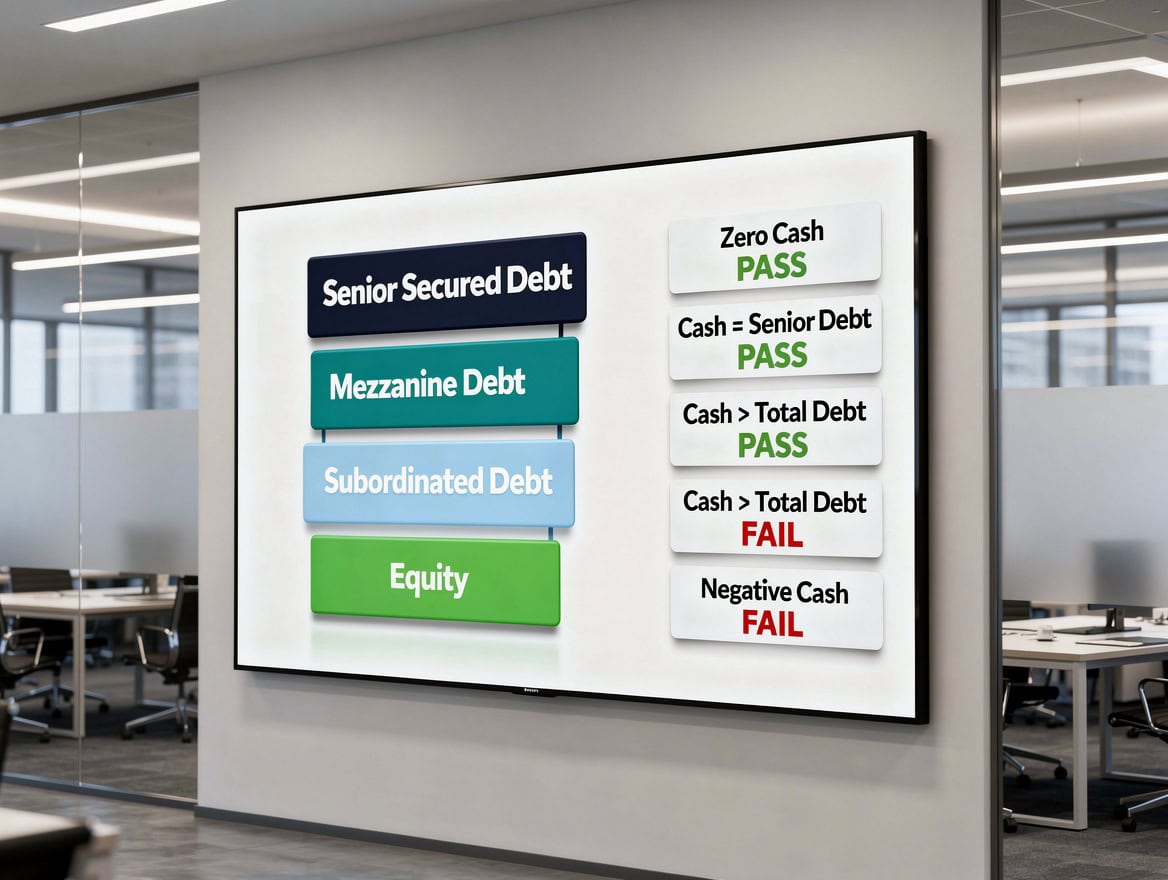
Four boundary tests expose the most common structural errors in AI-generated debt waterfall models — and each test takes under 90 seconds to run.
Building Your Financial Model Verification Checklist
A verification checklist converts the 5-step protocol into a repeatable, documentable process. Each item below maps to a specific failure mode.
| Check | What It Catches | Pass Condition |
|---|---|---|
| Syntax parse (no Excel errors) | #NAME?, #REF!, #VALUE! errors | Formula returns a value, not an error code |
| Absolute vs. relative references reviewed | Reference drift when copying formulas | All fixed inputs use $ anchors |
| Business rule documented in comment | Logic errors that pass syntax | Comment cell matches formula behavior |
| Zero-input boundary test | Division by zero, missing MAX(0,…) floors | Formula returns 0 or a defined fallback, not an error |
| Negative-input boundary test | Sign errors, incorrect ABS() usage | Formula handles negative inputs per business rule |
| Date edge case test (month-end, leap year) | EOMONTH, DATEDIF, EDATE errors | Formula returns correct date for Feb 28/29 and Dec 31 |
| Circular reference check | Iterative calculation errors | No circular reference warning in Excel status bar |
| Manual cross-check for material outputs | Logic errors that produce plausible but wrong numbers | Manual result matches formula result within rounding |
| Audit log entry completed | Missing documentation for internal controls | Log entry exists with formula, tests, and approver name |
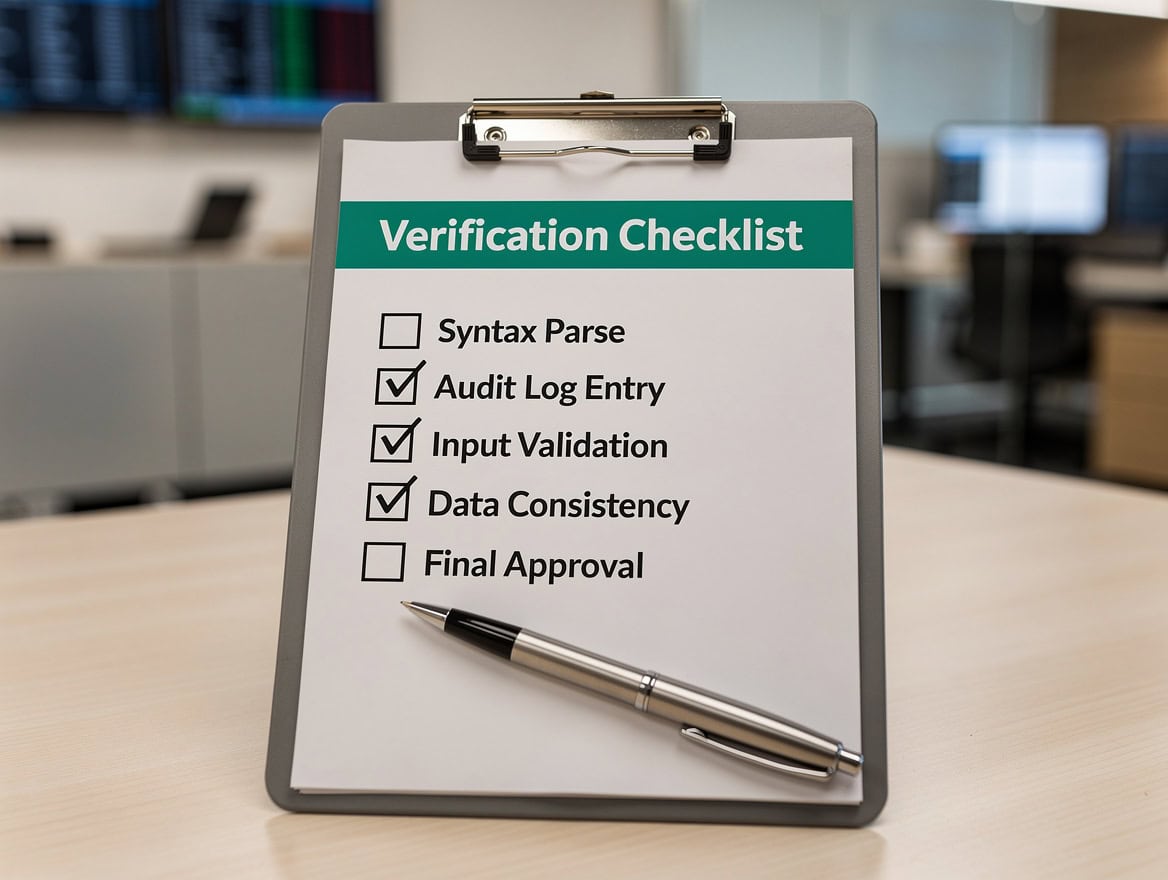
A structured checklist converts the verification protocol into a repeatable process that satisfies internal control requirements and external audit standards.
Documentation Standards for Audit-Ready AI-Assisted Models
Documentation transforms verification from a personal habit into an organizational control. For AI-assisted models, the documentation standard must answer four questions that an auditor or senior reviewer will ask.
First: what did the AI generate? Log the exact formula as received from the AI tool, the date, and the tool used. This creates a baseline that distinguishes AI-generated content from manually built formulas.
Second: what verification steps were performed? Reference the checklist above and note which tests were run, what inputs were used, and what results were produced. A log entry that says “verified” without specifying what was tested provides no audit value.
Third: who approved it? Every AI-generated formula in a model used for external reporting or investment decisions should carry an approver’s name and date. This mirrors the four-eyes principle (the requirement that a second person reviews any material work before it is finalized) that Big 4 accounting firms apply to financial statement preparation.
Fourth: what is the materiality assessment? Note whether the formula’s output is material to a reported figure or decision. High-materiality formulas require full 5-step verification. Low-materiality formulas may require only syntax validation and a boundary test.
Store documentation in a dedicated “Model Audit” worksheet within the Excel file, or in a linked external document. Either approach satisfies standard internal control requirements.
For teams building models that feed into financial statements, the 10 Awesome Excel Formulas for Financial Models resource provides a reference set of manually verified formulas you can use as benchmarks when cross-checking AI output.

Formula complexity and output materiality determine the verification depth required — not every AI formula needs the same level of scrutiny.
When to Trust AI Output vs. When to Rebuild Manually
Not every AI-generated formula requires the same level of scrutiny. The decision to verify vs. rebuild depends on three factors: formula complexity, output materiality, and consequence of error.
| Scenario | Recommended Approach |
|---|---|
| Simple lookup or text formula, low materiality | Syntax check + one boundary test. Accept if both pass. |
| Standard financial formula (SUM, AVERAGE, basic IF), medium materiality | Full 5-step verification. Accept if all steps pass. |
| Complex nested formula (multi-condition IF, array formula), high materiality | Full 5-step verification + independent rebuild for comparison. Accept only if both produce identical results. |
| Formula feeding external reporting or investment decision | Rebuild manually. Use AI output as a reference, not the production formula. |
| Formula in a model with regulatory or legal consequences | Rebuild manually. Do not use AI-generated formulas in production. |
An array formula (a formula that performs calculations across multiple cells simultaneously, entered with Ctrl+Shift+Enter in older Excel versions or as a dynamic array in Excel 365) deserves particular caution. AI tools frequently generate array formulas that work correctly on the test data but fail when the array size changes. Always test array formulas with both smaller and larger ranges than the intended production range.
For teams building complex valuation models, the Top 3 Business Valuation Formulas reference provides manually verified formula structures for DCF, comparable company analysis, and precedent transactions that you can use as verification benchmarks.
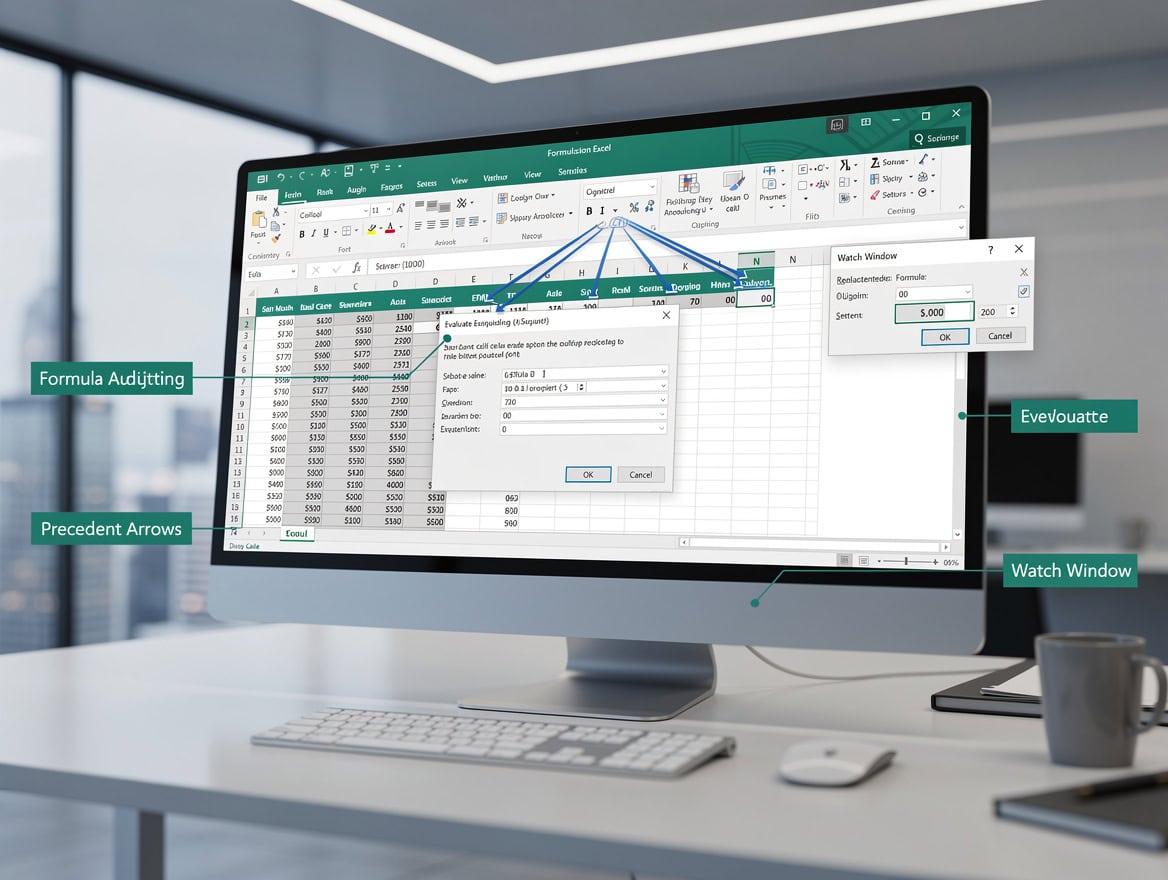
Excel’s built-in auditing tools — Trace Precedents, Evaluate Formula, and Watch Window — accelerate verification without requiring manual inspection of every cell.
Verification Tools and Techniques for Excel AI Outputs
Excel provides several built-in tools that accelerate formula verification without requiring manual inspection of every cell.
Trace Precedents and Dependents: Found under Formulas > Formula Auditing, these tools draw arrows showing which cells feed into a formula (precedents) and which cells depend on it (dependents). Use Trace Precedents to confirm the AI formula is pulling from the correct input cells, not from an adjacent cell that happens to contain a similar value.
Evaluate Formula: The Evaluate Formula tool (Formulas > Formula Auditing > Evaluate Formula) steps through a formula one calculation at a time, showing the intermediate result at each step. This is the fastest way to identify exactly where a nested formula produces an unexpected result.
Watch Window: For formulas whose outputs feed into summary cells elsewhere in the model, the Watch Window (Formulas > Formula Auditing > Watch Window) lets you monitor key outputs while editing input cells. This makes boundary testing faster because you can see the effect of a zero or negative input on downstream cells in real time.
Name Manager: If the AI-generated formula uses named ranges (labels assigned to cell ranges, such as “DiscountRate” instead of $B$1), verify in the Name Manager (Formulas > Name Manager) that each named range refers to the correct cells. AI tools sometimes generate formulas referencing named ranges that do not exist in the workbook.
For teams who want a structured reference for Excel formula auditing techniques, the Free 100 Excel Shortcuts and Formulas resource includes keyboard shortcuts for all major formula auditing tools.
For analysts who regularly combine multiple formulas in a single cell, the Excel Two Formulas in One Cell guide covers nesting patterns that are particularly prone to AI errors and shows how to structure them for easier verification.
Frequently Asked Questions
How long does it actually take to verify an AI-generated formula in Excel?
For a simple formula with low materiality, syntax validation and one boundary test take under 2 minutes. For a complex nested formula feeding a material output, the full 5-step protocol takes 8 to 12 minutes. Compare that to the time required to find and correct a systematic error after a model has been distributed: a single misplaced absolute reference in a 10,000-row schedule can take hours to diagnose and fix. The verification investment is almost always smaller than the remediation cost. GPT for Excel completes most tasks in under 20 seconds, so even a 10-minute verification adds only a modest overhead relative to the generation time.
What is the most common AI formula error in financial models?
The most common error is using a relative cell reference where an absolute reference is required. For example, an AI-generated formula for gross margin might write =B2/C2 instead of =B2/$C$2 when C2 holds total revenue that should remain fixed as the formula is copied down the column. This error is invisible until you copy the formula and notice that the denominator is shifting. Always review every cell reference in an AI-generated formula and ask whether it should be anchored with dollar signs before copying it across a range.
Should I use AI-generated formulas in models I present to external auditors?
Yes, provided you complete and document the full 5-step verification protocol and maintain an audit log. External auditors do not prohibit AI-assisted work; they require evidence that controls were applied. A documented verification log showing the formula received, the tests performed, the results, and the approver’s sign-off satisfies standard internal control requirements. Without that documentation, the formula’s AI origin creates an unresolved control gap that auditors will flag. The four-eyes principle, standard in Big 4 audit practice, applies: a second qualified person must review and approve any AI-generated formula before it enters a model used for external reporting.
How do I test an AI-generated IRR formula for errors?
IRR (Internal Rate of Return) is the discount rate at which NPV equals zero. Excel’s IRR function assumes cash flows occur at equal intervals. If your cash flows are irregularly timed, the AI should use XIRR, not IRR. To verify: first, confirm the function selection matches your cash flow timing. Second, manually calculate NPV at the IRR the formula returns and confirm it equals zero (or is within $1 of zero due to rounding). Third, test with a cash flow series that has no sign change (all positive or all negative) and confirm the formula returns a #NUM! error, which is the correct behavior. If it returns a number for an all-positive series, the formula has a logic error.
What should I do if the AI-generated formula passes all verification steps but the output still seems wrong?
Start by questioning the input data, not the formula. A formula that passes syntax validation, logic review, boundary testing, and manual cross-verification is almost certainly correct. If the output still seems wrong, the most likely explanation is that the input cells contain unexpected values: text stored as numbers, dates stored as text, or blank cells that Excel treats as zero. Use Excel’s ISNUMBER, ISTEXT, and ISBLANK functions to audit the input range. If the inputs are clean and the formula still produces a suspicious result, escalate to a manual rebuild and treat the AI output as a reference only.
Does verification apply to AI-generated formulas in Google Sheets as well?
Yes. The same 5-step protocol applies regardless of the spreadsheet platform. Google Sheets has its own formula auditing tools: the “Show formula” view (Ctrl+`) and the “Explore” panel provide some of the same diagnostic capability as Excel’s Evaluate Formula tool. The specific error categories, including relative vs. absolute reference errors, logical nesting errors, and incorrect function selection, are identical across platforms because they reflect how AI tools interpret natural language instructions, not platform-specific behavior. Formula Bot, which reports more than 1,000,000 users, supports both Excel and Google Sheets, so the verification need spans both environments.
When is it faster to rebuild a formula manually than to verify the AI version?
Rebuild manually when the formula has more than 3 levels of nesting, when it uses array logic across a large range, or when its output feeds directly into an external report or investment decision. At that complexity level, the time required to fully verify an AI-generated formula, including tracing all precedents, evaluating each nested layer, and running boundary tests, often exceeds the time to build a clean formula from scratch using a known-correct structure. Use the AI output as a structural reference to understand the approach, then build your own version. This hybrid workflow captures the AI’s speed in identifying the right formula type while maintaining full control over the implementation.
Conclusion
AI formula tools deliver real productivity gains. Best-in-test results on 10 of 11 benchmark tasks and sub-20-second task completion are genuinely useful for FP&A teams under deadline pressure. But the guidance published for Excel’s AI features is blunt — the AI “is going to make mistakes” — and that defines the professional standard: every AI-generated formula requires verification before it enters a model that drives decisions.
The 5-step protocol in this article, syntax validation, logic review, boundary testing, manual cross-verification, and audit documentation, takes under 12 minutes for complex formulas and under 2 minutes for simple ones. That investment is small relative to the cost of a material error in a board presentation, a covenant calculation, or an external audit.
Build your own verification checklist from the nine checks in the table above, and keep it in the same workbook as your audit log. For ready-made structures to cross-check AI output against, the eFinancialModels financial model templates for all industries library gives you manually built models you can use as benchmarks before AI-assisted work reaches client deliverables or board presentations.
























































