
0 ITEMS

ROUND and SUM in Excel: Financial Precision Guide
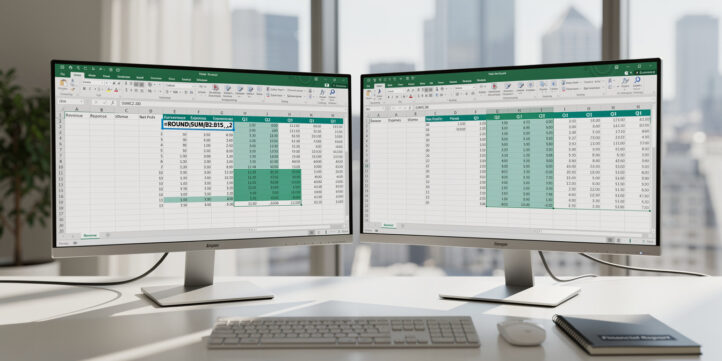
Excel’s ROUND and SUM functions look basic on their own, but the way you nest them decides whether a model ties out to the penny or drifts by a few cents in every reporting period. The guide below walks through the syntax, the round-before-sum versus round-after-sum decision, and the formulas that keep totals consistent across large financial datasets.
Key Takeaways
- Use
=ROUND(SUM(A1:A10),2)to round a sum to 2 decimal places in a single step, the standard for currency reporting. - Rounding before summing versus after summing produces different totals: a 10-row dataset can show a $0.04 discrepancy depending on which approach you choose.
- A positive
num_digitsvalue rounds to decimal places; a negative value rounds to the left of the decimal (e.g.,-3rounds to the nearest 1,000). - ROUNDUP always rounds away from zero; ROUNDDOWN always rounds toward zero. ROUND uses standard half-up convention.
- The LOG10-based formula
=ROUND(B5, C5-(1+INT(LOG10(ABS(B5)))))rounds any number to N significant figures, useful for large-scale financial datasets. - Floating-point arithmetic in Excel can produce results like 0.1 + 0.2 = 0.30000000000000004 at the binary level, making explicit rounding essential for currency calculations.
- Apply
=ROUND(SUM(range),0)for whole-dollar executive summaries and=ROUND(SUM(range),-3)to round budget totals to the nearest thousand.
Rounding errors cost real money. A single unrounded line item in a 500-row P&L can cascade into a balance sheet that refuses to balance, triggering hours of audit work. This guide shows you exactly how to combine Excel’s ROUND and SUM functions to prevent that, with specific formulas, worked dollar examples, and the critical decision every financial analyst must make: round before you sum, or after?
Understanding the ROUND Function Syntax and Parameters
The ROUND function uses the syntax =ROUND(number, num_digits), where number is the value you want to round and num_digits specifies the precision (Microsoft Support). Both arguments are required.
number: A numeric value, cell reference, or formula result.num_digits: An integer controlling rounding position.
A positive num_digits value rounds to the right of the decimal point (e.g., 2 = two decimal places). A negative num_digits value rounds to the left of the decimal point, so -1 rounds to the nearest 10, -2 to the nearest 100, and -3 to the nearest 1,000 (Microsoft Support). Setting num_digits to 0 rounds to the nearest whole number. It is worth noting that Excel’s numeric precision is limited to 15 significant digits (Microsoft Support), meaning any value beyond 15 significant digits is stored with truncation before ROUND even operates — a critical constraint for very large financial figures.
Quick reference:
| Formula | Input | Output |
|---|---|---|
=ROUND(2.678, 2) | 2.678 | 2.68 |
=ROUND(2.678, 0) | 2.678 | 3 |
=ROUND(12345, -2) | 12345 | 12300 |
=ROUND(12345, -3) | 12345 | 12000 |
Combining ROUND with SUM: The Nested Formula Approach
Nesting ROUND around SUM, written as =ROUND(SUM(A1:A10),2), is the most efficient way to sum a range and control its decimal precision in a single formula step. A nested function (a function placed inside another function as one of its arguments) lets Excel evaluate the inner function first, then pass the result to the outer function.
Here’s how the evaluation order works:
- Excel calculates
SUM(A1:A10)first, producing a raw total. - ROUND then receives that total as its
numberargument. - ROUND applies the specified
num_digitsprecision and returns the final value.
The formula =ROUND(SUM(A1:A10),0) sums a range of values and then rounds the total to 0 decimal places, returning a whole-number result from the SUM operation. This single-cell approach is cleaner than applying ROUND to each cell individually and reduces formula maintenance when rows are added or removed. Excel worksheets support up to 1,048,576 rows (Microsoft Support), so a single =ROUND(SUM(A1:A1048576),2) formula can cover an entire column of financial data without modification.

=ROUND(SUM(A2:A6),2) sums raw invoice values first, then rounds once to 2 decimal places, minimizing accumulated rounding error.
When to Round: Before Summation vs. After Summation
The sequence of rounding is the most consequential decision in financial modeling with these functions, and the two approaches produce different numerical results. This is not a stylistic choice: it is a precision choice with compliance implications.
Approach A: Round after summing (recommended for most financial statements)
=ROUND(SUM(A1:A5), 2)
Excel sums the raw values first, then rounds once. This minimizes accumulated rounding error.
Approach B: Round each value before summing
=SUM(ROUND(A1,2), ROUND(A2,2), ROUND(A3,2), ROUND(A4,2), ROUND(A5,2))
Each value is rounded independently before addition. The sum of rounded values can differ from the rounded sum.
Worked numerical example:
Suppose five invoice line items are: $10.124, $10.126, $10.125, $10.123, $10.127.
- Raw sum: $50.625
- Approach A (round after):
=ROUND(50.625, 2)= $50.63 - Approach B (round before): Each rounds to $10.12, $10.13, $10.13 (banker’s rounding aside), $10.12, $10.13. Sum = $50.63 in this case, but with different inputs the gap opens.
Now use: $10.344, $10.344, $10.344, $10.344, $10.344.
- Raw sum: $51.720
- Approach A:
=ROUND(51.720, 2)= $51.72 - Approach B: Each rounds to $10.34. Sum = $51.70
The difference here is $0.02. Across a 500-row dataset, that gap compounds. For financial statements, round after summing unless your reporting standard explicitly requires line-item rounding (some regulatory filings do).
| Decision | Formula Pattern | Best For |
|---|---|---|
| Round after summing | =ROUND(SUM(range), 2) | P&L totals, balance sheet, cash flow statements |
| Round before summing | =SUM(ROUND(A1,2),...) | Invoices where each line must display a rounded value |
| No rounding on sum | =SUM(range) | Internal working models where precision is preserved |
Using Negative num_digits for Executive Reporting
Negative num_digits values round numbers to the left of the decimal point, which is standard practice when presenting large figures to executives or boards. The formula =ROUND(1234567, -3) returns 1,235,000, rounding to the nearest thousand.
Common business applications:
- Board-level budget summaries:
=ROUND(SUM(B2:B13), -3)rounds an annual budget total to the nearest $1,000. - Revenue reporting in millions:
=ROUND(SUM(revenue_range), -6)rounds to the nearest million. - Capital expenditure approvals:
=ROUND(capex_total, -4)rounds to the nearest $10,000 for approval thresholds.
For a department with a raw annual budget of $4,872,340, applying =ROUND(4872340, -3) returns $4,872,000. That is the figure that belongs in an executive slide deck. The full precision stays in your working model.
ROUND vs. ROUNDUP vs. ROUNDDOWN: Choosing the Right Function
These three functions share the same syntax but apply fundamentally different rounding logic. Choosing the wrong one in a financial model produces systematically biased results.
The ROUNDUP function always rounds numbers away from zero, so the result is always greater in magnitude than the original number regardless of the digit after the rounding position (DataCamp, 2023). For example, =ROUNDUP(76.345, 0) returns 77, rounding 76.345 up to the nearest whole number even though standard rounding would give 76 (DataCamp, 2023).
| Function | Logic | Financial Use Case |
|---|---|---|
ROUND | Standard half-up rounding | General financial statements, currency display |
ROUNDUP | Always rounds away from zero | Tax provisions, conservative revenue estimates, ceiling calculations |
ROUNDDOWN | Always rounds toward zero | Depreciation (conservative), loan amortization floors, inventory counts |
ROUNDDOWN in depreciation: If an asset depreciates $1,234.67 per month and your policy floors partial cents, use =ROUNDDOWN(1234.67, 0) to record $1,234. This is a conservative approach that avoids overstating the expense in any single period.
ROUNDUP for tax reserves: A tax liability of $8,450.12 rounded with =ROUNDUP(8450.12, 0) becomes $8,451. Reserving the higher amount is the prudent choice when the liability direction is uncertain.
Advanced Technique: Rounding to Significant Figures with LOG10
For large-scale financial datasets or scientific data, rounding to a fixed number of decimal places is less useful than rounding to a fixed number of significant figures. Significant figures are the meaningful digits in a number, counted from the first non-zero digit.
In Excel, you can round a number to a given number of significant figures using the ROUND function with a LOG10-based formula: =ROUND(B5, C5-(1+INT(LOG10(ABS(B5))))) rounds B5 to C5 significant figures (Exceljet, 2021).
Here’s how the formula works for $4,872,340 rounded to 3 significant figures:
ABS(4872340)= 4,872,340LOG10(4872340)≈ 6.688INT(6.688)= 61 + 6= 7C5 - 7=3 - 7= -4=ROUND(4872340, -4)= 4,870,000
This technique is particularly useful when comparing figures across orders of magnitude in a macro-level financial model or country-level economic analysis.
Common Errors and Troubleshooting ROUND and SUM Combinations
Most errors with ROUND and SUM fall into five predictable categories. Here’s how to identify and fix each one.
1. Mismatched parentheses
Every ROUND function requires two closing parentheses when nested inside SUM: one for ROUND, one for SUM. =ROUND(SUM(A1:A10,2) is wrong. =ROUND(SUM(A1:A10),2) is correct. Use Excel’s formula bar color-coding to match pairs.
2. Text values in the sum range
If any cell in your SUM range contains text (including numbers stored as text), SUM silently ignores them. ROUND then operates on an understated total. Fix: select the range, use Data > Text to Columns to convert, or wrap with =ROUND(SUMPRODUCT(A1:A10*1),2).
3. Floating-point precision artifacts
Excel stores numbers in IEEE 754 binary floating-point format, which cannot represent all decimal fractions exactly. A cell displaying 0.1 may store 0.09999999999999999 internally. This is why =0.1+0.2=0.3 can return FALSE in Excel. Applying ROUND to your final output eliminates the visible artifact.
4. Using ROUND on an intermediate result instead of the final output
Rounding mid-calculation and then performing further operations compounds error. Round only at the display or output stage unless your reporting standard requires otherwise.
5. Applying the wrong rounding function
Using ROUNDUP when ROUND is appropriate inflates every figure. Audit your function choices against the financial logic: is the goal neutral rounding, conservative flooring, or ceiling estimation?
Practical Financial Applications: P&L, Balance Sheet, and Budgets
ROUND and SUM combinations appear in every major financial statement type. Here are the most common patterns used by financial analysts.
Profit and Loss Statement:
Revenue and expense line items carry full precision in the working model. The displayed total uses =ROUND(SUM(revenue_range),0) for whole-dollar presentation. Net income: =ROUND(SUM(B2:B15)-SUM(C2:C15),0).
Balance Sheet:
Assets must equal liabilities plus equity. Any rounding applied to subtotals must be consistent across both sides. Use =ROUND(SUM(assets_range),0) and =ROUND(SUM(liabilities_range)+equity,0) with the same num_digits on both sides.
Budget Preparation:
Department budgets submitted to finance often require rounding to the nearest $1,000. Apply =ROUND(SUM(dept_range),-3) to each department subtotal before consolidation. This prevents the consolidated budget from showing false precision.
Currency formatting note: A common financial reporting convention is to round currency values to 2 decimal places, implemented in Excel with formulas such as =ROUND(A1,2) or =ROUND(SUM(A1:A10),2). Applying this consistently across a financial model ensures that displayed values match audited figures and eliminates reconciliation issues caused by hidden decimal differences. For large models, the SUMPRODUCT function can accept up to 255 array arguments (Microsoft Support), making =ROUND(SUMPRODUCT(ROUND(A1:A500,2)),2) a scalable alternative to manually chaining individual ROUND references across hundreds of rows.
For multi-project financial models, the IRR (Internal Rate of Return) Modeling with Multiple Projects template on EFM uses pre-built ROUND formulas throughout its cash flow schedules. The General Excel Financial Models library also contains budgeting templates with consistent rounding conventions built in. If you work with debt schedules, the Multiple Loan Repayment Planning with Extra Principal Applied template applies ROUND to each payment calculation to prevent penny-level discrepancies across amortization periods.
Frequently Asked Questions
What is the difference between =ROUND(SUM(A1:A10),2) and =SUM(ROUND(A1,2),ROUND(A2,2),…,ROUND(A10,2))?
These two formulas produce the same result only when rounding has no effect on the intermediate values. In practice, they often differ. The first formula, =ROUND(SUM(A1:A10),2), sums all raw values first and rounds once at the end. This minimizes accumulated rounding error and is the preferred approach for financial statements. The second formula rounds each cell individually before adding, which means each rounding operation introduces a small error that compounds across all 10 cells. For a 10-row dataset with values like $10.344 each, the difference can reach $0.02 or more. Use the nested approach for totals and the individual approach only when each displayed line item must itself be rounded.
How do I round a budget total to the nearest thousand in Excel?
Use a negative num_digits value in the ROUND function. The formula =ROUND(SUM(B2:B50),-3) sums your budget range and rounds the result to the nearest 1,000. For example, a raw total of $4,872,340 becomes $4,872,000. For the nearest 10,000, use -4; for the nearest 100,000, use -5. This technique is standard in executive reporting where false precision undermines credibility. You can also combine it with a division for display: =ROUND(SUM(B2:B50),-3)/1000 shows the figure in thousands (e.g., 4,872), which you then label as “$000s” in your column header.
Why does Excel sometimes show rounding errors even when I use the ROUND function?
Excel stores numbers using IEEE 754 binary floating-point format, which cannot represent all decimal fractions exactly in binary. The number 0.1 in decimal is a repeating fraction in binary, similar to how 1/3 is repeating in decimal. This means that even after ROUND appears to produce a clean result, the underlying stored value may carry a tiny residual. The fix is to apply ROUND at every output cell that feeds into further calculations, not just at the final display cell. For currency work, always use =ROUND(formula,2) on every intermediate result that will be added, subtracted, or compared elsewhere in the model.
When should I use ROUNDDOWN instead of ROUND in financial modeling?
Use ROUNDDOWN when your financial logic requires a conservative floor rather than neutral rounding. Common scenarios include: depreciation calculations where you never want to overstate the expense in a single period; loan amortization where the principal payment must not exceed the remaining balance; and inventory valuation where partial units cannot be counted. For example, if monthly depreciation is $1,234.67, =ROUNDDOWN(1234.67,0) returns $1,234, ensuring you never record more than the asset actually lost in value. ROUNDDOWN always rounds toward zero regardless of the digit that follows, so $1,234.99 also returns $1,234.
How do I apply ROUND and SUM across a large dataset efficiently?
For datasets with hundreds of rows, avoid writing individual ROUND references for each cell. Instead, use the range-based nested formula =ROUND(SUM(A1:A500),2), which handles any number of rows in a single formula. If you need to round each row before summing (for line-item display), use a helper column: enter =ROUND(A1,2) in column B, copy it down the full range, then sum column B with =SUM(B1:B500). Alternatively, use =SUMPRODUCT(ROUND(A1:A500,2)), which rounds each value in the array and sums the results without a helper column. The SUMPRODUCT approach works in all Excel versions and avoids the need to enter an array formula with Ctrl+Shift+Enter.
What is the LOG10 significant figures formula and when do I need it?
The formula =ROUND(B5, C5-(1+INT(LOG10(ABS(B5))))) rounds the value in B5 to the number of significant figures specified in C5. Significant figures count meaningful digits from the first non-zero digit, regardless of decimal position. You need this when comparing numbers across very different magnitudes, such as a $450 expense and a $4,500,000 revenue line, where rounding both to 2 decimal places gives very different levels of precision. For a value of $4,872,340 rounded to 3 significant figures, the formula returns $4,870,000. This technique appears in macro-level economic models, country factsheets, and scientific datasets where order-of-magnitude consistency matters more than fixed decimal precision.
Does the ROUND function affect how Excel stores the number or just how it displays it?
ROUND changes the stored value, not just the display. This is the critical distinction between ROUND and cell formatting. When you format a cell to show 2 decimal places, Excel displays a rounded number but stores the full-precision value internally. Formulas referencing that cell use the full stored value, which can cause totals to appear wrong. When you apply =ROUND(A1,2), Excel stores the rounded value in the output cell. Any formula referencing that output cell uses the rounded number. For financial models where displayed values must match calculated totals, always use ROUND rather than relying on number formatting alone.
Conclusion
The combination of ROUND and SUM is one of the highest-leverage skills in financial Excel work. The key insight is sequencing: round after summing for financial statement totals, use negative num_digits for executive-level reporting, and choose ROUNDUP or ROUNDDOWN only when your financial logic explicitly requires directional bias. Floating-point arithmetic makes explicit rounding non-optional for any model where currency values are compared, audited, or published.
I recommend downloading the IRR (Internal Rate of Return) Modeling with Multiple Projects template from EFM as a practical starting point. It includes pre-built ROUND and SUM combinations across multi-period cash flow schedules, giving you a professional reference model you can adapt immediately for your own financial reporting needs.
























































