
0 ITEMS

Combine Cells In Excel And Generate Dynamic Text With These 2 Formulas

Combining cells in Excel is a common step to create clearer, more organized data for analysis and presentation.
- The CONCATENATE function joins multiple text or number values into a single cell, acting like glue.
- The & operator offers a simpler alternative to concatenate cells quickly without defining a function name.
- Both methods produce identical results, but the choice depends on personal preference and data complexity.
- When combining formatted numbers, the Text function preserves number formats like currency and date.
- Knowing how to properly combine cells improves data readability and facilitates better financial and data analysis.
Keep reading to see how these methods enhance your Excel workflows.
Combine Cells In Excel With Concatenate Excel Function
What Is The Concatenate Excel Function
One of the ways to combine text is the concatenate formula in Excel. The Concatenate Excel function is found in the Formulas tab under Text Functions. It is designed to combine cells in Excel into one text string.
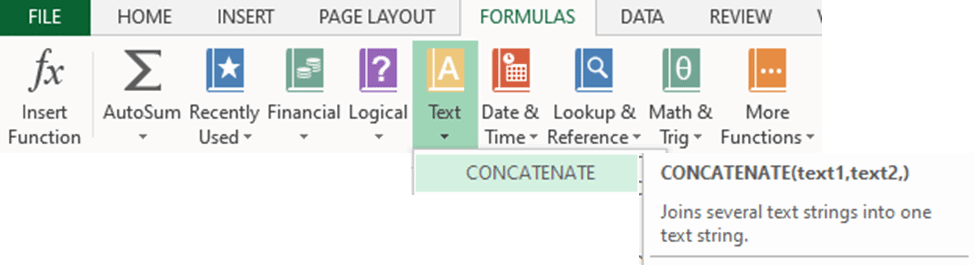
The Concatenate in Excel formula joins together multiple text values, numerical values, or cell references into one single cell only. In simple terms, you can think of it as Excel’s duct tape or glue.
Syntax Of The Concatenate In Excel Formula
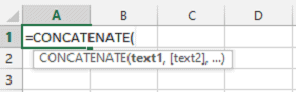
Where:
Text1 A required argument representing the first text value, numerical value, or cell reference to combine.
[Text2],… An optional argument representing the additional text value, numerical value, or cell reference to combine.
You are allowed to combine cells in Excel up to 255 strings.
Examples Of Concatenate In Excel Formula

Combine Cells In Excel With Ampersand (&) Operator In Excel
Excel Operators identify the type of calculation performed for a set of values. Typical operators used are Arithmetic Operators (such as addition + and subtraction -) and Logical Operators (such as greater than > and less than <).
There is also an operator to combine cells in Excel or a Concatenation Operator. To join multiple cells and values, use the Ampersand (&) Operator in Excel.
Examples Using The Ampersand (&) Operator in Excel

You can also do this to combine columns of cells, just click and drag the formula to your desired merged column.
Which Should You Use To Combine Cells In Excel?
Comparing the results of the Concatenate Excel function and the Ampersand (&) Operator in Excel, both have identical results. Both serve the same purpose.
So, which one is best to use?
The only difference between the Concatenate Excel function and the Ampersand (&) Operator in Excel is the 255 text string limit when using the Concatenate in Excel Formula. Other than that, it is a matter of personal choice.
Some users prefer using the Concatenate Excel function as the formula has more structure and is clearer to follow. Other users prefer the (&) Operator in Excel as it is simpler and easier- there is no need to type any function name.

Combine Cells In Excel With Different Number Formats
When combining cells in Excel using the Concatenate in Excel formula and Ampersand (&) Operator in Excel the formatted numbers will be converted into a text string. So any number format of cells such as a currency sign, decimal points, date format, etc. will be lost.
Concatenate in Excel formula converts numerical values to text values

Ampersand (&) Operator in Excel converts numerical values to text values

To combine cells in Excel with number formats, use the Text function under the Text Functions group.
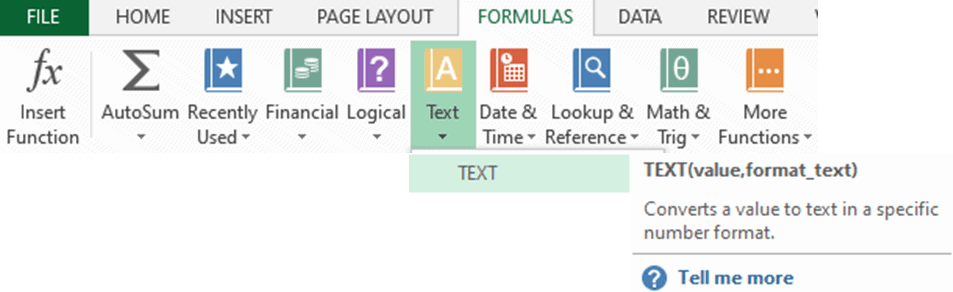
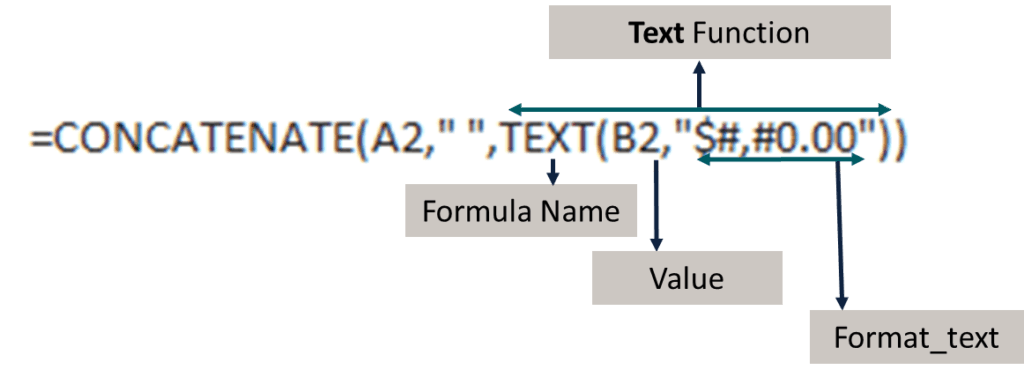
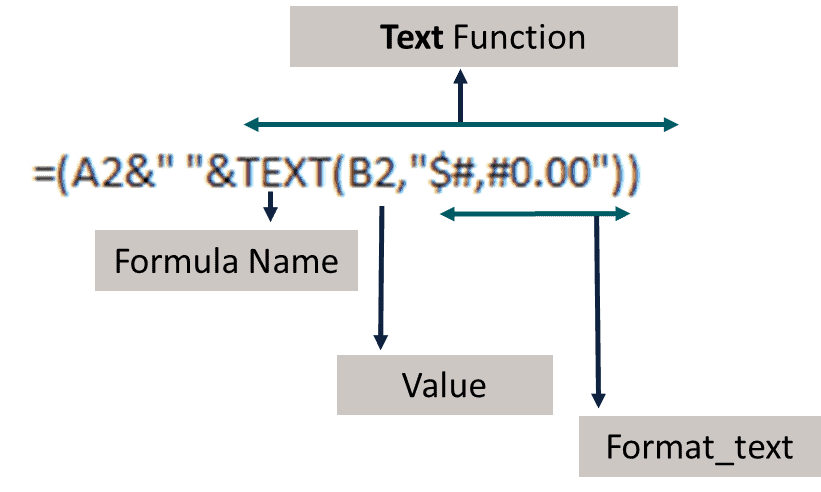
Syntax of the Text Function
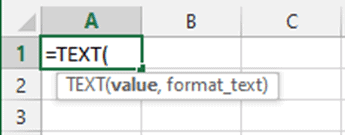
Where:
Value Required argument representing the value to convert to a specific number format
Format_text Required argument representing the specific number format to convert to
Applying the Text function to TEXT2 argument in the Concatenate in Excel formula will give us the results below.

Applying the Text function with the Ampersand (&) Operator in Excel will give us the same results.

Key Facts When Combining Cells In Excel
- Text values must always be enclosed in quotation marks including inserting spaces, commas, and special characters otherwise the #NAME? error appears.
- Numerical values, on the other hand, do not require to be enclosed in double quotes.
- The Concatenate Excel function and the Ampersand (&) operator in Excel always convert merged cells and values into text strings. Both produce the exact same result.
- When combining cells in Excel with number formats, use the Text Function to convert text strings into the appropriate number format.
You might also like:
- 10 Steps to Create a Drop Down List Using Data Validation in Excel
- A Step-By-Step Guide to the Transpose Formula in Excel
- How to Do Cohort Analysis in Excel
- Financial Modeling using Excel
- How to Write a Business Plan Step-by-Step
- Five Practical Tips to Help Raise Funds For Startups
- Creating a Budget Plan – Using the Best Excel Budget Template
- How to Use Excel for Financial Analysis?
- Agriculture
- Real Estate
- Consulting
- Cash Flow Projections
- Financial Planning
- Scenario Analysis
- Financial Projections
- Financial Ratios Cheat Sheet
- Simple Budget Planner Template
- Monthly Google Sheets Budget (with Financial Statements)
- Why Should You Use Excel for Financial Modeling?
- Five Smart Ways To Manage Personal Finances In A Pandemic
