0 ITEMS

Entering Historical Data Without Breaking Formulas

Historical data stays safe in a formula-driven workbook when it enters through one dedicated input area, as values or inside a table, while the calculation sheets stay locked. Five methods build that routine: paste values into a fixed range, store data in a table, lock headers and formulas, validate typed entries, and refresh from a linked source.
Key Takeaways
- Paste history as values into a dedicated input range, so the formulas that read it stay untouched.
- Excel tables copy formulas down automatically and adjust references when rows are added or removed.
- Locked cells protect nothing until sheet protection is switched on, so unlock the input cells first.
- Validation rules reject a wrong entry at the cell, before a text value or a bad date reaches a formula.
- Refreshing a linked source replaces re-pasting, so a new month of history does not overwrite formulas on the calculation sheets.
Why does pasting history break a model?
Pasting breaks a model when it lands on formula cells or moves the cells that formulas reference. A history sheet dropped onto a calculation range can turn every dependent result into an error, or into a plausible wrong number.
The risk is widely reported. A 2024 guide from the Institute of Chartered Accountants in England and Wales (ICAEW), How to Review a Spreadsheet, repeats that “a common statistic quoted about spreadsheets is that as many as 90% contain a mistake,” a figure it says is based on research by Ray Panko of the University of Hawaii, and others. The 2024 guide adds: “Research from Ray Panko found that self-review catches only 34% to 69% of errors.” These commonly quoted figures signal general spreadsheet risk, not the error rate of one task. Safe entry is therefore a design task: the workbook should make the careful action the easy one.
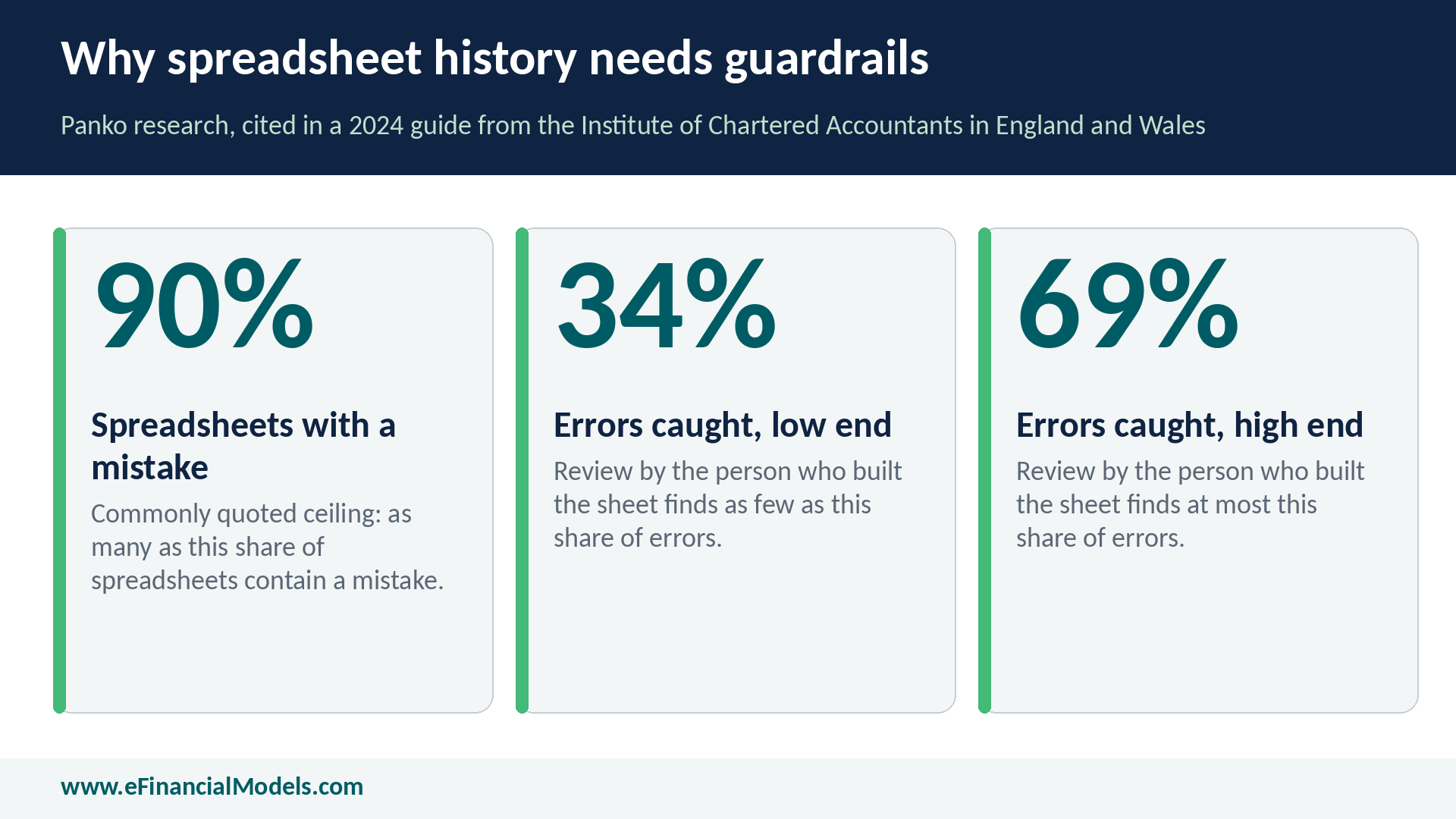
Commonly quoted figures from Ray Panko’s research and others, as reported in the 2024 guide linked above; they describe spreadsheet errors in general, not data entry alone.
Method 1: Paste values into a fixed input range
Pasting as values keeps formulas safe because only the numbers arrive. In Paste Special, the Values option pastes only the cell values as displayed, while the Formulas option pastes the formulas as entered. Choosing Values leaves the source workbook’s formulas outside the model.
The choice between cell ranges and pasting comes first. Pasting into any open block risks landing on a formula cell, which replaces the formula with a typed number. A named range, a block of cells given a label (Formulas tab, Define Name), placed on its own sheet and sized for the data, gives every formula a stable address. History often runs across period columns while accounting exports run down rows, so the Transpose option of Paste Special may be needed, and text dates or numbers should be converted first. To load history, copy from the source, select the first cell of that range, open Paste Special and choose Values.
Method 2: Store history in an Excel table
A table lets history grow without anyone editing a formula. Microsoft Support’s structured references page says Excel “automatically creates a calculated column and copies the formula down the entire column for you.” Formulas that use table names then follow the table as rows are added or removed.
A new month pasted under the last row therefore joins the table, and any report that points at the table name picks it up. This covers dynamic range refreshes without manual resizing: a fixed range such as B2:B500 stops at row 500, while a table column ends where the data ends. One limit applies: a table cannot grow while its sheet is protected, so the history table belongs on an input sheet left unprotected, or that sheet is unprotected for each load and protected again afterwards.
Method 3: Lock headers and formulas, unlock only the input cells
Locking works in two steps: unlock the cells that people may edit, then turn protection on. Microsoft Support’s protect a worksheet guide says “the first step is to unlock cells that others can edit,” and that the lock works only when sheet protection is enabled. Every other cell, including headers and calculation formulas, then refuses typing. Full protection suits the calculation sheets, and an input sheet with a fixed range of unlocked cells. A paste test confirms the setup: pasting over a formula cell should be refused with a message that the cell is protected.
Headers also need to stay in view, which is a separate feature from protection: protection stops edits to header cells, while the freeze panes feature keeps the rows above the selected cell visible, so a long history list keeps its column titles while scrolling.
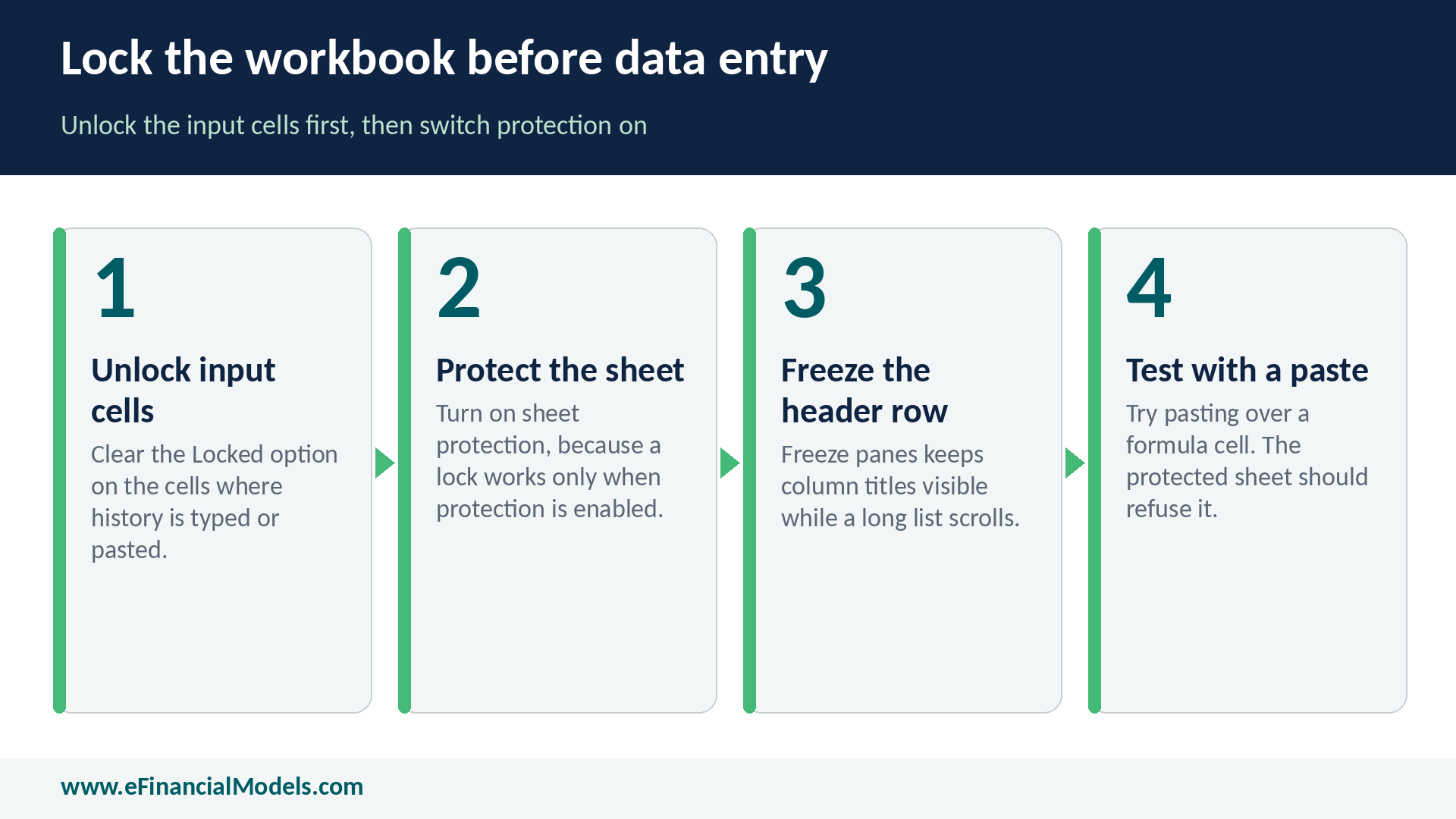
The cell-locking workflow in four steps, pairing sheet protection with a frozen header row, from the Microsoft Support guidance cited in this section.
Method 4: Add validation rules to every input column
Validation rules stop a wrong typed entry before it reaches a formula. Microsoft Support’s data validation guide lists restrictions such as “Decimal – to restrict the cell to accept only decimal numbers” and “List – to pick data from the drop-down list,” and says an Error Alert “appears with your customized message” when an entry is not valid.
Useful rules are simple. A date column accepts only dates inside the closing period, an amount column accepts decimals within a sensible range, and a category column offers a list so spellings match the lookups. Validation checks typed entries, and pasted values can bypass it, so a check column that flags anything outside the rule belongs beside the pasted range.
Method 5: Refresh from a linked source instead of re-pasting
A linked source removes manual entry, so no paste can overwrite a formula. In current Microsoft 365 versions, a connection is created from the Data tab with Get Data, for example the option for text or comma-separated values (CSV) files, and loaded to a table. History imported with the load target set to Table lands in a table, the formulas read the table, and a refresh replaces the contents without touching the calculation sheets. A refresh cannot run on a protected sheet, so the sheet holding the imported table stays unprotected while the calculation sheets are locked, so headers on that sheet are guarded only by freezing and the table’s structure and should be checked after each load.
Refresh suits sources that stay available, such as a monthly accounting export in a fixed folder. One-off history from an old system is better pasted as values.
The five safe methods compared
| Method | What it protects | Main risk | Best use |
|---|---|---|---|
| Paste values into a fixed input range | Formulas outside the input range | Pasting into the wrong cell | One-off history loads |
| Excel table | Formula coverage as rows grow | Cannot grow on a protected sheet; old fixed ranges elsewhere keep their size | Monthly history that grows |
| Lock headers and formulas | Headers and calculation formulas | Protection left switched off | Every model; essential when several people enter data |
| Validation rules | Type, date and list of each entry | Pasted values bypass the rules | Manual entry by several people |
| Linked refresh | Calculation sheets from manual pasting | Blocked on a protected sheet; a changed source layout breaks the link | Recurring system exports |
A safe loading routine for historical data
A single pass combines the five methods. The input range or table is set up first, validation is added, the data is loaded by paste values or refresh, a check column tests pasted values against the same rules, and the calculation sheets are then protected. A later load repeats that order. For a purchased model that already has a designated input sheet, history goes into that sheet following the seller’s instructions, and the seller or developer is the contact when the sheet is locked or laid out differently. Ready-made workbooks with dedicated input sheets can be found in the General Excel Financial Models category and under the Excel tag. Control totals then confirm the load: the total of each loaded column is compared with the source total, and the difference should read zero.
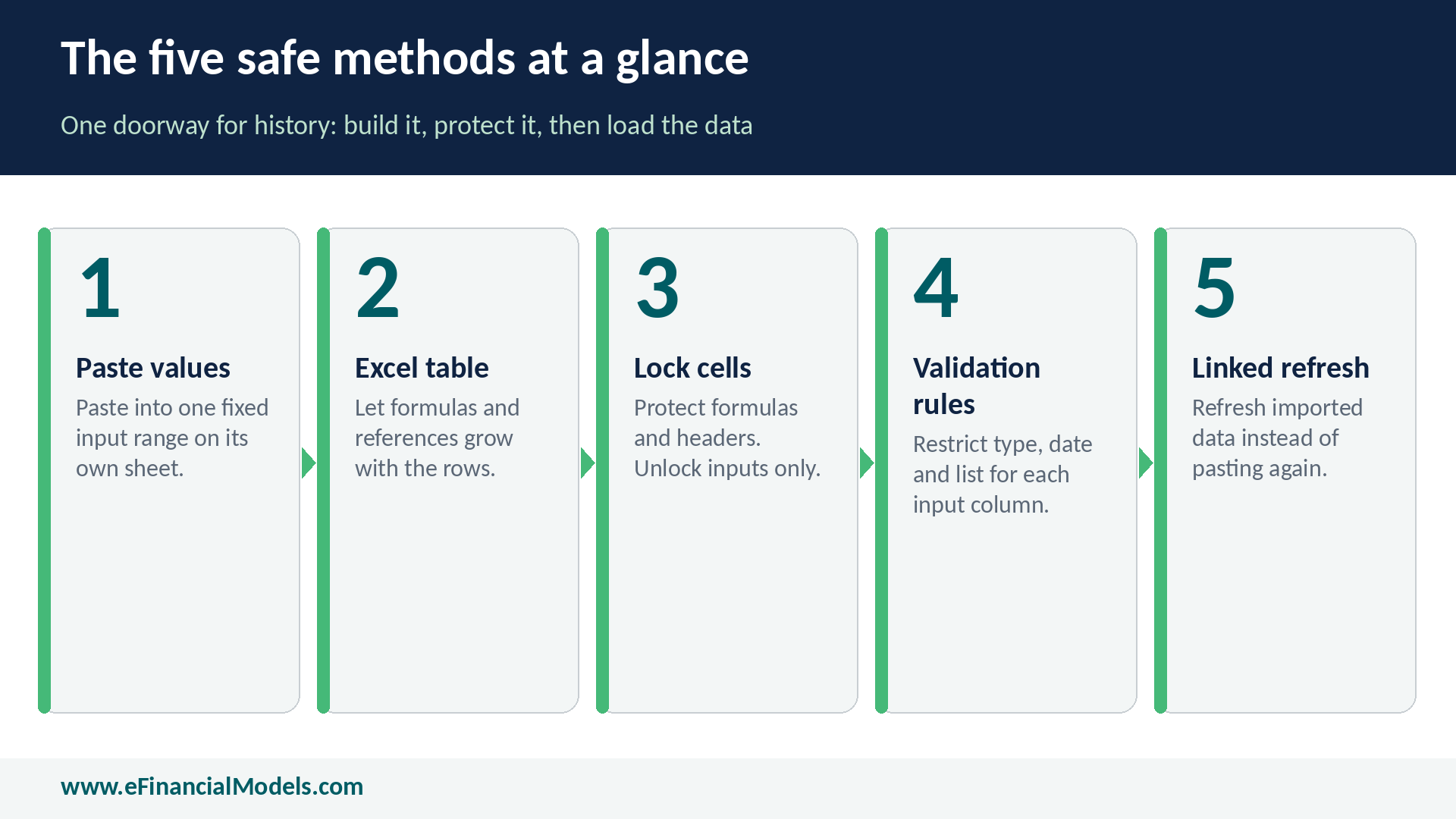
The five safe methods as numbered in this guide, summarising the sections above.
Conclusion
Historical data enters safely when the workbook controls the doorway: values only, a table that grows, locked formulas, validated cells and a refresh instead of re-pasting. Related workbook templates include the eFinancialModels Monthly Budget Template (with Financial Statements).
Frequently Asked Questions
Does copying from another workbook carry its formulas into the model?
A plain copy and paste brings the source formulas along, and relative references then point at different cells in the new workbook. That is how a quiet error appears: the number looks right but reads the wrong neighbour. Pasting as values prevents that carry-over, because the destination receives numbers only. Where the source logic matters, rebuild it inside the model so the audit trail stays visible.
Should historical data sit on the same sheet as the calculations?
History belongs on its own sheet. Sheet protection applies per sheet, so the input sheet can leave its data cells unlocked while the calculation sheet stays fully locked. A separate sheet also shows reviewers exactly where numbers enter the model, and it lets data flow one way, from inputs to results, which makes the logic easier to trace when someone checks the workbook months later.
What happens to a formula when a row of history is deleted?
A formula that points at a fixed cell address returns an error when that cell disappears, and the error then spreads to every result built on it. A formula that points at a table column adjusts, because the table redefines its own boundaries. Deleting rows from a protected input area is also blocked unless row deletion is allowed, which adds a second safeguard.
Does sheet protection need a password?
The password is optional in Excel’s protect sheet dialog. Without one, anyone can switch protection off from the Review tab, so protection then guards against accidents rather than deliberate edits. A password raises the barrier, but a forgotten password locks the owner out of the formulas as well, so it should be recorded with the workbook owner. Protection is set sheet by sheet, so each protected sheet carries its own password.
How should a loaded data set be checked?
Control totals give the fastest check: the sum of each loaded column is compared with the same sum in the source system, and a difference of zero confirms nothing was dropped. Row counts, the earliest and latest dates, and a few traced individual entries add confidence. Keeping a short log of each load, with the date and source file name, helps whoever reviews the workbook next.