
0 ITEMS

Balance Sheet Won’t Balance? Fix It in 8 Steps

A balance sheet that doesn’t balance is one of the most common and most fixable problems in financial modeling — if you follow a systematic diagnostic process instead of hunting randomly.
Key Takeaways
- The accounting equation (Assets = Liabilities + Equity) must hold to the cent; a single misclassified line item breaks the entire model.
- Over 80% of balance sheet errors in Excel models trace back to 4 root causes: wrong sign conventions, rounding mismatches, timing errors, and broken formula links. Source
- A rounding tolerance of $1 or less is standard for most financial models; errors above $100 almost always indicate a structural problem, not a rounding issue.
- The reconciliation cascade — totals first, then subtotals, then line items, then source data — isolates most errors within 15 to 30 minutes.
- Retained earnings is the single most error-prone line on the balance sheet because it links the income statement, dividends, and prior-period equity in one cell.
- Excel’s ROUND function (not just cell formatting) must wrap every calculated input to prevent floating-point precision errors from accumulating across hundreds of rows.
- Working backwards from the cash flow statement is the fastest shortcut when the error amount matches a specific operating, investing, or financing activity.
Pre-Diagnostic Check: Verify the Accounting Equation
Before touching any individual line item, confirm whether the accounting equation itself is broken and by how much. The accounting equation states that total assets must equal total liabilities plus total equity — this is the foundational rule of double-entry bookkeeping, where every transaction affects at least two accounts so the books stay in balance. Source
Paste this formula into a dedicated “Check” row at the bottom of your balance sheet:
This formula does three things: it calculates the gap, applies a $1 tolerance (standard for most models), and labels the result so you know the exact dollar amount of the discrepancy. Record that number before you change anything — it’s your diagnostic anchor.
Quick triage by error size:
- Gap under $1: likely a rounding issue (go to Step 2)
- Gap between $1 and $1,000: likely a timing or sign error (go to Steps 1 and 3)
- Gap over $1,000: likely a structural or classification error (go to Steps 5 through 7)
- Gap equals a specific revenue or expense line: likely a missing income statement link (go to Step 8)

The accounting equation is the single source of truth — every balance sheet diagnostic starts here before touching individual line items.
Step 1: Run the Debit/Credit Verification Checklist
Debit/credit errors are the most common source of balance sheet imbalances in manually built models. In double-entry accounting, debits increase asset and expense accounts while credits increase liability, equity, and revenue accounts — any reversal of this logic creates an equal and opposite error on both sides of the equation.Work through this 8-point checklist in order:
Sign conventions on liabilities: Confirm all liability line items carry positive values (not negative). A common mistake is entering accounts payable as a negative number, which understates total liabilities.
Contra accounts: Accumulated depreciation must appear as a negative offset to gross fixed assets, not as a standalone positive liability. Check that your PP&E (property, plant, and equipment) section nets correctly.
Double-counted revenue: If net income flows into retained earnings AND a separate revenue line feeds equity directly, you’ve counted income twice. One path only.
Treasury stock sign: Treasury stock (shares repurchased by the company) reduces equity and must carry a negative sign in the equity section.
Minority interest placement: In consolidated models, non-controlling interest belongs in equity, not liabilities. Misplacing it shifts the equation by the full NCI balance.
Deferred tax direction: Deferred tax assets sit on the asset side; deferred tax liabilities sit on the liability side. Mixing these two is a frequent classification error.
Accrued expenses vs. prepaid expenses: Accrued expenses are liabilities (you owe money); prepaid expenses are assets (you’ve paid in advance). Swapping them creates a double error.
Operating lease right-of-use assets: Under ASC 842 (the U.S. accounting standard for leases adopted in 2019), operating leases generate both an asset and a corresponding liability that must appear on the balance sheet. Source Missing either side breaks the equation.

Eight entry-level errors account for the majority of debit/credit imbalances in manually built financial models.
Step 2: Identify and Correct Rounding Errors
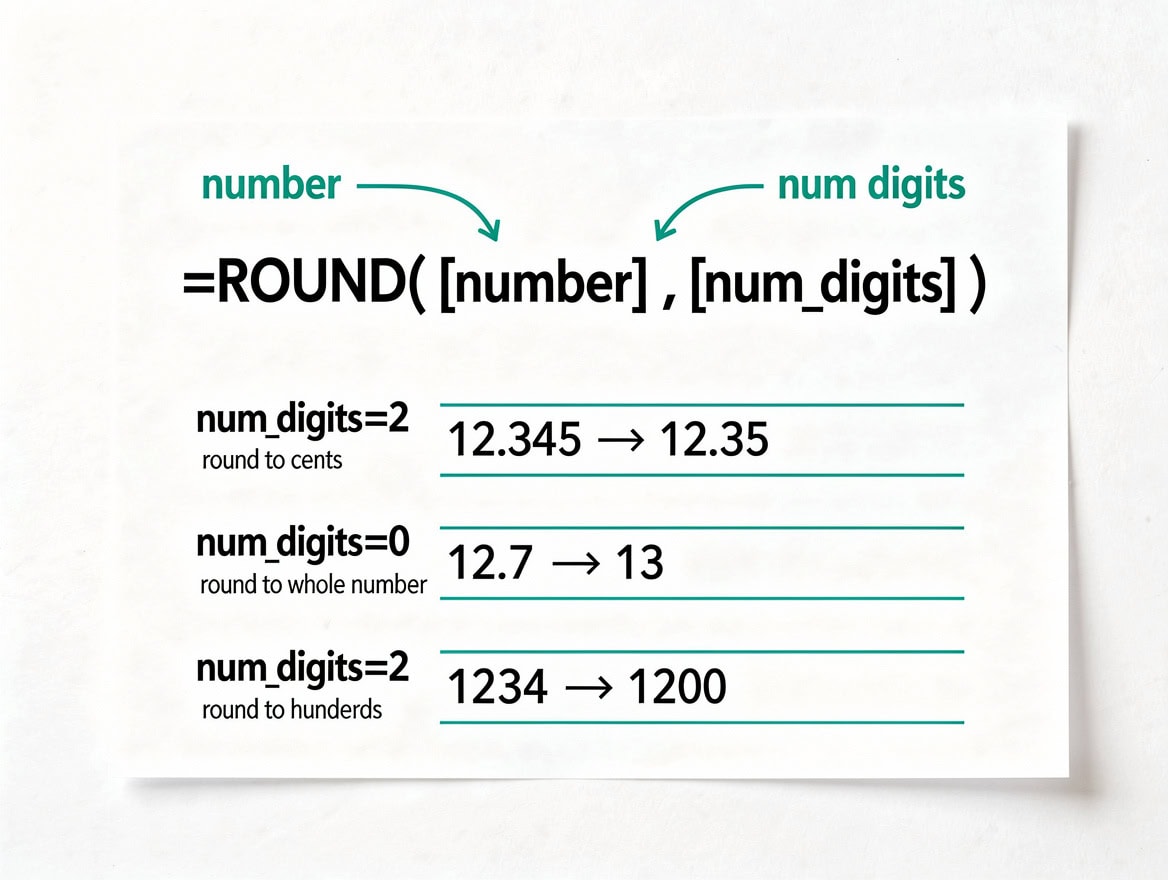
Rounding errors are small individually but compound across hundreds of rows. Excel stores numbers with up to 15 significant digits of precision. Source This means a cell that displays “100” may actually contain 99.9999999998 — and summing 500 such cells creates a visible gap. Excel’s floating-point arithmetic follows the IEEE 754 standard, which can produce results accurate to only 15 significant digits, Source making the ROUND function essential for any model summing hundreds of monetary values.
Three fixes, in order of preference:
Wrap source inputs with ROUND: Use =ROUND(formula,2) for dollar amounts and =ROUND(formula,4) for percentages. Apply this at the point where data enters the model, not at the output.
Use MROUND for unit-based rounding: When quantities must round to the nearest 1,000 or 5,000 (common in real estate or manufacturing models), =MROUND(value,1000) is more reliable than =ROUND(value,-3).
Enable “Set precision as displayed” only as a last resort: This Excel setting (File → Options → Advanced → “Set precision as displayed”) permanently truncates stored values to match what’s shown on screen. It’s irreversible per workbook and can introduce new errors if applied mid-model.
Tolerance thresholds by model type:
| Model Type | Acceptable Gap | Action if Exceeded |
|---|---|---|
| Startup / SME | Under $1 | Apply ROUND to inputs |
| Mid-market | Under $0.10 | Audit formula chain |
| Public company | $0.00 | Full reconciliation required |
| Consolidation | Under $1 per entity | Check elimination entries |
A gap above $1 that you attribute to rounding is almost certainly a structural error — rounding in a properly built model accumulates to fractions of a cent.
Step 3: Diagnose Timing Mismatches
Timing errors occur when a transaction is recorded in the wrong period, creating an asymmetry between the income statement and balance sheet. Retained earnings is the most vulnerable line because it accumulates net income from the income statement, subtracts dividends paid, and carries forward the prior-period closing balance — three separate data flows that must all reference the correct period column.
Retained earnings reconciliation (step by step):
Here’s the math for a simple example:
Opening RE: $500,000
Net income (Year 1): $120,000
Dividends declared: $30,000
Closing RE: $500,000 + $120,000 – $30,000 = $590,000
If your balance sheet shows $560,000, the $30,000 gap likely means dividends are being double-subtracted or the opening balance references the wrong year.
Depreciation timing checks:
Confirm depreciation expense on the income statement matches the change in accumulated depreciation on the balance sheet (closing AccumDepr – opening AccumDepr = depreciation expense for the period).
If you added new assets mid-year, partial-year depreciation must be calculated from the acquisition date, not January 1.
Retained earnings links three separate data flows — prior period equity, current income, and dividends — making it the single most error-prone line on any balance sheet.
Step 4: Find Intercompany Elimination Errors
In consolidated financial models (models that combine multiple legal entities into one set of statements), intercompany transactions must be eliminated so they don’t inflate both assets and liabilities simultaneously. A missing elimination entry is one of the hardest errors to spot because both sides of the equation grow by the same amount — the balance sheet still appears to balance internally, but the consolidated totals are overstated.
Decision tree for intercompany errors:
Does your model consolidate 2 or more entities? If no, skip this step.
List every intercompany transaction: loans, sales, management fees, dividends.
For each transaction, confirm an elimination entry exists that zeroes out both the receivable (asset) and the payable (liability).
Check intercompany equity: if Parent owns 100% of Subsidiary, the subsidiary’s equity and the parent’s investment in subsidiary must both be eliminated.
Verify the elimination entries sum to zero across all entities — use =SUMIF(EntityColumn,”Elimination”,AmountColumn) to automate this check.
The most common missed elimination: intercompany loans where the parent records a receivable and the subsidiary records a payable, but neither elimination entry appears in the consolidation worksheet.

Missing intercompany eliminations overstate both assets and liabilities simultaneously — the balance sheet appears balanced but consolidated totals are wrong.
Step 5: Execute the Reconciliation Cascade
The reconciliation cascade is a top-down method that narrows the error location systematically, rather than checking every cell at random. Start at the highest level of aggregation and work down only when you find a discrepancy.
The 6-level cascade:
Check total assets vs. total liabilities + equity (the equation check from the pre-diagnostic step)
Check subtotals: current assets vs. current liabilities, non-current assets vs. long-term liabilities, total equity components
Check section totals: does the sum of individual current asset lines equal the current assets subtotal? Use =SUM(range)-subtotal_cell and flag any non-zero result
Check line items: for each line that doesn’t sum correctly, trace back to the source schedule (e.g., the accounts receivable aging report, the fixed asset register)
Check source data: confirm the source schedule itself is correct — a wrong number in the depreciation schedule propagates into the balance sheet
Check formulas: use Excel’s “Trace Precedents” (Ctrl+) to follow the formula chain from the balance sheet cell back to its original input. Excel supports tracing precedents across up to 1 level at a time per click, [Source so repeat the shortcut iteratively to follow multi-step formula chains.
This cascade typically isolates the error location within 15 to 30 minutes for models under 10 tabs.
The cascade method narrows a 200-row balance sheet to a 10-row problem section in under 5 minutes by starting at the highest level of aggregation.
Step 6: Fix Common Excel Model Structural Errors
Spreadsheet models introduce a category of errors that don’t exist in accounting software: broken cell references, circular logic, and incorrect period indexing. These structural errors (meaning errors in how the model is built, not in the accounting entries) are often invisible until the balance sheet fails to balance.
7 structural errors and their fixes:
Circular references: A circular reference (where a cell’s formula refers back to itself, directly or through a chain) causes Excel to iterate or return zero. Turn on iterative calculation (File → Options → Formulas → Enable iterative calculation) only if the circularity is intentional (e.g., interest on revolver). Otherwise, break the loop by hardcoding one input.
Broken links to supporting schedules: If a depreciation schedule tab is renamed or deleted, the balance sheet formula returns #REF!. Use Ctrl+F to search for #REF! across the workbook.
Incorrect period column references: A formula that references column D (Year 1) instead of column E (Year 2) creates a timing error equal to the full line item value. Audit period headers with a row that displays =COLUMN()-offset so you can spot misaligned references visually.
Hardcoded values inside formulas: A formula like =B12+500 hides an assumption. Replace with a named input cell and a clear label.
SUM range that excludes new rows: If you insert a row inside a SUM range, Excel usually expands the range — but if you insert above or below the range boundary, it doesn’t. Always check SUM ranges after adding rows.
Mixed absolute and relative references: A formula like =B$5C12that should be=$B$5C12 will shift incorrectly when copied across columns.
Volatile functions causing recalculation errors: Functions like NOW(), TODAY(), and INDIRECT() recalculate on every change, which can cause apparent balance sheet gaps that disappear on the next save. Replace with static values where possible.
Structural Excel errors — circular references, broken links, and incorrect SUM ranges — are invisible until the balance sheet fails to balance.
Step 7: Work Backwards from Cash Flow and Income Statement
When the cascade method doesn’t isolate the error quickly, working backwards from the cash flow statement is the fastest shortcut. The indirect method cash flow statement (the most common format, which starts with net income and adjusts for non-cash items and working capital changes) reconstructs the balance sheet implicitly — so if your cash flow statement balances but your balance sheet doesn’t, the error is in a non-cash balance sheet item.
The working-backwards method:
Confirm net income on the income statement matches the net income input on the cash flow statement.
Confirm the ending cash balance on the cash flow statement matches cash on the balance sheet.
For each working capital line (accounts receivable, inventory, accounts payable), confirm the balance sheet change equals the cash flow adjustment: Change in AR = Closing AR – Opening AR. If the cash flow shows a $50,000 increase in AR but the balance sheet shows only a $30,000 increase, the $20,000 gap is your error.
Confirm total non-cash adjustments (depreciation, amortization, stock-based compensation) match the corresponding balance sheet movements.
Confirm investing activities match the net change in fixed assets: CapEx – Disposals – Depreciation = Change in Net PP&E.
This method works because the cash flow statement is a mathematical derivative of the income statement and balance sheet — any inconsistency between them points directly to the broken link.

The cash flow statement is a mathematical derivative of the income statement and balance sheet — any inconsistency between them points directly to the broken link.
Balance Sheet Error Prevention Checklist
Building error prevention into the model structure eliminates most of these problems before they occur. Use this checklist when building any new financial model.
Add a dedicated “Checks” tab with the accounting equation formula, a retained earnings roll-forward check, and a cash flow reconciliation check — all displaying green/red conditional formatting
Lock all input cells (yellow fill, unlocked) and formula cells (white fill, locked) using Excel’s cell protection to prevent accidental overwrites
Use named ranges for key inputs (tax rate, discount rate, depreciation method) so formula auditing is readable
Build the retained earnings roll-forward as a standalone schedule, not as a single formula in the equity section
Apply ROUND(x,2) to every monetary formula at the point of entry into the model
Document every hardcoded assumption with a comment or a linked assumption table
Run the reconciliation cascade check before sharing any model version
For a ready-built tracking framework, the 1 Year P&L, Balance Sheet, Cash Flow, and Breakeven Analysis template includes pre-built check rows and conditional formatting for exactly this purpose.
When to Rebuild vs. Repair: Decision Framework
Sometimes repairing a broken model takes longer than rebuilding it. Use this framework to decide.
| Situation | Recommendation | Reason |
|---|---|---|
| Error found in 1-2 cells | Repair | Isolated, low risk |
| Multiple circular refs | Rebuild | Structural instability |
| Broken links across 5+ tabs | Rebuild | Audit trail is lost |
| Rounding errors only | Repair | Apply ROUND, done |
| Inherited model, no documentation | Rebuild | Unknown assumptions |
| Error in consolidation logic | Repair with full audit | Elimination framework intact |
| Model over 3 years old | Rebuild | Excel version drift risk |
A useful benchmark: if tracing the error requires more than 2 hours and you still can’t isolate it, rebuilding from a clean template is almost always faster and produces a more reliable output.
For complex multi-entity models, the From Trial Balance to Business Valuation – Management Accounts Model provides a structured starting point with built-in reconciliation logic.
Frequently Asked Questions
Why does my balance sheet not balance even though all my formulas look correct?
The most common cause of a balance sheet that appears formula-correct but still doesn’t balance is a floating-point precision error in Excel. Excel stores numbers with up to 15 significant digits, Source meaning a displayed value of 1,000.00 may actually be stored as 999.9999999997. When you sum hundreds of such cells, the accumulated error becomes visible. The fix is to wrap every monetary formula with =ROUND(formula,2) at the point of data entry. A secondary cause is a retained earnings formula that references the wrong period column — check that your opening RE cell points to the prior year closing balance, not the current year.
What is the fastest way to find a balance sheet error in Excel?
The fastest method is the reconciliation cascade combined with a dedicated check formula. First, add =SUM(Assets)-SUM(Liabilities+Equity) to a visible check cell. If the result is non-zero, compare section subtotals (current assets, non-current assets, current liabilities, long-term liabilities, equity) one by one until you find the section where the subtotal doesn’t match the sum of its components. This narrows a 200-row balance sheet to a 10-row section in under 5 minutes. For most models, this cascade isolates the error location within 15 to 30 minutes.
How do I fix a retained earnings error on my balance sheet?
Retained earnings errors almost always trace to one of three sources: the wrong opening balance (check that the cell references the prior period closing RE, not the current period), a double-counted net income entry (net income should flow in once, from the income statement), or dividends being subtracted twice. Build a standalone retained earnings roll-forward: Opening RE + Net Income – Dividends Declared = Closing RE. Verify each input independently. If closing RE on the roll-forward matches the income statement but not the balance sheet, the balance sheet cell formula is pointing to the wrong source.
What tolerance is acceptable for rounding errors on a balance sheet?
For most financial models, a tolerance of $1 or less is standard. Public company models and audit-ready financials require exact balance ($0.00 gap). Mid-market models typically accept $0.10 or less. Startup and SME models often accept up to $1. Any gap above $1 that you attribute to rounding is almost certainly a structural error — rounding errors in a properly built model accumulate to fractions of a cent, not whole dollars. The FASB does not specify a rounding tolerance for financial statements, but auditing standards require material misstatements to be corrected, with materiality typically defined as 5% of pre-tax income or 0.5% of total assets. Source
How do intercompany eliminations cause balance sheet errors in consolidated models?
Intercompany eliminations remove transactions between entities within the same corporate group so they don’t inflate consolidated totals. When an elimination entry is missing, both an asset (e.g., intercompany receivable) and a liability (e.g., intercompany payable) remain on the consolidated balance sheet, overstating both sides by the same amount. The balance sheet technically still balances, but total assets and total liabilities are both overstated. To find missing eliminations, list every intercompany transaction and verify a corresponding elimination entry exists in the consolidation worksheet. Use =SUMIF(EntityColumn,”Elimination”,AmountColumn) — the result must equal zero.
Can a balance sheet error in one year carry forward to future years?
Yes, and this is one of the most damaging aspects of balance sheet errors. Because retained earnings carries forward from one period to the next, an error in Year 1 retained earnings will appear in every subsequent year’s opening balance. Similarly, an error in accumulated depreciation compounds as new depreciation is added on top of a wrong base. This is why fixing the error at its source (the earliest period where it appears) is critical — patching the output cell in a later year without fixing the root cause creates a model where the numbers are wrong but the check formula shows green.
What Excel functions help prevent balance sheet errors?
Four Excel functions do most of the heavy lifting: (1) ROUND(formula,2) prevents floating-point accumulation errors; (2) IFERROR(formula,0) prevents #REF! and #DIV/0! errors from propagating through the model; (3) SUMIF and SUMIFS allow conditional aggregation that’s easier to audit than nested IF statements; and (4) INDIRECT can dynamically reference period columns, though it’s a volatile function (meaning it recalculates on every change) and should be used sparingly. Conditional formatting rules — specifically, a rule that turns the check cell red when ABS(Assets-Liabilities-Equity)>1` — provide a real-time visual alert without requiring manual checks.
Conclusion
A balance sheet that doesn’t balance is always fixable — the key is working through a structured diagnostic sequence rather than changing numbers at random. Start with the accounting equation check, triage by error size, then work through sign conventions, rounding, timing, and structural issues in that order. Most errors resolve within the first three steps.
I recommend downloading the 10 Year P&L, Balance Sheet, Cash Flow, and Break-even Analysis template, which includes pre-built check rows, automated conditional formatting for balance sheet verification, and a retained earnings roll-forward schedule — so you spend your time on analysis, not on hunting for formula errors.























































