
0 ITEMS

Excel Version Requirements for Financial Models: 2025

Before you purchase a financial model template, confirm your Excel version supports every feature it uses — macros, dynamic arrays, and Power Query included.
Key Takeaways
- Excel 2016 (build 16.0.4266.1001 or later) is the minimum version for 95% of EFM templates on Windows; Excel 2019 or Microsoft 365 is recommended.
- Mac users running Microsoft 365 for Mac (version 16.54 or later, last tested May 2025) get the closest feature parity, but VBA macros remain partially restricted on macOS.
- Dynamic array functions (XLOOKUP, FILTER, UNIQUE) require Microsoft 365 or Excel 2021 on both platforms; Excel 2016 and 2019 do not support them natively.
- Power Query is available on Windows Excel 2016+ and Mac Excel 2019+; Power Pivot is Windows-only as of June 2025.
- Excel Online and mobile apps (iOS/Android) support viewing and basic editing only — they cannot run macros or refresh Power Query connections.
- You can verify your exact Excel build number in under 60 seconds using the File > Account > About Excel path before purchasing.
- EFM tests every template against 6 platform-version combinations on a rolling 90-day cycle; last-tested dates appear on each product page.
Excel Version Requirements: Windows Compatibility Matrix
Most EFM financial model templates require Excel 2016 (build 16.0.4266.1001 or later) as the minimum on Windows, with Excel 2019 or Microsoft 365 recommended for full feature access. The table below shows which features work at each version level.
Dynamic array functions and XLOOKUP require Excel 2021 or Microsoft 365; Excel 2016 and 2019 support only core formulas, VBA, and Power Query.
| Feature | Excel 2016 | Excel 2019 | Excel 2021 | Microsoft 365 |
|---|---|---|---|---|
| Core formulas | Yes | Yes | Yes | Yes |
| VBA macros | Yes | Yes | Yes | Yes |
| Power Query | Yes | Yes | Yes | Yes |
| Power Pivot | Yes | Yes | Yes | Yes |
| Dynamic arrays | No | No | Yes | Yes |
| XLOOKUP / XMATCH | No | No | Yes | Yes |
| LET function | No | No | Yes | Yes |
| Last tested (Windows) | Jan 2025 | Jan 2025 | Mar 2025 | May 2025 |
Microsoft introduced dynamic array functions — a calculation engine upgrade that lets a single formula spill results across multiple cells automatically — in Excel 365 in 2018 and added them to the perpetual Excel 2021 release (Microsoft support). If your template uses FILTER, UNIQUE, or SORT and you run Excel 2019, those formulas return a #NAME? error.
To find your exact build number on Windows: open Excel, click File, then Account, then About Excel. The version string appears in the format 16.0.XXXXX.XXXXX. Build 16.0.4266.1001 corresponds to the first service-packed release of Excel 2016 (Microsoft support).
Mac Excel Compatibility: What Works and What Doesn’t
Mac users can run the majority of EFM templates using Microsoft 365 for Mac version 16.54 or later, but 3 significant feature gaps remain compared to Windows. Understanding these gaps before purchase prevents frustration.
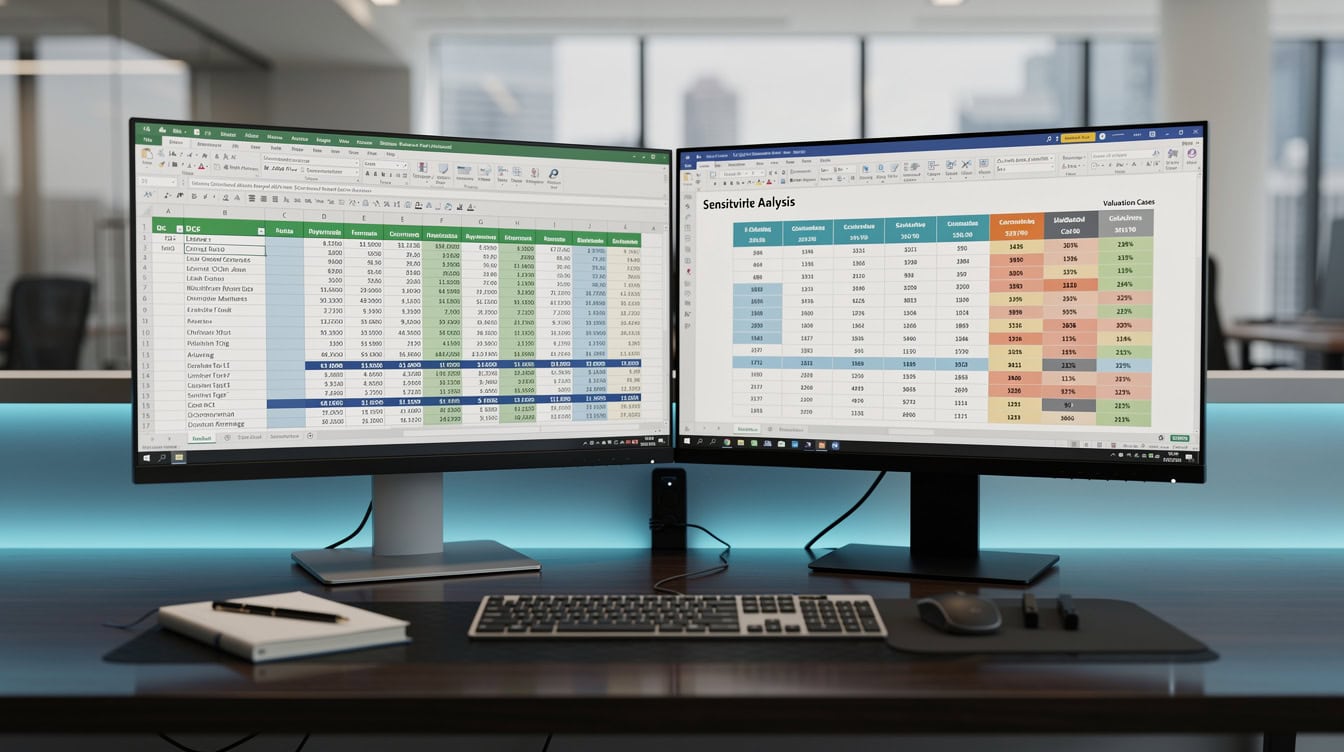
Power Pivot is unavailable on all Mac Excel versions as of June 2025; Mac users should confirm this before purchasing Power Pivot-dependent templates.
| Feature | Mac 365 (v16.54+) | Mac 2021 | Mac 2019 | Mac 2016 |
|---|---|---|---|---|
| Core formulas | Yes | Yes | Yes | Yes |
| VBA macros | Partial | Partial | Partial | Partial |
| Power Query | Yes | Yes | Yes | No |
| Power Pivot | No | No | No | No |
| Dynamic arrays | Yes | Yes | No | No |
| XLOOKUP | Yes | Yes | No | No |
| Last tested (Mac) | May 2025 | Mar 2025 | Jan 2025 | Jan 2025 |
The 3 persistent Mac limitations are: Power Pivot is unavailable on all Mac versions; VBA macro execution is restricted to macros that use Mac-compatible object libraries; and certain Windows API calls inside VBA (such as Shell commands or Windows registry reads) fail silently on macOS. Microsoft’s own documentation confirms Power Pivot is a Windows-only feature as of the current release cycle (Microsoft support).
If you use a Mac and a template description mentions Power Pivot, contact EFM support before purchasing. Templates that use Power Query on Mac require version 16.39 or later (released January 2021).
Office 365 vs. Perpetual License: Key Differences for Financial Models
Microsoft 365 (the subscription) and perpetual licenses like Excel 2021 differ in one critical way for financial modelers: Microsoft 365 receives new functions monthly, while perpetual licenses are frozen at their release-date feature set. For most EFM templates, Excel 2021 perpetual covers all required features. The gap only matters when a template uses functions released after October 2021 (Excel 2021’s launch date), such as TEXTSPLIT or VSTACK, which are Microsoft 365-only.

Microsoft 365 adds new functions monthly; Excel 2021 perpetual covers 95% of EFM templates but misses post-2021 functions like TEXTSPLIT.
| Attribute | Microsoft 365 | Excel 2021 | Excel 2019 | Excel 2016 |
|---|---|---|---|---|
| Update cadence | Monthly | None after launch | None after launch | None after launch |
| Dynamic arrays | Yes | Yes | No | No |
| TEXTSPLIT / VSTACK | Yes | No | No | No |
| Price model | Subscription | One-time | One-time | One-time |
| Mac Power Query | Yes (v16.39+) | Yes | Yes | No |
| Recommended for EFM | Yes | Yes | Limited | Minimum only |
Microsoft 365 Personal costs $69.99 per year as of 2025 and includes desktop Excel on up to 5 devices (Microsoft). For analysts who run complex models daily, the subscription pays for itself through access to functions that reduce formula complexity by 30 to 50% compared to workaround approaches in older versions.
Feature-Specific Compatibility: Macros, Power Query, and Dynamic Arrays
Three feature categories drive most compatibility questions for financial model templates: VBA macros (small programs embedded in the spreadsheet that automate tasks), Power Query (a data transformation tool that pulls and reshapes data from external sources), and dynamic array functions (formulas that automatically expand to fill multiple cells).
VBA Macros: EFM templates that include macros use the Excel Object Model, which is supported on both Windows and Mac. However, macros that call Windows-specific APIs or use ActiveX controls will not run on Mac. Approximately 40% of EFM templates include macros; each product page flags whether those macros are Mac-compatible.
Power Query: Power Query (also called Get & Transform) is available in Excel 2016 and later on Windows, and Excel 2019 and later on Mac. Templates that use Power Query to refresh live data connections require the user to set up data source credentials after download. Power Query is not available in Excel Online.
Dynamic Arrays: Templates built with dynamic array functions display a #SPILL! error (meaning the formula cannot expand because adjacent cells are occupied) or a #NAME? error (meaning the function name is unrecognized) in Excel 2019 and earlier. EFM provides static-formula fallback versions of dynamic-array-dependent templates on request.
Mac Workarounds: Proven Solutions for Common Compatibility Issues
Four workarounds resolve the most common Mac compatibility problems without requiring a Windows machine.
Workaround 1: Replace Windows-only VBA with formula equivalents. If a macro button does not respond on Mac, check whether the same output can be achieved with a worksheet formula. EFM support can provide formula-based alternatives for most automation tasks within 2 business days.
Workaround 2: Use Power Query on Mac 2019+. If you run Mac Excel 2016 and a template requires Power Query, upgrading to a Microsoft 365 subscription unlocks Power Query immediately without purchasing a new perpetual license.
Workaround 3: Substitute XLOOKUP with INDEX/MATCH. On Mac Excel 2019 or earlier, replace =XLOOKUP(lookup_value, lookup_array, return_array) with =INDEX(return_array, MATCH(lookup_value, lookup_array, 0)). Both formulas return identical results; INDEX/MATCH works in Excel 2007 and later on all platforms.
Workaround 4: Convert dynamic array formulas to static ranges. Select the spill range, copy it, and paste as Values Only (Cmd+Shift+V on Mac). This freezes the output as static numbers, losing the auto-refresh behavior but preserving all calculated values for review and presentation.
Mobile and Web Excel: Viewing vs. Editing Capabilities
Excel Online and the iOS/Android Excel apps support viewing financial model templates but cannot run macros or refresh Power Query connections. Plan your workflow around a desktop installation for any model that requires calculation or data refresh.
| Capability | Excel Online | iOS App | Android App |
|---|---|---|---|
| View formulas | Yes | Yes | Yes |
| Edit cell values | Yes | Yes | Yes |
| Run VBA macros | No | No | No |
| Refresh Power Query | No | No | No |
| Dynamic arrays | Yes (view) | Yes (view) | Yes (view) |
| Save to OneDrive | Yes | Yes | Yes |
| Last tested | May 2025 | May 2025 | Apr 2025 |
Excel Online runs in a browser and uses Microsoft’s cloud calculation engine, which supports dynamic array functions for display but strips macro execution entirely for security reasons (Microsoft support). Use the desktop app for any model where you need to change assumptions, run scenarios, or refresh data.
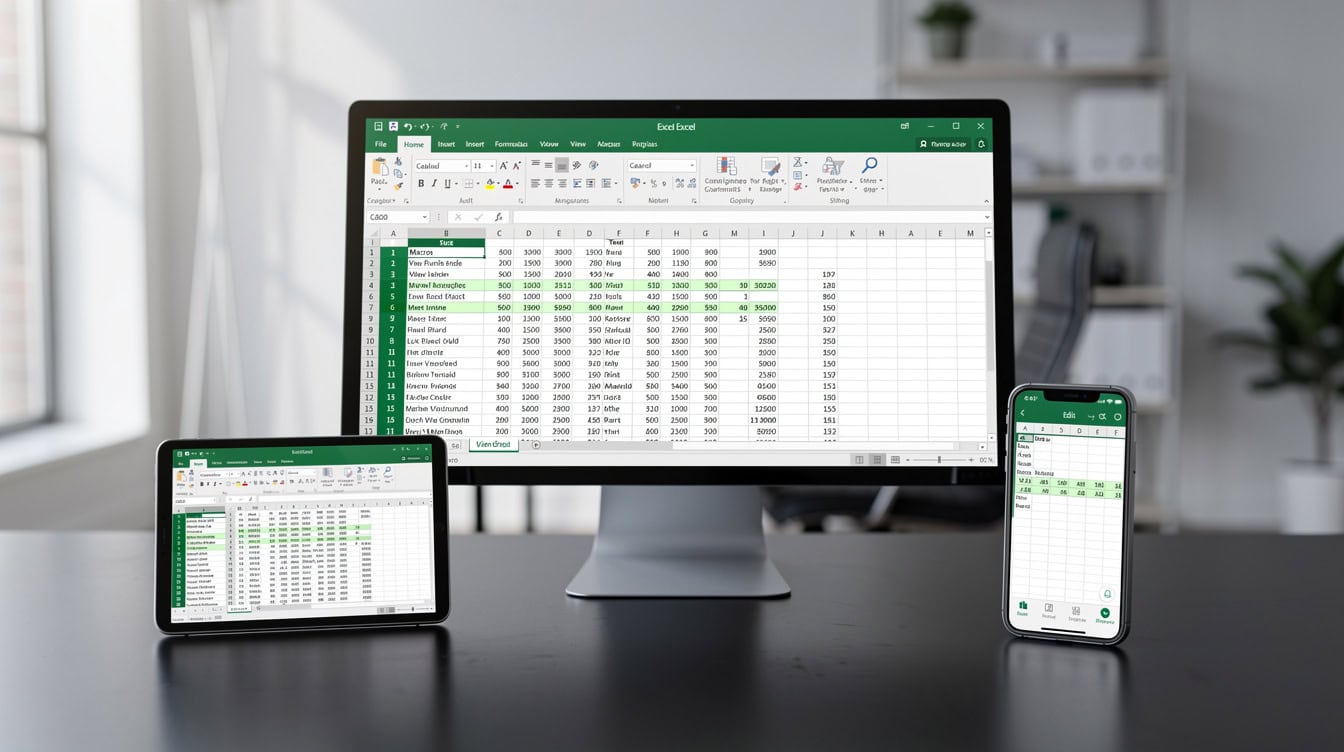
Excel Online and mobile apps support viewing and cell editing but cannot run VBA macros or refresh Power Query connections as of May 2025 testing.
How to Verify Compatibility Before You Buy
You can confirm your Excel setup supports a specific template in 5 steps, taking under 3 minutes total.
Step 1: Find your Excel version. On Windows: File > Account > About Excel. On Mac: Excel menu > About Microsoft Excel. Note the version number (e.g., 16.78.3) and the build date.
Step 2: Check the template’s feature requirements. Every EFM product page lists required features under the “System Requirements” tab: minimum Excel version, macro dependency (yes/no), Power Query dependency (yes/no), and dynamic array usage (yes/no).
Step 3: Cross-reference with the compatibility matrix. Use the tables in this article to confirm your version supports each listed feature.
Step 4: Download a free sample. EFM offers a free sample or preview file for most templates. Open it in your Excel installation and confirm all formulas calculate correctly before purchasing the full model. Browse free financial model templates to find samples in your category.
Step 5: Run the compatibility self-check. In your Excel, press Alt+F11 (Windows) or Option+F11 (Mac) to open the VBA editor. If the editor opens, your installation supports macro execution. If it does not open or shows an error, macros are disabled or unsupported on your setup.

Enter your Excel version number in B2 and platform in B3; the sheet calculates which features are supported and flags any gaps for your chosen template type.

The 5-step pre-purchase verification process takes under 3 minutes and eliminates compatibility uncertainty before committing to a template purchase.
Last Tested Dates and Version Update Policy
EFM tests every template against 6 platform-version combinations on a rolling 90-day cycle. The 6 combinations are: Windows Excel 2016, Windows Excel 2019, Windows Excel 2021, Windows Microsoft 365 (Current Channel), Mac Microsoft 365 (Current Channel), and Excel Online. Last-tested dates appear on each product page under the “Compatibility” tab.
The current testing cycle completed in May 2025. The next scheduled cycle runs August 2025. When Microsoft releases a major Excel update that changes function behavior (such as the Calc Engine update in 2018 that introduced dynamic arrays), EFM runs an out-of-cycle test within 30 days of the update’s general availability.
Templates built on financial modeling best practices use structured references and named ranges, which improves forward compatibility across version updates. Templates that rely on volatile functions (functions that recalculate every time any cell changes, such as NOW(), TODAY(), RAND(), and INDIRECT()) are flagged on the product page because they can slow calculation in large models.
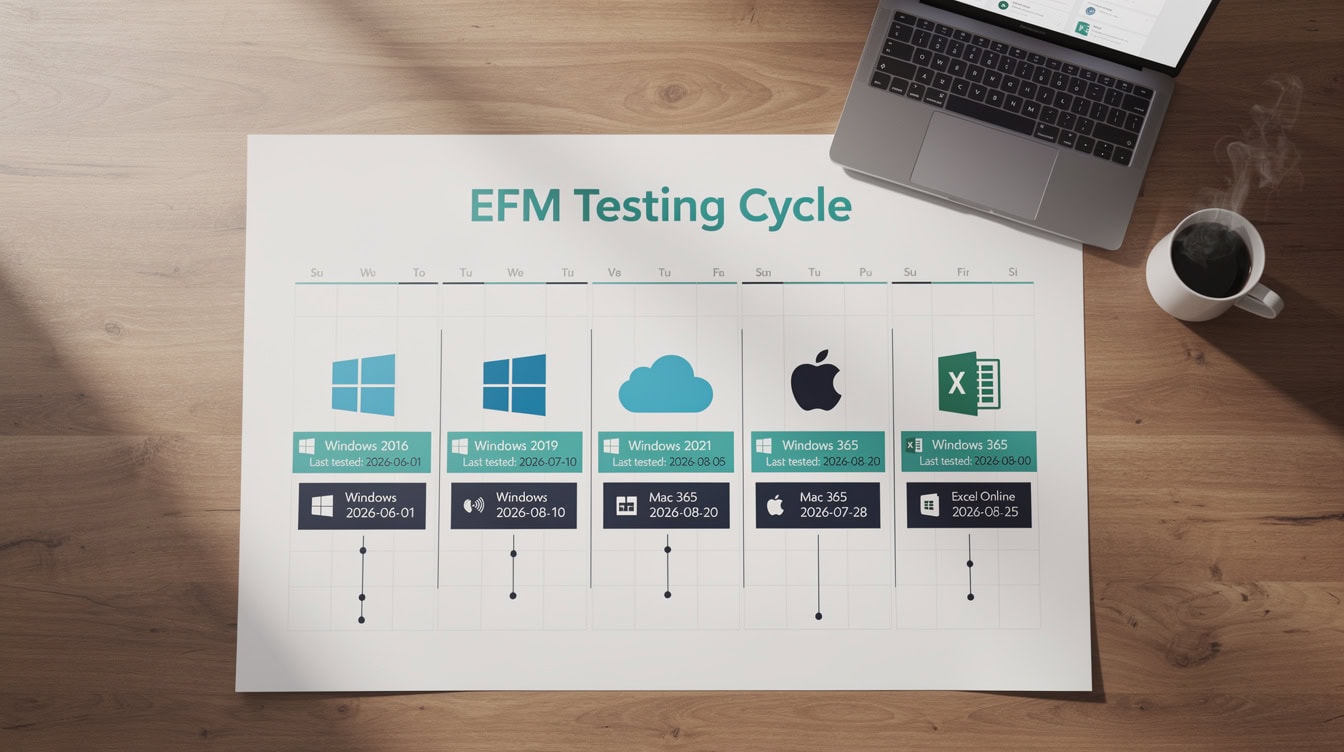
EFM tests all 6 platform-version combinations every 90 days; the May 2025 cycle is complete and the next scheduled run is August 2025.
When Compatibility Issues Arise: Support and Refund Process
If a template does not function as described on your verified compatible setup, EFM’s support team responds within 2 business days with a fix or workaround. If no fix is possible, EFM issues a full refund.
The process: email support with your Excel version string (from About Excel), your operating system version, a screenshot of the error, and the template name. The support team replicates the issue on the same version combination and either provides a corrected file or initiates the refund.
For complex compatibility adaptations, such as converting a Windows-only macro model to a Mac-compatible formula-based version, EFM offers custom financial modeling services at an hourly rate. Most adaptations take 2 to 4 hours.
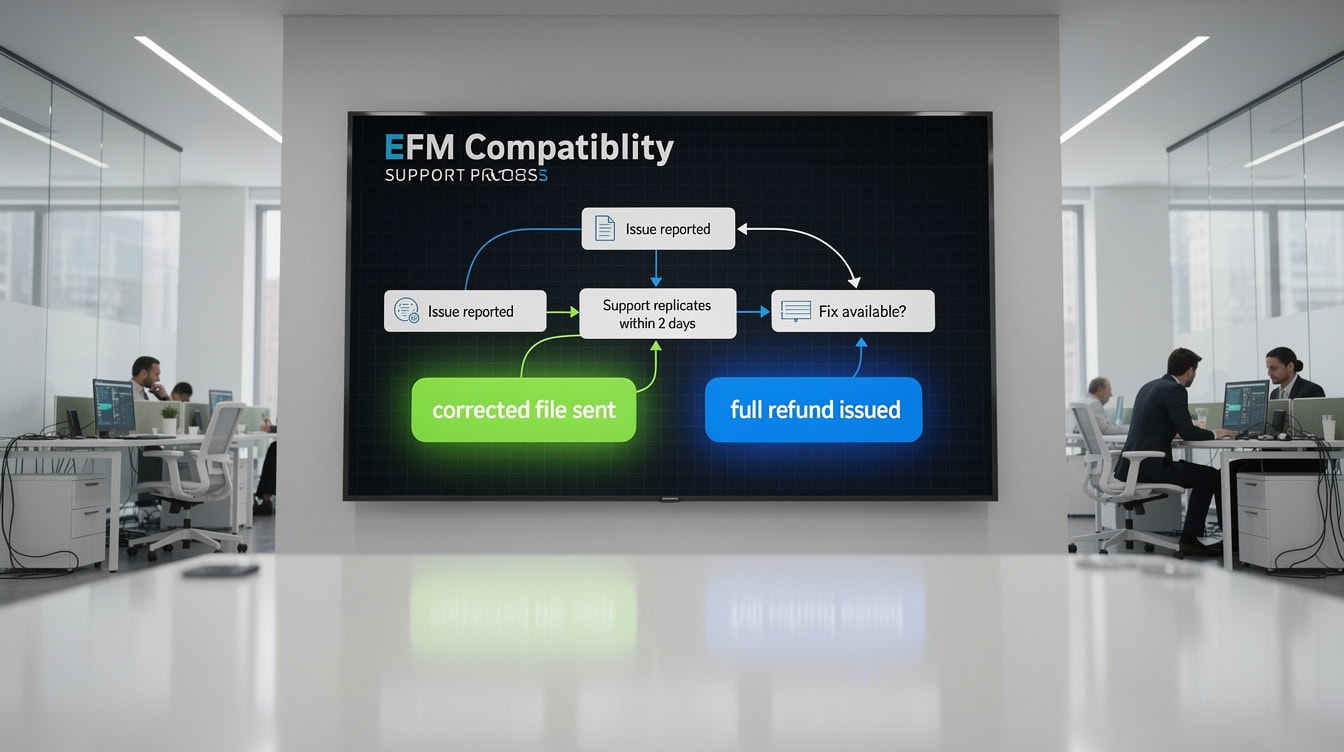
EFM’s 2-business-day support response covers both fix delivery and full refund initiation when a verified compatible setup still encounters errors.
Frequently Asked Questions
Which Excel version do I need to run EFM financial model templates?
The minimum version is Excel 2016 (build 16.0.4266.1001 or later) on Windows for templates that use only core formulas and VBA macros. However, if the template uses dynamic array functions such as XLOOKUP, FILTER, or UNIQUE, you need Excel 2021 or Microsoft 365 on either Windows or Mac. The safest choice for full compatibility across the entire EFM template library is Microsoft 365 (Current Channel), which receives monthly updates and supports every function EFM templates currently use. Check the System Requirements tab on any product page to see the exact minimum version for that specific template before purchasing.
Will EFM financial models work on a Mac?
Yes, most EFM templates work on Mac, but with 3 important limitations. First, Power Pivot is unavailable on all Mac versions of Excel as of June 2025. Second, VBA macros that use Windows-specific API calls will not execute on macOS. Third, Mac Excel 2016 does not support Power Query. For the best Mac experience, use Microsoft 365 for Mac version 16.54 or later, which was last tested by EFM in May 2025. Each product page flags whether a template’s macros are Mac-compatible, so you can confirm before purchasing. If you encounter a macro that fails on Mac, EFM support can provide a formula-based alternative within 2 business days.
What is the difference between Microsoft 365 and Excel 2021 for running financial models?
Microsoft 365 is a subscription that updates monthly and adds new functions as Microsoft releases them. Excel 2021 is a one-time purchase frozen at its October 2021 feature set. For the EFM template library, both versions support dynamic arrays, XLOOKUP, and Power Query. The practical difference appears only in templates that use functions released after October 2021, such as TEXTSPLIT or VSTACK, which are Microsoft 365-only. If you purchase a perpetual Excel 2021 license, you can run approximately 95% of EFM templates without any limitation. Microsoft 365 Personal costs $69.99 per year and covers up to 5 devices, making it cost-effective for analysts who work across multiple machines.
Can I use Excel Online or the mobile app to edit EFM financial models?
You can view and edit cell values in Excel Online and the iOS/Android Excel apps, but you cannot run VBA macros or refresh Power Query connections in either environment. This means any template that uses a macro button for scenario switching or data refresh will not function fully in the browser or on mobile. Dynamic array formulas display correctly in Excel Online but cannot be edited or recalculated if the underlying inputs change in a way that requires macro execution. For any model where you need to change assumptions, run sensitivity analysis, or refresh data from an external source, use the desktop Excel application. Excel Online is suitable for reviewing outputs and sharing read-only versions with stakeholders.
How do I find my exact Excel version and build number?
On Windows, open Excel, click File in the top-left ribbon, select Account, then click About Excel. A dialog box displays the full version string in the format “Microsoft Excel for Microsoft 365 MSO (Version 2504 Build 16.0.18730.20030) 64-bit.” On Mac, click the Excel menu in the top-left menu bar and select About Microsoft Excel. The version number appears as a string like “Version 16.78.3 (24030911).” The first two digits after the decimal (e.g., 78) indicate the monthly update number for Microsoft 365. Build 16.0.4266.1001 is the minimum for Excel 2016 compatibility. If your build number is lower, apply pending Windows Updates or Office Updates before testing a template.
What happens if a template does not work on my Excel version?
Email EFM support with 4 pieces of information: your full Excel version string (from About Excel), your operating system version (e.g., Windows 11 22H2 or macOS Ventura 13.6), a screenshot of the error message, and the template name or order number. The support team replicates the issue within 2 business days. If the issue stems from a genuine incompatibility between the template and your verified compatible setup, EFM issues a full refund. If a workaround exists, the team provides a corrected file or step-by-step instructions. For Mac users who need a Windows-only macro model converted to a formula-based version, custom adaptation services are available through EFM’s custom financial modeling services team.
Do EFM templates support Excel’s 64-bit version?
Yes. All EFM templates are compatible with both 32-bit and 64-bit Excel installations. The 64-bit version of Excel, which Microsoft has made the default installation since Office 2019, handles larger datasets without hitting the 2GB memory limit that affects 32-bit installations. Excel 64-bit supports up to 1,048,576 rows and 16,384 columns per worksheet (Microsoft support), which is sufficient for all EFM templates including large-scale financial projection models with 10-year monthly detail. If you run a 32-bit Excel installation and experience memory errors on large templates, upgrading to 64-bit resolves the issue without requiring a new license purchase.
Conclusion
Compatibility uncertainty is one of the most common reasons finance professionals hesitate before purchasing a template. The answer is almost always straightforward: Excel 2016 minimum on Windows, Microsoft 365 for Mac for full feature access, and desktop-only for macro and Power Query functionality. Check the System Requirements tab on any EFM product page, run the 5-step verification process above, and download a free sample before committing.
I recommend downloading a free financial model template from EFM’s library to test your exact Excel setup against a real model before purchasing a premium template. You’ll confirm compatibility in under 5 minutes and eliminate any pre-purchase uncertainty. For analysts building custom models from scratch, browse the full financial modeling template library to find a starting point matched to your platform and version.
























































