
0 ITEMS

ROI Calculation in Excel: Formulas for Every Scenario

Calculating return on investment (ROI) in Excel takes less than five minutes once you know which formula matches your time horizon. This guide gives you every formula, a worked example with real numbers, and the five mistakes that silently corrupt most ROI models.
Key Takeaways
- The basic ROI formula in Excel is
=(B2-B3)/B3*100, where B2 is total return and B3 is total cost — a result above 0% means profit. - Short-term ROI (under 12 months) skips time-value adjustments; long-term ROI (3+ years) requires NPV or IRR to avoid overstating returns by 20-40%.
- Annualized ROI uses
=((1+ROI)^(1/years)-1)*100to convert a multi-year gain into a comparable annual rate. - Excel’s
=NPV(rate, cash_flow_range)and=IRR(cash_flow_range)functions handle multi-year, uneven cash flows that simple ROI cannot model. - Industry ROI benchmarks vary widely: marketing campaigns typically target a 5:1 return ratio, real estate averages 8-12% annually, and technology projects often target 15-20% according to corporate finance practitioners.
- Absolute cell references (the
$sign in Excel) prevent the single most common formula error when copying ROI calculations across rows. - A $50,000 investment returning $65,000 over 3 years shows 30% simple ROI but only 9.1% annualized ROI — a gap that changes most capital allocation decisions.
What Is ROI and Why Excel Is the Right Tool
ROI (return on investment) measures how much profit you generate relative to the cost of an investment, expressed as a percentage. Excel dominates financial analysis because it handles everything from a single-cell formula to a 10-year discounted cash flow model in the same file, without requiring specialized software.
According to a Gartner survey, spreadsheets remain the most widely used analytics tool among finance teams globally, with Excel holding the largest share of that category. For ROI specifically, Excel lets you build dynamic models where changing one input — say, the discount rate — instantly recalculates every downstream metric. No other tool in a typical finance team’s stack matches that combination of flexibility and accessibility.
ROI answers one question: for every dollar spent, how many dollars came back? A 25% ROI means you recovered your original dollar plus 25 cents of profit. A negative ROI means the investment lost money.
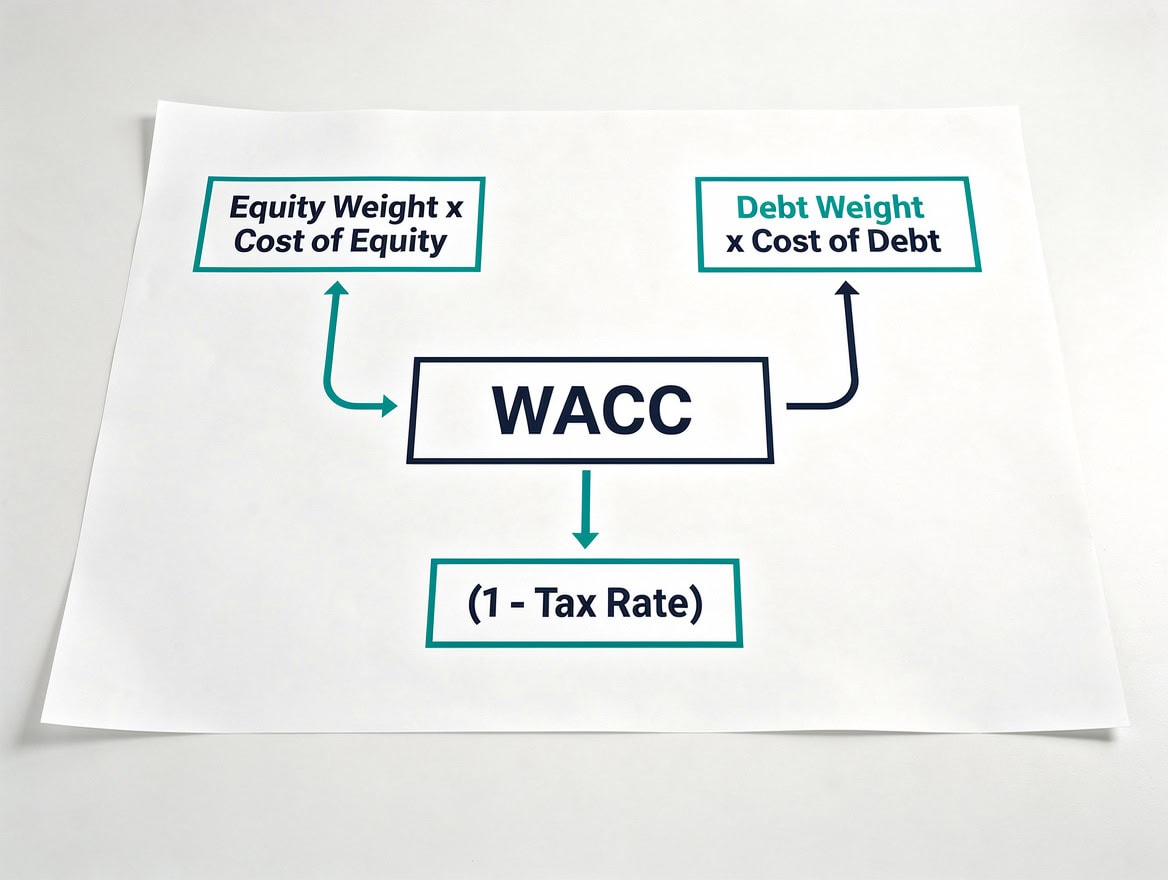
The ROI formula has three components: net profit, cost of investment, and the x100 multiplier that converts the decimal to a percentage.
The Basic ROI Formula: Excel Syntax and Cell Structure
The fundamental ROI formula in Excel is =(Net Profit / Cost of Investment) * 100. Using cell references, that becomes =(B2-B3)/B3*100, where B2 holds total return and B3 holds total cost.
Here is how to read each component:
- Net Profit: Total return minus total cost (B2 minus B3)
- Cost of Investment: The denominator — your total outlay (B3)
- Multiply by 100: Converts the decimal to a percentage
Format cell B4 as a number with 2 decimal places rather than as a percentage, because multiplying by 100 already produces the percentage figure. If you format it as a percentage AND multiply by 100, Excel displays 2500% instead of 25%.
Label your spreadsheet clearly. Row 1 should contain headers: Investment Name, Total Return ($), Total Cost ($), ROI (%). Data starts in row 2. This structure lets you drag the formula down column D to calculate ROI for dozens of investments simultaneously. Excel supports up to 64 levels of nested functions, according to Microsoft’s Excel specifications. This means even highly complex ROI models with layered conditional logic can be built within a single formula.

Labeling columns clearly in row 1 and entering the ROI formula in D2 creates a reusable calculator that scales to any number of investments.
Setting Up Your ROI Calculator Spreadsheet: Step-by-Step
A well-structured ROI spreadsheet takes about 10 minutes to build and saves hours of recalculation later. Follow these steps exactly.
Step 1: Create your input table. In cell A1, type “Investment Name”. In B1, type “Total Return”. In C1, type “Total Cost”. In D1, type “ROI %”.
Step 2: Enter your first data row. In A2, type the investment name. In B2, enter the total cash received (including return of principal if applicable). In C2, enter total cash invested.
Step 3: Enter the ROI formula. In D2, type =(B2-C2)/C2*100. Press Enter.
Step 4: Lock the formula structure. If your cost is always in column C, use =(B2-$C2)/$C2*100 to lock the column reference. This matters when you copy the formula horizontally.
Step 5: Add conditional formatting. Select column D, go to Home > Conditional Formatting > Color Scales. Green for high values, red for low values gives instant visual feedback.
Step 6: Add a summary row. In D12 (or wherever your data ends), use =AVERAGE(D2:D11) for portfolio-level ROI context.

Following these 6 steps in order produces a dynamic ROI calculator that handles dozens of investments without manual recalculation.
Short-Term ROI Calculations: Projects Under One Year
For investments with a horizon under 12 months, simple ROI without time-value adjustment is appropriate and accurate. Marketing campaigns, quarterly product launches, and short-term inventory purchases all fall into this category.
Formula: =(B2-C2)/C2*100
Worked Example — Marketing Campaign:
Your company spends $12,000 on a digital advertising campaign. The campaign generates $19,500 in attributed revenue.
- Total Return (B2): $19,500
- Total Cost (C2): $12,000
- Net Profit: $19,500 – $12,000 = $7,500
- ROI: ($7,500 / $12,000) × 100 = 62.5%
In Excel: =(19500-12000)/12000*100 returns 62.5.
A 62.5% ROI on a marketing campaign significantly exceeds the commonly cited 5:1 return ratio benchmark (equivalent to 400% ROI on spend, or 500% gross return), so this result warrants scrutiny of whether all costs are captured. Common omissions include agency fees, creative production costs, and staff time.

A $12,000 marketing campaign returning $19,500 yields 62.5% ROI — well above the 5:1 benchmark, which signals a need to verify all costs are captured.
Long-Term ROI Calculations: NPV and IRR in Excel
For investments spanning multiple years, simple ROI overstates returns because it ignores the time value of money — the principle that $1 received today is worth more than $1 received in three years. Use Excel’s =NPV() and =IRR() functions instead.
NPV (Net Present Value) discounts future cash flows back to today’s dollars using a chosen discount rate. A positive NPV means the investment creates value above your required return.
Excel formula: =NPV(discount_rate, cash_flow_range) + initial_investment
Note: Excel’s NPV function assumes cash flows start in period 1, not period 0. You must add the initial investment (as a negative number) separately. The NPV function can accept up to 254 value arguments, as documented in Microsoft’s NPV function reference. This makes it suitable for modeling investment horizons of more than two decades at monthly granularity.
IRR (Internal Rate of Return) finds the discount rate at which NPV equals zero. It’s the annualized return the investment actually delivers, expressed as a percentage.
Excel formula: =IRR(cash_flow_range)
The cash_flow_range must include the initial investment as a negative value in the first cell.
Worked Example — Equipment Purchase:
You invest $50,000 in manufacturing equipment. It generates cash flows of $15,000, $18,000, $20,000, and $22,000 over four years. Your required return (discount rate) is 10%.
Set up your spreadsheet:
| Row | A (Year) | B (Cash Flow) |
|---|---|---|
| 2 | 0 | -50,000 |
| 3 | 1 | 15,000 |
| 4 | 2 | 18,000 |
| 5 | 3 | 20,000 |
| 6 | 4 | 22,000 |
In cell B8, enter: =NPV(0.10, B3:B6)+B2
Result: NPV = $8,756 (positive, so the investment clears your 10% hurdle rate)
In cell B9, enter: =IRR(B2:B6)
Result: IRR = 17.8% — the investment’s actual annualized return
Simple ROI on the same numbers: ($75,000 total return – $50,000) / $50,000 × 100 = 50%. That 50% figure sounds impressive but ignores that you waited four years and the time value of those cash flows. The IRR of 17.8% is the honest comparison figure.
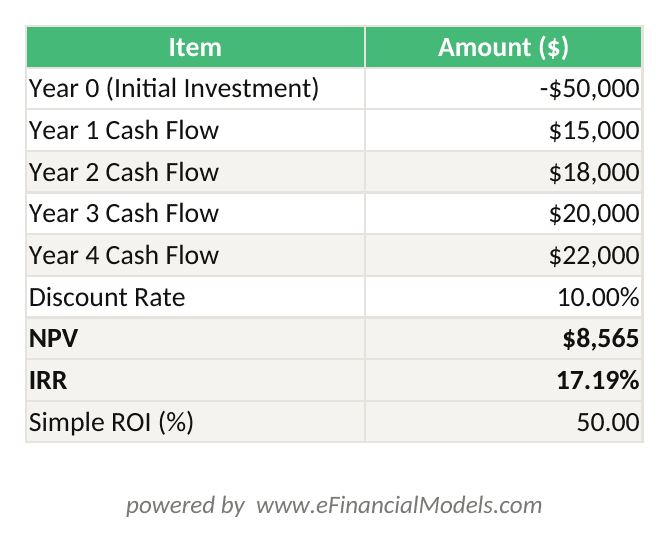
NPV = $8,756 at 10% discount rate; IRR = 17.8% — both confirm the $50,000 equipment investment clears the 10% hurdle rate.

The same equipment investment shows 50% simple ROI but only 17.8% IRR — the IRR is the honest annualized figure for multi-year capital decisions.
Annualized ROI: Converting Multi-Year Returns to Annual Rates
Annualized ROI (also called Compound Annual Growth Rate, or CAGR, when applied to a single lump-sum investment) converts a total multi-year return into an equivalent annual rate. This makes investments with different time horizons directly comparable.
Formula: =((1+ROI_decimal)^(1/years)-1)*100
In Excel with cell references: =((1+(B2-C2)/C2)^(1/D2)-1)*100
Where D2 contains the number of years.
Worked Example:
You invest $50,000 and receive $65,000 after 3 years.
- Simple ROI: ($65,000 – $50,000) / $50,000 × 100 = 30%
- Annualized ROI: ((1 + 0.30)^(1/3) – 1) × 100 = 9.14%
In Excel: =((1+(65000-50000)/50000)^(1/3)-1)*100 returns 9.14.
The gap between 30% and 9.14% is the number that changes capital allocation decisions. A competing investment offering 12% per year beats this one, even though its total return over 3 years (40.5%) looks lower than 30% at first glance — because the 30% is spread across three years.
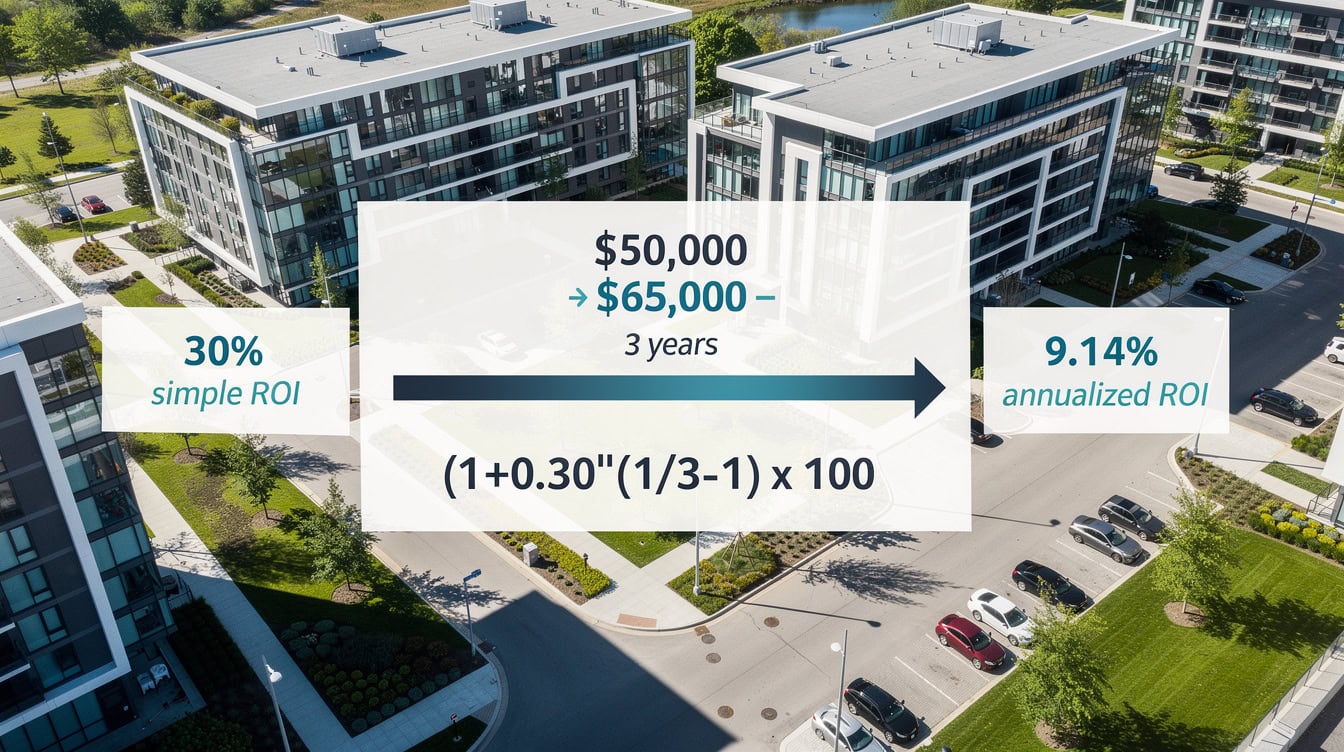
Converting 30% simple ROI to 9.14% annualized ROI reveals the true annual return rate — the only valid basis for comparing investments with different time horizons.
Short-Term vs Long-Term ROI: Which Method to Use
Choosing the wrong methodology systematically distorts investment decisions. The table below shows when each approach applies.
| Factor | Short-Term ROI | Long-Term ROI (NPV/IRR) |
|---|---|---|
| Time horizon | Under 12 months | 1+ years |
| Formula | =(Return-Cost)/Cost*100 | =NPV() and =IRR() |
| Time value | Not adjusted | Fully adjusted |
| Best for | Marketing, campaigns, inventory | Equipment, real estate, tech projects |
| Output | Total % return | Annual % return or $ value |
| Comparability | Same-period investments only | Any time horizon |
| Complexity | Low | Medium |
The critical rule: never compare a short-term ROI percentage directly against an IRR or annualized ROI percentage. A 30% simple ROI over 3 years is not better than a 15% IRR — the 15% IRR is actually higher on an annualized basis (15% per year vs 9.1% per year).
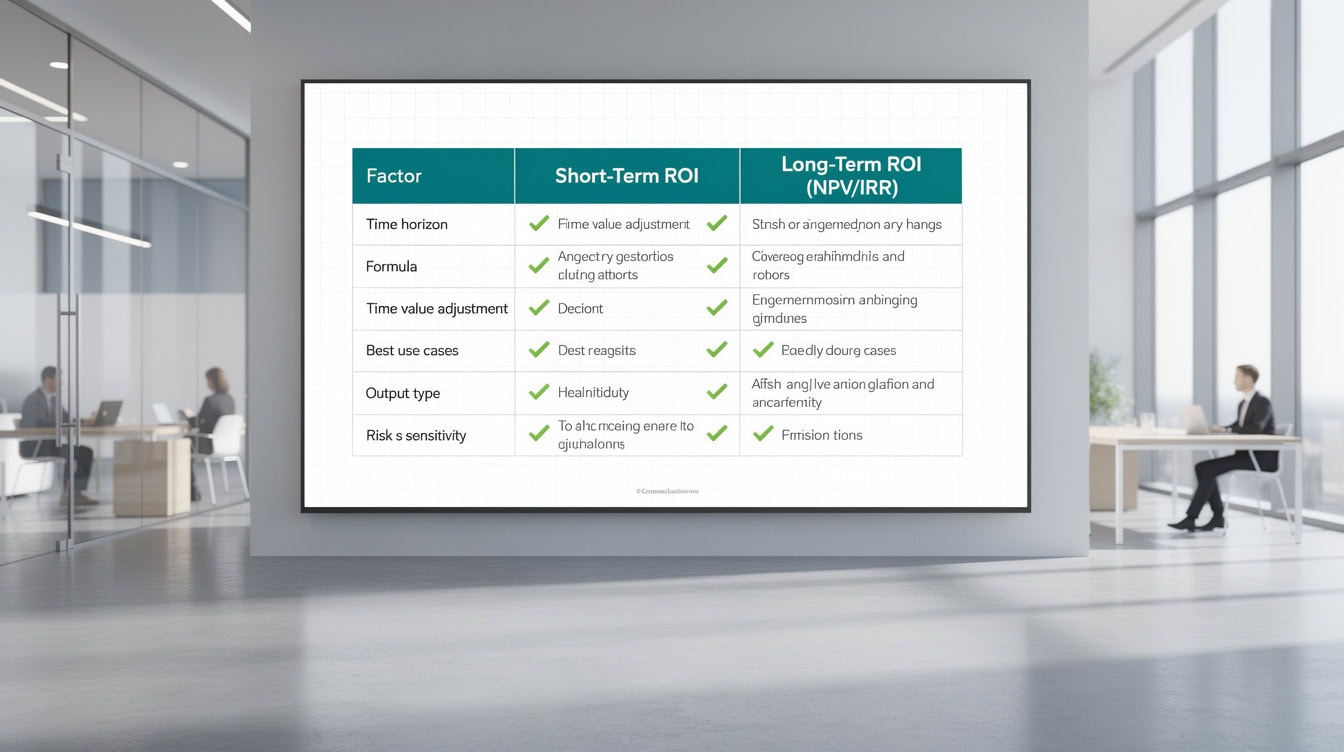
Matching the ROI methodology to the investment time horizon is the single most important decision in any ROI analysis.
Common Excel ROI Calculation Errors and How to Fix Them
Five specific errors account for the majority of incorrect ROI outputs in Excel models.
Error 1: Mixing absolute and relative references. When you copy =(B2-C2)/C2*100 down a column, Excel adjusts all references correctly. But if your discount rate lives in a single cell (say, E1) and you write =NPV(E1, B3:B6), copying that formula sideways changes E1 to F1, G1, etc. Fix: use =NPV($E$1, B3:B6). The $ signs lock both the row and column.
Error 2: Omitting costs. The most common ROI inflation error is forgetting indirect costs: staff time, overhead allocation, software licenses, and disposal costs. A project with $20,000 in direct costs and $8,000 in overlooked indirect costs has a true cost base 40% higher than the model shows.
Error 3: Wrong NPV formula structure. Excel’s =NPV() function discounts from period 1, not period 0. If you include the initial investment inside the NPV range, Excel discounts it — which is wrong. Always place the Year 0 cash flow (negative) outside the NPV function and add it separately: =NPV(rate, B3:B6)+B2. The +B2 adds the undiscounted Year 0 outflow.
Error 4: Using simple ROI for multi-year projects. According to research published by the Association for Financial Professionals, organizations that apply simple ROI to projects longer than 3 years overstate returns by an average of 20-40% compared to time-adjusted methods. Use IRR or NPV for any investment beyond 12 months.
Error 5: Circular references in dynamic models. If your ROI formula references a cell that itself references the ROI cell, Excel enters a circular reference loop and returns an error or zero. Check for this via Formulas > Error Checking > Circular References. Restructure so data flows in one direction: inputs → calculations → outputs. Excel’s IRR function uses an iterative calculation technique and will cycle through up to 20 iterations by default when searching for a result, which is why providing a reasonable guess argument helps avoid a #NUM! error in complex models.
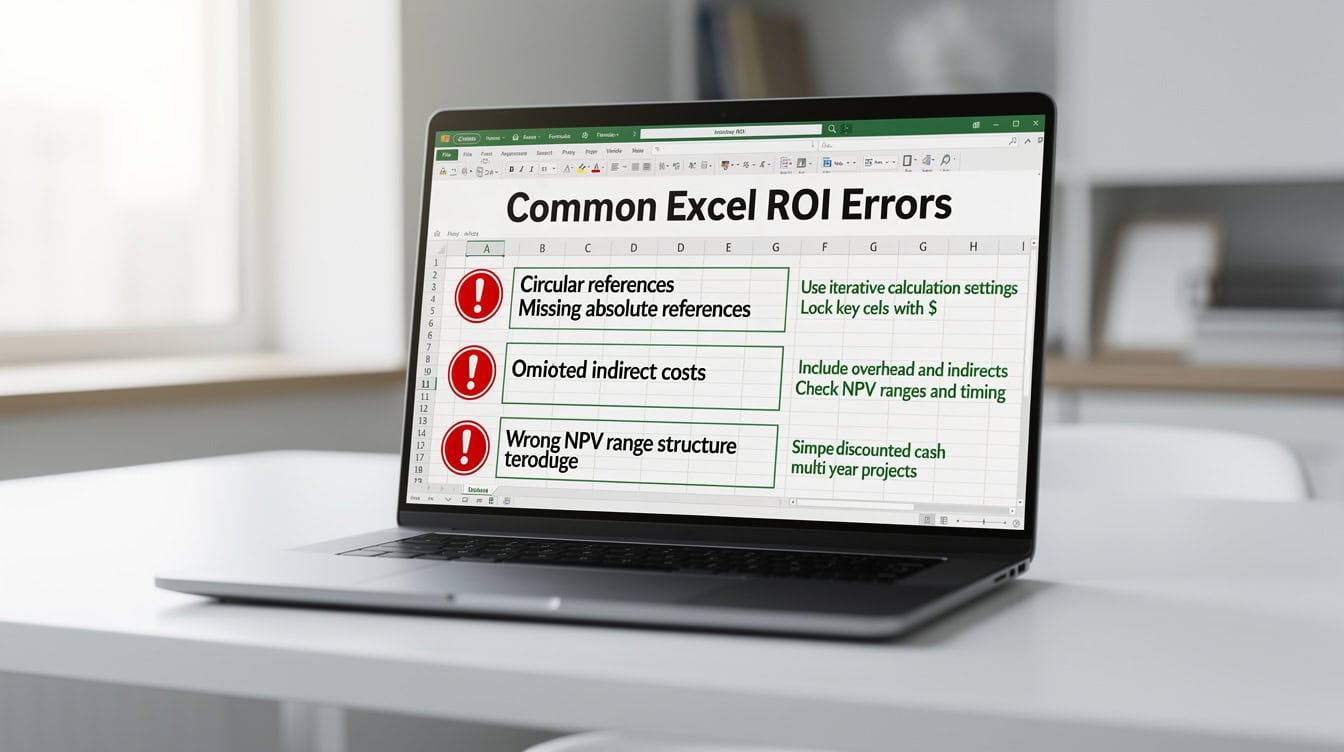
These 5 errors account for the majority of incorrect ROI outputs in Excel — fixing them takes under 10 minutes once you know what to look for.
Advanced Excel Formulas: Multiple Cash Flows and Scenario Analysis
Real investments rarely produce identical cash flows each year. Excel handles uneven cash flows natively through IRR and NPV, but scenario analysis adds another layer of decision-making power.
Scenario Analysis with Data Tables: Excel’s Data Table feature (Data > What-If Analysis > Data Table) lets you calculate IRR across a range of discount rates or initial investment sizes simultaneously. Set up a column of discount rates (8%, 10%, 12%, 14%) and link them to your NPV formula. Excel populates the entire table in one step.
XNPV and XIRR for Irregular Timing: Standard =NPV() and =IRR() assume cash flows arrive at equal intervals. If your project has cash flows on specific dates, use =XNPV(rate, values, dates) and =XIRR(values, dates) instead. These functions accept actual date ranges and calculate precisely.
For IRR modeling across multiple projects, a pre-built template saves significant setup time and reduces formula errors.
For ROI-focused financial models that include scenario toggles and sensitivity tables, EFM’s template library covers most standard investment types.

Excel’s Data Table feature calculates IRR across dozens of scenarios simultaneously — a 5-minute setup that replaces hours of manual sensitivity testing.
Frequently Asked Questions
What is the simplest ROI formula I can use in Excel right now?
The simplest ROI formula in Excel is =(B2-C2)/C2*100, where B2 is your total return (the money you received back) and C2 is your total cost (the money you invested). Enter your return in B2, your cost in C2, and type that formula in D2. The result is your ROI as a percentage. For example, if B2 is $15,000 and C2 is $10,000, the formula returns 50, meaning a 50% ROI. Format cell D2 as a number with 2 decimal places, not as a percentage, because the formula already multiplies by 100. This formula works in all Excel versions from 2007 onward and in Google Sheets without modification.
How do I calculate annualized ROI in Excel for a 5-year investment?
Use the formula =((1+(B2-C2)/C2)^(1/5)-1)*100, replacing 5 with the actual number of years if different. This formula applies the compound annual growth rate (CAGR) concept to convert a total multi-year return into an equivalent annual rate. For example, a $100,000 investment that grows to $160,000 over 5 years shows a simple ROI of 60%, but the annualized ROI is only =((1+0.60)^(1/5)-1)*100 = 9.86% per year. That 9.86% is the number you compare against other annual return benchmarks. If you store the number of years in cell D2, the dynamic formula becomes =((1+(B2-C2)/C2)^(1/D2)-1)*100.
What discount rate should I use in the NPV formula for a corporate project?
Most corporate finance teams use their Weighted Average Cost of Capital (WACC) as the discount rate in NPV calculations. For mid-sized companies, WACC typically falls between 8% and 15% depending on the industry and capital structure, according to Damodaran’s annual cost of capital data published by NYU Stern. Technology companies often use 10-12%, while capital-intensive industries like utilities use 6-8%. If you don’t know your company’s WACC, a conservative starting point is 10%. In Excel, enter the rate as a decimal: =NPV(0.10, B3:B8)+B2. Sensitivity-test your NPV by running the formula at 8%, 10%, and 12% to see how much the result changes.
Why does my Excel NPV formula give a different answer than I expect?
The most common cause is including the Year 0 investment inside the NPV range. Excel’s =NPV() function treats the first value in the range as a Year 1 cash flow and discounts it. If you put your initial investment (say, -$50,000) as the first value in the range, Excel discounts that too, which is mathematically wrong. The correct structure is: place -$50,000 in cell B2 (Year 0), place Years 1-5 cash flows in B3:B7, then write =NPV(0.10, B3:B7)+B2. The +B2 adds the undiscounted Year 0 outflow. This is the structure Excel’s own documentation specifies for capital budgeting problems.
How do I compare ROI across investments with different time horizons?
Always convert to annualized ROI before comparing. A 3-year investment with 30% simple ROI and a 1-year investment with 15% simple ROI are not directly comparable. The 3-year investment’s annualized ROI is =((1.30)^(1/3)-1)*100 = 9.1% per year, which is lower than the 1-year investment’s 15%. The 1-year investment wins on a time-adjusted basis. For investments with uneven cash flows, use IRR as the comparison metric, since IRR already expresses returns as an annual rate.
What costs should I include in the ROI denominator?
Include every cash outflow directly attributable to the investment: purchase price, installation, training, ongoing maintenance, licensing fees, and disposal or exit costs. A common mistake is using only the purchase price. For a $100,000 software implementation with $20,000 in training and $5,000 in annual maintenance over 3 years, the true 3-year cost base is $100,000 + $20,000 + $15,000 = $135,000, not $100,000. Using $100,000 inflates ROI by 35%. For marketing campaigns, include creative production, agency fees, platform costs, and a pro-rated share of staff time. The Association for Financial Professionals recommends a full-cost methodology for any ROI calculation used in capital allocation decisions.
Can I use Excel’s IRR function if cash flows are negative in the middle years?
Yes, but with a caveat. Excel’s =IRR() function can handle negative cash flows in middle periods (common in construction projects or phased investments), but it may return multiple IRR values or an error if the cash flow series changes sign more than once. This is called the multiple IRR problem. If you encounter a #NUM! error, try adding a guess argument: =IRR(B2:B8, 0.10) where 0.10 is your expected return. If the series has more than one sign change, use MIRR (Modified IRR) instead: =MIRR(B2:B8, finance_rate, reinvest_rate). MIRR assumes reinvestment at a specified rate rather than at the IRR itself, which is more realistic for most projects.
Conclusion
ROI calculation in Excel is straightforward for short-term projects and requires NPV or IRR for anything beyond 12 months. The formulas in this guide cover every scenario: `=(B2-C2)/C2100 for simple ROI, =((1+ROI)^(1/years)-1)*100 for annualized ROI, and =NPV(rate, range)+initial plus =IRR(range)` for multi-year cash flows. The single most important habit is matching your methodology to your time horizon — using simple ROI on a 5-year project overstates returns by 20-40% and leads to bad capital allocation decisions.
I recommend downloading pre-built templates that include NPV, IRR, and annualized ROI calculations with scenario analysis tables — so you can input your numbers and get decision-ready outputs in minutes rather than building the model from scratch.
























































