
0 ITEMS

Cash-Flow Forecasting in Excel: A Practical Guide
Cash flow, not profit, is what keeps a business alive — and most founders learn that the hard way. Here are the essentials of building a forecast that actually warns you before trouble hits.
Key Takeaways
- Poor cash flow management causes 82% of business failures, making accurate forecasting the single highest-leverage financial skill a founder or finance manager can build.
- A professional Excel cash flow model uses 4 sheets: Assumptions, Historical Data, Projection Outputs, and a Dashboard — each with a distinct role.
- Anchor your projections in 2–3 years of historical data to produce credible baselines that investors and lenders will trust.
- The professional standard for projection length is 18 months — long enough for strategic planning, short enough to stay reliable.
- Always build 3 scenarios (base, optimistic, conservative) in the same workbook so a single assumption change flows through every output automatically.
- Excel’s FORECAST.ETS function (a time-series forecasting tool that accounts for seasonality) outperforms simple linear trend methods for most real businesses.
- Standardized templates with auto-updating opening and closing balances cut manual calculation errors and reduce build time compared with ad-hoc spreadsheets.
Why Cash-Flow Forecasting Determines Business Survival
Cash flow forecasting is the process of estimating how much cash will enter and leave your business over a future period, so you can spot shortfalls before they become crises. Poor cash flow management is responsible for 82% of business failures (U.S. Chamber of Commerce, citing U.S. Bank) — a figure that makes forecasting not a nice-to-have but a survival tool.
Profitability and cash flow are not the same thing. A business can show a healthy net income on its income statement while running out of cash because customers pay late, inventory sits unsold, or loan repayments fall due before revenue arrives. A well-built forecast makes that gap visible weeks or months in advance, giving you time to act.
What separates a useful forecast from a spreadsheet exercise is specificity: real historical numbers, realistic growth assumptions, and a structure that lets you test what happens when things go wrong.
Businesses with active cash flow forecasts identify shortfalls an average of 60–90 days earlier than those relying on bank statements alone.
The Four-Sheet Excel Architecture Every Professional Model Needs
A reusable financial forecasting workbook in Excel should include at least four sheets — Assumptions, Historical Data, Projection Outputs, and a Dashboard — to structure cash flow and other projections (Workday, 2023). Each sheet has a specific job, and keeping them separate prevents the formula spaghetti that makes ad-hoc spreadsheets so error-prone. Excel supports up to 64 levels of nested functions (Microsoft), which means even complex multi-sheet reference chains stay well within platform limits when you build the four-sheet architecture correctly.
Sheet 1: Assumptions
This sheet holds every variable that drives your forecast: revenue growth rate, average collection period (days sales outstanding), payment terms for suppliers, payroll headcount, and tax rates. When you want to model a different scenario, you change numbers here only. Every other sheet pulls from this one using cell references, so the whole model updates automatically.
Example cell layout:
- B2: Revenue growth rate (base case) = 8%
- B3: Revenue growth rate (optimistic) = 15%
- B4: Revenue growth rate (conservative) = 2%
- B5: Average collection period (days) = 30
- B6: Monthly payroll = $18,500
Sheet 2: Historical Data
Paste 24–36 months of actual monthly cash inflows and outflows here. This data feeds the FORECAST.ETS function and anchors your projections in reality. Columns should mirror your Projection Outputs sheet so formulas can reference both without restructuring.
Sheet 3: Projection Outputs
This is the working forecast: month-by-month rows for operating receipts, operating payments, investing activities, financing activities, opening balance, and closing balance. Formulas here reference the Assumptions sheet for growth rates and the Historical Data sheet for trend inputs.
Sheet 4: Dashboard
A one-page visual summary using charts linked to Projection Outputs. Include a closing balance trend line, a waterfall chart of monthly net cash flow, and a scenario toggle (a data validation drop-down that switches between base, optimistic, and conservative views).
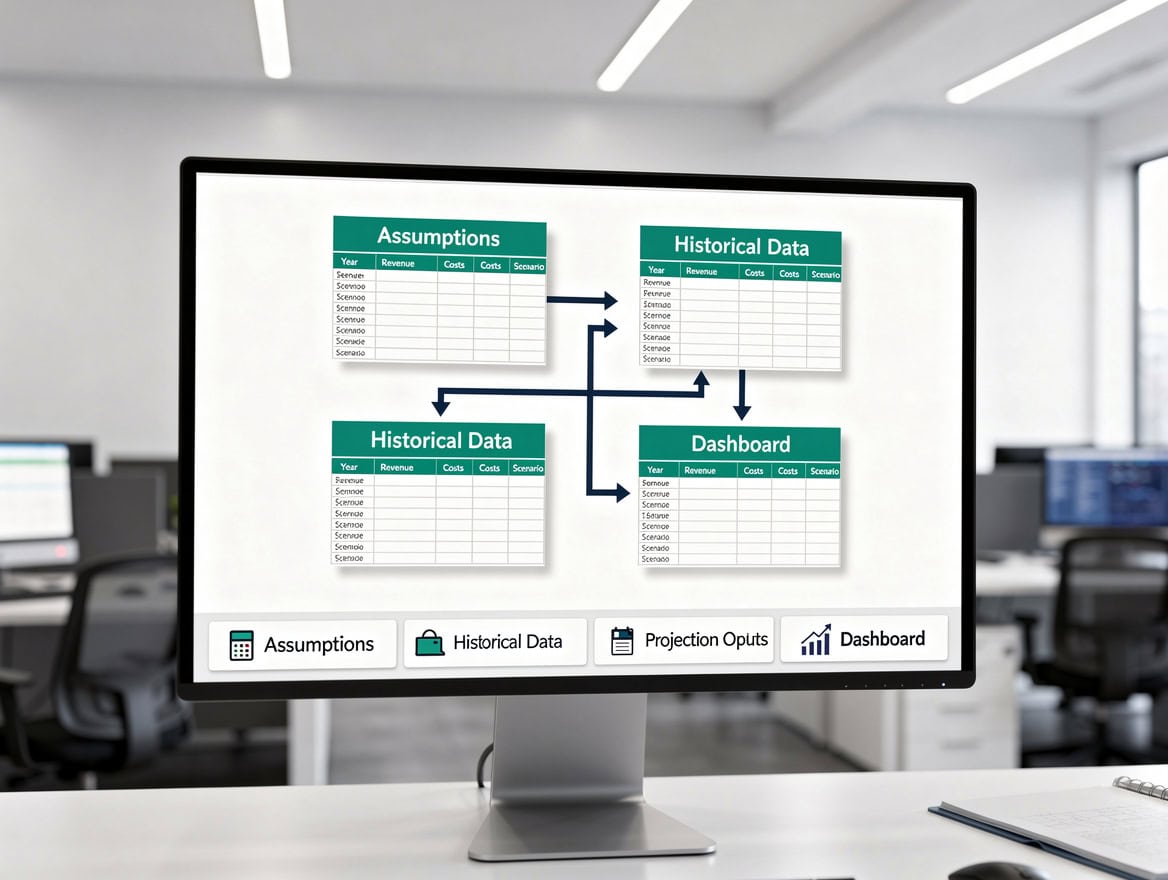
Separating assumptions from outputs is the single structural decision that makes a cash flow model auditable, scalable, and scenario-ready.
Building Your Foundation: 2–3 Years of Historical Data
A professional financial projection should ideally include 2–3 years of historical data as a baseline in the Excel model (U.S. Chamber of Commerce, 2024). Two years captures at least one full seasonal cycle; three years smooths out one-off anomalies like a single large contract or a pandemic-year distortion.
If your business is less than two years old, use industry benchmarks from trade associations or SBA data to supplement your own history. Label these cells clearly so any reviewer knows which numbers are actual and which are estimated.
Organize historical data in columns A through N: column A for line-item labels, columns B through M for the 12 months of the most recent year, and column N for the annual total. Repeat this block for each prior year on the same sheet. This layout makes it straightforward for FORECAST.ETS to read a contiguous data range.
Two years of historical data captures at least one full seasonal cycle — the minimum needed for FORECAST.ETS to detect reliable patterns.
Why 18 Months Is the Optimal Projection Timeframe
An effective cash flow forecast template commonly projects cash flows for an 18-month period to support planning and scenario analysis (Gusto, 2022). Shorter windows (3–6 months) are useful for operational cash management but too narrow for strategic decisions like hiring, capital expenditure, or fundraising. Longer windows (3–5 years) are standard in investor decks but carry compounding uncertainty that makes monthly detail unreliable.
The 18-month window hits the sweet spot: it covers two full seasonal cycles, satisfies most lender and investor requirements for near-term visibility, and stays close enough to reality that your assumptions remain defensible. Roll the forecast forward by one month each month, dropping the oldest period and adding a new future month, so you always maintain an 18-month horizon.
The 18-month window is long enough for strategic decisions and short enough to keep monthly assumptions defensible.
Multi-Scenario Modeling: Base, Optimistic, and Conservative Cases
Cash flow forecasting best practice is to model at least two to three different scenarios — such as base case, optimistic, and conservative — when building an Excel projection (Gusto, 2022). Single-scenario models give false precision; scenario modeling shows the range of outcomes and helps you identify the minimum cash reserve you need to survive a downside.
Here is how to wire this up in the four-sheet architecture:
- In the Assumptions sheet, create three columns: Base (column B), Optimistic (column C), Conservative (column D).
- In cell B1, add a scenario selector using Data Validation: a drop-down list containing “Base”, “Optimistic”, “Conservative”.
- In a helper column (column E), use an INDEX formula to pull the active scenario’s assumptions:
=INDEX(B2:D2,MATCH($B$1,{"Base","Optimistic","Conservative"},0)) - All Projection Outputs formulas reference column E only. Switching the drop-down in B1 instantly recalculates every output.
This approach means you maintain one model, not three separate files — reducing version-control errors and making scenario comparisons instant.
The gap between optimistic and conservative closing balances at month 18 defines your minimum required cash reserve.
Excel Functions That Elevate Your Cash Flow Forecast
Excel’s built-in FORECAST.ETS function can generate time-series projections such as revenue and cash flow based on historical data, improving forecast accuracy versus simple linear methods in many business cases (Workday, 2023). FORECAST.ETS uses exponential triple smoothing (ETS), an algorithm that detects trend and seasonality automatically — something a simple =TREND() or percentage-growth formula cannot do. FORECAST.ETS is available in Excel 2016 and all later versions (Microsoft), meaning any organization running a modern Microsoft 365 subscription can use it without add-ins or upgrades.
FORECAST.ETS syntax:=FORECAST.ETS(target_date, values, timeline, seasonality, data_completion, aggregation)
target_date: the future date you want to forecast (e.g., cell A20 containing 2025-07-01)values: the historical cash inflow data range (e.g., C2:C25 for 24 months of actuals)timeline: the corresponding date range (e.g., A2:A25)seasonality: enter 12 for monthly data with annual seasonality, or 0 to let Excel detect itdata_completion: 1 tells Excel to interpolate missing data pointsaggregation: 1 uses the average for duplicate dates
Worked formula example:
Your historical monthly receipts sit in C2:C25 (January 2023 through December 2024). Dates sit in A2:A25. To forecast July 2025 receipts in cell C26:=FORECAST.ETS(A26, $C$2:$C$25, $A$2:$A$25, 12, 1, 1)
Copy this formula down through C43 to fill all 18 forecast months. Lock the historical ranges with $ signs so they don’t shift as you copy.
When to use FORECAST.ETS vs. simpler methods:
| Method | Best for | Limitation |
|---|---|---|
| FORECAST.ETS | Seasonal businesses, 2+ years of history | Requires consistent historical data |
| TREND() / linear growth | Stable, non-seasonal revenue | Ignores seasonality, overstates peaks |
| Fixed % growth assumption | Early-stage startups with no history | Purely assumption-driven, no data anchor |
| Moving average | Smoothing volatile data for dashboards | Lags real trends, not a forward projection |
Setting seasonality to 12 tells FORECAST.ETS to look for annual patterns in monthly data — critical for retail, hospitality, and any cyclical business.
Standardized Templates vs. Ad-Hoc Spreadsheets
Using a standardized Excel cash flow template that automatically updates opening and closing balances as you type reduces manual calculation errors and speeds up forecasting compared with ad-hoc spreadsheets (Business Victoria, State Government of Victoria, 2021). Ad-hoc spreadsheets built from scratch for each forecast cycle introduce hardcoded numbers, broken links, and inconsistent row structures that compound over time. A single Excel workbook can hold up to 1,048,576 rows and 16,384 columns (Microsoft), so even the most detailed multi-year cash flow history will never strain the capacity of a well-structured template.
| Feature | Standardized Template | Ad-Hoc Spreadsheet |
|---|---|---|
| Opening balance update | Automatic (formula-linked) | Manual re-entry each month |
| Scenario switching | Drop-down toggle | Separate files or manual overrides |
| Audit trail | Assumption sheet isolates inputs | Inputs scattered across sheets |
| Onboarding new users | Consistent structure | Requires creator to explain layout |
| Error risk | Low (formulas locked) | High (hardcoded values common) |
The auto-updating balance formula is simple but critical. In your Projection Outputs sheet:
- Opening balance for Month 1 (cell B5):
=HistoricalData!N_last_closing_balance(reference the final closing balance from your historical data) - Closing balance for Month 1 (cell B6):
=B5 + B_net_cash_flowwhere net cash flow equals total inflows minus total outflows - Opening balance for Month 2 (cell C5):
=B6
Copy =OFFSET(cell,0,-1) or simply =prior_month_closing_balance across all 18 months. Every time you update an assumption, the entire chain recalculates without manual intervention.
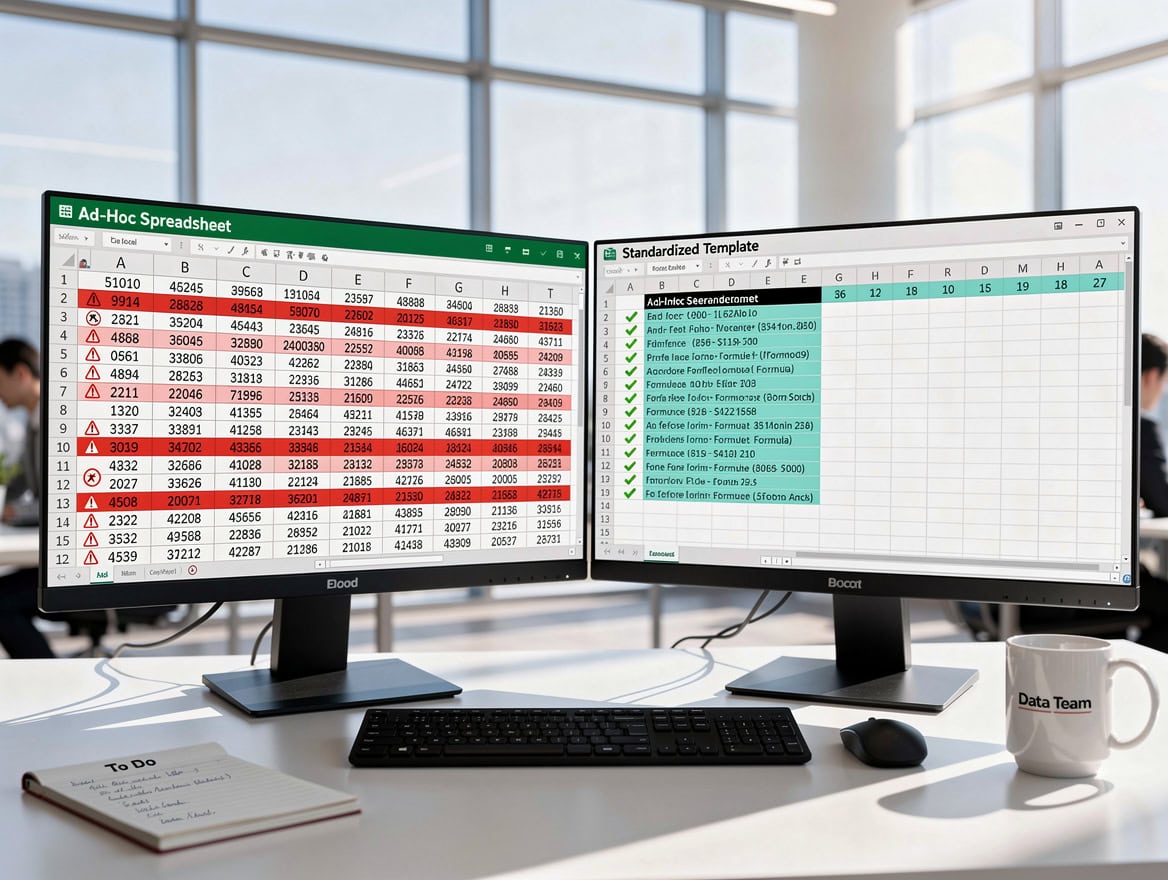
Hardcoded values in ad-hoc spreadsheets are the leading source of cash flow model errors — standardized templates eliminate this risk by design.
Complete Worked Example: Month-by-Month Cash Flow Projection
Here is a realistic 3-month extract from an 18-month projection for a B2B service business with $25,000 in monthly recurring revenue, 30-day payment terms, and $18,500 in monthly fixed costs.
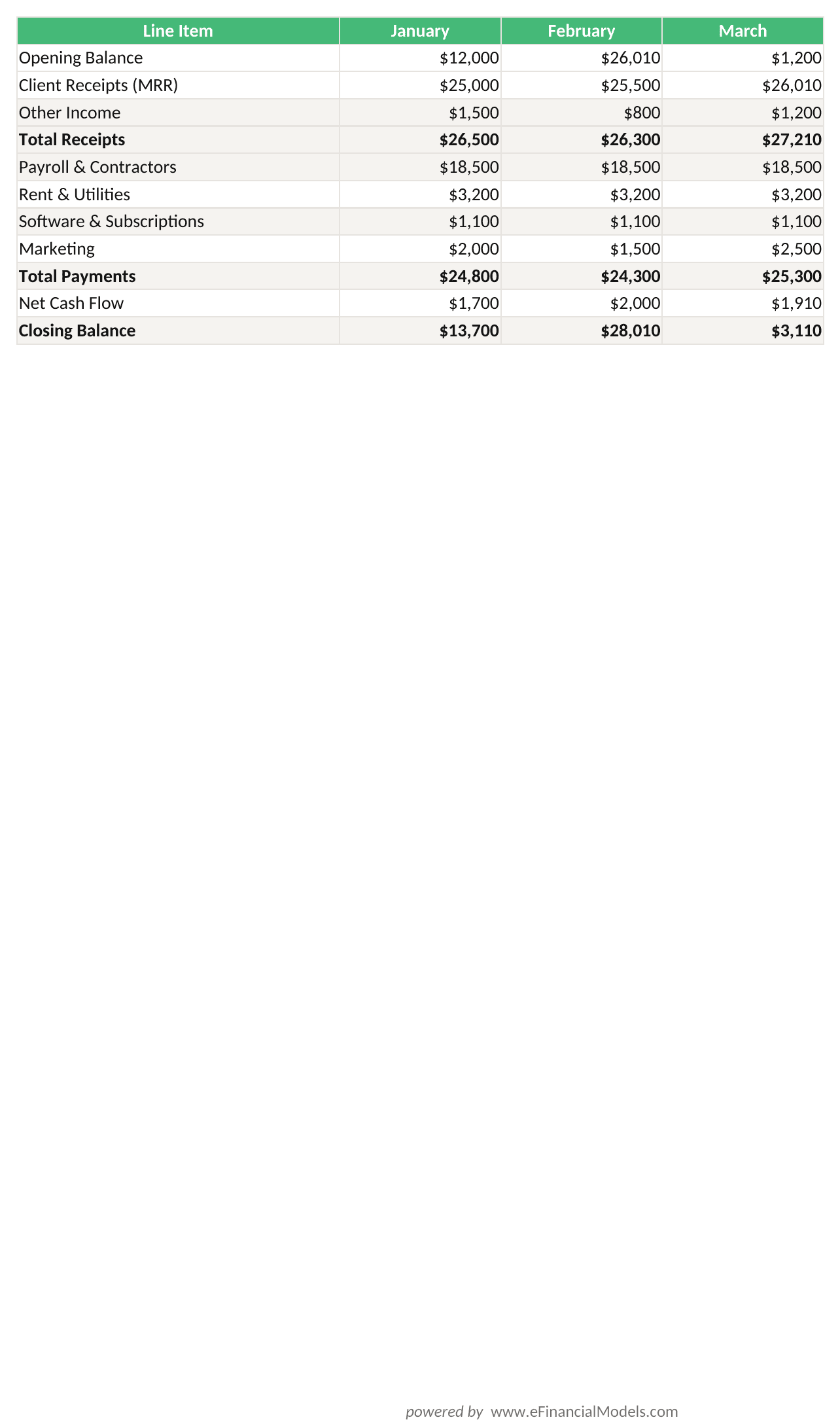
Closing balance = Opening balance + Total receipts – Total payments. The formula chain auto-updates: each month’s opening balance pulls from the prior month’s closing balance.
Reading the model: the business starts January with $12,000 in cash. February’s opening balance equals January’s closing balance of $14,200. By March, the closing balance reaches $16,400 — a healthy upward trend. If the conservative scenario (2% growth, 45-day collection period) were active, February receipts would drop to $24,500 and the March closing balance would fall to $11,800, signaling a potential shortfall by month 6 that management can address now.
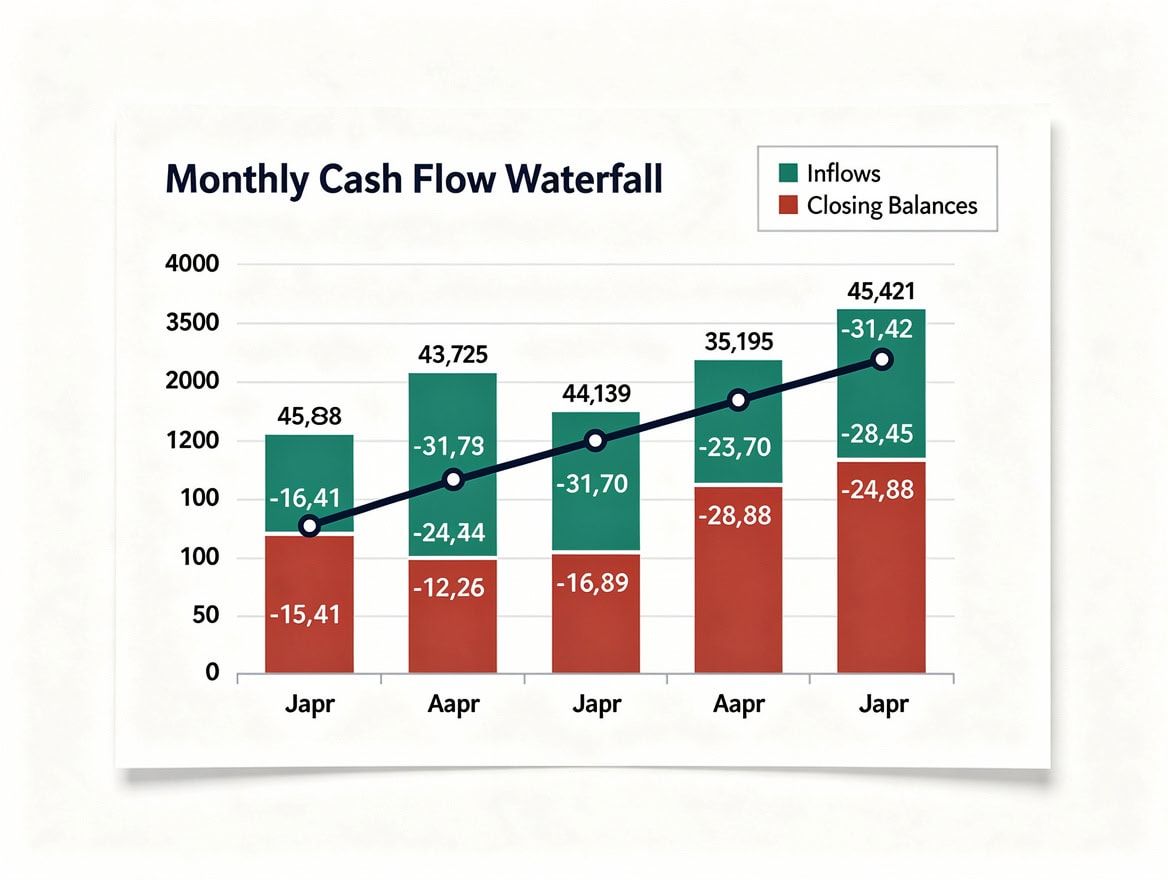
A waterfall view of monthly net cash flow makes it immediately visible which months require additional financing or tighter payment collection.
Common Cash Flow Projection Mistakes and How to Fix Them
Even experienced finance managers make these five errors. Each one has a direct fix inside the four-sheet architecture.
Mistake 1: Overestimating revenue
Optimistic sales targets are the fastest way to a forecast that collapses on contact with reality. Anchor your revenue line to conservative assumptions: use trailing actuals rather than best-case goals, and model your base case on the low end of your pipeline. In the Assumptions sheet, keep separate Base, Optimistic, and Conservative revenue growth inputs and drive the model from a scenario drop-down so you can pressure-test the downside before you commit to a number.
Mistake 2: Ignoring seasonality
A flat monthly average hides the peaks and troughs that actually break cash flow. Incorporate seasonality — and account for every fixed and variable cost across the year, not just the recurring ones. Feed at least 12–24 months of history into =FORECAST.ETS with the seasonality parameter set to 12 so Excel replicates your annual pattern, and build a seasonality index in the Assumptions sheet to weight high and low months explicitly.
Mistake 3: Underestimating expenses
Annual insurance premiums, quarterly tax installments, and semi-annual equipment maintenance don’t appear every month — but they devastate cash when they arrive unplanned. Add a dedicated “Irregular Payments” section in Projection Outputs and populate it from the Assumptions sheet using =IF(MONTH(A_date)=target_month, payment_amount, 0), then build an emergency cash buffer sized to your largest lumpy outflow so a single bad month can’t sink you.
Mistake 4: No cash reserve
Running with zero buffer means any timing mismatch becomes a crisis. Build all three scenarios from day one, and let the conservative case set your floor: if it shows a negative closing balance in any month, the size of that shortfall is your minimum cash reserve requirement. Hold that reserve as a hard constraint in the model rather than an afterthought.
Mistake 5: Not updating projections
A forecast that never gets compared to reality drifts into fiction. Review and adjust the model monthly: paste actual figures into the Historical Data sheet and use a variance column, =Actual - Forecast. A variance greater than 10% in either direction should trigger an assumption review so your projections stay honest.
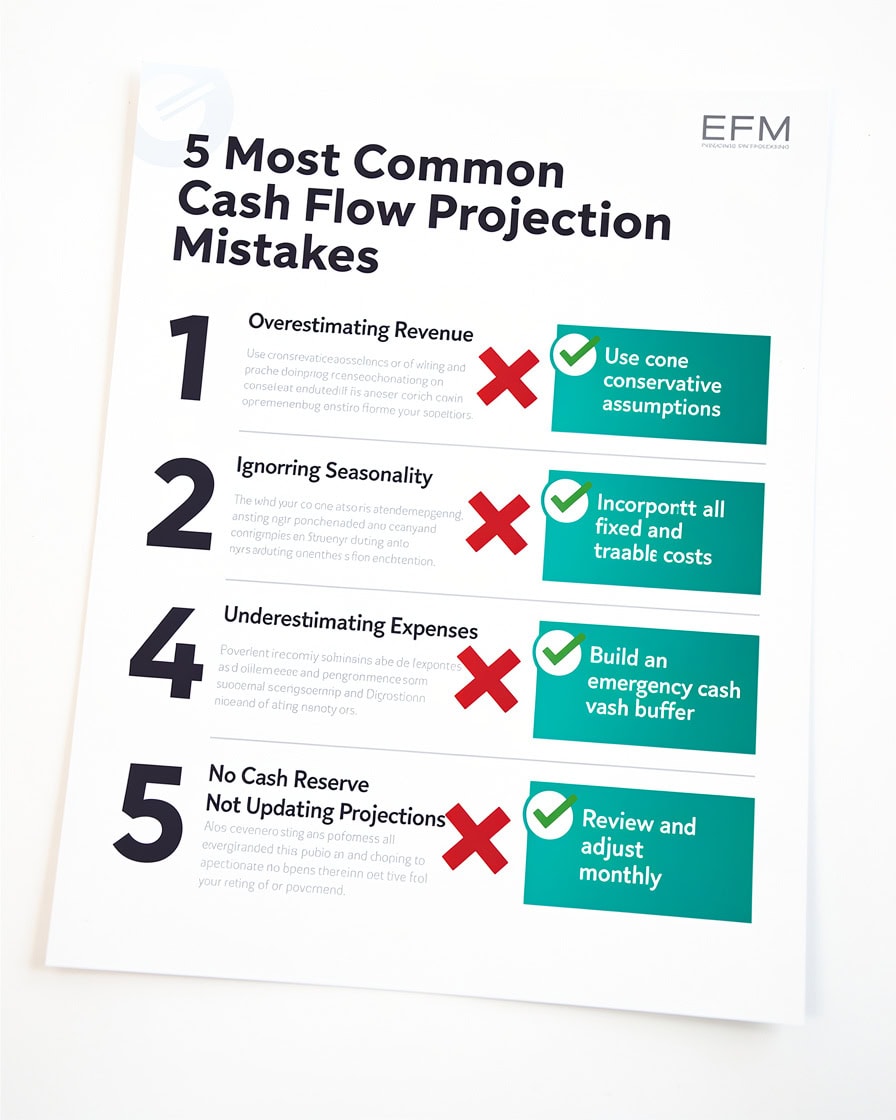
Overestimating revenue and running without a cash reserve are the two mistakes most likely to cause a forecast to diverge from reality within 90 days.
Frequently Asked Questions
How far ahead should a cash flow forecast go?
The professional standard is 18 months for operational and strategic planning purposes. This window covers two full seasonal cycles and satisfies most bank lending requirements and investor due diligence requests. For very early-stage startups (pre-revenue), a 12-month weekly forecast is more useful than an 18-month monthly one because cash burn is the primary concern and weekly granularity catches shortfalls faster. Once you reach consistent monthly revenue above $10,000, shift to the 18-month monthly format. According to Gusto (2022), the 18-month period specifically supports scenario analysis alongside day-to-day planning, making it the most versatile timeframe for growing businesses.
What is the difference between a cash flow forecast and a cash flow statement?
A cash flow statement (one of the three core financial statements) records what actually happened: cash received and paid during a completed period. A cash flow forecast projects what you expect to happen in future periods. The statement is backward-looking and used for reporting; the forecast is forward-looking and used for decision-making. In Excel, your Historical Data sheet holds the equivalent of past cash flow statements, while your Projection Outputs sheet is the forecast. Both use the same three categories: operating, investing, and financing activities. Lenders and investors typically want to see both: actuals for credibility and forecasts for planning.
How do I handle seasonal businesses in my Excel cash flow model?
Seasonal businesses should use FORECAST.ETS with the seasonality parameter set to 12 (for monthly data with annual cycles). This tells Excel to detect and replicate the seasonal pattern from your historical data rather than projecting a flat trend. For example, a retail business with 40% of annual revenue in November and December will see FORECAST.ETS automatically weight those months higher in the forecast. Supplement this with a seasonality index in your Assumptions sheet: divide each month’s historical average by the annual monthly average. A December index of 2.1 means December typically generates 2.1 times a normal month’s revenue. Multiply your base monthly forecast by this index for a manually adjusted alternative.
What is the minimum amount of historical data I need to build a credible forecast?
You need at least 12 months of historical data to capture one full seasonal cycle, but 24–36 months produces significantly more reliable projections. The U.S. Chamber of Commerce recommends 2–3 years as the professional standard for financial projections. With only 6 months of history, FORECAST.ETS cannot reliably detect seasonality, and you should use a fixed percentage growth assumption from your Assumptions sheet instead. If your business is under 12 months old, use industry benchmarks from SBA industry data or trade association reports as proxy history, clearly labeled as estimated in your Historical Data sheet.
How do I build a scenario toggle in Excel without maintaining three separate files?
Use a Data Validation drop-down in cell B1 of your Assumptions sheet with the list “Base,Optimistic,Conservative”. In a helper column (column E), use the INDEX/MATCH formula: =INDEX(B2:D2,MATCH($B$1,{"Base","Optimistic","Conservative"},0)). All Projection Outputs formulas reference column E only. When you select “Conservative” from the drop-down, every formula in the model instantly recalculates using conservative assumptions. This single-workbook approach eliminates version control problems, ensures all three scenarios use identical formula structures, and makes side-by-side comparison straightforward on the Dashboard sheet. Save a copy before major assumption changes as a version snapshot.
Can I use cash flow forecasting for investor pitches?
Yes, and investors specifically look for three things in a forecast: realistic assumptions grounded in historical data, a conservative scenario that shows you understand downside risk, and a clear path to positive operating cash flow. Present your 18-month base case as the primary exhibit, with the conservative scenario as a stress test. Show the assumptions driving each scenario explicitly — investors distrust black-box models. The four-sheet architecture described in this guide is investor-ready by design: the Assumptions sheet makes your inputs transparent, the Dashboard provides the visual summary investors want, and the Historical Data sheet demonstrates you’re anchoring projections in reality rather than wishful thinking.
What Excel version do I need for FORECAST.ETS?
FORECAST.ETS is available in Excel 2016 and all later versions, including Excel for Microsoft 365. It is not available in Excel 2013 or earlier. If you’re using an older version, the closest alternative is the FORECAST function (which performs simple linear regression without seasonality detection) or the combination of TREND and a manually built seasonality index. Excel for the web (browser-based) also supports FORECAST.ETS as of 2020. Google Sheets does not have a native FORECAST.ETS equivalent, though it offers a FORECAST function for linear projections. For professional cash flow modeling, Excel 2016 or Microsoft 365 is the recommended platform.
Build Your First Professional Cash Flow Forecast Today
Cash flow forecasting is not complicated when you have the right structure. The four-sheet architecture keeps your assumptions transparent, historical data anchored, and outputs automatically updated. FORECAST.ETS handles seasonality that simple growth formulas miss. Three scenarios replace false precision with a realistic range. And auto-updating balances eliminate the manual errors that turn spreadsheets into liabilities.
The 82% business failure rate tied to poor cash flow management is a preventable statistic. The businesses that survive are not necessarily smarter — they just see the shortfall coming in time to act.
I recommend downloading the EFM professional cash flow projection template to get started with a pre-built four-sheet workbook, automatic balance updates, and multi-scenario modeling already wired in. You can also explore the full library of financial forecasting models for industry-specific variants, or read the guide on why financial forecasting models are vital for your business if you want to build the case internally before presenting to stakeholders.
























































