
0 ITEMS

Excel Version Requirements: 2016+ on Windows and Mac
You need Excel 2016 or later to run modern financial models reliably on both Windows and Mac — anything older introduces formula gaps, format incompatibilities, and missing features that break professional templates.
Key Takeaways
- Excel 2016 is the minimum supported version for financial modeling on both Windows and Mac, with Excel 2019, 2021, and Microsoft 365 offering progressively better feature parity.
- Microsoft 365 receives monthly feature updates, while perpetual licenses (2016, 2019, 2021) are frozen at their release feature set — a critical distinction for teams using dynamic array functions.
- The .xlsx format (Open XML, introduced in Excel 2007) is the universal standard; legacy .xls files lose formatting and formula fidelity when opened in modern Excel.
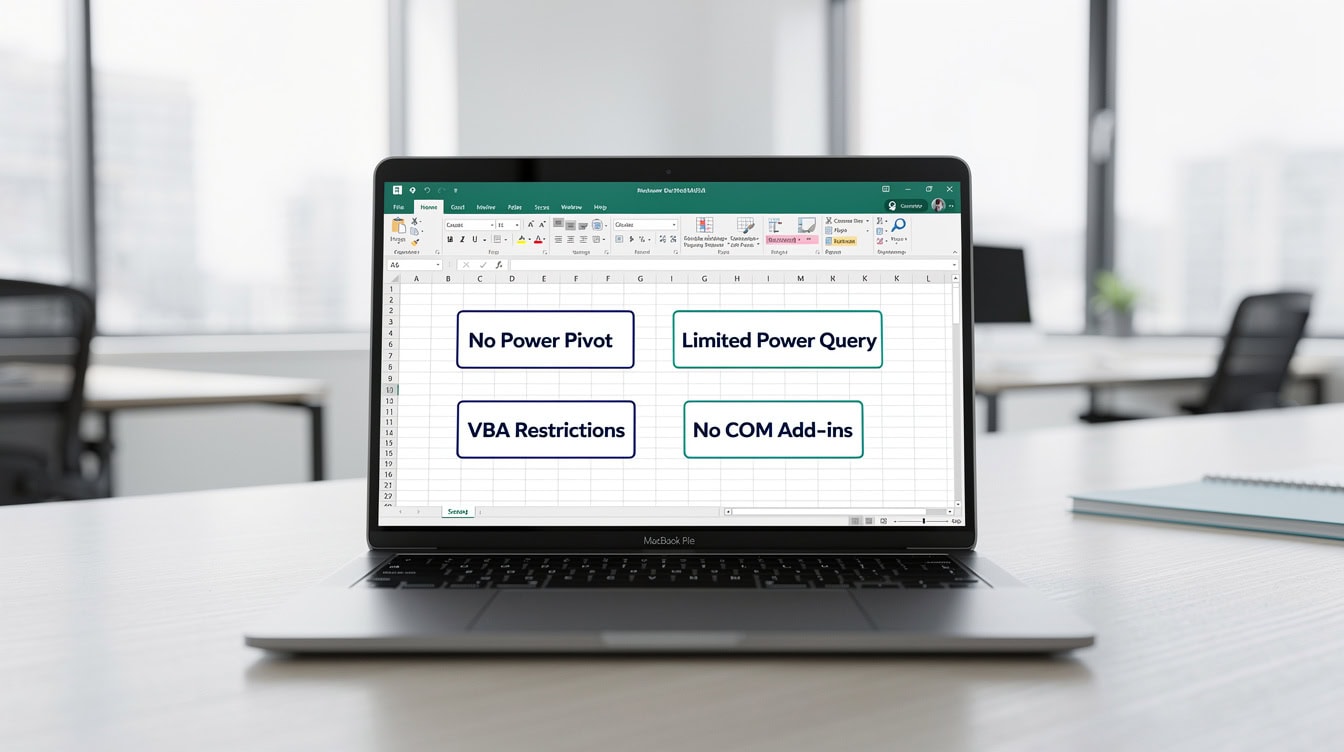
- Mac Excel lacks Power Pivot entirely and has limited Power Query support, which affects roughly 15–20% of advanced financial model workflows.
- Windows requires a minimum of 4 GB RAM and a 1 GHz processor for Excel 2016+; Mac requires macOS 10.14 Mojave or later for Excel 2021 and Microsoft 365.
- You can check your exact Excel version in under 30 seconds using File > Account > About Excel on Windows or Excel > About Microsoft Excel on Mac.
- Excel Online (Excel for the Web) runs in any modern browser with no installation, making it a viable fallback for basic compatibility needs.
Minimum Excel Version Requirements for Financial Modeling
Excel 2016 is the baseline version that supports the full set of functions, file formats, and add-in architectures used in professional financial models. Earlier versions — Excel 2013 and below — lack critical functions such as IFS, MAXIFS, MINIFS, and CONCAT, and they cannot reliably open .xlsx files that use structured table references or dynamic named ranges without data loss.
Here is why the 2016 cutoff matters in practice:
- Dynamic array functions (FILTER, SORT, UNIQUE, XLOOKUP) require Microsoft 365 or Excel 2021. These are not available in Excel 2016 or 2019 perpetual licenses.
- XLOOKUP replaces VLOOKUP with a more robust syntax and is unavailable in Excel 2016/2019 perpetual editions.
- IFS and SWITCH functions, introduced in Excel 2016, replace nested IF chains and are present in all 2016+ versions.
- Power Query (called Get & Transform in Excel 2016) is built into Excel 2016+ for Windows but has a reduced feature set on Mac.
Microsoft’s official lifecycle policy confirms that Excel 2016 mainstream support ended October 14, 2020, with extended security support running through October 14, 2025. Source Excel 2019 extended support runs through October 14, 2025 as well, while Excel 2021 extended support continues through October 13, 2026.
Plain English: If you’re buying a perpetual license today, Excel 2021 gives you the longest runway before end-of-support. Microsoft 365 has no end-of-support date because it updates continuously.
Excel for Mac: Version Compatibility and Known Limitations
Excel for Mac 2016, 2019, 2021, and Microsoft 365 all support the .xlsx format and the core function library used in financial modeling. However, Mac Excel has 4 documented feature gaps that matter for finance professionals.
Confirmed Mac-compatible versions:
| Excel Version | Min macOS | Dynamic Arrays | Power Query | Power Pivot | VBA Support |
|---|---|---|---|---|---|
| Excel 2016 for Mac | macOS 10.10 | No | Partial | No | Yes (limited) |
| Excel 2019 for Mac | macOS 10.13 | No | Partial | No | Yes (limited) |
| Excel 2021 for Mac | macOS 10.14 | Yes | Partial | No | Yes (limited) |
| Microsoft 365 (Mac) | macOS 10.15 | Yes | Partial | No | Yes (limited) |
Key Mac limitations for financial modelers:
- Power Pivot is unavailable on Mac. Power Pivot is a data modeling add-in that lets you build relationships between large datasets inside Excel. It exists only in Excel for Windows (Professional Plus or Microsoft 365). Any financial model that uses a Power Pivot data model will not open correctly on Mac.
- Power Query has reduced functionality on Mac. Power Query (the tool for importing and transforming external data) is available on Mac in Microsoft 365 but lacks several connectors available on Windows, including direct SQL Server and Oracle database connections.
- VBA macros run with limitations on Mac. VBA (Visual Basic for Applications) is the programming language embedded in Excel for automating tasks. Mac Excel supports VBA but does not support Windows-specific API calls, certain file system functions, or ActiveX controls. Macros that call Windows shell commands will fail on Mac.
- Some COM add-ins are Windows-only. COM add-ins (Component Object Model add-ins) are third-party extensions that plug into Excel. Many financial add-ins — including Bloomberg Terminal’s Excel add-in — require Windows.
Microsoft documents these platform differences in its Microsoft 365 and Office Resources page.
System Requirements: Windows vs Mac
The table below compares official minimum system requirements for Excel 2016+ on both platforms, sourced from Microsoft’s system requirements documentation.
| Requirement | Windows (Excel 2016+) | Mac (Excel 2016+) | Mac (Excel 2021 / M365) |
|---|---|---|---|
| Processor | 1 GHz, 32/64-bit | Intel processor | Intel or Apple Silicon |
| RAM | 4 GB (2 GB minimum) | 4 GB | 4 GB |
| Storage | 4 GB available | 10 GB available | 10 GB available |
| OS Version | Windows 10 or later | macOS 10.10+ | macOS 10.14+ (Mojave) |
| Display | 1024 x 768 | 1280 x 800 | 1280 x 800 |
| Internet | Required for M365 activation | Required for M365 activation | Required for M365 activation |
Microsoft 365 for Mac requires macOS 10.15 Catalina or later as of the 2023 update cycle. Source This means Macs running macOS Mojave (10.14) can no longer receive Microsoft 365 updates and are effectively frozen at their last compatible build.
For financial modeling workloads — large datasets, complex array formulas, multiple pivot tables — Microsoft recommends 8 GB RAM and a multi-core processor, even though 4 GB is the stated minimum. A model with 500,000 rows and 20 calculated columns will recalculate noticeably faster on 16 GB RAM than on 4 GB.
Excel File Format Specifications
The .xlsx format is the correct file format for all modern Excel financial models. It is the default save format for Excel 2007 and later on both Windows and Mac.
The three formats you need to know:
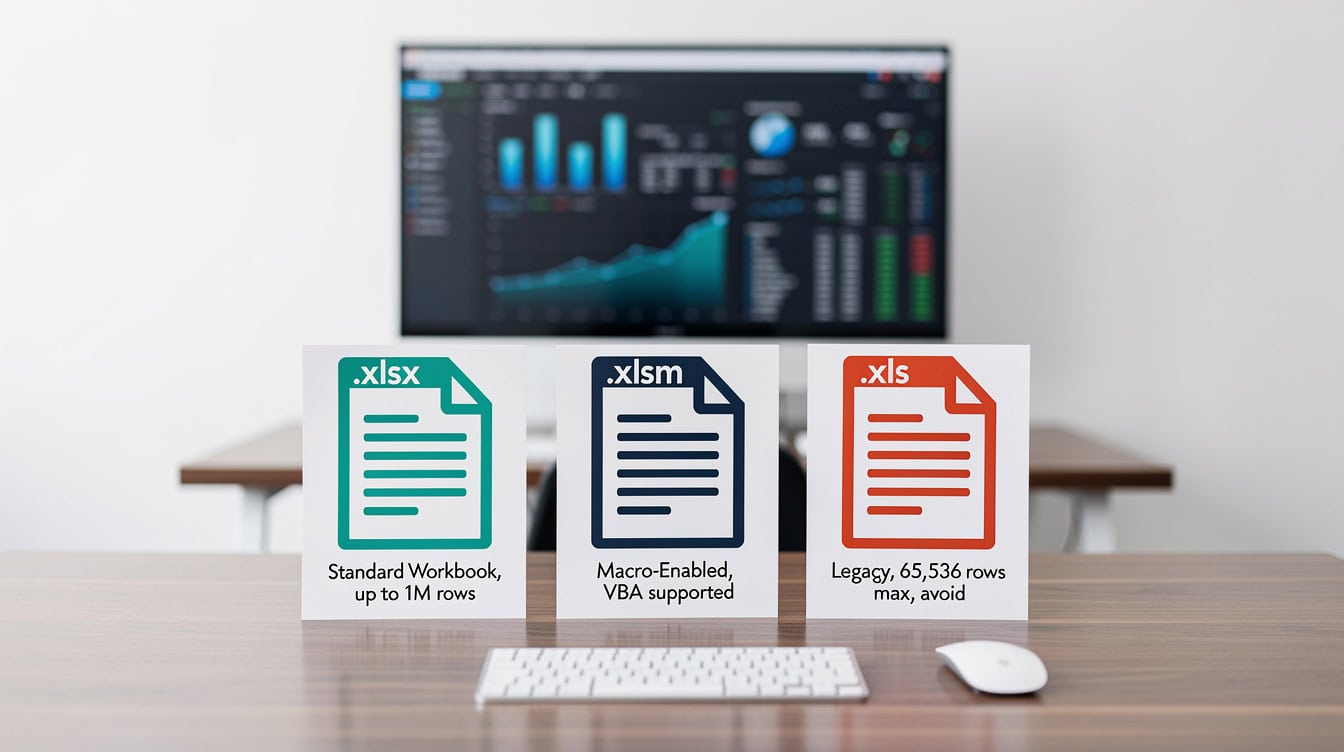
- .xlsx (Open XML Workbook): The standard format. Open XML is an ISO-standardized file format (ISO/IEC 29500) that stores spreadsheet data as compressed XML files inside a .zip container. It supports up to 1,048,576 rows and 16,384 columns per sheet. Source Use this for all financial models without macros.
- .xlsm (Macro-Enabled Workbook): Identical to .xlsx but allows embedded VBA macros. If your financial model includes automated calculations, scenario runners, or custom buttons driven by VBA, save it as .xlsm.
- .xls (Legacy Binary Format): The format used by Excel 97–2003. It supports a maximum of only 65,536 rows and 256 columns. Opening an .xls file in modern Excel triggers Compatibility Mode, which disables newer functions. Avoid this format entirely for new work.
Backward compatibility note: Excel 2016+ can open .xls files, but saving back to .xls strips out any features introduced after Excel 2003 — including structured tables, sparklines, and slicers. Always convert legacy .xls files to .xlsx before distributing financial models.
Microsoft 365 vs Perpetual License
Microsoft 365 and perpetual licenses (Excel 2019, Excel 2021) serve different needs. The right choice depends on whether your team needs the latest functions or prefers a fixed, predictable cost.
Microsoft 365 (subscription):
- Billed annually or monthly (Microsoft 365 Personal, Family, or Business plans)
- Receives new features continuously — dynamic array functions, XLOOKUP, and LAMBDA were all delivered first to Microsoft 365 subscribers
- Requires internet activation every 30 days
- Always runs the latest version; no manual upgrades
Perpetual license (Excel 2019 or 2021):
- One-time purchase, no recurring fee
- Feature set is fixed at the release date — no new functions added after purchase
- Excel 2021 perpetual includes dynamic arrays and XLOOKUP, which Excel 2019 perpetual does not
- Supported with security patches until end-of-support date (Excel 2021: October 2026)
For financial modeling teams that use XLOOKUP, LAMBDA, or dynamic array formulas, Microsoft 365 is the practical choice because it guarantees access to the full modern function library. Excel 2021 perpetual is a reasonable alternative if your organization prohibits subscription software.
How to Check Your Current Excel Version
You can identify your exact Excel version in under 30 seconds using the steps below. Knowing your version number is essential before purchasing a financial model template or troubleshooting a formula error.
On Windows:
- Open Excel.
- Click File in the top-left ribbon.
- Select Account from the left sidebar.
- Under “Product Information,” click About Excel.
- The version number and build appear in the dialog box (example: Version 2308, Build 16.0.16731.20234).
On Mac:
- Open Excel.
- Click the Excel menu in the top-left menu bar (next to the Apple logo).
- Select About Microsoft Excel.
- The version number appears immediately (example: Version 16.76, Build 23081101).
Interpreting the version number: On both platforms, version numbers starting with 16.x correspond to Excel 2016 through Microsoft 365. Version 15.x is Excel 2013. Version 14.x is Excel 2011 for Mac. If your version number is below 16.0, upgrade before using modern financial model templates.
Excel Online as a Cross-Platform Alternative
Excel Online (also called Excel for the Web) runs entirely in a browser with no installation required. It is a viable option for viewing and light editing of financial models when a full desktop installation is unavailable.
What Excel Online supports:
- Opening and saving .xlsx files stored in OneDrive or SharePoint
- Core functions including SUM, IF, VLOOKUP, INDEX/MATCH, and most statistical functions
- Basic pivot tables and charts
- Real-time co-authoring with other users
What Excel Online does not support:
- VBA macros (macros are disabled entirely in the browser version)
- Power Query and Power Pivot
- Complex array formulas in older syntax
- Most third-party add-ins
Excel Online works in Microsoft Edge, Google Chrome, Firefox, and Safari — any browser released after 2018 handles it without issues. It requires a free Microsoft account or a Microsoft 365 subscription for full editing rights. Read-only viewing is free for anyone with a link to a shared file.
For finance professionals who need to share a model with a client who lacks Excel, Excel Online is the cleanest solution: share a OneDrive link, and the recipient can view every formula and chart in their browser without installing anything.
Common Compatibility Mistakes and How to Fix Them
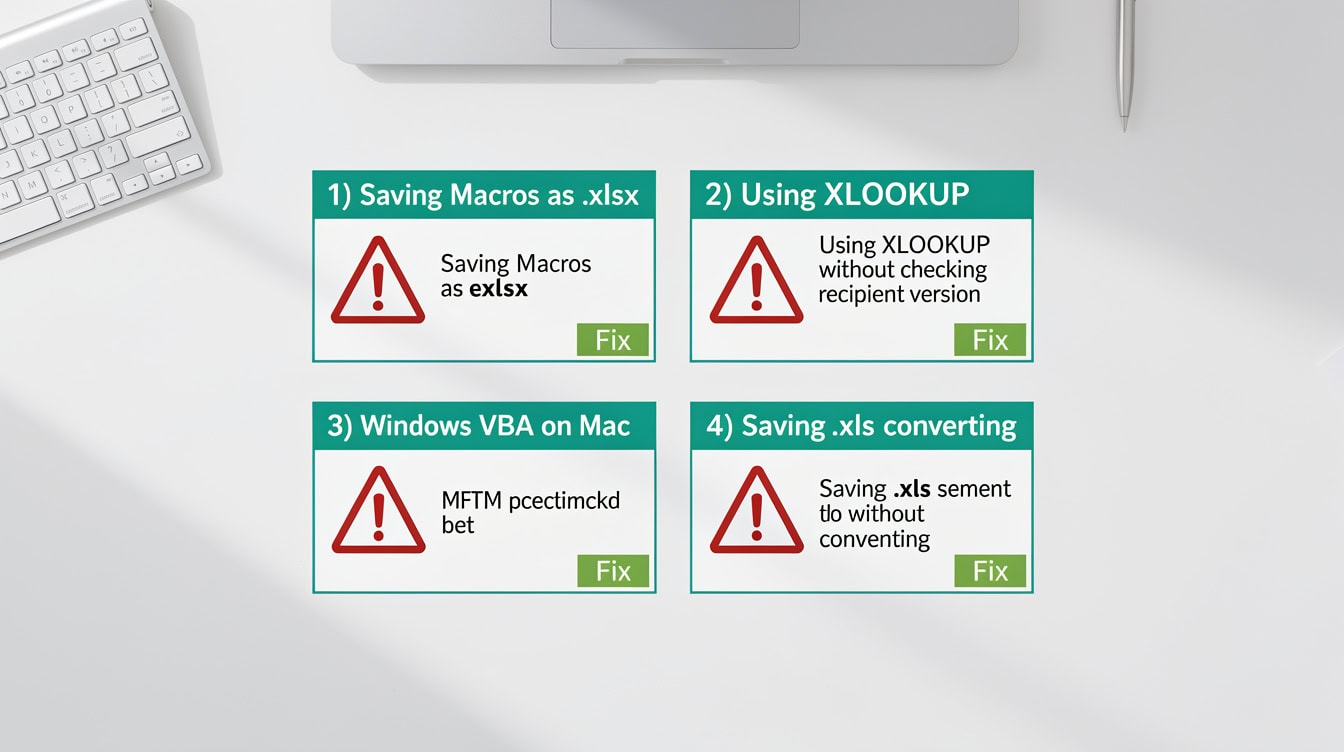
These 4 mistakes account for the majority of Excel compatibility issues reported by financial modeling teams.
Mistake 1: Saving a macro-enabled model as .xlsx
If you save a workbook containing VBA macros as .xlsx, Excel strips all macros silently. The file opens without errors, but all automation is gone. Fix: always save macro-enabled workbooks as .xlsm.
Mistake 2: Using dynamic array functions in a shared model without confirming recipient version
Functions like FILTER, SORT, and XLOOKUP return a #NAME? error in Excel 2019 perpetual and all Excel 2016 versions. Fix: confirm all recipients use Microsoft 365 or Excel 2021 before using these functions, or provide an INDEX/MATCH fallback version.
Mistake 3: Assuming a Windows VBA macro works on Mac
Macros that use Windows-specific commands — such as Shell(), CreateObject(“WScript.Shell”), or any ActiveX reference — fail on Mac with a runtime error. Fix: test all macros on Mac before distributing, or document that the model requires Windows.
Mistake 4: Opening an .xls file and saving changes without converting
Excel opens .xls files in Compatibility Mode and warns you, but many users dismiss the warning and save. This preserves the .xls format and its 65,536-row limit. Fix: immediately convert to .xlsx using File > Save As and selecting the .xlsx format.
Frequently Asked Questions About Excel Compatibility
Which Excel version do I need to run professional financial model templates?
You need Excel 2016 or later on either Windows or Mac to run most professional financial model templates. Excel 2016 supports structured tables, Power Query (Windows), and the IFS/MAXIFS/MINIFS functions that modern templates rely on. If the template uses XLOOKUP or dynamic array functions like FILTER or SORT, you need Microsoft 365 or Excel 2021 — these functions return a #NAME? error in Excel 2016 and 2019 perpetual licenses. Before purchasing any template, check the product page for its stated minimum version requirement. Most EFM templates specify Excel 2016+ and flag any Microsoft 365-only features explicitly.
Will Excel financial model templates work on a Mac?
Yes, Excel financial model templates work on Mac for the vast majority of use cases. Excel for Mac 2016, 2019, 2021, and Microsoft 365 all open .xlsx and .xlsm files correctly and support the core function library. The exceptions are templates that use Power Pivot data models (unavailable on Mac entirely), Windows-specific VBA macros (Shell commands, ActiveX controls), or COM add-ins like Bloomberg’s Excel plug-in. If you’re on a Mac and a template description mentions Power Pivot or Windows-only macros, contact the template provider before purchasing. Roughly 80–85% of financial model templates on the market work without modification on Mac.
What is the difference between .xlsx and .xlsm file formats?
The .xlsx format is the standard Excel workbook format introduced in Excel 2007. It stores data, formulas, charts, and formatting but does not allow embedded VBA macros. The .xlsm format is identical in every way except that it permits VBA macros to be saved inside the file. If you open an .xlsm file and your organization’s IT policy blocks macros, the file opens but all macro-driven buttons and automation are disabled. You can still read all formulas and data. The .xls format is the legacy binary format from Excel 97–2003 and supports only 65,536 rows — avoid it for any new financial modeling work.
Does Microsoft 365 work differently from Excel 2021 for financial modeling?
Microsoft 365 and Excel 2021 share the same core function library as of their respective release dates, including dynamic arrays, XLOOKUP, and LAMBDA. The key difference is that Microsoft 365 receives new functions and features continuously — for example, the GROUPBY and PIVOTBY functions were added to Microsoft 365 in 2023 and are not available in Excel 2021 perpetual. For most financial modeling work, Excel 2021 perpetual is functionally equivalent to Microsoft 365. The practical gap widens over time as Microsoft 365 adds new capabilities. Microsoft 365 also includes 1 TB of OneDrive storage and Teams integration, which perpetual licenses do not.
How do I know if my Mac’s macOS version is compatible with Excel?
For Microsoft 365 on Mac, your Mac must run macOS 10.15 Catalina or later as of the current update cycle. For Excel 2021 for Mac, the minimum is macOS 10.14 Mojave. For Excel 2019 for Mac, the minimum is macOS 10.13 High Sierra. To check your macOS version, click the Apple logo in the top-left corner of your screen and select “About This Mac.” The macOS version number appears immediately. If your Mac runs macOS 10.13 or earlier, you cannot install Excel 2021 or Microsoft 365, and you should consider upgrading your operating system or hardware before purchasing a financial model template that requires modern Excel features.
Can I use Excel Online instead of installing Excel on my computer?
Excel Online works well for viewing financial models and performing basic edits, but it has significant limitations for professional financial modeling. It does not support VBA macros, Power Query, Power Pivot, or most third-party add-ins. Complex array formulas and large datasets (100,000+ rows) can be slow or unstable in the browser. Excel Online is best used as a sharing and review tool — for example, sending a model to a client who needs to view it without installing Excel. For building, editing, or running financial models professionally, the desktop version of Excel 2016 or later is the correct tool. Excel Online is free with a Microsoft account and requires no installation.
What happens if I open an Excel 2021 file in Excel 2016?
Opening an Excel 2021 file in Excel 2016 triggers Compatibility Mode if the file uses features unavailable in Excel 2016. Specifically, any cell containing a dynamic array function (FILTER, SORT, UNIQUE, XLOOKUP) displays a #NAME? error because Excel 2016 does not recognize those function names. The rest of the workbook — formulas using SUM, IF, INDEX/MATCH, pivot tables, charts — opens and calculates correctly. Excel 2016 also cannot spill dynamic array results across multiple cells; it treats the formula as a single-cell entry. If you distribute a model to users on Excel 2016, replace all dynamic array functions with INDEX/MATCH or IFERROR/VLOOKUP equivalents before sharing.
Conclusion
Excel 2016 is the minimum version for professional financial modeling, with Microsoft 365 or Excel 2021 required for dynamic array functions and XLOOKUP. Mac users can run the full range of .xlsx-based financial models with the exception of Power Pivot and Windows-specific VBA macros. Always save models as .xlsx (or .xlsm for macro-enabled files), confirm recipient versions before using modern functions, and verify your macOS version before installing Excel.
I recommend downloading the EFM Excel financial model templates — every template in the library is built for Excel 2016+ on both Windows and Mac, with version compatibility clearly documented on each product page. If you’re building a model from scratch, the Full Inventory Management System and the SaaS Financial Model Excel Template are two strong starting points that demonstrate best-practice Excel compatibility across platforms.
























































