
0 ITEMS

Excel Budget Spreadsheets: Step-by-Step Guide

A budget spreadsheet is only as good as the structure behind it. This guide walks you through building a professional Excel budget from a blank workbook: how to organize your sheets, which formulas do the heavy lifting, how to set up conditional formatting that flags overspending automatically, and how the pieces fit together in a full worked example. Follow the steps in order and you will finish with a file you can actually maintain month after month.
Key Takeaways
- Households that track spending are more than 2x as likely to report no financial worries (41% vs. 18%), according to the Consumer Financial Protection Bureau.
- Only 40% of U.S. adults maintain a budget with close tracking of income and spending, per Federal Reserve data, meaning 60% of people leave money management to chance.
- Budgeters are 22 percentage points more likely to hold 3+ months of emergency savings (54% vs. 32%), per the National Foundation for Credit Counseling.
- A four-sheet workbook structure (Income, Expenses, Tracker, Dashboard) gives you the cleanest architecture for a professional Excel budget.
- The core formula trio you need is:
=SUM()for totals,=SUMIF()for category subtotals, and=(Actual-Budget)/Budgetfor variance percentage. - Conditional formatting rules (red fill for >10% over budget, green for under) turn raw numbers into instant visual alerts without any manual review.
- Pre-built Excel budget templates cut setup time from hours to minutes and include industry-standard category structures.
Why Excel Remains the Professional Standard for Budget Spreadsheets
Excel dominates budget spreadsheet work because it combines formula power, full customization, and zero subscription cost in a tool that finance professionals already use daily. No other platform gives you the same combination of conditional logic, pivot tables, and chart automation in a single file you fully control.
Nearly every finance professional works in spreadsheets, and Excel remains the default. Its formula engine, named ranges, and macro capabilities let a single file scale from a personal monthly budget to a multi-entity business model without switching platforms. A single Excel workbook can hold up to 1,048,576 rows and 16,384 columns (Microsoft), enough to log years of transactions.
If you want to explore ready-made structures, the EFM Excel financial models library offers templates built to professional standards across dozens of use cases.
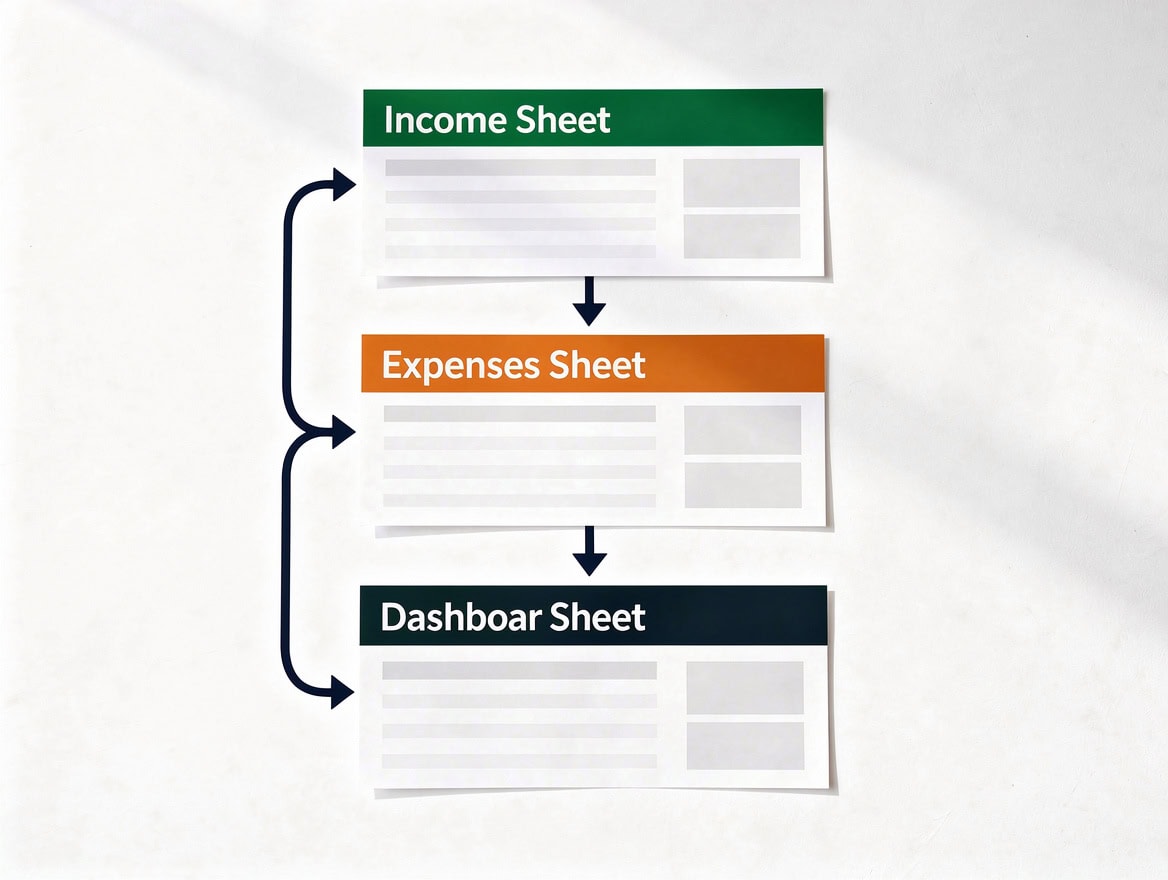
The four-sheet workbook structure separates raw data from calculations and reporting, the same architecture used in professional financial models.
The Financial Impact of Structured Budgeting: What the Data Shows
Structured budgeting produces measurable, documented financial outcomes, not just a feeling of control. The research is consistent across multiple federal and nonprofit sources.
The savings picture explains why tracking matters. In 2022, 37% of U.S. adults said they could not cover a $400 emergency expense using cash or its equivalent (Federal Reserve, 2023), up from 32% the year before. That single figure makes an emergency-fund tracking cell one of the most valuable rows in your spreadsheet.
Yet budgeting itself remains the exception. Just 42% of U.S. adults say they have a budget and keep close track of what they spend on food, housing, and entertainment — a share that has barely moved since 2007 (NFCC Consumer Financial Literacy Survey, 2019). Insufficient rainy-day savings ranks as the second-biggest financial worry Americans name, cited by 14%. The gap between those two numbers is what this guide addresses.

CFPB data shows budgeters are more than twice as likely to report no financial worries — a 23-percentage-point gap that compounds over time.
Budget Spreadsheet Architecture: Workbook Structure and Sheet Organization
A professional Excel budget uses four dedicated sheets inside one workbook, each with a specific function. This separation keeps raw data, calculations, and reporting in distinct layers, which prevents formula errors and makes auditing straightforward.
| Sheet Name | Purpose | Key Columns |
|---|---|---|
| Income | Record all income sources by month | Source, Gross Amount, Net Amount, Month |
| Expenses | Log every expense with category tags | Date, Description, Category, Amount, Fixed/Variable |
| Tracker | Budget vs. Actual comparison by category | Category, Budget, Actual, Variance $, Variance % |
| Dashboard | KPI summary and charts | Savings Rate, Burn Rate, Top 3 Overspend Categories |
Naming conventions that prevent errors:
- Name your income range
Income_Datausing the Name Box (the cell reference box top-left). - Name your expense range
Expense_Data. - Named ranges (labels you assign to a cell or range so formulas can reference them by name instead of coordinates) make formulas readable:
=SUM(Income_Data)is clearer than=SUM(Income!B2:B50). - Use a consistent date format (YYYY-MM-DD) in column A of both the Income and Expenses sheets to enable date-based filtering.
Freeze the top row on every sheet (View > Freeze Panes > Freeze Top Row) so headers stay visible as you scroll. To lock rows and columns at the same time, select the cell just below and to the right of what you want frozen, then choose View > Freeze Panes > Freeze Panes — everything above and to the left of that cell stays put (Microsoft). Each sheet holds one freeze configuration, so applying a new one replaces the old; use Unfreeze Panes to clear it.

Named ranges like ‘Income_Data’ make formulas readable and reduce errors when rows are added or moved.
Setting Up Your Income Tracking System: Formulas and Categories
Your income sheet should capture gross income (total earnings before any deductions) and net income (take-home pay after taxes, insurance, and retirement contributions) in separate columns. This distinction matters because your budget runs on net income, but tracking gross helps you verify payroll accuracy and plan tax estimates.
Income sheet structure (columns A through E):
| A | B | C | D | E |
|---|---|---|---|---|
| Month | Source | Gross | Deductions | Net |
| Jan | Salary | 7500 | 1500 | =C2-D2 |
Enter amounts as plain numbers and format columns C through E as currency. Typing the dollar sign and comma by hand can register the entry as text, which breaks any formula referencing it.
Handling multiple income streams:
If your income is irregular (freelance, commissions, rental), a 3-month trailing average smooths the baseline. The first month you can calculate one is the third, so the formula starts in F4:
=AVERAGE(E2:E4)Fill down from F4. Each cell then averages that month and the two before it. Leave F2 and F3 empty — there isn’t enough history yet. Use this rolling figure as your budget input rather than the most recent single month.
Period total (place it below the data, not inside it):
=SUM(E2:E20)Put this in E22 or lower. If it sits inside E2:E20, Excel returns a circular reference error. Adjust the range to your actual row count and label the adjacent cell “Total Net Income (Period)” — this is a sum across all rows, not a monthly figure. For a monthly average, use =AVERAGE(E2:E20) instead.

Separating gross and net income columns, then adding a 3-month rolling average, gives irregular earners a stable planning baseline.
Building Your Expense Framework: Category Hierarchy and Cell Structure
Expense categories should follow a two-level hierarchy: major categories (Housing, Transportation, Food) with subcategories beneath each. Give every row its own Major Category column alongside the subcategory — SUMIF needs a column to match against, and tagging each row is what lets subcategory totals roll into major category totals automatically:
=SUMIF(B:B,"Housing",D:D)This sums every amount in column D whose major category in column B reads “Housing.”
Recommended category allocation using the 50/30/20 framework. Popularised by Elizabeth Warren and Amelia Warren Tyagi in All Your Worth: The Ultimate Lifetime Money Plan (2005), the framework splits after-tax income three ways: 50% to needs, 30% to wants, and 20% to savings and debt repayment.
| Major Category | Subcategories | Target % of Net Income |
|---|---|---|
| Housing | Rent/Mortgage, Utilities, Insurance | 25-30% |
| Transportation | Car Payment, Fuel, Insurance, Transit | 10-15% |
| Food | Groceries, Dining Out | 10-15% |
| Healthcare | Insurance, Prescriptions, Copays | 5-8% |
| Savings/Investments | Emergency Fund, Retirement, Goals | 20% |
| Discretionary | Entertainment, Clothing, Subscriptions | 10-15% |
| Debt Repayment | Student Loans, Credit Cards | 5-10% |
Expense sheet structure (columns A through D):
| A | B | C | D |
|---|---|---|---|
| Date | Description | Category | Amount |
Use data validation (explained in the next section) on column C to restrict entries to your approved category list. This prevents typos that break your SUMIF formulas.
Core Budget Formulas: Calculations Every Spreadsheet Needs
Six formulas cover the calculations most budget spreadsheets rely on. Each uses the sheet and cell references from the architecture above, plus a Tracker sheet holding one row per category with Budget in column B and Actual in column C.
1. Category subtotal using SUMIF
SUMIF adds values in a range only where a corresponding cell meets a condition you specify. It is the workhorse of expense tracking:
=SUMIF(Expenses!C:C,"Housing",Expenses!D:D)This scans column C of the Expenses sheet for “Housing” and sums the matching amounts in column D. The third argument is optional — omit it and Excel sums the same range the criteria was applied to (Microsoft). Keep category names short: Microsoft documents that SUMIF returns incorrect results when matching strings longer than 255 characters, and it fails silently rather than throwing an error.
2. Variance in dollars
=Tracker!C2-Tracker!B2Where B2 = Budget and C2 = Actual. A negative result means you spent less than budgeted (favourable). A positive result means you overspent.
3. Variance as a percentage
=IFERROR((C2-B2)/B2,"")Format this cell as a percentage. A result of 0.12 displays as 12%, meaning you spent 12% more than budgeted. The IFERROR wrapper returns a blank instead of #DIV/0! for categories with a zero budget.
4. Savings rate
=(TotalIncome-TotalExpenses)/TotalIncomeReplace TotalIncome and TotalExpenses with your named ranges or cell references. Under the 50/30/20 framework, 20% of after-tax income covers savings and debt repayment combined, so treat 20% as the floor for that bucket rather than for savings alone.
5. Conditional IF alert
=IF(C2>B2,"OVER BUDGET","On Track")Place this in column E of your Tracker sheet. It displays a plain-text alert whenever actual spending exceeds the budget for that category.
6. Monthly total by date range
=SUMIFS(Expenses!D:D,Expenses!A:A,">="&$G$1,Expenses!A:A,"<"&EDATE($G$1,1))SUMIFS is the multi-condition version of SUMIF. Put the first day of the month you want in cell G1; EDATE advances one month from there, so the formula captures that month only and updates when you change G1. This avoids hardcoding dates that go stale.

These three formulas handle category subtotals, dollar variance, and percentage variance — the core calculation layer of any professional budget spreadsheet.
Worked Example: Complete Monthly Budget With Real Numbers
Here is a complete one-month budget for a household with $6,000 net monthly income. Every figure feeds into the formulas described above.
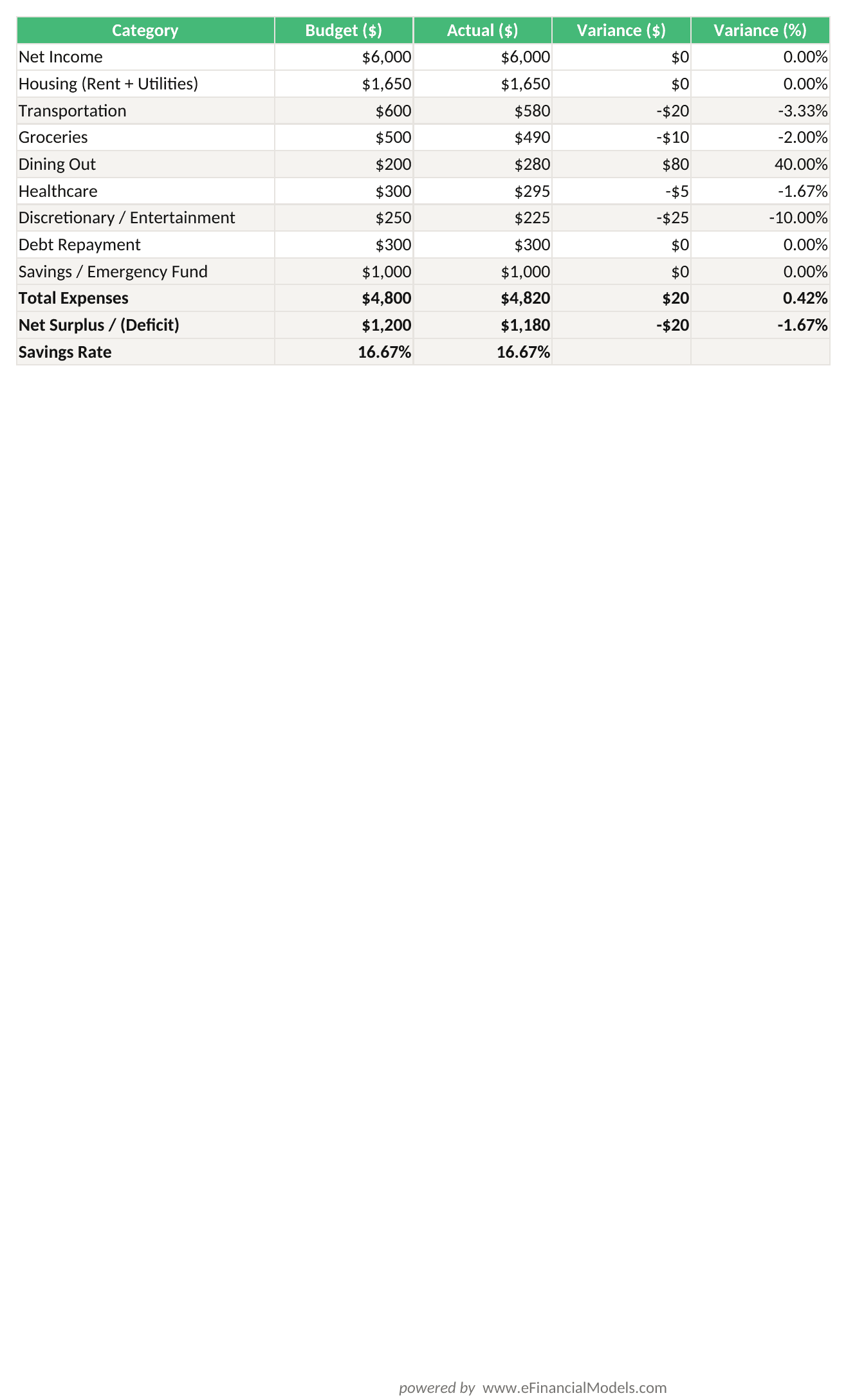
Budget vs. Actual for a $6,000/month household. Variance % formula: =(Actual-Budget)/Budget. Green = under budget, Red = over budget.
Reading the results: The household budgeted $6,000 and spent $5,820, producing a $180 favorable variance (3% under budget). The savings rate is 16.7% ($1,000 saved / $6,000 income), which is below the 20% target. The fix: reduce Dining Out by $80 and redirect it to savings, closing the gap to 18%. One formula change in the budget column shows the impact instantly.

Conditional formatting on the variance column turns a data table into an instant visual audit — red means action required, green means on track.
Adding Intelligence: Data Validation, Conditional Formatting, and Error Prevention
Data validation and conditional formatting transform a static spreadsheet into a self-auditing financial tool. Data validation restricts what users can enter into a cell; conditional formatting changes a cell’s color or style automatically based on its value.
Setting up a category dropdown (data validation):
Select column C on your Expenses sheet.
Go to Data > Data Validation > Allow: List.
In the Source field, type your categories separated by commas, or reference a named range: =CategoryList.
Check “Show error alert” and set Style to “Stop” with the message: “Please select a valid category.”
This prevents the typo “Housng” from breaking your SUMIF formula for “Housing.”
Conditional formatting rules for the Tracker sheet:
| Rule | Format | Applied To |
|---|---|---|
| Variance % > 10% | Red fill, white bold text | Variance % column |
| Variance % between 0% and 10% | Yellow fill | Variance % column |
| Variance % < 0% | Green fill | Variance % column |
| Savings Rate < 10% | Red fill | Dashboard KPI cell |
To apply: Select your Variance % column > Home > Conditional Formatting > New Rule > “Format cells that contain” > set your threshold and choose your fill color.Three error-prevention formulas:
Check that income and expense totals balance: =IF(ABS(TotalIncome-TotalExpenses-NetSavings)>1,”CHECK TOTALS”,”OK”)
Flag blank category entries: =COUNTBLANK(Expenses!C2:C200) — any result above 0 means uncategorized transactions exist.
Detect duplicate entries: =COUNTIFS(Expenses!A:A,A2,Expenses!D:D,D2,Expenses!B:B,B2)>1 returns TRUE if a row appears more than once.

A data validation dropdown linked to a named range prevents the category typos that silently break SUMIF formulas.
Creating Your Budget Dashboard: Visualization and KPI Tracking
Your Dashboard sheet should display four KPI cells and two charts, all linked to your Tracker sheet with direct cell references so they update automatically when you enter new data.
Four KPI cells to build:
Savings Rate: =(TotalIncome-TotalExpenses)/TotalIncome — format as percentage.
Monthly Surplus/Deficit: =TotalIncome-TotalExpenses — format as currency.
Largest Overspend Category: =INDEX(CategoryList,MATCH(MAX(VarianceRange),VarianceRange,0)) — returns the category name with the highest overspend.
Emergency Fund Coverage (months): =EmergencyFundBalance/AvgMonthlyExpenses — shows how many months your savings would cover.
Two charts that tell the budget story:
Donut chart for spending by category: Select your Category and Actual columns on the Tracker sheet > Insert > Donut Chart. A donut chart (a circular chart with a hollow center that shows proportional values) makes category weight immediately visible. Label each segment with its percentage.
Line chart for income vs. expenses over time: Use your monthly totals from the Tracker sheet across 12 months. Insert > Line Chart with two series: Total Income and Total Expenses. When the expense line crosses above the income line, you have a deficit month that needs investigation.
Small business adaptation: Replace the Income sheet’s salary rows with Revenue categories (Product Sales, Service Revenue, Other Income) and add a COGS (Cost of Goods Sold) section between Revenue and Operating Expenses. Your key KPI shifts from Savings Rate to Gross Margin: =(Revenue-COGS)/Revenue. The Tracker sheet structure stays identical; only the category labels change.

A four-KPI dashboard with two charts gives you a complete financial snapshot in under 30 seconds — no manual calculation required.
Common Mistakes and How to Fix Them
These five mistakes account for the majority of broken Excel budget spreadsheets.
- Hardcoding totals instead of using formulas. If you type $3,200 as your expense total instead of using =SUM(D2:D50), the cell never updates. Fix: audit every total cell and replace hardcoded numbers with SUM formulas.
- Inconsistent category names breaking SUMIF. “Groceries” and “grocery” are different strings to Excel. Fix: use data validation dropdowns (described above) to enforce consistent spelling.
- Mixing gross and net income in the same column. This inflates your apparent income and makes your savings rate meaningless. Fix: always use two separate columns and budget only against net income.
- No version control. Overwriting last month’s data destroys your trend history. Fix: duplicate the Tracker sheet each month (right-click tab > Move or Copy > check “Create a copy”) and rename it by month (e.g., “Jan-2024”).
- Forgetting irregular expenses. Annual insurance premiums, quarterly tax payments, and holiday spending are predictable but easy to omit. Fix: add a “Periodic Expenses” section and divide annual costs by 12 to include a monthly accrual in your budget.
For a ready-built structure that avoids all five mistakes, the Budget vs. Actual 3-Year template includes pre-wired variance formulas and a multi-year tracking architecture.
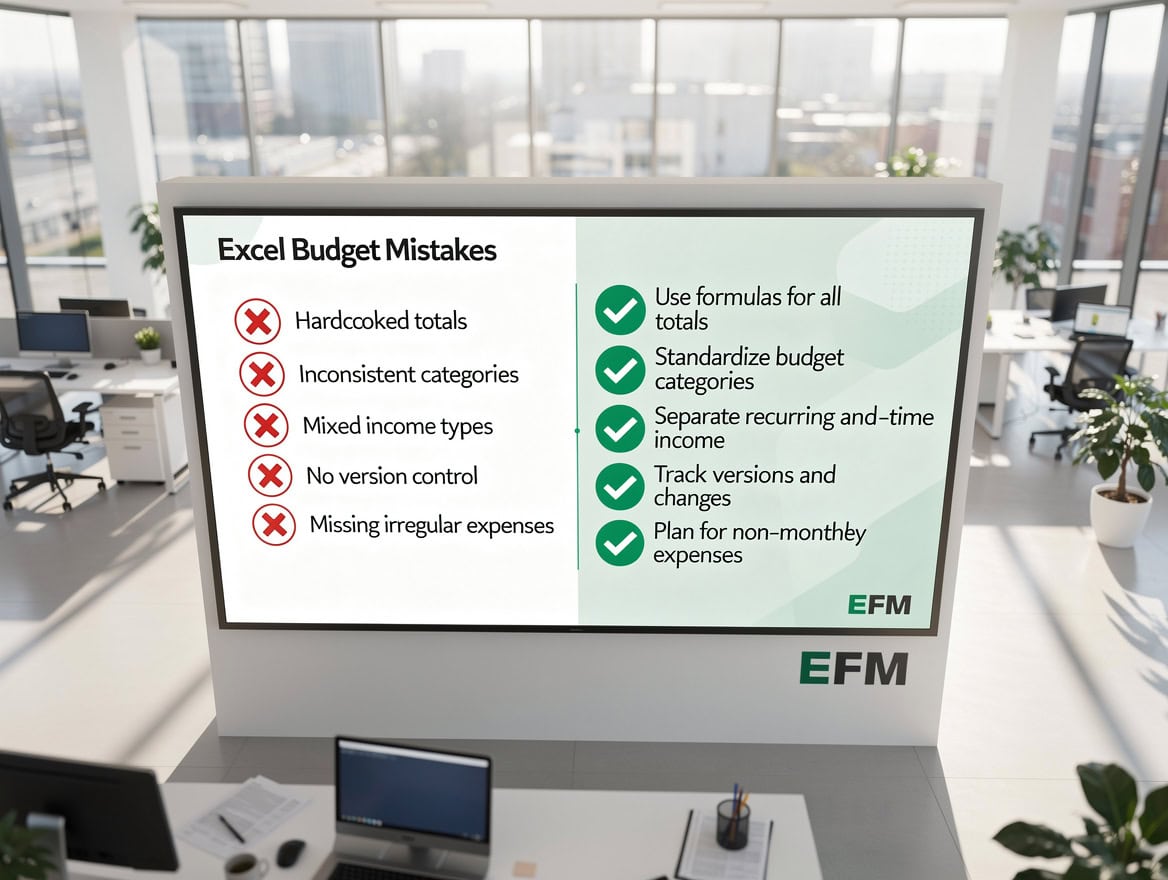
These five mistakes account for the majority of broken budget spreadsheets — each has a one-step fix that takes under two minutes to implement.
Frequently Asked Questions
What is the best Excel formula for tracking budget vs. actual spending?
The best combination uses SUMIF to pull category totals from your expense log, a subtraction for dollar variance, and a division for percentage variance. In practice: place your budget in column B and your SUMIF result in column C, then enter =C2-B2 in column D for dollar variance and =IFERROR((C2-B2)/B2,"") in column E for percentage variance. Format column E as a percentage and apply conditional formatting so any value above 10% triggers a red fill.
The percentage variance is the more actionable of the two because it normalises across categories of different sizes. A $50 overspend on a $100 entertainment budget is 50% over and flags urgently; the same $50 on a $1,000 housing budget is 5% over and barely registers.
How do I handle irregular income in an Excel budget spreadsheet?
Irregular income (freelance payments, commissions, rental income) creates planning instability if you budget against the most recent month. The professional approach is a 3-month trailing average. Add a column labelled “Smoothed Income” to your Income sheet and enter this in F4 — the third data row, the first month with enough history behind it:
=AVERAGE(E2:E4)Fill down from F4 and leave F2 and F3 blank. Each cell then averages that month and the two before it. Use the smoothed figure as your budget baseline in the Tracker sheet. When actual income exceeds the average, route the surplus to your emergency fund or a savings goal cell. When income falls short, the average-based budget has already stopped you over-committing to variable expenses. The same technique works for small business owners with seasonal revenue.
What is the 50/30/20 rule and how do I build it into Excel?
Popularised by Elizabeth Warren and Amelia Warren Tyagi in All Your Worth (2005), the rule allocates 50% of after-tax income to needs (housing, food, utilities, transportation), 30% to wants (entertainment, dining out, subscriptions), and 20% to savings and debt repayment combined.
To build it in Excel, add a “Type” column to your category list (Need, Want, Save), tag each category using data validation, then create three summary cells on your Dashboard sheet:
Needs:   =SUMIF(CategoryType,"Need",ActualAmounts)/TotalNetIncome
Wants:   =SUMIF(CategoryType,"Want",ActualAmounts)/TotalNetIncome
Savings: =TotalSavings/TotalNetIncome
Conditional formatting on each percentage cell flags when a category drifts outside its band. On a $6,000 net income, the targets are $3,000 for needs, $1,800 for wants, and $1,200 for savings and debt repayment.
How do I set up data validation dropdowns for expense categories in Excel?
Data validation dropdowns prevent the category typos that break SUMIF formulas. Create a sheet called “Lists” and type your categories in column A starting at A1 (Housing, Transportation, Food, Healthcare, Savings, Discretionary, Debt Repayment). Select A1:A7 and type “CategoryList” in the Name Box to name the range.
On your Expenses sheet, select the Category column (C2:C500 to allow for future rows), click Data > Data Validation, set Allow to “List,” and enter =CategoryList in the Source field. On the Error Alert tab, check “Show error alert,” set Style to “Stop,” and write a message such as “Select a category from the list.”
One important limitation: data validation checks typed entries, not pasted ones. Pasting a block of transactions over validated cells bypasses the rule silently and can also overwrite the validation itself. If you import statements, paste into a staging area first, categorise there, then paste values only into the validated column — or run Data > Data Validation > Circle Invalid Data afterwards to catch anything that slipped through.
Can I adapt a personal Excel budget for a small business?
Yes, and the structural changes are smaller than most people expect. The four-sheet architecture (Income, Expenses, Tracker, Dashboard) transfers directly; the differences are in category labels and KPIs.
On the Income sheet, replace salary rows with revenue categories: Product Sales, Service Revenue, Consulting Fees, Other Income. Add a COGS (Cost of Goods Sold) section immediately below revenue and calculate Gross Profit with =TotalRevenue-TotalCOGS. Operating expenses (salaries, rent, marketing, software) sit below COGS. Your primary KPI shifts from personal savings rate to gross margin:
=(Revenue-COGS)/RevenueHealthy gross margin varies widely by industry — service businesses typically run well above product businesses, since they carry less direct cost of delivery. Compare against published benchmarks for your specific sector rather than a general target. The Budget to Actual Comparison template includes both personal and business category structures in a single workbook.
How often should I update my Excel budget spreadsheet?
Update your expense log weekly and run a full budget vs. actual review monthly. Weekly updates take 10 to 15 minutes and prevent the backlog that makes monthly reconciliation feel overwhelming. Set a recurring calendar reminder for the same day each week.
For the monthly review, compare each category’s variance percentage, identify anything more than 10% over budget, and adjust next month’s plan accordingly. If you put most purchases on a credit card, the monthly statement gives you a complete transaction list — but paste it into a staging sheet rather than straight into your validated Category column (see the data validation caveat above), then categorise in bulk with a VLOOKUP against your category list.
Consistency alone puts you ahead of most households: just 42% of U.S. adults say they keep a budget and track their spending closely, a share that has barely moved since 2007 (NFCC Consumer Financial Literacy Survey, 2019).
What charts work best for visualizing a monthly budget in Excel?
Two chart types cover most budget visualisation needs. A donut chart (a circular chart with a hollow centre showing proportional slices) suits spending by category, showing each category’s share of the total at a glance — select your Category and Actual columns from the Tracker sheet, insert the chart, and add data labels showing percentages. Keep it to seven or eight categories; beyond that the slices become too thin to compare.
A clustered bar chart suits budget vs. actual comparison, placing the budget and actual bars side by side for each category so overspend is immediately visible. For trends, use a line chart with two series (Total Income and Total Expenses) across 12 months.
Charts refresh automatically when values inside their source range change, but they will not pick up new rows added below that range. To make them expand as you add months, convert your Tracker data to an Excel Table first (select the range and press Ctrl+T), then build the charts from the Table. Table references grow automatically as rows are added.
Conclusion
Building a professional Excel budget spreadsheet comes down to four decisions: a clean four-sheet workbook structure, consistent category naming enforced by data validation, the right six formulas (SUM, SUMIF, SUMIFS, IF, variance dollar, variance percent), and a dashboard that surfaces your savings rate and largest overspend category at a glance. The data is clear: households that track spending are more than twice as likely to report no financial worries, and budgeters hold 22 percentage points more emergency savings than non-budgeters.
I recommend starting with the Simple Budget Planner Template from eFinancialModels. It includes pre-built SUMIF formulas, a category dropdown list, and a variance tracking sheet, so you spend your first session entering real numbers instead of building infrastructure from scratch.
























































