
0 ITEMS

Monthly Actuals Update: 8-Step Process Cuts Hours to Minutes
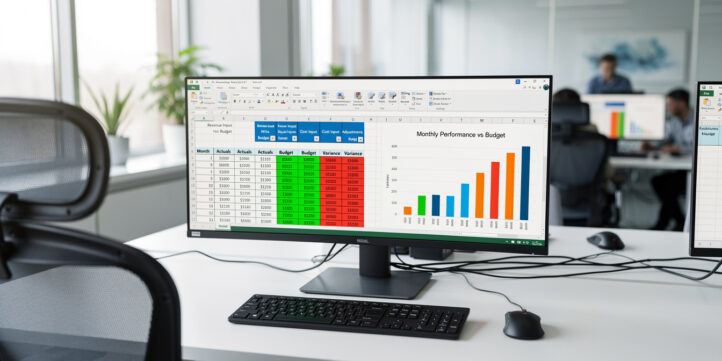
Updating your financial model with monthly actuals doesn’t have to mean three hours of copy-paste and a prayer that nothing breaks.
Key Takeaways
- A structured 8-step monthly actuals workflow reduces update time from an average of 4.5 hours to under 45 minutes for most FP&A teams.
- Isolated input zones, color-coded with blue fills for actuals, prevent formula overwrites and are the single most impactful structural change you can make.
- Variance formulas should calculate both absolute (Actual minus Budget) and percentage ((Actual minus Budget) divided by ABS(Budget)) to catch both magnitude and proportion errors.
- Dynamic named ranges or Excel Tables as chart source ranges eliminate manual chart updates entirely, saving 20 to 30 minutes per reporting cycle.
- The T+5 rule, updating actuals within 5 business days of month-end close, is the benchmark used by high-performing finance teams according to the Association for Financial Professionals.
- GL export mismatches between account codes and forecast line items cause the majority of actuals errors; a dedicated mapping table resolves this permanently.
- A 7-point quality control checklist before distribution catches input errors that would otherwise reach the CFO or board.
Why Monthly Actuals Updates Break (And How to Fix It)
Most monthly actuals updates fail because the model has no dedicated place for actuals data, so analysts paste numbers directly over forecast formulas. The fix is architectural: separate your inputs from your calculations before you enter a single number.
According to the Association for Financial Professionals, finance teams that lack a documented monthly close process spend 40% more time on reconciliation than those with a defined workflow.
The root causes cluster into three categories: no isolated input zone, no mapping table for GL-to-forecast alignment, and no automated variance logic. Each section below addresses one of these directly.
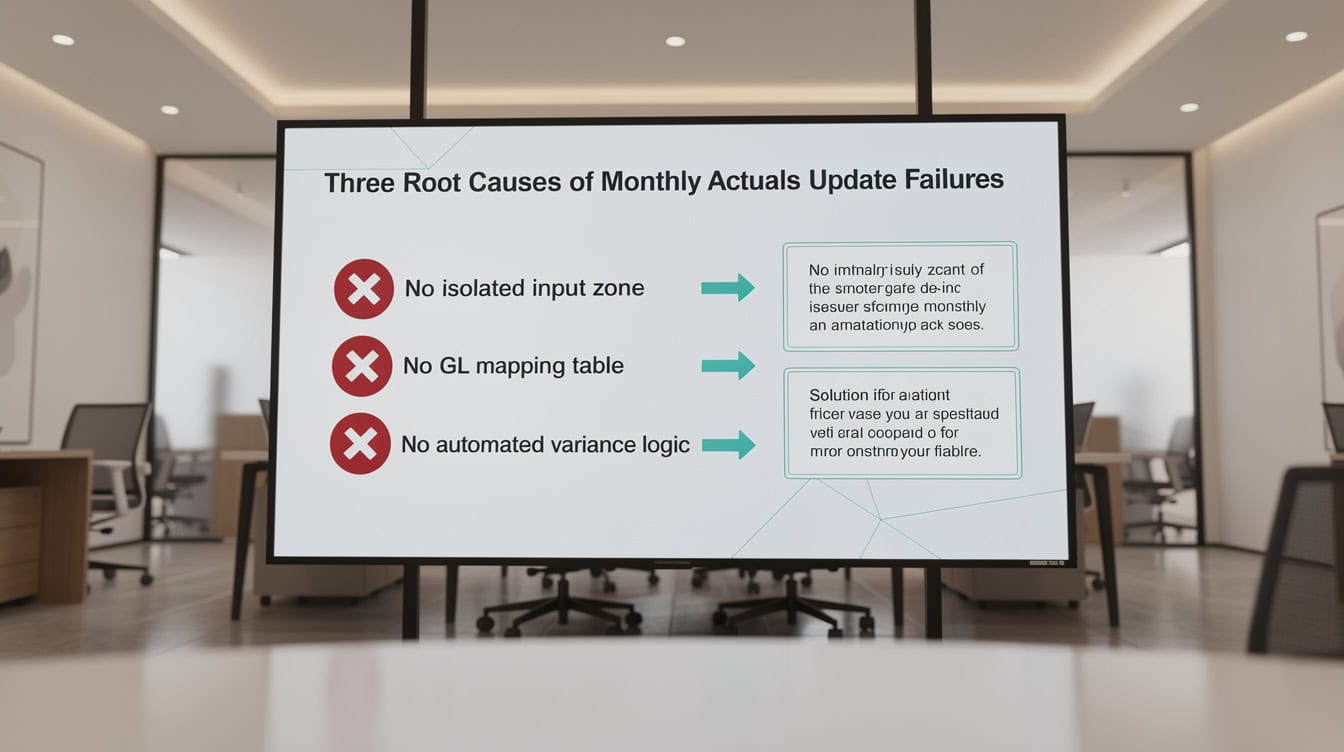
Finance teams without a documented monthly close process spend 40% more time on reconciliation than those with a defined workflow.
Pre-Update Preparation: The 5-Minute Setup Routine
Before touching any cell, complete four steps every month without exception. This routine takes 5 minutes and prevents the most common catastrophic errors.
Step 1: Save a versioned backup. Save the file as ModelName_YYYY_MM_vPRIOR.xlsx before any edits. Excel’s AutoSave is not a substitute; you need a named snapshot.
Step 2: Verify your data source. Confirm the GL export covers the full month, not a partial pull. Check the export date stamp and the total debits-equal-credits balance. A partial month export is the most common source of understated actuals.
Step 3: Confirm your fiscal calendar alignment. If your company uses a 4-4-5 or 4-5-4 fiscal calendar (a retail-standard period structure where months contain either 4 or 5 weeks rather than calendar days), verify which fiscal period maps to which calendar month before importing. Misalignment here creates phantom variances that take hours to unwind.
Step 4: Unlock the input zone only. Use Excel’s sheet protection (Review > Protect Sheet) to lock all cells except the designated actuals input range. This prevents accidental edits to formulas during data entry. Excel allows you to specify up to 128 separate editable ranges Source when configuring sheet protection, giving you fine-grained control over exactly which cells analysts can touch.
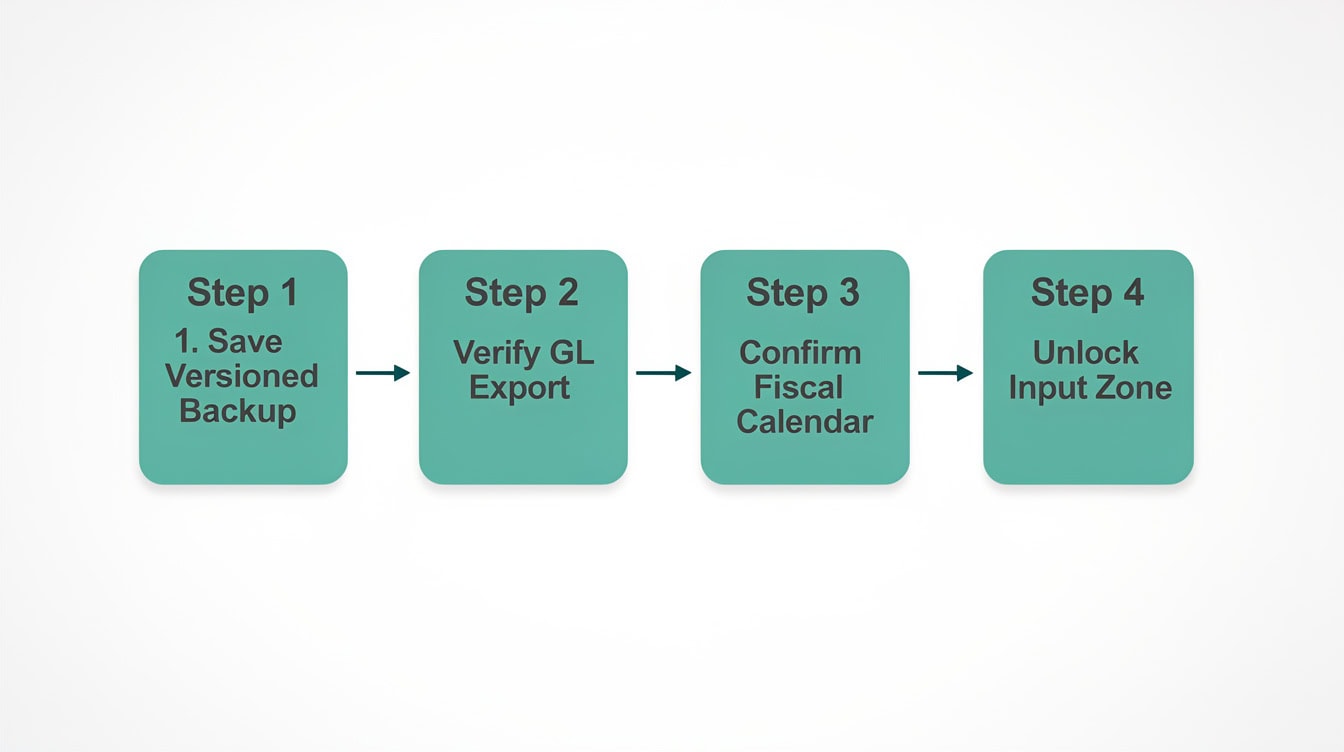
Completing the 5-minute pre-update routine prevents the most common catastrophic errors in monthly actuals workflows.
Designing Your Actuals Input Zone: Structure and Best Practices
The actuals input zone is a dedicated range, visually and structurally separated from forecast formulas, where you paste or type raw actuals data. Every other cell in the model should reference this zone; nothing else should be editable during the monthly update.
Use these conventions consistently:
- Blue fill, white text for actuals input cells (industry standard in financial modeling, per the Financial Modeling Institute’s color-coding guidelines).
- Yellow fill for assumption cells that change monthly (growth rates, headcount).
- No fill or white for formula cells that users should never edit.
- Place the input zone on a dedicated sheet named
INPUTSorACTUALS_DATA, never on the same sheet as your P&L or cash flow calculations.
Protect all non-input cells using Review > Protect Sheet > select “Allow users to edit ranges” and specify only the blue input range. This means even a rushed analyst can’t accidentally delete a formula at 11 PM on close day.
Comparison: Input Zone Approaches
| Approach | Setup Time | Monthly Update Time | Error Risk | Scalability |
|---|---|---|---|---|
| Dedicated INPUTS sheet with sheet protection | 30 minutes | 5 minutes | Very Low | Excellent |
| Color-coded cells without protection | 15 minutes | 10 minutes | High | Good |
| Separate workbook for actuals | 45 minutes | 8 minutes | Low | Fair |
| Unstructured paste-over-formulas | 0 minutes | 45+ minutes | Critical | Poor |
Dedicated input zones with sheet protection offer the best balance of setup effort, monthly speed, and error prevention.
Step-by-Step: Mapping GL Exports to Your Forecast Structure
Mapping is the process of connecting your accounting system’s account codes to your forecast’s line items. Without a mapping table, you rebuild this connection manually every month.
Step 1: Export your GL trial balance. Every major ERP system (SAP, Oracle, NetSuite, QuickBooks) can export a trial balance to CSV or Excel. Request the export at the account-code level, not the summary level, so you retain granularity.
Step 2: Build a permanent mapping table. Create a sheet named GL_MAP with three columns: GL Account Code, GL Account Description, and Forecast Line Item. Populate it once, then maintain it as accounts are added or renamed.
Step 3: Use SUMIF to aggregate. In your ACTUALS_DATA sheet, use this formula to pull actuals for each forecast line item:
=SUMIF(GL_MAPForecast Line Item, A2, GL_ExportAmount)Here, A2 contains the forecast line item name, GL_MAPForecast Line Item is the mapping column, and GL_ExportAmount is the raw GL amount column. This formula aggregates all GL accounts that map to one forecast line, automatically. The SUMIF function supports up to 255 characters in its criteria argument, which is more than sufficient for even the most descriptive GL account names.
Step 4: Flag unmapped accounts. Add a helper column in GL_MAP with =COUNTIF(GL_MAPGL Account Code, GL_ExportAccount Code). Any row returning 0 is an unmapped account that needs assignment before your actuals are complete.
Step 5: Handle new line items. When accounting adds a new GL account mid-year, add it to GL_MAP immediately and decide whether it maps to an existing forecast line or requires a new row. Document the decision in a NOTES column.
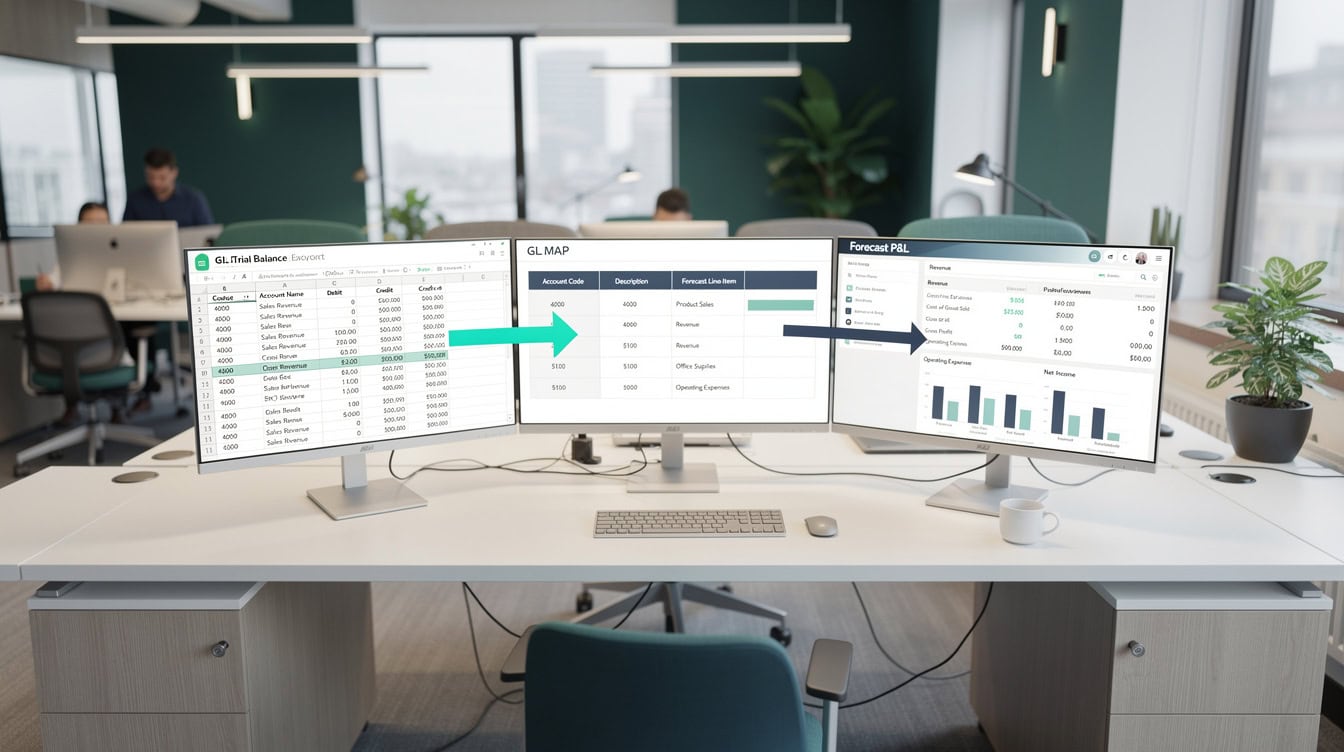
A permanent GL mapping table eliminates manual account matching and is the single biggest time-saver in the monthly actuals workflow.
Building Automatic Variance Calculations That Never Break
Variance calculations should be formulas, never manually typed numbers. The three variance types every model needs are: Budget vs. Actual, Forecast vs. Actual, and Prior Period vs. Current Period.
Here are the exact formulas, using row 5 as an example where column B holds Budget, column C holds Forecast, column D holds Actuals, and column E holds Prior Period Actuals:
Absolute variance (Budget vs. Actual):=D5-B5
For revenue lines, a positive result is favorable. For expense lines, a positive result is unfavorable. Use conditional formatting to color favorable variances green and unfavorable variances red automatically.
Percentage variance (Budget vs. Actual):=IFERROR((D5-B5)/ABS(B5), 0)
The IFERROR wrapper (a function that returns a specified value when a formula produces an error) prevents division-by-zero errors when budget is zero. ABS(B5) ensures the percentage sign is correct even when the budget is negative. Excel’s IFERROR function can trap any of the 7 standard error types including #DIV/0!, #VALUE!, #REF!, #NAME?, #NULL!, #NUM!, and #N/A, making it the most efficient single-function error handler for variance formulas.
Prior period comparison:=IFERROR((D5-E5)/ABS(E5), 0)
Favorable/Unfavorable label (for revenue lines):=IF(D5-B5>=0, "Favorable", "Unfavorable")
For expense lines, reverse the logic: =IF(D5-B5<=0, "Favorable", "Unfavorable").

Variance formulas using IFERROR and ABS handle zero-budget and negative-budget scenarios without breaking. January revenue missed budget by $12,000 (2.86%) but grew 3.29% vs prior month.
Worked Example: Variance Calculation with Real Numbers
Here’s the math for a SaaS company’s January revenue line:
- Budget: $420,000
- Forecast (updated in December): $435,000
- Actual: $408,000
- Prior Period (December Actual): $395,000
Budget vs. Actual (absolute): $408,000 minus $420,000 = -$12,000 (Unfavorable)
Budget vs. Actual (percentage): ($408,000 minus $420,000) divided by ABS($420,000) = -2.86%
Forecast vs. Actual (absolute): $408,000 minus $435,000 = -$27,000 (Unfavorable)
Prior Period comparison: ($408,000 minus $395,000) divided by ABS($395,000) = +3.29% (Favorable month-over-month growth despite missing budget)
The prior period comparison reveals that revenue is actually growing month-over-month, a nuance that the budget variance alone would hide. This is why all three variance types belong in every monthly report.
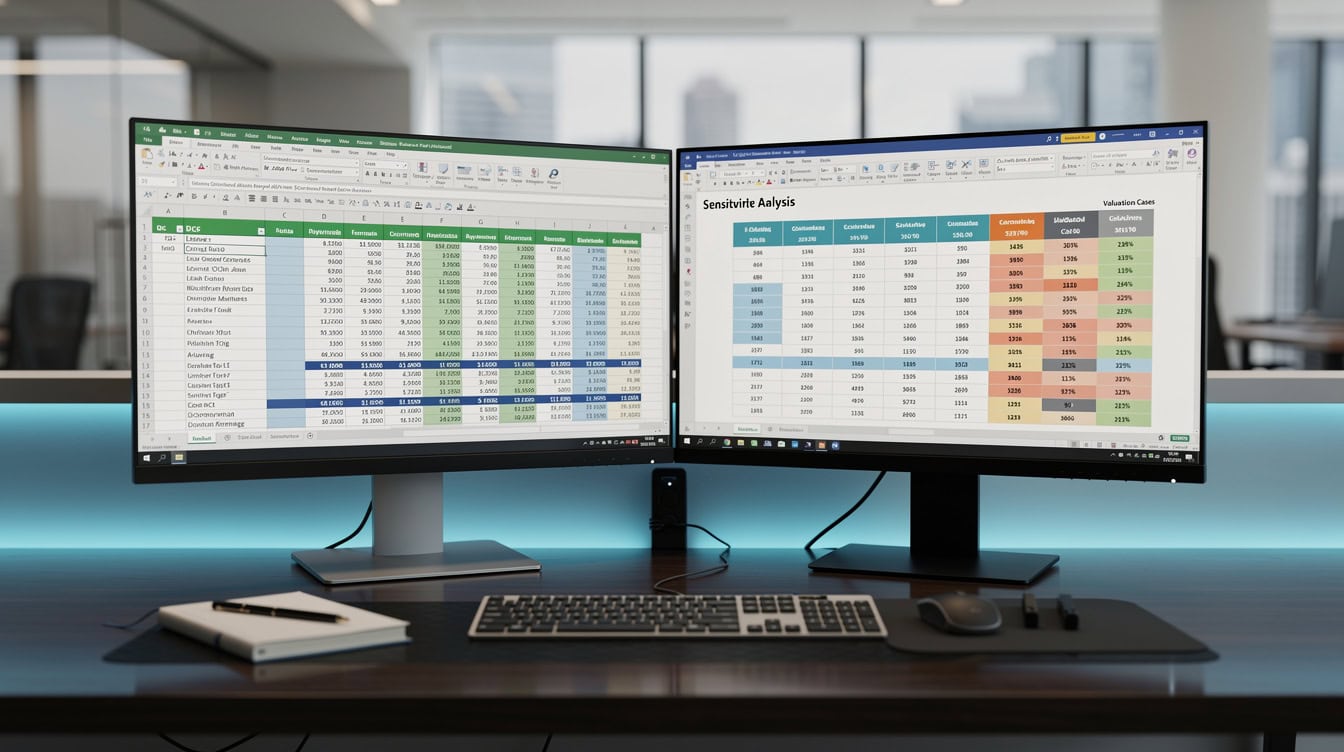
Conditional formatting on variance columns makes favorable and unfavorable results immediately visible without reading individual numbers.
Refreshing Charts and Dashboards with Dynamic Ranges
Charts built on static ranges require manual source-range updates every month. Charts built on Excel Tables or dynamic named ranges update automatically when you add a new month’s actuals.
The most reliable method is the Excel Table approach. Convert your actuals data range to a Table (Insert > Table, or Ctrl+T). Excel Tables (a structured data format that automatically expands when new rows or columns are added) extend their range automatically when you add data. Any chart sourced from a Table column updates without any manual intervention. A single Excel worksheet can contain up to 1,048,576 rows and 16,384 columns, meaning even the most granular multi-year actuals dataset will never outgrow a Table-based dynamic range.
For named ranges, use this OFFSET formula to create a dynamic range named ActualRevenue:
=OFFSET(ACTUALS_DATA!$D$2, 0, 0, COUNTA(ACTUALS_DATA!$D:$D)-1, 1)This formula starts at D2 and expands vertically to include every non-blank cell in column D. When you add December actuals, the range grows to include them, and every chart referencing ActualRevenue updates instantly.
According to Microsoft’s Excel documentation, Excel Tables are the preferred method for dynamic chart ranges because they handle column additions and deletions more robustly than OFFSET-based named ranges, which are volatile functions (functions that recalculate every time any cell in the workbook changes, slowing performance in large models).
Advancing Your Rolling Forecast Window
A rolling forecast (a forecast that always projects a fixed number of months forward, dropping the oldest month and adding a new future month each cycle) requires one structural update after you enter actuals: advancing the forecast start date.
The cleanest implementation uses a single Forecast Start Month cell (for example, cell INPUTS!B2) that drives all forecast column headers via formulas like =EDATE(INPUTS!$B$2, column_offset). When you change INPUTS!B2 from January to February, every forecast column shifts forward automatically.
After entering February actuals:
- Change
INPUTS!B2to March 1 of the current year. - Verify that the 12 forecast columns now show March through February of next year.
- Update any assumption cells (headcount, pricing, growth rates) that are specific to the new forecast months.
- Run your quality control checklist before saving.
Quality Control: The 7-Point Verification Checklist
Run this checklist before sending any actuals-updated model to a stakeholder. Each check takes under 2 minutes.
- Balance sheet balances: Assets equal Liabilities plus Equity. If not, a cash flow or retained earnings formula is broken.
- Sum check on actuals input: Total actuals in your ACTUALS_DATA sheet equals the trial balance total from your GL export. Use
=SUMPRODUCTacross all actuals columns and compare to the GL total manually. - Zero unmapped accounts: The
GL_MAPhelper column shows zero rows with a 0 count. - No hardcoded numbers in formula cells: Use Ctrl+
(grave accent) to toggle formula view and scan for any cell that shows a number where a formula should be. Variance directional logic: Spot-check 3 revenue lines and 3 expense lines to confirm favorable/unfavorable labels match the sign of the variance.Chart data range integrity: Click each dashboard chart and verify the source range includes the new actuals month.Prior period tie-out: Confirm this month's opening balance sheet equals last month's closing balance sheet.
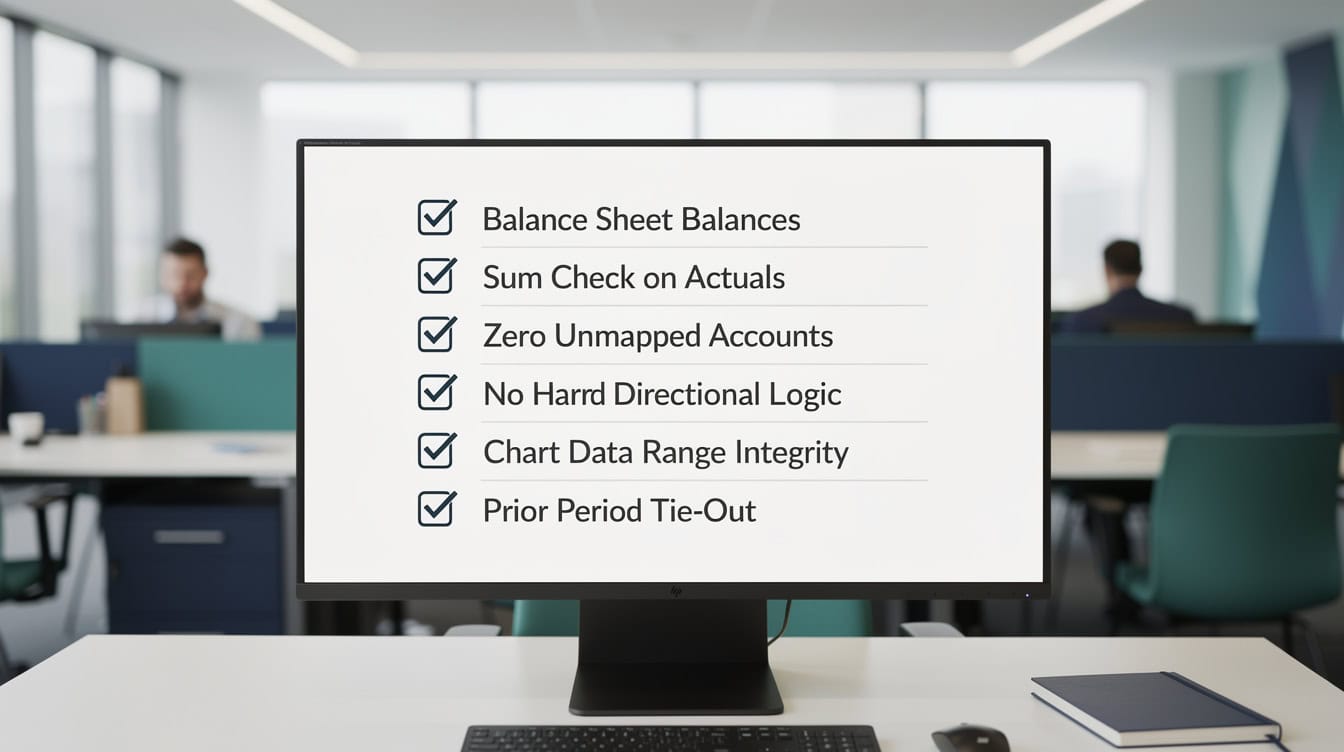
Running all 7 checks before distribution catches input errors that would otherwise reach the CFO or board.
Using the Monthly Actuals Update Template
The Monthly Rolling Cash Flow Projection Excel Model from eFinancialModels provides a pre-built architecture that implements the structure described in this guide. It includes separate sheets for inputs, calculations, variance analysis, and a dynamic dashboard.
The Budget vs. Actuals Template (Annual or Monthly) adds pre-built variance formulas for both absolute and percentage comparisons, with conditional formatting already configured for favorable/unfavorable color coding.
For teams managing a full three-statement model, the Dashboard Actuals PnL Model integrates P&L actuals with a live dashboard that refreshes automatically when you update the input zone.
Each template follows the color-coding and sheet-protection conventions described in this guide, so you can customize them without rebuilding the architecture from scratch.

EFM’s pre-built templates implement the input zone, mapping structure, and variance formulas described in this guide.
Troubleshooting Common Update Issues
Even with a well-structured model, four issues appear repeatedly in monthly actuals workflows.
Partial month data: When accounting closes sub-ledgers at different times, you may receive actuals for payroll but not for accounts payable. Enter what you have, mark the partial months with a P flag in a helper column, and rerun the update when the remaining data arrives. Never extrapolate partial data to a full month estimate in the actuals column; use the forecast column for that.
Restated prior periods: When accounting restates a prior month (corrects an error after the books were closed), update the prior period actuals column and add a note in the NOTES sheet with the restatement date, amount, and reason. Rerun your prior period variance calculations after any restatement.
Fiscal vs. calendar month misalignment: If your company’s fiscal month ends on a Saturday nearest the last day of the calendar month, your GL export date will differ from the calendar month-end. Maintain a FISCAL_CALENDAR sheet that maps each fiscal period number to its start and end dates, and reference it in your column headers.
Formula errors after adding rows: If you insert a new GL account row in the middle of your ACTUALS_DATA sheet, check that all SUMIF ranges still cover the new row. Excel Tables handle this automatically; static ranges do not.
Frequently Asked Questions
How long should a monthly actuals update take?
For a well-structured model with an isolated input zone and automated variance formulas, the update should take 30 to 45 minutes from GL export to distribution-ready file. According to the Association for Financial Professionals’ FP&A Benchmarking Survey, high-performing finance teams complete their monthly close reporting package within 5 business days of month-end (T+5).Teams without a structured process average 2 to 3 times longer. The biggest time savings come from the GL mapping table, which eliminates manual account matching, and from Excel Tables as chart sources, which eliminate manual chart updates. If your update consistently takes more than 90 minutes, the bottleneck is almost always in the mapping step or in manual chart maintenance.
What is the best way to handle actuals from multiple entities or cost centers?
Build one GL_MAP sheet per entity, or add an Entity column to a single consolidated mapping table. Use SUMIFS instead of SUMIF to filter by both entity and forecast line item: =SUMIFS(GL_ExportAmount, GL_ExportEntity, "Entity_A", GL_MAPForecast Line Item, A2). For consolidations, build a separate CONSOLIDATION sheet that sums across entity actuals sheets using 3D references or structured Table references. Keep intercompany eliminations as a separate line in the consolidation sheet, never embedded in entity-level actuals. This structure scales from 2 entities to 20 without architectural changes.
How do I prevent analysts from accidentally overwriting formulas during the update?
Use Excel’s sheet protection with a password on all sheets except the ACTUALS_DATA input zone. Go to Review > Protect Sheet, uncheck everything except “Select unlocked cells,” and set a password. Then select only the blue actuals input cells and format them as unlocked (Format Cells > Protection > uncheck Locked) before applying protection. This means analysts can only type in the designated blue cells. For an additional safeguard, add data validation (Data > Data Validation) to each input cell to restrict entries to numbers only, with a minimum of -10,000,000 and a maximum of 10,000,000, which catches accidental text entries that would break SUMIF formulas downstream.
What should I do when a new GL account appears that doesn’t exist in my forecast?
First, add the new account to your GL_MAP sheet immediately. Then decide: does this account belong to an existing forecast line item (most common), or does it represent a genuinely new revenue or expense category that needs its own forecast row? If it maps to an existing line, add the mapping and the SUMIF picks it up automatically next month. If it needs a new forecast row, add the row to both the forecast and the variance calculation sheets, update your chart source ranges if they’re static, and document the change in your NOTES sheet with the date and reason. Never leave a new account unmapped, because it will silently understate your actuals.
How do I handle a month where actuals are restated after I’ve already distributed the report?
Create a restatement protocol: when accounting notifies you of a restatement, update the prior period actuals column in ACTUALS_DATA, add a dated note to the NOTES sheet, and resend the affected report with a “Restated” label in the file name and a brief explanation in the email. In the model, add a RESTATEMENT_FLAG column next to each actuals month that shows “R” for restated periods. This flag can drive conditional formatting to highlight restated cells in orange, making it immediately visible to any reader that the number differs from the originally distributed figure. Track all restatements in a log on the NOTES sheet for audit purposes.
Can I automate the GL import without using VBA macros?
Yes. Power Query (a built-in Excel feature available in Excel 2016 and later that connects to external data sources and transforms data without code) can connect directly to a CSV export folder and refresh the GL data with one click. Set up a Power Query connection to your GL export folder (Data > Get Data > From File > From Folder), apply the column transformations once, and save the query. Each month, drop the new GL export CSV into the folder and click Refresh All (Data > Refresh All). Power Query re-runs the transformation automatically, populating your GL_Export table without any manual copy-paste. This approach requires no VBA and is maintainable by any analyst who can follow a documented refresh procedure.
What color-coding standard should I use for actuals vs. forecast vs. budget?
The Financial Modeling Institute and most institutional modeling standards recommend: blue fill with white text for hard-coded inputs including actuals, yellow fill for assumption cells that change, and no fill (white background) for formula cells. For the variance column, use conditional formatting: green fill for favorable variances and red fill for unfavorable variances, with a threshold of zero. Some teams add a gray fill for locked or reference-only cells. Consistency matters more than the specific colors you choose. Document your color convention on a LEGEND sheet and include it in every model you distribute, so any reader can interpret the model without asking you.
Conclusion
A repeatable monthly actuals update process is not a luxury for large finance teams. It’s the foundation of credible reporting for any organization that produces a monthly forecast. The 8-step workflow in this guide, from pre-update backup through quality control, gives you a structure you can run in under an hour every month.
I recommend starting with the Budget vs. Actuals Template (Annual or Monthly) from eFinancialModels. It implements the input zone, mapping structure, variance formulas, and dynamic dashboard described in this guide, so you can adapt it to your specific chart of accounts rather than building from a blank workbook. For teams managing rolling cash flow projections, the Monthly Rolling Cash Flow Projection Excel Model adds the rolling window mechanics on top of the same architecture.
























































