
0 ITEMS

Mac vs Windows Excel Compatibility: 2016–2025 Guide

Choosing the wrong Excel version costs finance teams hours of rework when files break between platforms. This guide gives you the exact version-by-version compatibility facts you need.
Key Takeaways
- Excel 365 (Microsoft 365 subscription) on both Mac and Windows delivers the closest feature parity, with Mac receiving monthly updates that close the gap to within 1–2 feature cycles of Windows.
- Excel for Mac 2016 and later reads and writes .xlsx and .xlsm files without data loss, but VBA macros using Windows-only API calls will fail silently on Mac.
- Power Query arrived on Excel for Mac in version 16.40 (August 2020), roughly 6 years after its Windows debut, meaning any workbook using Power Query requires Mac Excel 16.40 or later.
- Power Pivot (the in-memory data model) remains Windows-only as of 2025 and will not open or refresh on any version of Excel for Mac.
- Microsoft 365 subscribers on Mac receive feature updates monthly; perpetual license holders (Excel 2019, 2021) are frozen at the feature set available at their release date.
- For financial modeling shared across platforms, use .xlsx format, avoid VBA where possible, and target Microsoft 365 on both sides for maximum formula and chart compatibility.
- Excel 2021 for Mac requires macOS 10.14 Mojave or later; Excel 2019 for Mac requires macOS 10.13 High Sierra or later (Microsoft system requirements).
Quick Compatibility Answers: Mac vs Windows Excel
Yes, Excel files created on Windows open on Mac, and vice versa, as long as both users run Excel 2016 or later and avoid Windows-only features like Power Pivot. The table below gives yes/no answers to the most common compatibility questions.
| Question | Answer |
|---|---|
| Do .xlsx files open on both platforms? | Yes, all versions 2016+ |
| Do .xlsm macro files transfer? | File opens; macros may fail |
| Does Power Query work on Mac? | Yes, Excel 16.40 (Aug 2020)+ |
| Does Power Pivot work on Mac? | No, Windows-only in 2025 |
| Do pivot tables transfer cleanly? | Yes, all versions 2016+ |
| Do charts transfer cleanly? | Yes, with minor style differences |
| Does VBA run identically on Mac? | No, Windows API calls break |
| Does co-authoring work cross-platform? | Yes, Microsoft 365 only |
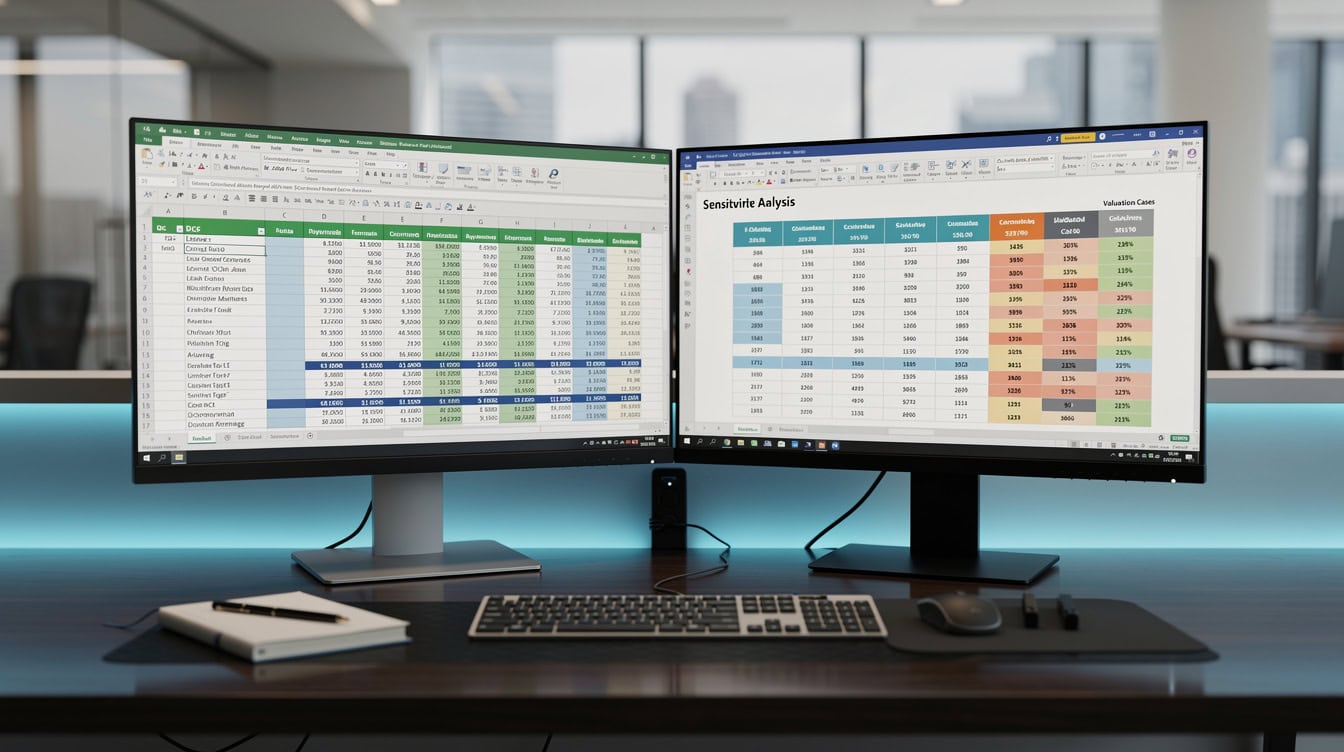
Quick-reference compatibility answers: green means works on both platforms, red means Windows-only or version-restricted.
Complete Excel Version Compatibility Table
Every Excel version from 2016 onward supports the core .xlsx format on both platforms, but feature depth varies significantly by version and platform. Use this table as your primary reference.
| Excel Version | Mac Supported | Windows Supported | Mac OS Req | Windows OS Req | Notes |
|---|---|---|---|---|---|
| Microsoft 365 (current) | Yes | Yes | macOS 10.15+ | Windows 10/11 | Closest parity; monthly updates |
| Excel 2021 | Yes | Yes | macOS 10.14+ | Windows 10/11 | XLOOKUP, LET included on both |
| Excel 2019 | Yes | Yes | macOS 10.13+ | Windows 7 SP1+ | No Power Query on Mac build |
| Excel 2016 | Yes | Yes | macOS 10.11+ | Windows 7 SP1+ | Significant feature gaps on Mac |
| Excel 2013 | No | Yes | N/A | Windows 7 SP1+ | No Mac version released |
| Excel 2011 | Mac only | No | OS X 10.6+ | N/A | Legacy; no .xlsm VBA support |
Microsoft publishes system requirements for each version at Microsoft Support. According to Microsoft’s official system requirements documentation, Excel 2021 for Mac requires macOS 10.14 Mojave or later, and Excel for Microsoft 365 requires macOS 10.15 Catalina or later (Microsoft Support). A Microsoft 365 subscription covers up to 5 devices (Microsoft) across Mac and Windows, making it a cost-effective option for teams working across both platforms.

Excel 2013 had no Mac version; from 2016 onward both platforms received parallel releases with increasing feature parity.
File Format Compatibility Across Mac and Windows
The .xlsx format (Office Open XML) is fully cross-platform and is the safest choice for any file shared between Mac and Windows users. Here is what each format supports.
| Format | Mac 2016+ | Windows 2016+ | VBA Macros | Notes |
|---|---|---|---|---|
| .xlsx | Yes | Yes | No | Default; safest for sharing |
| .xlsm | Yes | Yes | Yes | Macros saved; may not run on Mac |
| .xlsb | Yes | Yes | Yes | Binary; faster but less portable |
| .xls | Yes (read) | Yes | Limited | Legacy Excel 97-2003; avoid |
| .csv | Yes | Yes | No | Plain text; no formatting |
Microsoft’s Office Open XML specification defines .xlsx as the standard format for Excel workbooks. The format stores data, formulas, charts, and pivot tables in a ZIP-compressed XML structure that both Mac and Windows Excel parse identically. The .xlsm format adds a macro-enabled layer but does not guarantee that the macros inside will execute correctly on Mac if they call Windows-specific libraries.
For financial models, always save in .xlsx unless your model requires macros. If macros are essential, test every Sub and Function on the target Mac version before distributing.

.xlsx is the safest format for cross-platform sharing; .xlsm transfers but macros may not execute on Mac.
VBA and Macro Compatibility: What Works and What Breaks
VBA (Visual Basic for Applications) is the macro programming language built into Excel. The core VBA language runs on both platforms, but any macro that calls Windows-specific system functions, COM objects, or the Windows API will fail on Mac. Here is a concrete breakdown.
What works on both platforms:
- Standard worksheet manipulation (Range, Cells, Sheets objects)
- Loops, conditionals, and string functions
- Chart creation and formatting via VBA
- UserForms with basic controls
- File I/O using Excel’s built-in file dialog (Application.GetOpenFilename)
What breaks on Mac:
- CreateObject(“WScript.Shell”) and any Windows Scripting Host call
- Declare Function statements referencing Windows .dll files
- Shell command (Mac uses a different syntax)
- SendKeys (unreliable on Mac)
- Any reference to HKEY_ registry paths
- ActiveX controls (not supported on Mac Excel)
Microsoft’s official VBA documentation states that “some VBA features are not available in Excel for Mac” and specifically flags Windows API declarations and ActiveX controls as unsupported (Microsoft). According to Microsoft’s developer documentation, Excel for Mac supports the AppleScript and Automator scripting environments as partial alternatives to Windows-only shell automation, but these require separate code paths.
A worked example: a financial model macro that exports a PDF usingShell “C:\Windows\System32…” will throw a runtime error on Mac. The Mac-compatible equivalent uses ActiveSheet.ExportAsFixedFormat Type:=xlTypePDF, which works on both platforms from Excel 2011 onward.
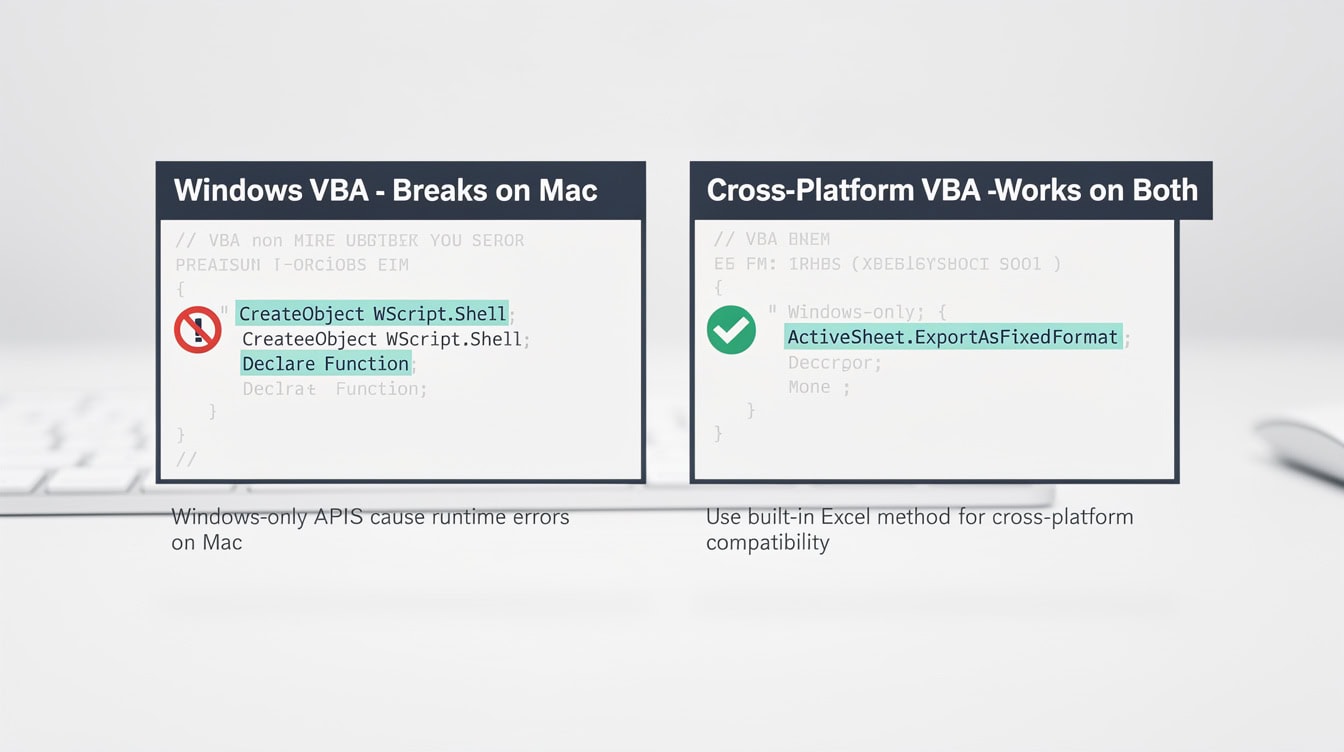
Windows API calls in VBA fail silently or throw runtime errors on Mac; use Excel’s built-in object model methods instead.
Feature Parity Gaps: Excel for Mac vs Excel for Windows
Excel for Mac has closed most major feature gaps since 2019, but several Windows-only features remain critical for financial analysts to know about.
| Feature | Mac (365) | Mac 2021 | Mac 2019 | Windows (365) | Windows 2021 |
|---|---|---|---|---|---|
| Power Query | Yes | Yes | No | Yes | Yes |
| Power Pivot | No | No | No | Yes | Yes |
| XLOOKUP | Yes | Yes | No | Yes | Yes |
| LET function | Yes | Yes | No | Yes | Yes |
| Dynamic arrays | Yes | Yes | No | Yes | Yes |
| Data Types (Stocks) | Yes | Partial | No | Yes | Yes |
| 3D Maps | No | No | No | Yes | Yes |
| Solver add-in | Yes | Yes | Yes | Yes | Yes |
| Analysis ToolPak | Yes | Yes | Yes | Yes | Yes |
| Co-authoring | Yes | Yes | No | Yes | Yes |
Power Pivot (the in-memory columnar data model that enables multi-table relationships and DAX formulas) is the most significant remaining gap. Microsoft has not announced a Mac release date for Power Pivot as of 2025. Any financial model that uses a Data Model or DAX measures will not open those features on Mac; the data will appear but the model relationships and calculated fields will be inaccessible.
Power Query arrived on Excel for Mac in version 16.40, released in August 2020 (Microsoft 365 roadmap). Before that version, any workbook containing Power Query connections would display a warning and refuse to refresh the query on Mac. Excel supports up to 64 nesting levels for functions such as IF (Microsoft), a limit that applies identically on both Mac and Windows, meaning formula logic built on either platform will evaluate consistently across platforms.

Power Pivot remains the most significant gap: it is Windows-only across all Excel versions including Microsoft 365 as of 2025.
Microsoft 365 vs Perpetual Licenses: Cross-Platform Considerations
Microsoft 365 subscribers get continuous feature updates; perpetual license holders get the feature set frozen at their purchase date. This distinction matters enormously for cross-platform compatibility.
Microsoft 365 (subscription):
- Mac and Windows both receive monthly Current Channel updates.
- New functions (XLOOKUP, LET, LAMBDA, dynamic arrays) roll out to both platforms within weeks of each other.
- Co-authoring and real-time collaboration require Microsoft 365 on both ends.
- One subscription covers up to 5 devices across Mac and Windows.
Perpetual licenses (Excel 2019, 2021):
- Feature set is fixed at release. Excel 2019 for Mac shipped without Power Query; that gap never closes for 2019 license holders.
- Excel 2021 includes XLOOKUP and dynamic arrays on both platforms, making it the minimum recommended perpetual version for modern financial modeling.
- Perpetual licenses do not support co-authoring in real time.
Microsoft’s licensing documentation confirms that perpetual Office versions receive security updates but not new feature updates after release (Microsoft Support). For teams that share financial models across Mac and Windows, Microsoft 365 is the only option that guarantees both sides stay at the same feature level.

Microsoft 365 subscribers on Mac receive the same monthly feature updates as Windows users; perpetual license holders are frozen at their purchase-date feature set.
Best Excel Version Combinations for Financial Modeling Compatibility
For financial modeling shared across Mac and Windows, Microsoft 365 on both platforms is the strongest choice. Here is the decision framework with specific version combinations.
Scenario 1: Maximum compatibility (recommended)
- Both users: Microsoft 365 (current channel)
- Format: .xlsx
- Result: Full formula parity, co-authoring, Power Query on both sides. Only gap: Power Pivot remains Windows-only.
Scenario 2: Perpetual license, modern features
- Both users: Excel 2021
- Format: .xlsx
- Result: XLOOKUP, LET, dynamic arrays work on both. No co-authoring. No Power Query on Mac 2021 (Power Query requires Microsoft 365 on Mac).
Scenario 3: Mixed versions (risk zone)
- Windows user: Excel 2021 or 365
- Mac user: Excel 2019
- Format: .xlsx
- Result: Dynamic array formulas created on Windows will spill correctly on Mac only if the Mac runs Excel 16.40+. XLOOKUP formulas will show as #NAME? errors on Mac 2019.
Worked Example: XLOOKUP Cross-Platform Check
Suppose a Windows user builds a financial model using XLOOKUP to pull revenue figures from a lookup table:
On Excel 2021 for Mac: formula evaluates correctly.
On Excel 2019 for Mac: formula returns #NAME? because XLOOKUP is not in the 2019 function library.
On Excel 2016 for Mac: same #NAME? error.
The fix: replace XLOOKUP with INDEX/MATCH, which works on all versions from 2016 onward on both platforms:
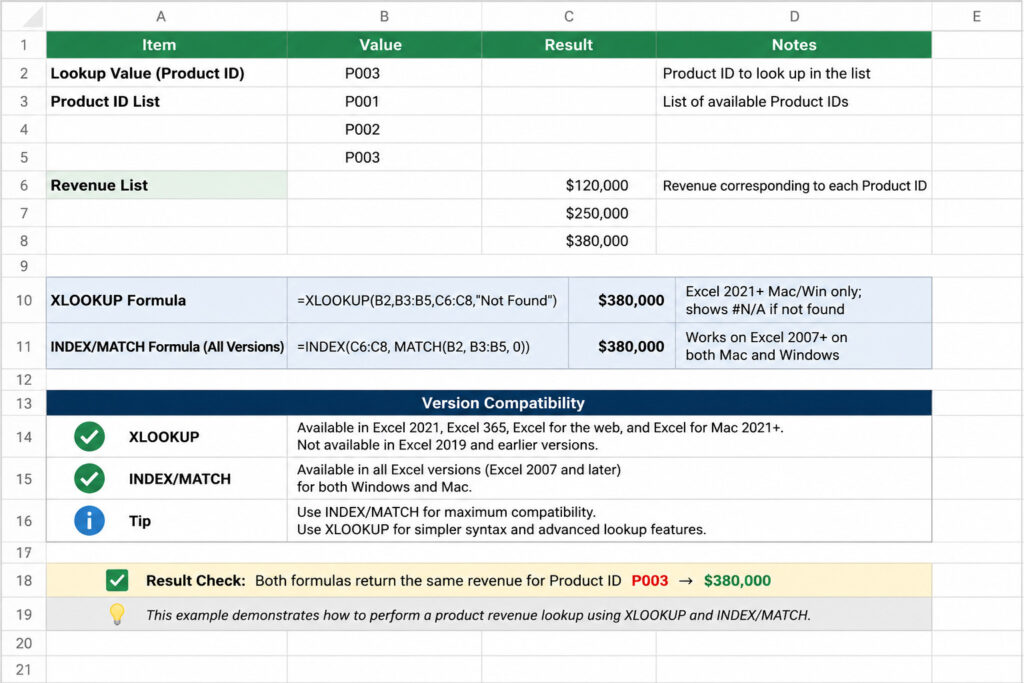
XLOOKUP returns #NAME? on Excel 2019 for Mac; INDEX/MATCH returns the same result on all Excel versions from 2007 onward on both platforms.

Use this decision tree to identify the minimum Excel version required for your specific financial modeling workflow across Mac and Windows.
Common Compatibility Mistakes and How to Fix Them
Finance teams make the same five compatibility errors repeatedly. Each one has a direct fix.
Mistake 1: Using Power Pivot data models in shared workbooks
Fix: Rebuild the model using Power Query (available on both platforms in Microsoft 365) and standard pivot tables. Avoid DAX measures if Mac users need to refresh the model.
Mistake 2: Embedding ActiveX controls in dashboards
Fix: Replace ActiveX buttons and combo boxes with Form Controls, which work on both Mac and Windows Excel from 2016 onward.
Mistake 3: Saving in .xlsb for speed without testing on Mac
Fix: .xlsb opens on Mac but can cause rendering issues with certain chart types. Test before distributing. Default to .xlsx for shared files.
Mistake 4: Using Windows-only VBA API calls
Fix: Wrap Windows API calls in #If Win32 Or Win64 conditional compilation blocks and provide a Mac-compatible alternative using AppleScript or Excel’s built-in methods.
Mistake 5: Assuming Excel 2019 for Mac has Power Query
Fix: Power Query on Mac requires Microsoft 365 (version 16.40+). Upgrade the Mac user to Microsoft 365 or remove Power Query connections and replace with static data before sharing.
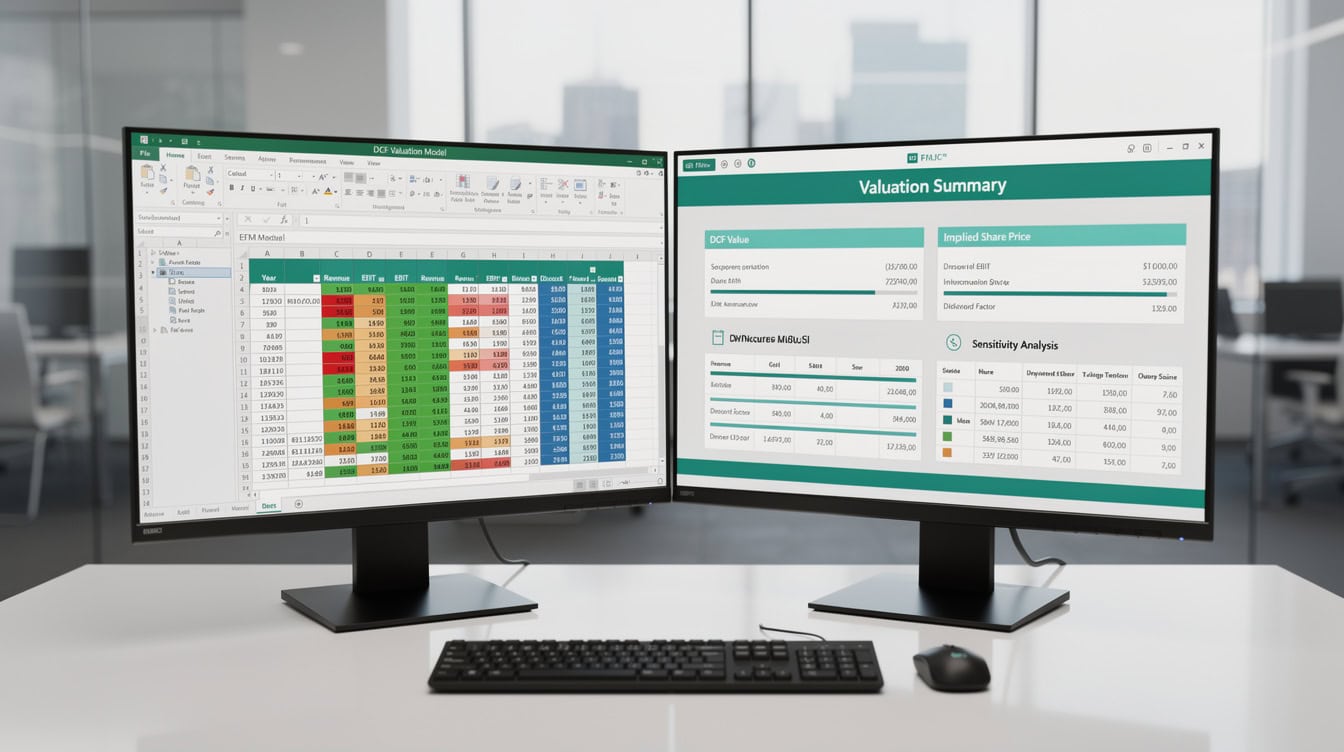
Run this checklist before distributing any financial model across platforms to catch compatibility issues before they reach the end user.
Compatibility Checklist Before Switching Platforms
Before moving a financial model from Windows to Mac (or vice versa), run through this checklist.
- Confirm the Mac Excel version is 16.40 or later if the file uses Power Query.
- Search the workbook for Power Pivot data model connections (Data tab, Manage Data Model). Remove or document them.
- Run the VBA editor (Alt+F11 on Windows, Option+F11 on Mac) and search for Declare Function
,CreateObject, orShell` calls. - Save a copy in .xlsx format and open it on the target platform before distributing.
- Test all pivot tables by refreshing them on the target platform.
- Verify that any add-ins used (Solver, Analysis ToolPak) are enabled on the target platform.
- Check that dynamic array formulas (XLOOKUP, FILTER, SORT, UNIQUE) are supported by the target Excel version.
For teams building financial models used across both platforms, the EFM Excel financial model templates are tested on both Mac and Windows Excel to avoid these pitfalls.

With the right version combination and file format discipline, financial models transfer cleanly between Mac and Windows Excel.
Frequently Asked Questions
Will my Excel financial model work on a Mac if I built it on Windows?
Yes, in most cases, if you follow three rules. First, save the file as .xlsx (not .xlsb or a legacy format). Second, avoid Power Pivot data models and DAX formulas, which are Windows-only features as of 2025. Third, ensure the Mac user runs Excel 16.40 or later if the model uses Power Query. Standard formulas, pivot tables, charts, conditional formatting, and named ranges all transfer cleanly between platforms. The biggest risk is VBA macros that call Windows-specific functions. A model built entirely with formulas and no macros will open and calculate identically on Mac Excel 2021 or Microsoft 365 for Mac.
Which Excel version do I need on Mac to use XLOOKUP?
You need Excel for Mac version 16.38 or later, which corresponds to the Microsoft 365 subscription channel update released in June 2020, or Excel 2021 for Mac as a perpetual license. Excel 2019 for Mac does not include XLOOKUP. If a Windows colleague sends you a file using XLOOKUP and you run Excel 2019 for Mac, those cells will display a #NAME? error. The workaround is to ask the sender to replace XLOOKUP with INDEX/MATCH, which works in all Excel versions from 2007 onward on both platforms. Microsoft’s function reference confirms XLOOKUP availability by version at Microsoft Support.
Does VBA work the same on Mac and Windows Excel?
The core VBA language works on both platforms, but roughly 20-30% of real-world financial model macros use at least one Windows-specific feature that breaks on Mac. The most common failures are Windows API declarations (Declare Function statements pointing to .dll files), ActiveX controls, Shell commands using Windows paths, and CreateObject calls to COM servers like WScript.Shell. Microsoft’s official documentation explicitly lists these as unsupported on Mac. The safest approach for cross-platform macros is to use only Excel’s built-in object model (Workbook, Worksheet, Range, Chart objects) and avoid any operating-system-level calls.
Is Microsoft 365 Excel the same on Mac and Windows?
Microsoft 365 delivers the closest parity between Mac and Windows, but they are not identical. As of 2025, Power Pivot and 3D Maps remain Windows-only even in Microsoft 365. The Mac version receives monthly feature updates through the Current Channel, typically within 1-2 update cycles of the Windows release. Co-authoring, real-time collaboration, and cloud-connected features like Stocks and Geography data types work on both platforms under Microsoft 365. For financial modeling purposes, the practical difference is small unless your model depends on Power Pivot or 3D Maps.
Can I open an .xlsm file on Mac Excel?
Yes, Excel for Mac opens .xlsm files (macro-enabled workbooks) without any conversion. The file opens, and the worksheets, formulas, and formatting display correctly. However, the macros inside may not run correctly if they use Windows-specific code. Excel for Mac will display a security warning about macros, just as Windows Excel does. If you click Enable Macros and the macro contains a Windows API call, you will see a runtime error at that line. The fix is to audit the VBA code before distributing to Mac users and replace Windows-specific calls with cross-platform alternatives.
What is the minimum Excel version for cross-platform financial modeling?
Excel 2021 is the minimum recommended perpetual license version for cross-platform financial modeling in 2025. It includes XLOOKUP, LET, dynamic arrays, and the LAMBDA function on both Mac and Windows, which covers the core modern formula toolkit. However, Excel 2021 for Mac does not include Power Query (that requires Microsoft 365 on Mac). If your models use Power Query for data transformation, both users need Microsoft 365. For teams that need co-authoring and real-time collaboration, Microsoft 365 is the only option on both platforms.
Does conditional formatting transfer between Mac and Windows Excel?
Yes, conditional formatting rules created on Windows transfer to Mac Excel and vice versa without data loss. The rules, color scales, data bars, and icon sets all render correctly across platforms. One minor exception: certain gradient fills in conditional formatting may render with slight color differences between Mac and Windows due to differences in color profile handling between macOS and Windows display systems. For financial models, standard traffic-light color scales (red/yellow/green) and data bars transfer with no visible difference. Microsoft’s Excel documentation confirms that conditional formatting is part of the core .xlsx specification and is fully cross-platform.
Conclusion
Excel for Mac and Excel for Windows share the same core engine, the same file formats, and the same formula library from Excel 2021 onward. The real compatibility risks are narrow but consequential: Power Pivot, Windows-only VBA, and ActiveX controls. Avoid those three, save in .xlsx, and target Microsoft 365 on both sides, and your financial models will transfer cleanly every time.
I recommend downloading the EFM Excel financial model templates for your next project. Every template is built with cross-platform compatibility in mind, using .xlsx format, formula-only logic where possible, and no Windows-specific dependencies, so your work runs identically whether you open it on a Mac or a Windows machine.
























































