
0 ITEMS

Google Sheets Amortization Schedule: Build It in 7 Steps

A Google Sheets amortization schedule turns a raw loan offer into a month-by-month cash flow map your whole team can access, edit, and stress-test in real time.
Key Takeaways
- 3 core Google Sheets formulas (PMT, IPMT, PPMT) do all the heavy lifting; you only need to enter 4 loan inputs to generate a complete schedule.
- A $150,000 equipment loan at 7% over 60 months costs $2,970 per month and $28,200 in total interest — numbers that change dramatically with even a 1% rate shift.
- Google Sheets supports up to 10 million cells per spreadsheet, giving you room to track 30+ years of monthly payments across multiple loans simultaneously.
- Businesses that model prepayment scenarios before signing can cut total interest costs by 15–30% by timing extra payments in the first third of the loan term.
- Linking your amortization schedule to a cash flow statement lets you see debt service as a percentage of projected revenue before you commit to a loan.
- SBA 7(a) loans carry terms up to 25 years for real estate and 10 years for equipment — a schedule built for each term reveals very different monthly obligations.
- Common errors (wrong period rate, off-by-one row references, hardcoded payment amounts) can silently distort every figure in the schedule; validation against a known payment amount catches them in seconds.
What an Amortization Schedule Actually Does for Business Planning
An amortization schedule is a table that breaks every loan payment into its two components: the portion that reduces the principal (the original amount borrowed) and the portion that pays interest (the lender’s fee for the loan). Each row represents one payment period, and the balance column shows exactly how much you still owe after that payment.
For business owners, this matters beyond simple bookkeeping. According to the U.S. Small Business Administration, cash flow problems are the leading cause of small business failure — and debt service is one of the largest fixed cash outflows a business carries. Source A schedule makes that outflow visible, period by period, so you can align it with revenue cycles, plan for capital expenditures, and negotiate loan terms from an informed position.
Google Sheets is particularly well-suited for this task because it’s free, cloud-based, and supports real-time collaboration. Unlike a static PDF from your lender, a Sheets-based schedule lets you change one input — say, the interest rate — and watch every downstream figure update instantly.
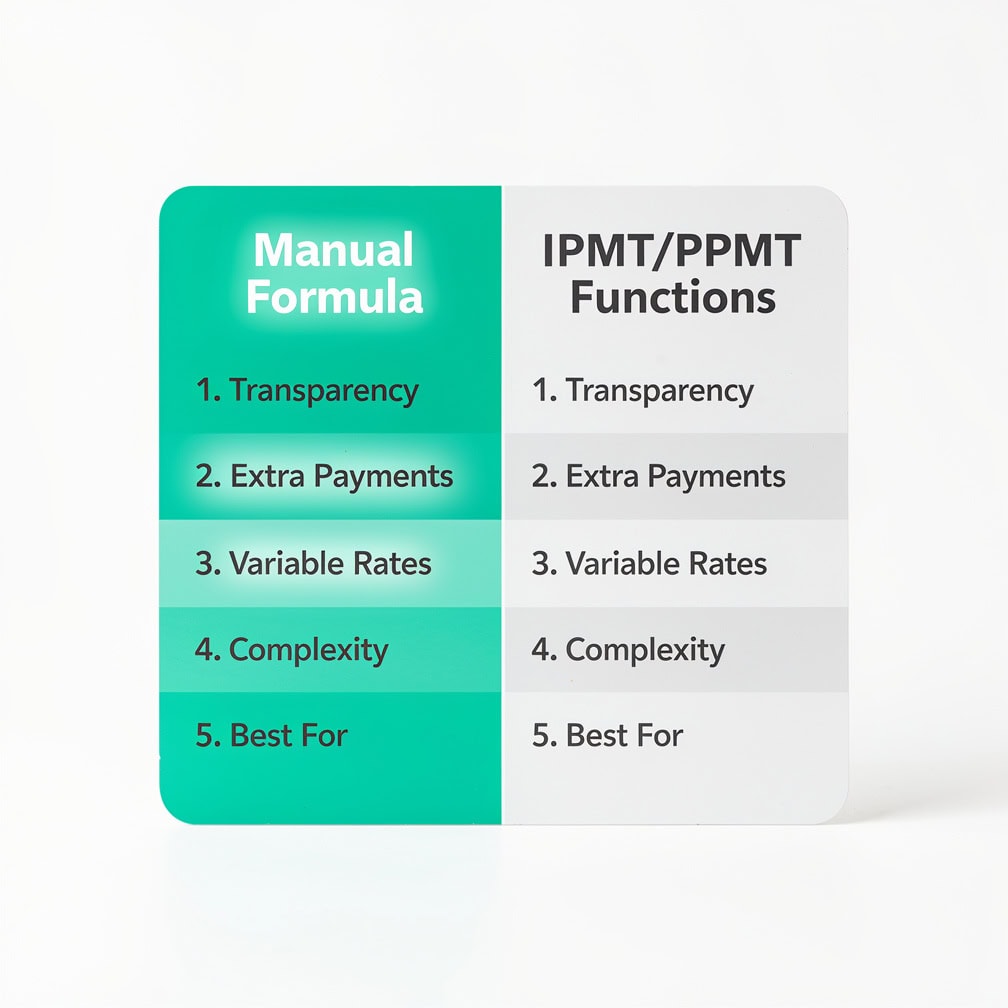
Four inputs — principal, rate, term, and payment frequency — drive all three core amortization formulas.
The 4 Loan Inputs You Need Before You Build
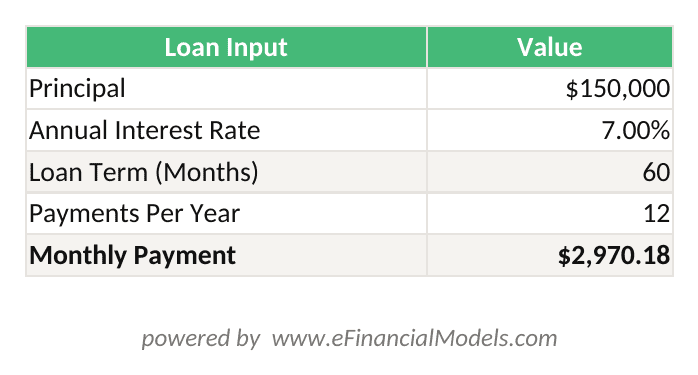
Every amortization schedule starts with 4 numbers. Get these right and the formulas handle everything else.
Set up a clean input block at the top of your sheet. Use cells B2 through B5 for the values and label them in column A:
- A2: Principal | B2: 150000 (the loan amount in dollars)
- A3: Annual Interest Rate | B3: 7%
- A4: Loan Term (months) | B4: 60
- A5: Payments Per Year | B5: 12
Leave rows 6 and 7 blank as a visual separator, then build your schedule table starting at row 8.
Centralizing loan inputs in a dedicated block means changing one cell updates every formula in the schedule automatically.
Building the Schedule: 7-Step Walkthrough
You can build a complete, dynamic amortization schedule in Google Sheets in under 20 minutes by following these steps in order.
Step 1: Create column headers in row 8.
Label columns A through F: Period, Payment Date, Total Payment, Interest Paid, Principal Paid, Remaining Balance.
Step 2: Enter period numbers in column A.
Type 1 in A9, then =A9+1 in A10. Drag A10 down to A68 (for a 60-period loan, you need rows 9 through 68).
Step 3: Calculate the fixed monthly payment in C9 using PMT.
PMT (Payment) is a Google Sheets function that calculates the constant periodic payment needed to fully repay a loan. The syntax is =PMT(rate, nper, pv) where rate is the periodic interest rate, nper is the total number of periods, and pv is the present value (loan amount, entered as negative).
In C9, enter:
=PMT($B$3/$B$5, $B$4, -$B$2)
This divides the annual rate (B3) by payments per year (B5) to get the monthly rate, uses the total months (B4) as the period count, and references the principal (B2) as a negative number so the result is positive. Lock all input references with $ signs so they don’t shift when you copy the formula down.
In C9, enter:
=PMT($B$3/$B$5, $B$4, -$B$2)
This divides the annual rate (B3) by payments per year (B5) to get the monthly rate, uses the total months (B4) as the period count, and references the principal (B2) as a negative number so the result is positive. Lock all input references with $ signs so they don’t shift when you copy the formula down.
In C9, enter:
=PMT($B$3/$B$5, $B$4, -$B$2)
This divides the annual rate (B3) by payments per year (B5) to get the monthly rate, uses the total months (B4) as the period count, and references the principal (B2) as a negative number so the result is positive. Lock all input references with $ signs so they don’t shift when you copy the formula down.
Step 5: Calculate principal paid in E9 using PPMT.
PPMT (Principal Payment) isolates the principal portion. In E9:
=PPMT($B$3/$B$5, A9, $B$4, -$B$2)
As a quick check: D9 + E9 should equal C9 exactly. If it doesn’t, you have a formula error.
Step 6: Calculate the remaining balance in F9.
In F9: =$B$2+PPMT($B$3/$B$5,A9,$B$4,-$B$2) — or more simply, link it to the prior balance minus principal paid. For row 9 (first period): =B2-E9. For row 10 onward: =F9-E10. This approach makes the running balance easy to audit.
Step 7: Copy rows 9 formulas down to row 68.
Select C9:F9, copy, then paste into C10:F68. The schedule populates automatically. The balance in F68 should equal zero (or within a few cents due to rounding).
Monthly payment = $2,970.17. Total interest over 60 months = $28,210.20. Final balance = $0.00.
Worked Numerical Example: $150,000 Equipment LoanHere’s the math for a $150,000 equipment loan at 7% annual interest over 60 months.
Monthly rate = 7% / 12 = 0.5833%
Monthly payment (PMT) = $2,970.17
Period 1 breakdown:
Interest paid = $150,000 × 0.5833% = $875.00
Principal paid = $2,970.17 – $875.00 = $2,095.17
Remaining balance = $150,000 – $2,095.17 = $147,904.83
Period 2 breakdown:
Interest paid = $147,904.83 × 0.5833% = $862.78
Principal paid = $2,970.17 – $862.78 = $2,107.39
Remaining balance = $147,904.83 – $2,107.39 = $145,797.44
By month 60, total interest paid = $28,210.20. That’s the true cost of the loan beyond the principal — a number your lender’s one-page summary rarely highlights.
Now run the same inputs at 8% instead of 7%. The monthly payment rises to $3,041.49 and total interest climbs to $32,489.40 — a $4,279 difference over the loan term. That’s the kind of comparison that justifies 20 minutes of spreadsheet work before signing.
A 1% rate difference on a $150,000 loan adds $4,279 in total interest over 60 months — visible only when you run both scenarios in a schedule.
Customizing for Different Business Loan Types
Different loan structures require small but important modifications to the base schedule.
| Loan Type | Key Modification | Formula Adjustment |
|---|---|---|
| Standard term loan | None needed | Base PMT/IPMT/PPMT setup |
| SBA 7(a) loan | Variable rate periods | Use IF() to switch rate by period |
| Equipment financing | Balloon payment | Add residual value to final period |
| Line of credit | Interest-only periods | Set PPMT to 0 for draw periods |
| Seasonal business | Payment holidays | Use IF(A9=holiday_period, 0, PMT) |
For a balloon payment loan (common in commercial real estate), add a separate cell for the balloon amount and include it in the final period’s balance calculation: =F67-E68+balloon_amount.
For variable-rate SBA loans, create a rate lookup table in a separate sheet tab and use VLOOKUP or INDEX/MATCH to pull the correct rate for each period. This keeps your schedule accurate even when the prime rate changes mid-term.
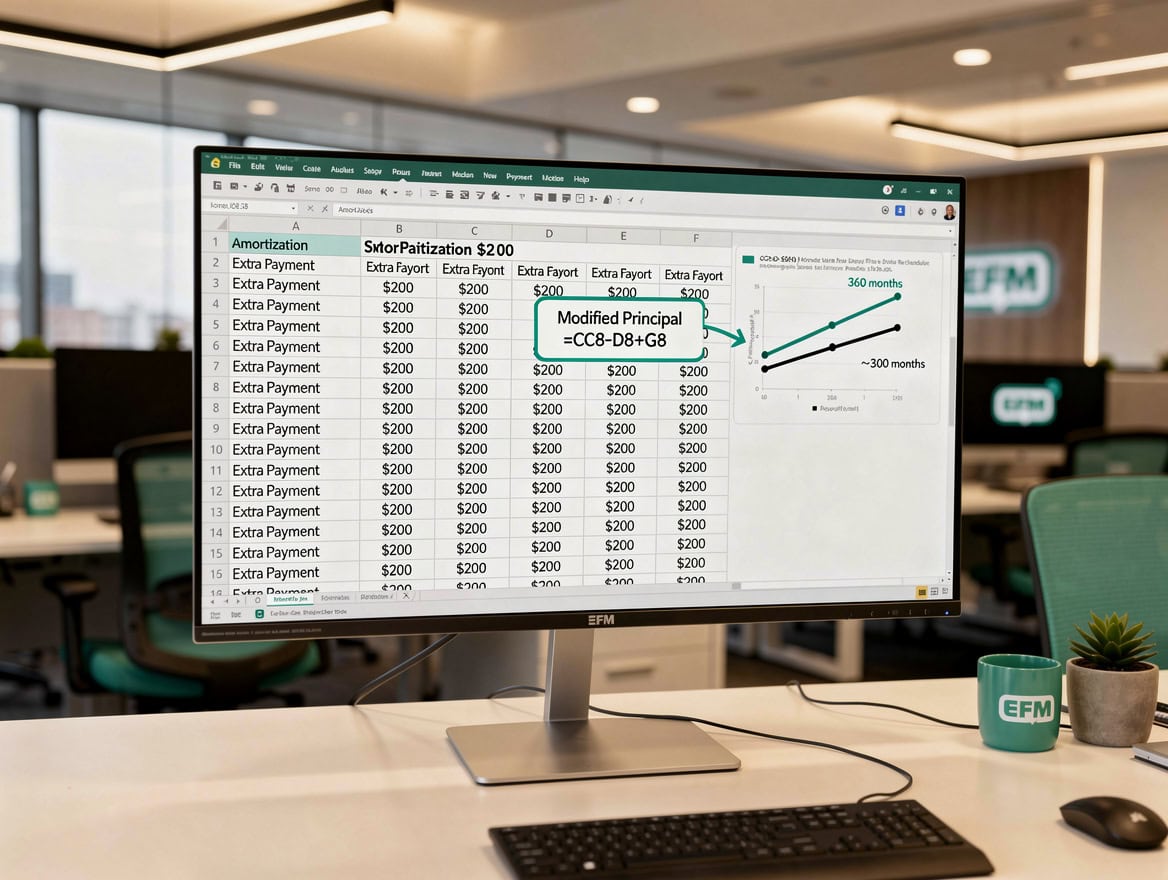
Each loan type requires a specific formula adjustment — balloon payments, variable rates, and payment holidays all need dedicated handling.
Using Amortization Data for Cash Flow Forecasting
An amortization schedule becomes a strategic tool when you connect it to your broader financial model. The most direct integration is linking the “Total Payment” column to your monthly cash flow statement as a fixed outflow line item.
In your cash flow sheet, reference the payment for month N with a formula like =AmortizationSheet!C9 (adjusting the row for each month). This means any change to loan terms in your amortization inputs automatically flows through to your cash flow projections — no manual updates, no transcription errors.
You can also calculate your debt service coverage ratio (DSCR) directly from the schedule. DSCR = Net Operating Income / Total Debt Service. Lenders typically require a DSCR of at least 1.25, meaning your operating income must be 25% higher than your annual loan payments. Build this ratio into a summary dashboard tab so you can see at a glance whether a new loan keeps you above that threshold.
For forecasting purposes, create a scenario tab with three versions of your amortization schedule: base case (current terms), downside (rate increases 1.5%), and upside (prepayment of 10% of principal in year 2). The difference in total interest across scenarios quantifies the value of maintaining a cash reserve for prepayments.

Linking amortization output to your cash flow model creates a live connection — one input change updates your entire financial picture.
Scenario Analysis: Comparing Two Loan Offers
Scenario analysis means running your schedule with different inputs to compare outcomes before committing. Here’s a real comparison between two equipment financing offers for the same $150,000 asset.
| Scenario | Rate | Term | Monthly Payment | Total Interest | Break-Even Month |
|---|---|---|---|---|---|
| Offer A (bank) | 7.0% | 60 mo | $2,970 | $28,200 | Month 31 |
| Offer B (equipment lender) | 6.2% | 72 mo | $2,506 | $30,432 | Month 37 |
Offer B has a lower monthly payment — $464 less per month — but costs $2,232 more in total interest and keeps you in debt 12 months longer. If your business needs cash flow relief now, Offer B might still be the right choice. If you can absorb the higher payment, Offer A saves money and frees capital sooner.
This is exactly the kind of decision an amortization schedule makes quantifiable. Without the schedule, you’re comparing two monthly payment numbers. With it, you’re comparing total cost, cash flow impact, and capital availability timelines.
You can also model prepayment impact: if you apply an extra $500/month starting in month 13 of Offer A, the loan pays off in month 48 instead of 60, saving approximately $6,800 in interest. Add an “Extra Payment” column to your schedule and modify the balance formula to subtract it: =F9-E10-extra_payment_cell.
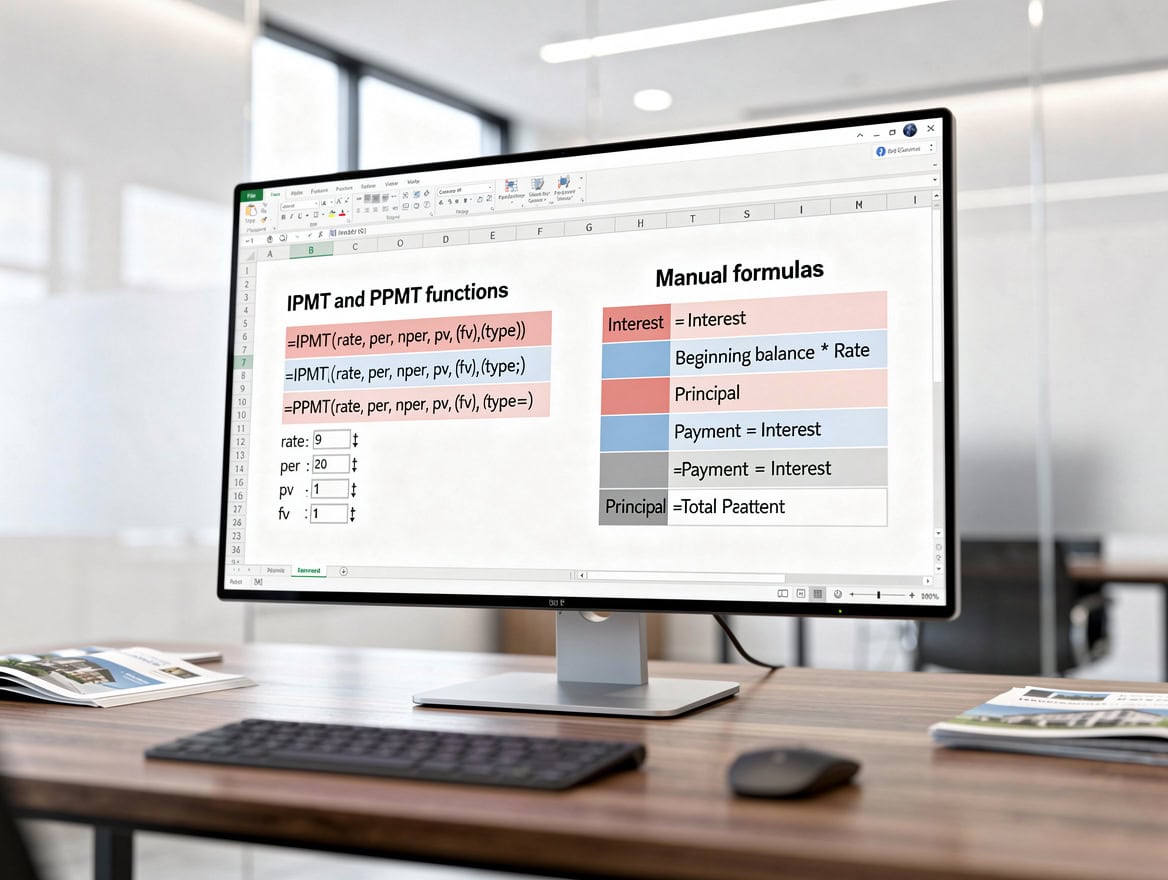
Offer B saves $464 per month but costs $2,232 more in total interest — a trade-off only visible when you model both scenarios in full.
Common Errors and How to Fix Them
Five mistakes appear repeatedly in business amortization schedules, and each one silently corrupts your planning data.
Error 1: Using the annual rate without dividing by periods. If you enter =PMT(B3, B4, -B2) instead of =PMT(B3/B5, B4, -B2), your monthly payment will be roughly 12 times too high. Fix: always divide the annual rate by the number of payments per year.
Error 2: Forgetting the negative sign on principal. PMT, IPMT, and PPMT return negative values when the present value is positive. Entering =PMT(B3/B5, B4, B2) gives you a negative payment. Fix: use -B2 or wrap the result in ABS().
Error 3: Hardcoding the payment amount. Some builders type the payment value directly instead of using a formula. When you change the interest rate, the payment doesn’t update. Fix: always reference the PMT formula, never type a dollar amount.
Error 4: Off-by-one period references. If your IPMT formula references A9 in row 10, every interest calculation is one period off. Fix: verify that the period number in column A matches the row it’s in, and use A9 only in row 9.
Error 5: Not validating the final balance. A correct schedule ends at exactly $0 (or within rounding). If your final balance is $500 or -$200, something is wrong. Fix: add a validation cell: =IF(ABS(F68)<1, “PASS”, “CHECK FORMULAS”) and check it before using the schedule for any decision.
For debt amortization schedules used in board reporting or audit preparation, also verify that the sum of all principal payments equals the original loan amount and the sum of all interest payments matches your total interest figure.
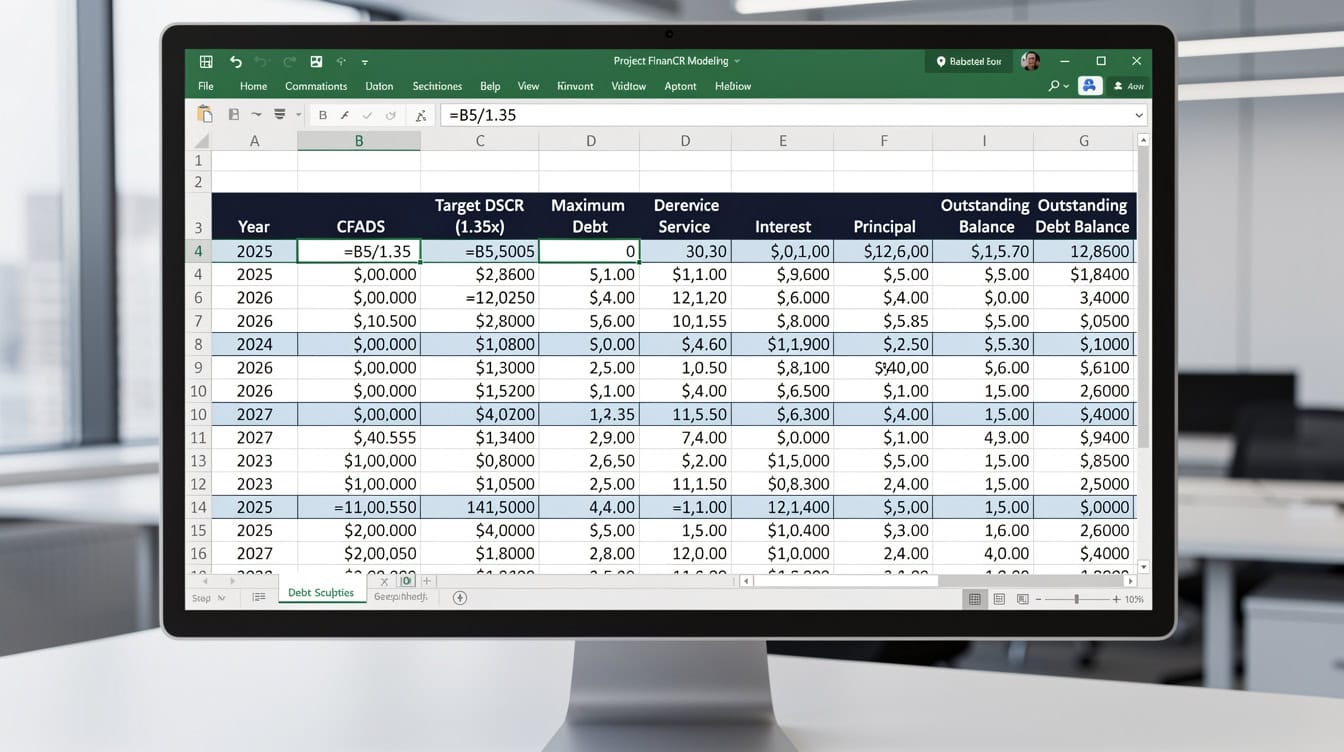
Three validation checks — final balance, principal sum, and total interest — confirm your schedule is arithmetically correct before you use it for decisions.
Advanced Features: Variable Rates, Extra Payments, Multi-Loan Tracking
Once your base schedule works, three advanced features add significant strategic value.
Variable interest rates are common in SBA loans tied to the prime rate. Create a “Rate Table” tab with two columns: Period and Rate. In your main schedule, replace the fixed rate reference with =VLOOKUP(A9, RateTable!$A:$B, 2, FALSE). Now you can model rate changes by updating the rate table, and every affected period recalculates automatically.
Multi-loan consolidation is useful when your business carries 3 or more loans simultaneously. Add a summary tab that pulls the “Total Payment” from each loan’s schedule and sums them by month. This gives you a single view of total monthly debt service — critical for DSCR calculations and covenant compliance reporting.
Payment holiday modeling (periods where no payment is made, common in seasonal businesses) uses an IF statement: =IF(A9=holiday_period, 0, PMT($B$3/$B$5, $B$4, -$B$2)). Note that interest still accrues during a payment holiday, so the balance column must add unpaid interest back to the principal for those periods.
For debt schedule tracking across multiple facilities, consider a master summary tab that consolidates all loans, shows total debt outstanding by month, and flags any period where debt service exceeds a set percentage of projected revenue.

Advanced amortization models use separate tabs for rate tables, loan consolidation, and holiday periods — all linked to a single summary dashboard.
Frequently Asked Questions
What is the PMT formula in Google Sheets and how does it work for business loans?
PMT stands for Payment and calculates the fixed periodic payment required to fully repay a loan. The syntax is =PMT(rate, nper, pv) where rate is the periodic interest rate (annual rate divided by number of payments per year), nper is the total number of payment periods, and pv is the present value or loan amount (entered as a negative number). For a $200,000 loan at 6.5% annual interest over 84 months, the formula is =PMT(6.5%/12, 84, -200000), which returns $2,993.47 per month. The total repayment is $251,451.48, meaning $51,451.48 in interest over 7 years. This single formula is the foundation of every amortization schedule.
How do I handle a balloon payment in a Google Sheets amortization schedule?
A balloon payment is a large lump-sum payment due at the end of a loan term, common in commercial real estate and some equipment financing deals. To model it, add a fifth argument to your PMT formula: =PMT(rate, nper, pv, fv) where fv is the future value (the balloon amount, entered as a negative number). For example, a $500,000 loan at 5.5% over 120 months with a $200,000 balloon: =PMT(5.5%/12, 120, -500000, 200000). This reduces the monthly payment because you’re not fully amortizing the loan. The balance column in your schedule will show $200,000 remaining in the final period, which you then pay as the balloon. Always model the balloon separately in your cash flow forecast so you can plan the refinancing or payoff well in advance.
Can I use a Google Sheets amortization schedule for SBA loans?
Yes, and it’s especially valuable for SBA loans because their terms vary significantly by use. SBA 7(a) loans go up to 10 years for working capital and equipment, and up to 25 years for real estate, according to the U.S. Small Business Administration. Source SBA loans often carry variable rates tied to the prime rate plus a spread. To handle this, build a rate table in a separate tab with one row per period and the applicable rate for that period. Reference it in your IPMT and PPMT formulas using VLOOKUP. This lets you model rate change scenarios by updating the rate table, rather than rebuilding the entire schedule. For SBA 504 loans, which have a fixed-rate debenture component, you can use the standard fixed-rate schedule for that portion and a separate variable-rate schedule for the bank portion, then consolidate both in a summary tab.
How do I validate that my amortization schedule is correct before using it for decisions?
Run 3 validation checks before trusting any schedule for a business decision. First, confirm the final balance equals zero (or within $1 due to rounding) by adding =IF(ABS(final_balance_cell)<1,”PASS”,”ERROR”) below the last row. Second, sum all principal payments and verify they equal the original loan amount: =SUM(principal_column) should match your input in B2. Third, independently calculate total interest as =(monthly_payment total_periods) – principaland compare it to=SUM(interest_column)`. If all three checks pass, your schedule is arithmetically correct. Also cross-check your monthly payment against an independent calculator — the Federal Reserve’s consumer credit resources or your lender’s own amortization tool work well for this. A discrepancy of more than $1 signals a formula error that needs fixing before you use the schedule for any planning or reporting purpose.
What’s the difference between using Google Sheets versus Excel for an amortization schedule?
Both tools use identical PMT, IPMT, and PPMT syntax, so any formula that works in one works in the other. The practical differences come down to collaboration and cost. Google Sheets is free and allows multiple users to edit simultaneously with no version conflicts — useful when a CFO, controller, and operations manager all need to review the same debt schedule. Excel requires a Microsoft 365 subscription starting at $6 per user per month for business plans, according to Microsoft’s published pricing. Source Excel has a slight edge in calculation speed for very large models and offers more advanced data analysis add-ins. For most small to mid-size business amortization schedules covering 1 to 5 loans over terms up to 30 years, Google Sheets handles the workload without any performance issues. Google Sheets also integrates natively with Google Workspace tools like Docs and Slides, making it easier to pull schedule data directly into board presentations.
How do I model the impact of making extra principal payments?
Add an “Extra Payment” column (column G) to your schedule and enter the additional amount for any period where you plan to pay more than the minimum. Then modify your balance formula to subtract the extra payment: for row 9, `=B2-E9-G9`, and for subsequent rows, `=F9-E10-G10`. The schedule will show the balance dropping faster in periods with extra payments, and all subsequent interest calculations will reflect the lower balance. The key insight is that extra payments made early in the loan term save the most interest, because interest accrues on the remaining balance. A $1,000 extra payment in month 6 of a 60-month loan saves more than $1,000 in extra payment in month 54, because the month-6 payment reduces the balance for 54 more compounding periods. Model both scenarios in your schedule and compare the total interest column to quantify the difference before deciding when to deploy surplus cash.
How do I connect my amortization schedule to a cash flow statement in Google Sheets?
The cleanest method is to create a named range for your payment schedule and reference it directly in your cash flow sheet. Name your “Total Payment” column (column C in the example above) by selecting C9:C68 and entering a name like `LoanPayments` in the Name Box. In your cash flow sheet, reference each month’s payment with `=INDEX(LoanPayments, month_number)`. This creates a live link: change any loan input and both the amortization schedule and the cash flow statement update simultaneously. For pro-forma financial statements, also pull the interest paid column into your income statement as an interest expense line item and the principal paid column into your balance sheet to reduce the loan liability. This three-way integration ensures your financial statements stay internally consistent without any manual reconciliation.

A validated amortization schedule gives business owners a defensible, data-driven basis for every loan and refinancing decision.
Build Your Schedule, Then Upgrade to a Professional Template
A Google Sheets amortization schedule built from scratch gives you full control and a deep understanding of how every formula works. Start with the 4 inputs and 7 steps above, validate your output against the 3 checks in the errors section, and you’ll have a reliable planning tool within an hour.
For businesses managing multiple loans, variable rates, or complex debt structures, a professionally designed template saves significant time and reduces the risk of formula errors in high-stakes decisions.
I recommend downloading the EFM Amortization Schedule template to get a pre-validated, audit-ready schedule with built-in scenario analysis, multi-loan consolidation, and DSCR tracking — ready to use the moment you enter your loan details.























































