
0 ITEMS

Know What’s True Or False With IF Statement in Excel
The world is full of uncertainty, that’s a fact. Whether you’re a small business owner or a C-suite executive in a multinational firm, evaluating scenarios and different possibilities are important.
The IF Statement in Excel is a powerful tool for examining and testing scenarios and arguments with numerous conditions. It is commonly used in financial modeling for scenario analysis. An analyst uses the IF Statement in Excel to test the effects of high or low inflation in investments. Or test the effects of fluctuations in the key profitability drivers of business by combining multiple conditions using the Excel IF statement with AND/OR and even adding additional IF statements with Nested IF statement in Excel.
In this article, we will discuss what is IF Statement in Excel, how to construct an IF Statement in Excel, how to do IF statement in Excel with single and multiple conditions using AND/OR, and we will briefly discuss Nested IF statement in Excel.
The Basics of The IF Statement in Excel
The IF statement in Excel is under the Logical Formulas section and basically tests whether a given condition or conditions are met. The IF statement in Excel results in TRUE/FALSE values, that is one value if the result is TRUE and one value if the result is FALSE.
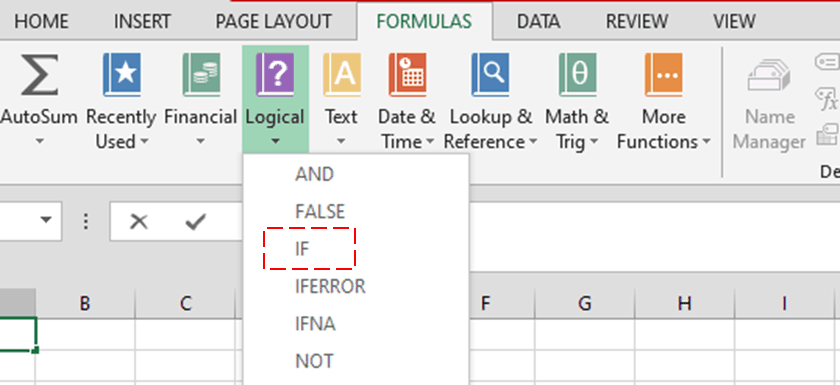

The IF Statement in Excel Formula
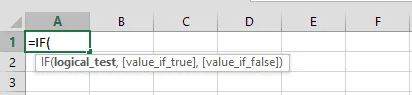
Where:
Logical_test – A required argument that represents the condition to be tested as either True or False.
When using the IF statement in Excel, you can use various logical operators (also called comparison operators) to construct the Logical_test.
| Equal to | = |
| Not equal to | <> |
| Greater than | > |
| Lesser than | < |
| Greater than or equal to | >= |
| Less than or equal to | <= |
[Value_if_true] – An optional argument representing the value if the condition tested is met and therefore is True.
[Value_if_false] – Also an optional argument representing the value if the condition tested is NOT met and is False.
These 2nd and 3rd arguments in the IF statement in Excel formula can contain any of the following:
- A number (1,0,…)
- A Text (“Yes”, “No”, “Match”, “No Match”)
- A reference to another ($A$1,$B$1; for good measure always lock the reference cell)
- A formula to perform calculations (multiply, add, subtract, divide)
- A formula with another IF statement in Excel
Another way to view the IF statement in Excel formula is:
=IF(Something is True, then perform this, otherwise perform something else)
An IF statement in Excel flow chart is a graphical presentation of the process of how to do IF statement in Excel.
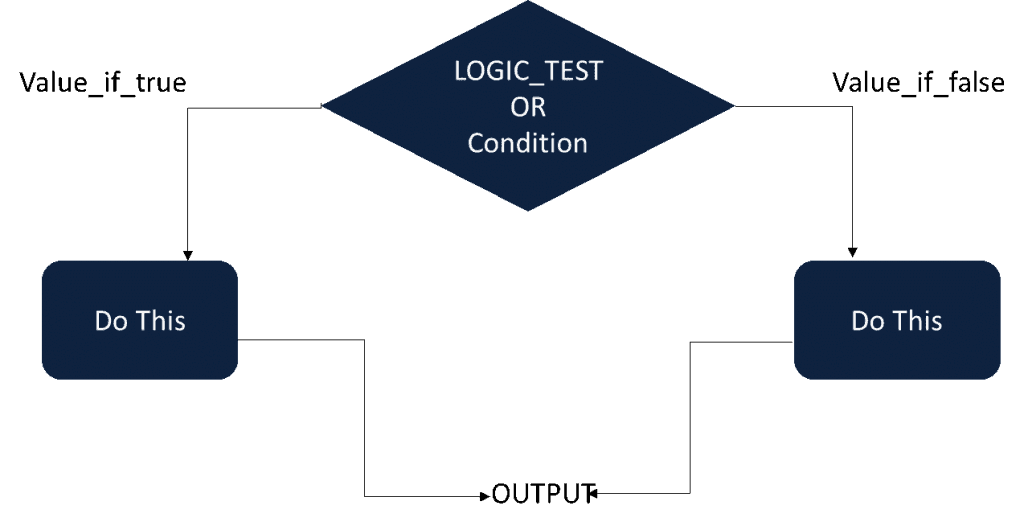
Examples on How to do IF Statement in Excel
The IF statement in Excel can be constructed as a test using various logical operators and based on multiple conditions. Let use examples to guide us on how to do IF statement in Excel.
IF Statement in Excel With Single Condition
Let’s start with a simple IF statement in Excel:
IF Net Income Before Tax is positive, then pay tax otherwise do nothing.
A flow chart of this IF statement in Excel is presented below:
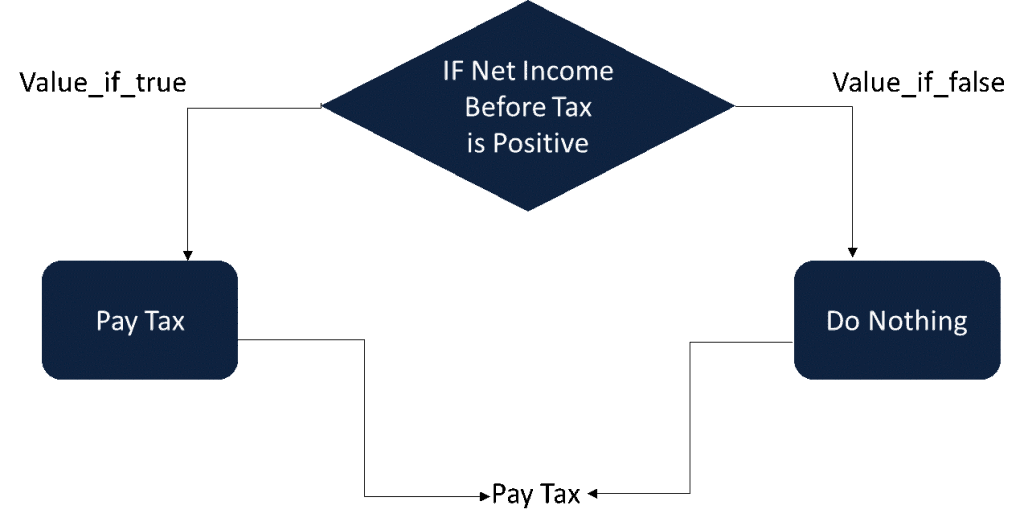
How to do IF statement in Excel using the IF formula?
- The Logical_test is if Net Income Before Tax is positive, which is presented in a mathematical term as >0
- If the argument is true, [Value_if_true], then display the text “Pay Tax”
- If the argument is false, [Value_if_false], then display (“ “), which is the Excel equivalent of do nothing
Combining these 3 arguments, the IF statement in Excel Formula is:
=IF(Net Income Before Tax>0,”Pay Tax”,” “)
Assume Net Income Before Tax is $2,000. The new IF statement in Excel formula is:
=IF(2000>0,”Pay tax”,” “)
Applying this formula to the table below, the IF statement in Excel gives us the following results.

A helpful tip when using the IF statement in Excel is to take advantage of cell references similar to the formula above. If you are working with a large amount of data, you can take advantage of the versatility of cell references since you can simply change one condition without editing the entire formula as well. Just make sure the reference cell is locked (absolute reference) pressing the F4 key.
The IF statement in Excel is very versatile and accommodates any specific action you want Excel to perform for True/False values. Assume instead of displaying the text “Pay Tax” for the [Value_if_true] argument, you want Excel to perform a calculation, a multiplication to determine the amount of tax due. How to do IF statement in Excel in this scenario?
Assuming a progressive tax rate, the applicable tax rate for income above $20M is 7%. The new IF statement in Excel is:
=IF(Net Income Before Tax>20000,20000*7%,” “)
Applying the formula to the same table, the IF statement in Excel gives us the following results.

As mentioned before, the IF statement in Excel can display a text, number and perform calculations for both [Value_if_true] and [Value_if_false] arguments.
Excel IF Statement with AND Logical Function
Our previous example shows the IF statement in Excel using only a single condition. How to do IF statement in Excel with two or more conditions and all must be met at the same time? The answer is by using Excel IF statement with AND logical function.
The AND logical function simply tests if all conditions are met and are therefore True. This is pretty handy when you have to test multiple conditions and be certain that every single one is met.


The Excel IF statement with AND logic formula is:
=IF(AND(Condition1, Condition2,…), Value_if_true, Value_if_false)
Simply put, If condition1 is met (True) AND if condition2 is also met (also True) then perform action 1 otherwise do action 2.
Our previous example calculated the Tax Due for income above $20M. Following on the progressive tax rate, we will now determine the Tax Due for Income less than or equal to $20M AND greater than $15M. Assume the applicable tax rate is 5%.
The Excel IF statement with AND function formula is:
=IF(AND(Net Income Before Tax<=20000, Net Income Before Tax>15000, Net Income Before Tax*5%,” “)
Using the same table, the Excel IF statement with AND logic gives us the following results.

Let us move on to calculating the Tax Due for income less than and equal to $15M AND greater than $5M with an applicable tax rate of 2%
The Excel IF statement with AND function formula is:
=IF(AND(Net Income Before Tax<=15000, Net Income Before Tax>5000, Net Income Before Tax*2%,” “)

Excel IF Statement with OR Logic Function
So far, we have learned how to do the IF statement in Excel using a single condition and combing the IF statement in Excel with AND function.
We will now discuss combining the IF statement in Excel with another logical function, the OR function.
The OR logical function tests two or more conditions at the same time to determine if either condition is met and is, therefore, True.


Excel IF statement with OR function formula is:
=IF(OR(Condition1, Condition2,…), Value_if_true, Value_if_false)
In other words, If either condition1 OR condition2 is met then perform action 1 otherwise do action 2.
To illustrate, assume no taxes are charged for Net Losses and for Net Income Before Tax of less than $5M.
The formula for the Excel IF statement with OR function is:
=IF(OR(Net Income Before Tax<0, Net Income Before Tax<5000), “No Tax Due”, “ “)
The table below presents the following results applying the Excel IF statement with OR formula:

How to do a Nested IF Statement in Excel
What is a Nested IF statement in Excel? The IF Statement in Excel is said to be “nested” where the IF statement is contained in another IF Statement to test for multiple conditions and possible outcomes.
IF Statement in Excel Formula for the Nested IF is:
=IF( condition1, value_if_true1, IF( condition2, value_if_true2, value_if_false2 ))
Where:
=IF(condition1, value_if_true1 is the main or first IF Statement in Excel.
IF(condition2, value_if_true2, value_if_false2 )) is the second IF Function and is what is referred as the “nested”. This gives the additional test if the main IF Statement in Excel is false. Notice that when using the Nested IF statement in Excel, do not start with the equal (=) sign.
Let’s apply the Nested IF statement in Excel in our current example.
Assume we want to identify the applicable tax rate based on a simple tax bracket.
| Income Level | Applicable Tax Rate |
| >$20M | 7% |
| >$15M | 5% |
| >$5M | 2% |
| <$5M | 0 |
The breakdown for the Nested IF statement in Excel formula is:
=IF(Net Income Before Tax>20000,” 7% Tax Rate”,IF(Net Income Before Tax>15000,” 5%Tax Rate”,IF(Net Income Before Tax >5000,” 2% Tax Rate”,”No Tax Due”)))
Dealing with one IF Statement in Excel is confusing, working with Nested IF statement in Excel is a bit overwhelming. Alternatively, you can use a flow chart understand the Nested IF statement in Excel.
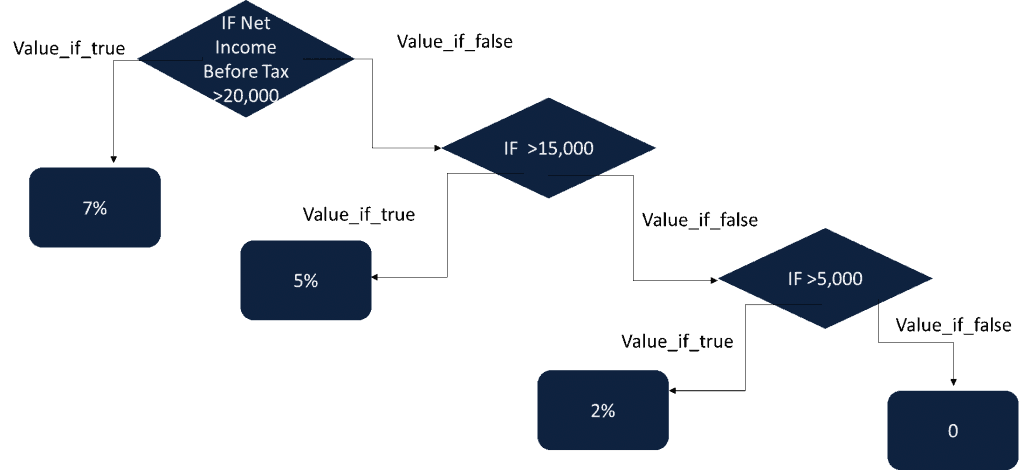
Applying the formula to our table the Nested IF statement in Excel presents the following results:

You are allowed to use up to 64 different Nested IF statement in Excel, however, doing so is not advisable. Why? For one, it is difficult to write. As it is an IF Statement in Excel needs a great deal of thought to construct properly which makes a Nested IF statement in Excel even harder and makes it more prone to errors. Also, multiple IF Statements in Excel can become complex and difficult to check for errors.
Things to Know When Using IF Statement in Excel
The IF Statement in Excel is a powerful tool for examining and evaluating numerous scenarios and its versatility allows you to define specific and multiple conditions that must be met before returning any outcomes. A few points to help you when using this powerful tool:
- The #VALUE! Error appears when the Logical_test argument can’t be
evaluated as TRUE/FALSE. Remember the Logical_test
is a required argument, the [value_if_true]
and [value_if_false] are
optional.
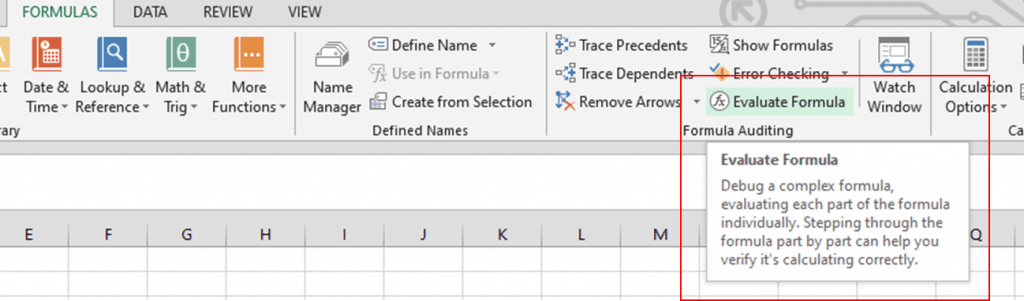
- You can also check or debug formulas using the Evaluate Formula tool in Excel.
- Alternatives to using Nested IF statement in Excel are:
- Be mindful of your parenthesis. Always make sure to have the appropriate number before finishing the formula by checking that for every open parenthesis there should be a closing parenthesis.
- Use reference cells as opposed to entering the condition directly into the IF Statement in Excel formula but make sure to always lock your reference cell by pressing the F4 key.
