
0 ITEMS

Maximizing Potential With Mortgage Calculator for Excel

A mortgage calculator for Excel simplifies how you plan and manage your home financing.
- It helps you input key data like loan amount, interest rate, and loan term to see instant payment calculations.
- Features include amortization schedules, interest and principal breakdowns, and options for extra payments.
- Customizing for different loan types and adding property taxes and insurance creates a complete payment picture.
- Using Excel functions like PMT, IPMT, and PPMT makes detailed mortgage analysis straightforward.
- Regular updates on rates and personal circumstances keep your planning accurate and relevant.
This article covers how to set up, customize, and interpret your mortgage calculator in Excel to improve your financial decisions.
Unveiling The Mortgage Calculator For Excel
Discovering the power of the Mortgage Calculator for Excel transforms the way you plan and manage your mortgage payments. This versatile tool makes complex calculations simple. Let’s delve into its incredible features and benefits.
Key Features
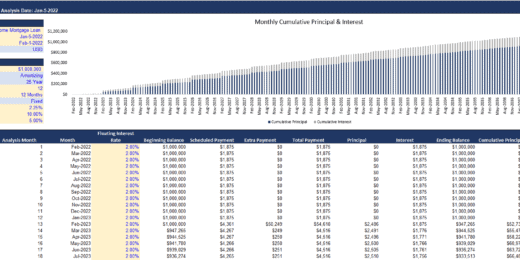
- Amortization Schedule: Visualize your loan’s future with a comprehensive amortization schedule.
- Interest and Principal Tracking: Keep an eye on your interest and principal payments effortlessly.
- Extra Payments Functionality: See how extra payments can shorten your loan term and cut down on interest.
- Variable Rates Support: Calculate payments with adjustable rates over time.
The Excel Mortgage Calculator includes dynamic graphs. These illustrate your loan’s progress. A simple interface helps users input data with ease. Quick adjustments to terms reflect instant changes in repayment plans. This robust tool caters to both basic and advanced mortgage calculation needs.
Benefits Of Using An Excel-based Tool
The Excel-based Mortgage Calculator offers numerous benefits for homeowners and financial planners:
- Accessibility: Access your mortgage data anytime, right from Excel.
- Cost-Effective: Save on expensive financial software with this Excel feature.
- Customization: Tailor your mortgage calculations to fit your specific situation.
Excel’s Mortgage Calculator accelerates your financial planning endeavors. It ensures accuracy and efficiency in forecasting your mortgage payments. Save time and make better decisions. Begin maximizing your potential with this competent Excel tool.
Setting Up Your Mortgage Calculator
Maximizing potential with a Mortgage Calculator in Excel starts with a smooth setup. Excel empowers homeowners to analyze and strategize their mortgage payments efficiently. The initial step involves understanding the required inputs and finding the ideal template that caters to individual needs.
Input Requirements
First, gather the necessary data. Here’s what you need:
- Loan amount: The total mortgage value.
- Interest rate: Your mortgage interest percentage.
- Loan term: Years to repay the mortgage.
- Start date: When the mortgage payments begin.
- Property tax, Insurance: Yearly costs.
- PMI: Private Mortgage Insurance, if applicable.
- Extra payments: Any additional payments.
Finding The Right Template
Selecting a template is easy.
- Open Excel.
- Go to ‘File’ and select ‘New’.
- Type ‘Mortgage Calculator’ in the search box.
- Press ‘Enter’.
- Choose a template.
Consider these aspects:
| Feature | Benefit |
|---|---|
| Amortization Schedule | Tracks payment progress over time. |
| Interest Calculations | Shows the portion of payments going towards interest. |
| Extra Payment Function | Calculates savings from additional payments. |
Choose a template with user-friendly layouts and features that match your mortgage details.
Navigating Through Excel Functions
Excel acts as a powerhouse for mortgage calculations. It turns complex data into easy-to-understand results. This part of the blog shows Excel secrets for maximizing mortgage potential.
Understanding PMT, IPMT, And PPMT
These Excel functions make mortgage calculations simpler. They break down your payment into principal and interest.
- PMT calculates your total payment amount per period.
- IPMT helps you see the interest on each payment.
- PPMT shows the principal part of each payment.
Getting familiar with these will give clarity in financial planning.
Leveraging Built-in Formulas
Excel comes with built-in formulas for mortgage-related tasks. Use them to avoid errors and save time.
=PMT(rate, nper, pv, [fv], [type])
=IPMT(rate, per, nper, pv, [fv], [type])
=PPMT(rate, per, nper, pv, [fv], [type])
The key to mastering Excel is understanding how and when to use these formulas.
| Function | Description | Example |
|---|---|---|
| PMT | Total payment per period | =PMT(0.05/12, 360, 100000) |
| IPMT | Interest part of a given payment | =IPMT(0.05/12, 1, 360, 100000) |
| PPMT | Principal part of a given payment | =PPMT(0.05/12, 1, 360, 100000) |
Understanding these formulas helps in making informed decisions about mortgages.
Customizing Your Calculator
Excel wizards and homebuyers, listen up! Tailoring a mortgage calculator to fit personal financial scenarios is a game-changer. Let’s dive into how you can tweak your Excel mortgage calculator for insightful and tailored results. This guide walks through adjusting for different loan types and factoring in taxes and insurance.
Adjusting For Various Loan Types
Selecting the right mortgage type matters. Every loan has unique features and terms. Users can customize Excel templates to reflect the specifics of the chosen loan. Here is what you need to do:
- Open the Loan Types section of your calculator.
- Choose the model that fits your loan: fixed-rate, adjustable-rate, or interest-only.
- Edit the interest rates, duration, and principal to match your loan terms.
- Review the amortization schedule to ensure accurate representation of your payments over time.
By correctly setting up these parameters, the calculator provides more accurate monthly payment estimates and total interest projections.
Incorporating Taxes And Insurance
Ignoring taxes and insurance can lead to surprises in your monthly budget. To get a full picture include these expenses in your mortgage calculations. Here’s a simple breakdown:
| Step | Action | Details |
|---|---|---|
| 1 | Find the Taxes/Insurance fields. | Typically located in a separate section of the calculator. |
| 2 | Input your property taxes. | Use annual figures obtained from local tax assessments. |
| 3 | Add your homeowner’s insurance costs. | Include annual premiums for accuracy. |
| 4 | Adjust for PMI, if applicable. | PMI is private mortgage insurance, required if your down payment is less than 20%. |
After updating these details, the calculator reflects a complete monthly payment, helping you plan finances better.
Analyzing Mortgage Scenarios
Unlock the power of Excel when shopping for a mortgage. Analyzing different mortgage scenarios arms buyers with vital information. Discover the impact of various rates and payment plans. Make informed decisions with the Mortgage Calculator for Excel.
Comparing Fixed And Adjustable Rates
Choosing the right mortgage rate can save thousands. Use Excel’s Mortgage Calculator to compare. See fixed rates alongside adjustable ones. Here’s how:
- Enter the loan amount, term, and fixed rate.
- Add the adjustable rate’s starting rate and potential increases.
- Examine monthly payments for each rate type.
- Analyze total interest over the life of the loan.
Look for the smallest payments and least interest. Don’t forget the rate stability a fixed rate offers. Check how adjustable rates change with market conditions.
Impact Of Extra Payments
Extra payments shorten loan terms and cut interest costs. The Mortgage Calculator for Excel shows:
- How much interest extra payments save.
- The reduced term of the mortgage.
Input extra payment amounts and frequency. See immediate results. You’ll learn the smartest ways to pay off your mortgage faster.
| Extra Payment | Interest Saved | New Loan Term |
|---|---|---|
| $100/month | $28,000 | 25 years |
| $200/month | $45,000 | 22 years |
Choose extra payments wisely. Use the Mortgage Calculator to balance monthly budgets. Find the best way to save on interest and own your home sooner.
Advanced Excel Features For Mortgage Calculation
Advanced Excel Features for Mortgage Calculation can transform how you manage and analyze your home loan. Excel offers powerful tools to work out your mortgage details accurately. Whether you’re saving for a new home or managing an existing mortgage, grasp these features to control your financial future.
Utilizing Data Tables For Sensitivity Analysis
Data tables in Excel enable you to run sensitivity analyses on your mortgage. This means you can see how changes affect your payments. To do this:
- Set up your base mortgage model with inputs like interest rates, loan amount, and term.
- Create a data table that adjusts one or two of these factors.
- Look at the outcome to see how your mortgage changes.
This helps you plan for different scenarios and make smart choices. Say interest rates go up or down; a data table shows you what happens to your monthly costs. It’s a handy way to test “what-if” within a secure Excel environment.
Implementing Conditional Formatting For Clarity
Excel’s Conditional Formatting does wonders for clarity. It highlights data that meet certain conditions. For your mortgage:
- Choose the cells with your mortgage info.
- Go to the ‘Conditional Formatting’ button.
- Pick rules, like ‘Greater Than’ or ‘Less Than’.
- Set your conditions, such as different interest rates.
- Select a format style, like a color or icon.
This makes your mortgage sheet visual and easy to understand. You see at a glance when you’re above or below your ideal payment. With colors and icons, it’s clear how each change affects your budget. Stay on top of your mortgage and gain financial control with these Excel features.
Interpreting The Results
Exploring a Mortgage Calculator for Excel reveals a wealth of information about your home loan. Interpreting the Results helps you understand your financial position and plan for the future. Let’s dive into the specifics.
Deciphering Amortization Schedules
An amortization schedule is a map of your loan’s life. It shows each payment and how it splits between interest and principal. By examining this schedule, you can see exactly when your loan will be paid off.
- Total Payment: A look at all your future payments combined.
- Interest Paid: The cost of borrowing the mortgage amount.
- Principal Paid: The amount going toward the loan’s balance.
- Remaining Balance: What you still owe after each payment.
Tip: Use the Excel SORT function to arrange your payments.
Understanding Equity Accumulation
Equity is the part of your home you truly own. It grows as you pay off your mortgage and as your property value increases.
| Year | Principal Paid | Equity |
|---|---|---|
| 1 | $X,XXX | $X,XXX |
| 5 | $X,XXX | $X,XXX |
| 10 | $X,XXX | $X,XXX |
Monitor: Equity growth to consider refinancing or selling.
- Early payments are mostly interest.
- Principal payments increase over time.
- Home improvements can boost equity.
Clear understanding paves the way to financial freedom.
Avoiding Common Mistakes
Using a mortgage calculator for Excel can unlock your home-buying potential. Yet, simple errors can lead to big setbacks. Knowledge is power when using financial tools. This guide shows you how to sidestep common errors for the best results.
Double-checking Inputs And Formulas
Correct data input is crucial for accurate mortgage calculations. Here’s how you can ensure everything is in order:
- Verify each entry: Cross-reference your input with reliable sources.
- Use built-in checks: Excel can guide you through data validation steps.
- Review formulas: Ensure they reflect true mortgage conditions. Look for erroneous signs and misplaced parentheses.
Consistent formula reviews eliminate calculation errors. Hit ‘F2’ in Excel to audit formula in each cell.
Ensuring Accurate Assumptions
Mortgage calculators rely on assumptions. Setting realistic figures is essential for precise planning. Follow these steps:
- Interest rates: Use current rates from reputable lenders.
- Property taxes: Check local rates to estimate annual costs.
- Insurance: Get quotes to gauge exact insurance expenses.
Adjust settings to match local economic conditions. This tailors the calculator to your specific situation.
Leveraging The Calculator For Decision Making
For those considering a mortgage, an Excel mortgage calculator is essential. It’s a tool that simplifies complex numbers into actionable insights. Smart decision-making in mortgage planning is now within reach.
Determining The Optimal Loan Term
Choosing the right loan term can save thousands. The mortgage calculator for Excel turns this choice into a clear comparison. Users plug in different scenarios to see how loan length affects payments and total interest.
Short-term loans mean higher monthly costs but less interest overall. Long-term loans reduce monthly payments but increase total interest. Excel makes it easy to visualize the trade-off:
| Loan Term | Monthly Payment | Total Interest |
|---|---|---|
| 15 years | $1,500 | $70,000 |
| 30 years | $1,000 | $150,000 |
Evaluating Refinance Opportunities
Refinancing can lead to big savings. Enter current loan details and potential new terms into the calculator. Instantly, see the impact on monthly payments and the break-even point.
- Current interest rate: 5%
- New interest rate: 3.5%
- Savings over time: Displayed in the calculator’s summary section
Interest rate drops often mean it’s time to act. The Excel calculator gives the clarity needed to make informed choices. Always consider closing costs against savings to see the full picture.
Sharing And Collaborating With Stakeholders
When using a Mortgage Calculator for Excel, sharing and collaborating with stakeholders is crucial. These stakeholders include team members, financial advisors, and clients looking for transparency and efficiency in their mortgage calculations. Excel empowers its users to work together in real-time, providing a seamless collaborative environment.
Protecting Sensitive Information
Safety comes first when working with financial data. Recognizing the need for confidentiality, Excel’s Mortgage Calculator can secure sensitive details.
- Use Password Protection: Lock your document to prevent unauthorized access.
- Limit Editing Rights: Grant specific users permission to edit certain sections.
- Data Encryption: Apply Excel’s built-in encryption to protect data integrity.
Excel Features That Enhance Collaboration
Excel boasts features that foster smooth stakeholder collaboration.
| Feature | Function |
|---|---|
| Comments and Notes | Leave feedback or notes for clarification. |
| Co-Authoring | Work on the same file simultaneously. |
| Version History | Track changes and revert if necessary. |
| Shareable Links | Easy file sharing with controlled access. |
Utilizing these features ensures that every stakeholder contributes effectively, while maintaining control over the mortgage calculator.
Keeping Your Calculator Up-to-date
An up-to-date mortgage calculator in Excel is your secret weapon. It helps you grasp these numbers fast. Let’s dive into why and how to keep it fresh with the latest data. Keeping the calculator current is crucial. It assures accurate calculations. It points you to smart financial decisions.
Regularly Updating Interest Rates
Interest rates change often. They impact monthly payments majorly. A slight rate change makes a big difference over time. Thus, updating the rates in your Excel mortgage calculator is essential.
Use these steps:
- Check rates weekly from reliable financial sources.
- Input the new rates into your calculator.
- Save changes to ensure the calculator reflects current market conditions.
Consistent updates keep your calculations grounded in reality. They guide you towards accurate budgeting. They prevent surprises in your finances.
Adjusting For Changing Financial Circumstances
Your financial situation can change. A job switch, a pay raise, or unexpected expenses alter your budget. Your Excel mortgage calculator must adapt to these changes. Here’s why:
- Better financial planning hinges on current data.
- Accurate figures show you can handle new monthly payments.
- Adjustments in the calculator reveal what you can afford now.
To adjust for changes:
- Edit income or debt figures in the calculator straight away.
- Review the effect on your mortgage options.
- Keep your financial plans aligned with your current situation.
Remember, an up-to-date calculator means informed decisions. It turns complex data into clear insights. It maximizes your home-buying potential.
Frequently Asked Questions
How Does A Mortgage Calculator For Excel Work?
A mortgage calculator in Excel uses built-in financial functions to compute monthly payments. It factors in the principal, interest rate, loan term, and can include additional aspects like insurance and taxes, presenting an amortization schedule for clear financial planning.
What Are The Benefits Of Using An Excel Mortgage Calculator?
An Excel mortgage calculator offers customization, accuracy, and flexibility. Users can adjust variables like interest rates or down payment to see impact on monthly payments. It’s a valuable tool for financial forecasting and making informed decisions on home affordability.
Can Excel Calculate Mortgage Interest And Principal Separation?
Yes, Excel can separate interest and principal in a mortgage. By using the functions like PPMT and IPMT, users can precisely determine the amount going towards interest and principal throughout the loan period, aiding in financial planning and tax deductions analyses.
Are There Free Mortgage Calculator Templates For Excel?
Absolutely! There are numerous free mortgage calculator templates available online for Excel. These templates are often ready-to-use and just require inputting your specific loan details to generate a comprehensive payment schedule.
Conclusion
Harnessing the power of Excel’s mortgage calculator can transform your home-buying journey. It simplifies complex calculations, ensuring you make educated decisions on your mortgage. Embrace this tool for clarity and confidence in your financial future. Start planning smarter and watch your potential flourish.










































You might also like:
- 10 Tips to Develop a First Class Business Valuation Report
- 10-Step Financial Planning Checklist for Smart Executives
- 5 Steps to Create a Drop Down List Using Data Validation in Excel
- Master the Free Cash Flow Formula for Smarter Financial Decisions
- Cash Flow Analysis in Excel
- Understanding the Debt Service Coverage Ratio: An Essential Metric for Financial Analysis
- Financial Planning for Small Business Owners – Taking an SBA Loan
- Scenario Analysis
- 5 Ways COVID-19 Impacts Financial Plans For Retirement & What To Do About It
- Financial Modeling for Startups and Small Businesses
- Capitalized Earnings
- Real Estate Financial Modeling in Excel
- Financial Statements – Definition, Uses, Contents and Templates
- Understanding What is Yield to Maturity and Why It Matters
- How to Use Excel for Financial Analysis?
- Financial Model Templates Easy to Use
- 10 Main Elements of a Business Plan
- Monthly Annuity Calculator
- 10 Ideas to Increase Average Revenue Per User
- Financial Ratios Analysis and Its Importance


