
0 ITEMS

The Complete Guide to Google Sheets Multiple If Statements
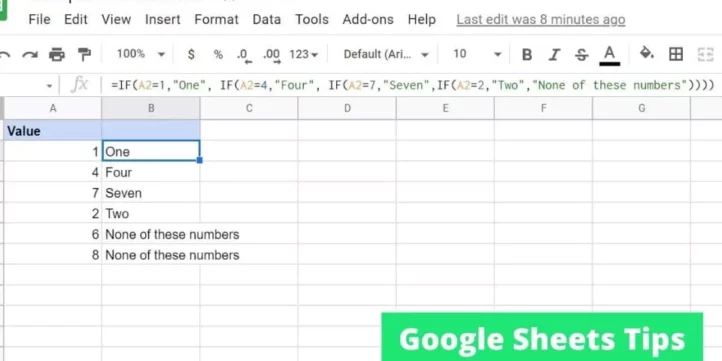
Using multiple IF statements in Google Sheets allows for complex decision-making and data categorization.
- Nested IFs enable sequential testing of multiple conditions within a single formula.
- Combining IF with functions like AND and OR expands logical testing options.
- Array formulas help apply IF logic across ranges for bulk data analysis.
- Proper syntax, parentheses, and clear outcomes are crucial for error-free formulas.
- Alternatives like SWITCH and IFS can simplify complex logical structures.
Continuing, understanding these techniques helps turn raw data into actionable insights through effective formulas.
The Power Of Google Sheets For Data Analysis
Google Sheets transforms data management with ease and efficiency. Users can store, organize, and analyze information dynamically. Its powerful features offer unparalleled advantages for data analysis. This includes multiple ‘if’ statements, a versatile capability that enhances decision-making.
Google Sheets As A Versatile Tool
Google Sheets stands out as a dynamic spreadsheet application. Its cloud-based nature ensures access from anywhere. Data analysis becomes both convenient and collaborative. Users employ a wide array of functions and tools to dissect and interpret their data. Below are the key features that make Google Sheets an outstanding data analysis tool:
- Real-time collaboration: Multiple users can work on the same document simultaneously.
- Access to numerous functions: Offers wide-ranging formulas for diverse data operations.
- Easy data visualization: Visual elements like charts and graphs aid in data interpretation.
- Integration capabilities: Connects effortlessly with other applications and services.
Case For Using Multiple If Statements
In data analysis, decision trees are crucial. They help define outcomes based on multiple conditions. Google Sheets addresses this need with multiple ‘if’ statements.
‘IF’ functions evaluate whether a condition is true or false. They return specific results accordingly. As decision-making becomes complex, combining several ‘if’ statements is necessary. This logical progression ensures precision in conditional analysis.
- Nested If Statements: These allow for multiple, sequential conditional tests within a single cell.
| Condition | ‘IF’ Statement | Result |
|---|---|---|
| First | =IF(A1>10, “Over 10”, IF(A1>5, “Over 5”, “5 or less”)) | Different messages for each range |
| Second | =IF(A1=B1, “Matches”, “Doesn’t Match”) | Direct comparison of two cells |
Utilizing multiple ‘if’ statements, users navigate complex data scenarios. They expand the potential of Google Sheets far beyond simple calculations. Deep analysis of data sets is achieved with elegant logic and minimal hassle.
Remember: Each nested ‘IF’ should lead to a specific outcome. Maintain clean, error-free spreadsheet logic for optimal data analysis.
Core Concepts Before Diving In
Before leaping into multiple IF statements in Google Sheets, grasp core concepts. Get these basics right, and you’ll master IF functions quickly. Let’s uncover the essentials.
Understanding If Statements
IF statements act as decision-makers in Google Sheets. They check conditions and decide what data shows. Imagine a smart robot that follows your yes-or-no orders. That’s what IF does with data.
- Single IF: Checks one condition.
- Multiple IFs: Checks more than one condition, one after another.
- Nested IFs: Places IF within IFs, for complex checks.
| IF Type | Description | Example |
|---|---|---|
| Single IF | One condition check | =IF(A1>10,"Yes","No") |
| Multiple IFs | Sequential condition checks | =IF(A1>10,"Yes",IF(A1>5,"Maybe","No")) |
| Nested IFs | IF inside IFs for depth | =IF(A1>10,"Yes",IF(A1>5,"Maybe","No")) |
Master these, and complex spreadsheets become simpler.
Syntax And Structure
Syntax is the formula’s grammar. Get this wrong, and Sheets won’t understand. The structure for a basic IF looks like this:
=IF(logical_test, value_if_true, value_if_false)
- Logical_test: The condition you’re checking.
- Value_if_true: Outcome when the condition meets.
- Value_if_false: Outcome when the condition fails.
For multiple conditions, the syntax grows like branches on a tree:
=IF(test1, result1, IF(test2, result2, result_default))
Remember, balance is key – every IF needs a closing bracket.
Understand these concepts? You’re set to tackle multiple IF statements. Let’s get those Sheets to work for you!
Setting Up Your Google Sheet
Welcome to the world of Google Sheets, where your data is about to get super powers. The secret? Multiple IF statements. But before you can become a Google Sheets wizard, you need a solid foundation. Let’s set up your Google Sheet for success.
Best Practices For Organization
A well-organized sheet is like a map to buried treasure. It guides you straight to the insights you’re after. Keep these tips in bold:
- Name your sheet with clear, descriptive titles.
- Freeze headers so you always know which column is which.
- Color-code tabs when using multiple sheets.
- Use filters to manage large sets of data easily.
Data Types And Compatibility
Apples and oranges don’t mix well in a pie, and the same goes for data types in Google Sheets. Get familiar with what works best:
| Data Type | Compatibility | Example |
|---|---|---|
| Text | Combines well with other text | A1 & B1 |
| Numbers | Perfect for calculations | =SUM(C1:C10) |
| Dates | Use DATE functions for best results | =TODAY() |
| Boolean (TRUE/FALSE) | Great with logical operations | =IF(D1=”Yes”, TRUE, FALSE) |
Remember, matching data types is key to formulas working smoothly. When in doubt, use the =TYPE() function to check your data type.
Single If Statement Basics
Google Sheets is a powerful tool that can simplify complex tasks. One such fundamental feature is the single IF statement. It works just like a real-life decision. When you set a condition and define the outcome, Google Sheets will follow your command.
Simple If Statement Examples
Getting to grips with IF statements in Google Sheets can transform your data analysis. Below are examples that explain how you might use these functions effectively.
=IF(A1 > 10, "Above 10", "10 or less")– This checks if A1 is above 10.=IF(B2 = "Yes", "Approved", "Denied")– Here, B2’s content determines the outcome.
Common Pitfalls And How To Avoid Them
Errors can creep in when using IF statements. Understanding these pitfalls ensures smoother use.
| Pitfall | Solution |
|---|---|
| Incorrect Comparison Operator | Use operators like <, >, = correctly. |
| Misquoted Strings | Always enclose text outcomes in quotes (" "). |
| Neglecting Case Sensitivity | Remember ‘YES’ and ‘yes’ are different. |
Crafting Multiple If Statements
Google Sheets turns data into insights with the help of conditional logic. Multiple If statements mean you can examine many conditions. They’re like detectives, finding exactly what data meets certain rules. This guide will show you how to create layers of If statements. It will feel like unlocking a puzzle, where each piece fits just right to reveal the big picture.
Nested If Logic
Think of Nested If logic as a set of matryoshka dolls. Each IF() function opens up to reveal another one inside it, until no more conditions are left to check. This way, you tell Google Sheets to run through different scenarios, one after the other, until it finds a match. Here’s how to structure it:
=IF(condition1, result1, IF(condition2, result2,
        IF(condition3, result3, "No match")))
Nested If logic helps avoid confusion. For a clear spreadsheet, don’t nest more than three layers. This keeps your formulas easier to read and manage.
When To Use Multiple Ifs
- Complex decisions: When a simple yes or no won’t do.
- Detailed categorization: Sort data into many buckets.
- Stepwise calculations: When each step depends on the previous one.
Limit the use of multiple Ifs. Keep things simple for the best performance and clarity. Remember, too many conditions might slow down your sheet and confuse others who use it.
Practice caution and consider alternative functions like IFS() or SWITCH() for cleaner approaches to complex logic.
Advanced Techniques And Functions
Mastering Google Sheets requires a deep understanding of its advanced techniques and functions. This section unveils the power of multiple IF statements tailored for complex conditions. Excel in data analysis by combining logical functions like AND, OR with IF statements. Learn to manipulate arrays, boosting your productivity in Google Sheets.
Incorporating Functions Like And, Or
Dive deeper into decision-making logic with AND and OR functions within IF statements.
- The AND function checks if all conditions are true.
- The OR function checks if at least one condition is true.
Combine these with IF for compound conditions:
=IF(AND(condition1, condition2), value_if_true, value_if_false)
=IF(OR(condition1, condition2), value_if_true, value_if_false)
If With Arrays
Arrays empower you to apply IF logic across a range of cells simultaneously.
Use array formulas with IF to process multiple values:
=ARRAYFORMULA(IF(range1=condition, range2, ""))
This technique saves time and simplifies complex calculations.
Remember:
- Array formulas require ARRAYFORMULA function.
- They can return multiple results.
- They are ideal for batch processing in Google Sheets.
Troubleshooting Common Errors
When using Google Sheets, mastering multiple IF statements can unlock powerful data comparisons. Yet, sometimes things can go awry and errors crop up. Fear not! Identifying common mistakes and knowing how to fix them saves time and headaches. Let’s dive into some troubleshooting tips to keep those nested IF statements working smoothly.
Debugging Your If Statements
Debugging can feel like a detective game. To start, check each condition within your IF statement. Make sure every element does what you intend. For instance:
- Confirm that the cell references are correct.
- Look for matching parentheses that group your conditions.
- Verify the use of commas and semicolon usage based on your locale settings.
Break down complex IF statements into smaller parts. Test these parts in separate cells to see if they return expected results. If an error arises here, you’ve found where to focus your fix!
Handling Error Messages
Error messages can be cryptic, yet they’re valuable clues. Common errors in Google Sheets IF statements include:
| Error | Cause | Solution |
|---|---|---|
#DIV/0! | Division by zero | Check if you’re accidentally dividing by zero or an empty cell. |
#NAME? | Google Sheets doesn’t recognize a function or named range. | Confirm all function names and named ranges are correct. |
#VALUE! | Wrong type of argument in a function or formula | Ensure all arguments match the expected data type. |
#N/A | Value is not available in the used function | Check data sources for the expected value. |
Understanding what each error message means is a game-changer. You can then swap out the problem pieces with the right ones. Keep notes on errors you encounter and how you solve them. This way, you can quickly address similar issues in the future.
Optimizing Performance In Complex Sheets
Google Sheets is a robust tool for data analysis and organization. But, complex spreadsheets with multiple if statements can slow down. Performance optimization becomes key. Here’s how to make complex Sheets run smoothly.
Tips For Speeding Up Calculations
Calculation speed matters when working with data-heavy Google Sheets. Follow these tips:
- Use Array Formulas sparingly: Array Formulas are powerful but can slow down your sheet. Apply them only when necessary.
- Limit Volatile Functions: Functions like TODAY() or NOW() recalculate often. Keep their use to a minimum.
- Reduce Dependencies: Simplify formulas by reducing the number of referenced cells.
- Disable Iterative Calculation: Unless needed for specific calculations, turn this off under File > Spreadsheet settings.
- Split your data: Use multiple sheets or files if your data is extensive. It prevents clogging up a single sheet.
Best Practices For Maintainability
Keeping your Google Sheets maintainable ensures longevity and ease of use. Stick to these practices:
| Practice | Benefits |
|---|---|
| Name Ranges | Makes formulas easier to understand |
| Color Code: | Highlight different types of data |
| Document Formulas: | Keep a record of custom formulas |
| Modularize Functions: | Break down complex formulas into steps |
| Consistent Design: | Use the same layout for similar sheets |
Remember, simple is efficient. Regularly review your sheets and refactor when possible.
Practical Examples And Templates
Introduction to Practical Examples and Templates
Google Sheets is a powerful tool for organizing data. With the right knowledge, you can perform complex calculations. Learning through practice is a superb way to master multiple if statements. This section provides practical examples and helpful templates to enhance your understanding.
Scenario Based Exercises
Scenario Based Exercises
Let’s dive into real-life situations to see how multiple if statements can solve problems. These exercises reflect common tasks you might encounter in day-to-day work.
- Classifying student grades based on their scores
- Calculating bonuses for employees depending on performance metrics
- Sorting customer feedback into categories for analysis
For each scenario:
| Step | Action |
|---|---|
| 1 | Define the criteria for each category. |
| 2 | Write an if statement for each category. |
| 3 | Combine the statements into one formula. |
| 4 | Test the formula to ensure accuracy. |
Check results against expected outcomes to confirm your formulas work as intended.
Downloadable Templates for Practice
Downloadable Templates For Practice
To make your learning process smoother, we offer templates for download. These Google Sheets files come pre-loaded with multiple if statement scenarios.
- Navigate to the template link.
- Click on “File” in the Google Sheets menu.
- Select “Make a copy” to save the template to your drive.
- Practice editing the if statements with guidance notes.
Our templates are designed for hands-on practice. They reinforce concepts learned and build confidence in using multiple if statements. Whether for education, business, or personal use, these exercises equip you with the skill to handle diverse data challenges.
Beyond Multiple If Statements
Managing complex data in Google Sheets often needs smart tricks. Multiple IF statements can be tricky and lengthy. Many users don’t know there are more ways to deal with data. This section will explore some of these clever methods.
Exploring Alternatives To If For Complex Logic
Too many IFs make a formula hard to read. What can you use instead? Try these:
- CHOOSE function: Picks a value from a list using an index.
- SWITCH function: Easier than nested IFs for fixed values.
- LOOKUP functions: Good for categorized data. Sort data for best results.
- QUERY function: Works like SQL. Great for big, complex data sets.
These alternatives keep your sheets neat and your data tidy.
Integration With Other Google Workspace Tools
Google Sheets is not alone. Connect with other Google apps for more power. See how:
-
Send forms and save responses straight to Sheets.
-
Create custom functions or automate tasks.
-
Turn your data into informative reports. Share insights easily.
Combine these tools and make your workflow smooth and efficient.
Frequently Asked Questions
How Do Google Sheets Multiple If Statements Work?
Multiple IF statements in Google Sheets allow users to assess several conditions in sequence. If the first condition is false, the next IF statement is evaluated. This process continues until a true condition is found, returning the corresponding result.
Can You Nest If Functions In Google Sheets?
Yes, you can nest IF functions in Google Sheets, which means placing an IF statement inside another. However, Google Sheets limits it to 64 IF functions nested in a single formula for efficient performance and easier readability.
What Are The Alternatives To Nested Ifs In Google Sheets?
Alternatives to nested IFs include using the IFS function for multiple conditions or the SWITCH function for specific cases. VLOOKUP or HLOOKUP can also be used to simplify complex logic based on a lookup table.
How To Debug Errors In Multiple If Statements?
To debug errors in multiple IF statements, check each condition’s logic for accuracy. Ensure that all parentheses are correctly placed and that true/false outcomes are clearly defined. Also, verify that all referenced ranges and cells contain the expected values.
Conclusion
Mastering Google Sheets with multiple IF statements can transform data analysis and decision-making processes. This guide aimed to equip you with the knowledge to leverage this powerful feature effectively. With practice, you’ll navigate complex formulas confidently and unleash the full potential of your spreadsheets.
Remember, every expert was once a beginner; start exploring Google Sheets today!














































You might also like:
- 10 Ideas to Increase Average Revenue Per User
- 14 Best Practices in Financial Modeling
- Achieve Financial Success By Knowing Your Business Plan Model
- A Step-By-Step Guide to Ammonia Plant Analysis
- Financial Planning for Small Business Owners – Taking an SBA Loan
- Airbnb
- Financial Modeling
- Building a Monthly Budget – Using Monthly Budget Templates
- Cash Flow Analysis in Excel
- Creating a Business Plan for your Food Truck Business
- Budgeting
- E-Commerce & Web Shops
- Exploring the Benefits of a Rental Property Excel Spreadsheet
- Calculating Revenue Growth Rate: A Key Metric for Business Success
- 10-year Financial Projections
- Why Should You Use Excel for Financial Modeling?
- Top 10 Mistakes in DCF Valuation Models
- Accounting
- How to Start a Construction Machinery Rental
- Simple Budget Planner Template


