
0 ITEMS

How to Understand Formulas in Excel?
In MS Excel, you often make use of formulas to calculate efficiently. It’s also convenient since there are pre-saved formulas that you can choose for specific types of calculations. When using ready-made financial model templates, the formulas in Excel are already set up by the author. These formulas are often linked in the sheet or other sheets within the worksheet and are following a logic related to the model.
Of course, since the financial model will undergo customization to fit your business case, you’re bound to edit the formulas used within the worksheet. To ensure that the logic of the calculation is retained, it is best to conduct Auditing and use the Excel functions > Trace Precedents & Trace Dependents.
Auditing / Trace Precedents
In MS Excel, if you are not sure what kind of calculation a cell does, an easy way to find out is to use the Auditing / Trace Precedents function in MS Excel.
The video below explains how to use this function:
Here are the detailed steps:


In MS Excel,
- Select the cell for which you like to understand the formula (e.g. cell M24)
- Go to the Menu Tools (Mac) or Formulas (Windows)
- Select the Menu Auditing / Trace Precedent
- Then Excel will display Blue Tracer lines to show the relationships between cells. The blue cells indicate from where a cell is linking from.
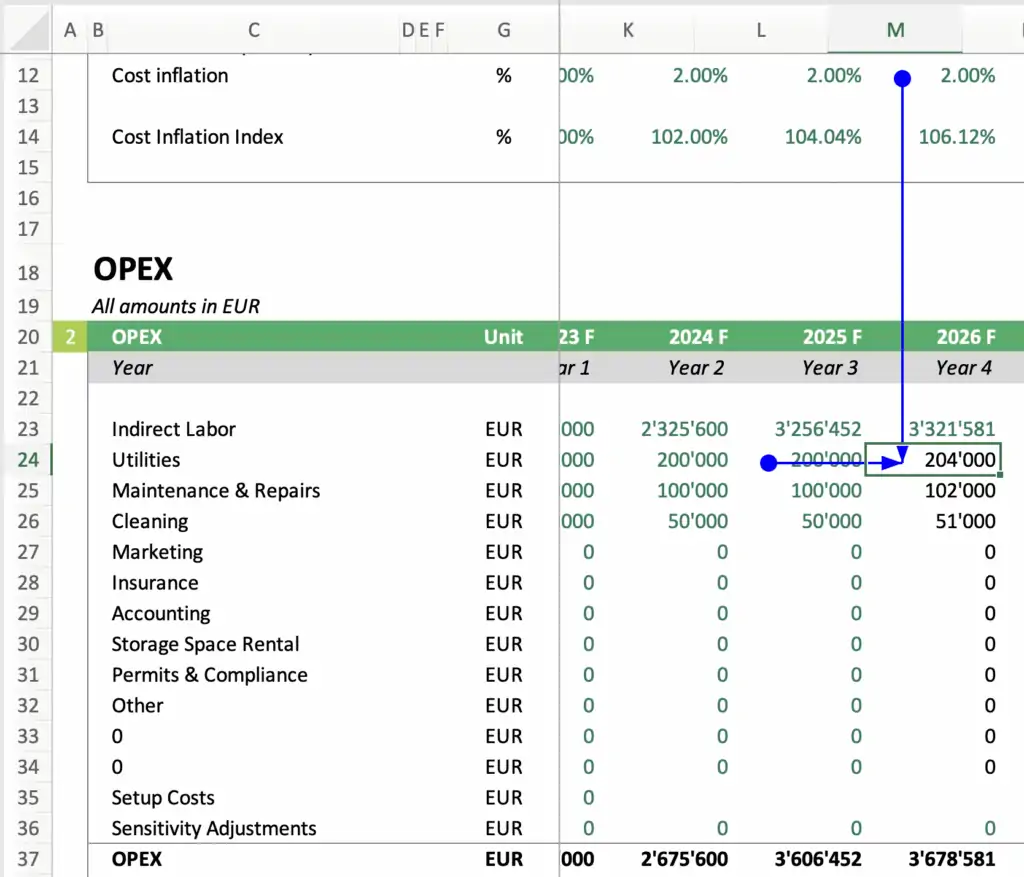
This allows you to better understand the structure of a worksheet and how the calculations work. In the above example, you can now see easily that cell M24 is referring to the previous year’s cost in cell L24 which is multiplied by 1, and the yearly inflation rate in cell M12.
The auditing function makes it easier to understand how the interlinking between cells works.
Auditing / Trace Dependents
The same function also works, if you like to understand where a cell is linking to. For this, we use the function Auditing / Trace Dependents.
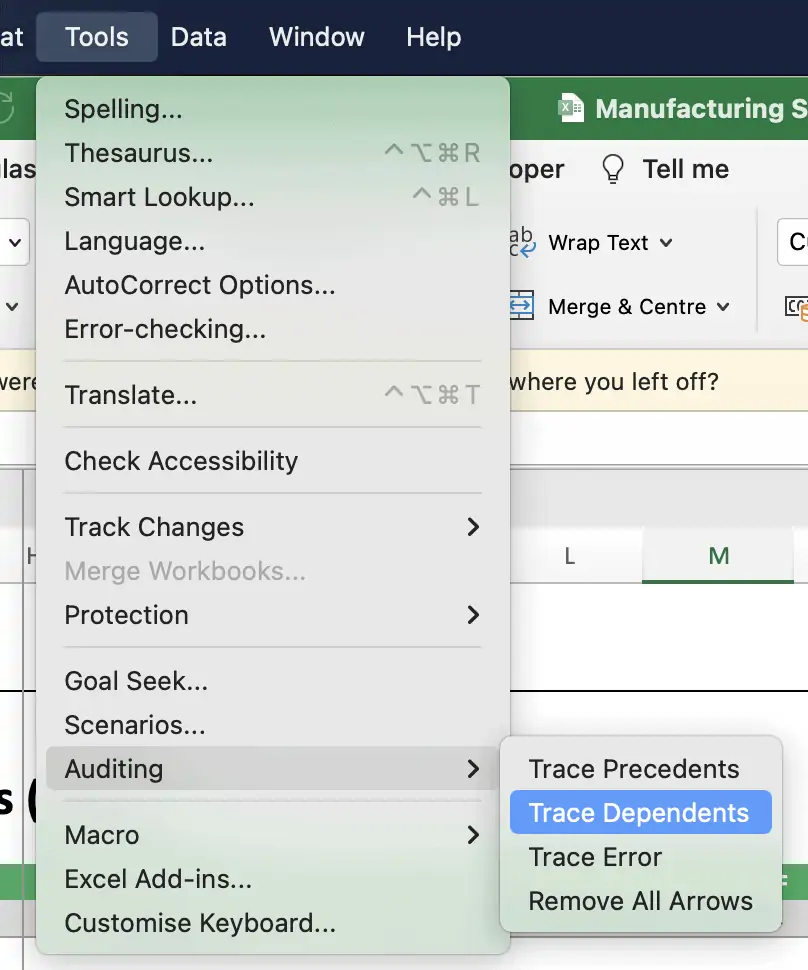
- Select cell M24 of the previous example again.
- Open the same menu, but this time choose the submenu Auditing / Trace Dependents.
Now you can see where a cell is linking to and which cells are dependent on our cell M24. In the above example, you can see that the costs of all following years are dependent on our cell M24 and the yearly total operating expenses (OPEX) in cell M37.

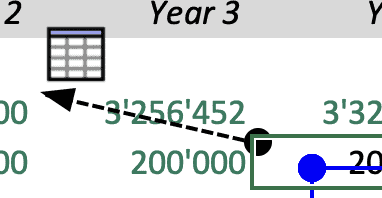
In addition, also a dotted line shows up with a table symbol. If you click on the dotted line, a popup will open indicating to which cells on other sheets our cell M24 links to.
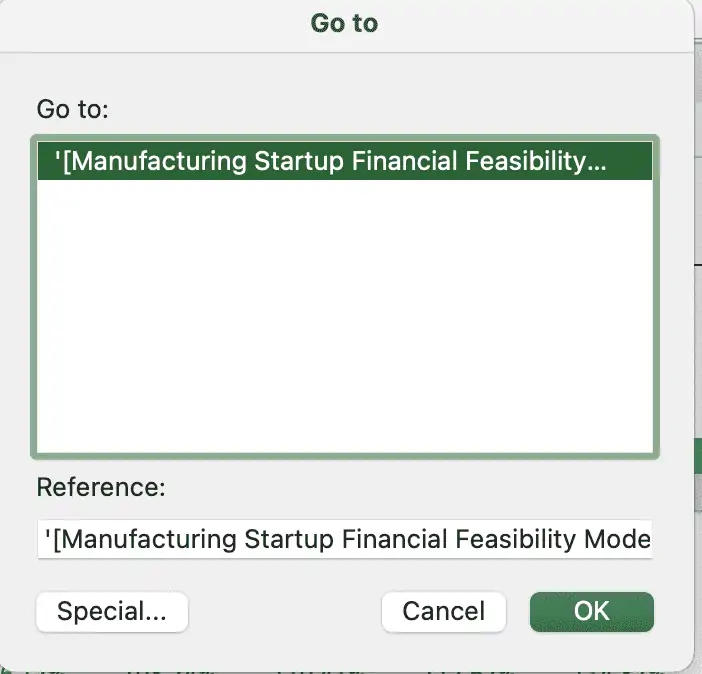
You can then click ok to follow the link and you will see that the cost is being used again on the Profit & Loss Statement of the company.

Conclusion: Auditing Formula in Excel is a great Help!
Whenever it comes to understanding formulas in Excel, the in-build Auditing Trace Precedents / Dependents is a great help to visually understand how cells are linked within a worksheet. This allows any user to better understand the formulas and the logic of our worksheets.


